How to use Prompt Research in SEO Stack
How to use the prompt research tools in SEO Stack.
Which brands does an AI platform recommend when someone asks a question about your market? Prompt Research lets you track that question, read each answer and inspect the sources behind it. This walkthrough follows one UK prompt from the tracking table into a Google AI Mode response.
Read the overview for the selected project
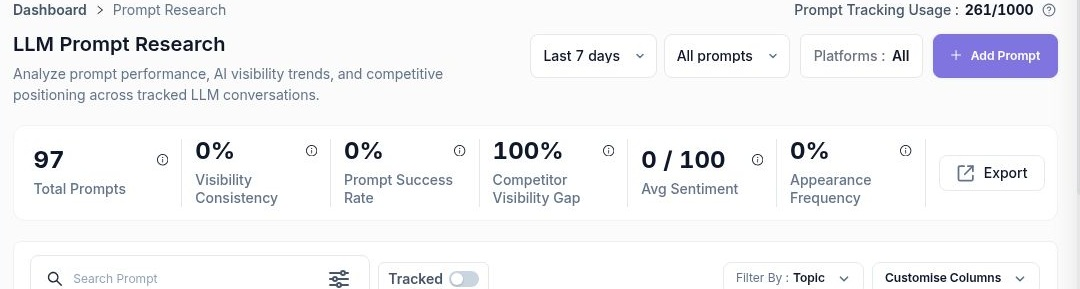
Open Prompt Research and check the project, date range, prompt and platform selectors. The example shows the last seven days across all prompts and platforms. There are 97 questions organised into 10 topics. The tracking usage counter reads 261/1,000. Use that counter to check capacity before adding a batch.
Read the overview cards together. Visibility Consistency describes how regularly the brand appears, Prompt Success summarises successful prompts, and Competitor Gap highlights the gap with competing brands. Here, consistency and success are both 0%, while the competitor gap is 100%. Open an individual prompt to see which brands appeared and what the question actually asked.
 image
Add a question you want to track
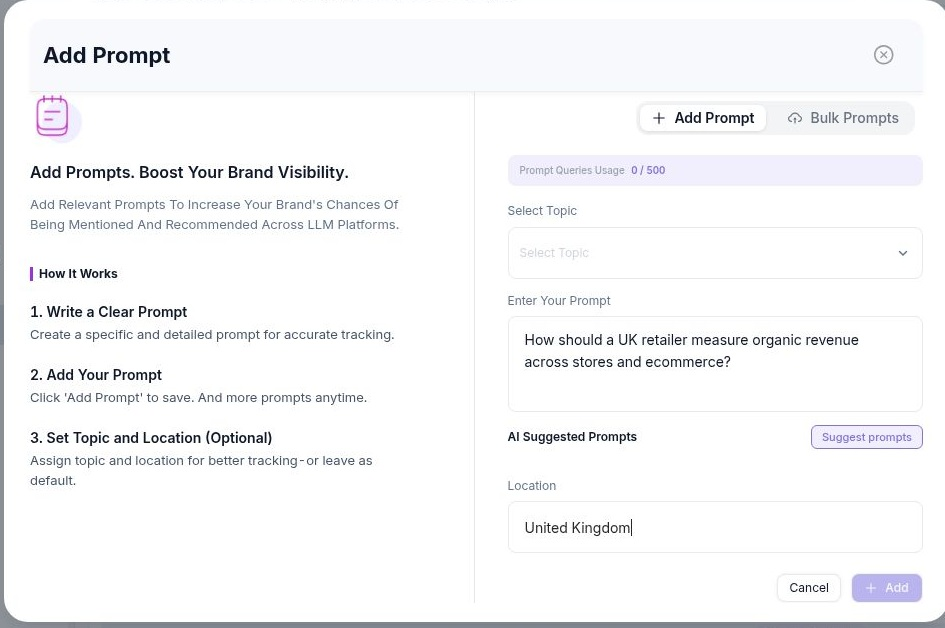
Select Add Prompt and enter the question as a prospective customer would ask it. For example, “Which UK agencies provide AI SEO services for ecommerce websites?” tests whether an agency makes a buyer’s shortlist. Include the market when it changes what would count as a relevant answer.
Assign an optional topic to keep related questions together and choose a location where relevant. Use Suggest prompts for ideas, edit the wording, then choose Add to save.
 image
Import an existing prompt list
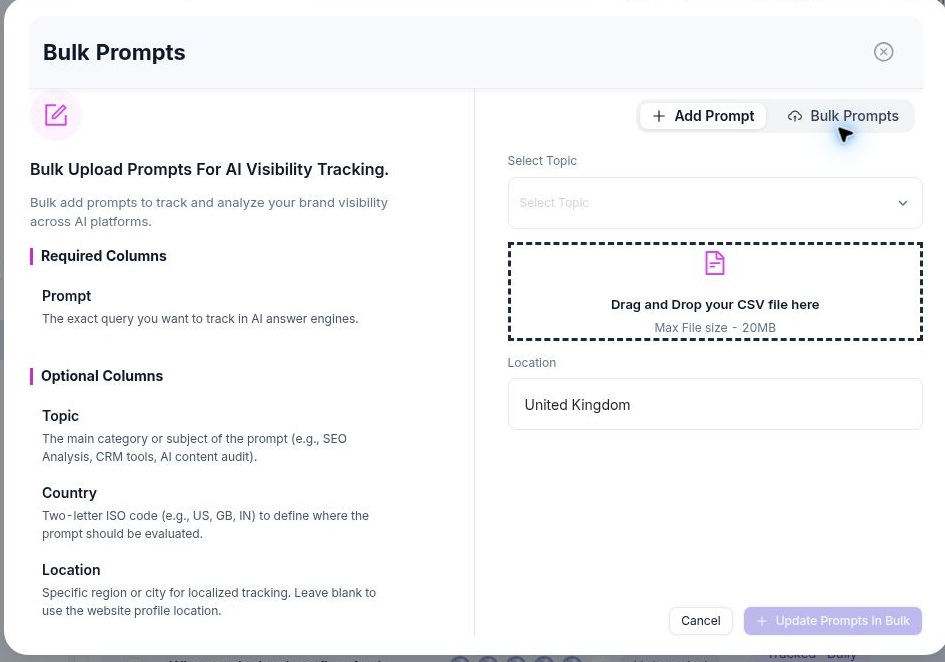
In the same window, switch to Bulk Prompts. Follow the column guidance shown beside the upload area, including which columns are required. Drop your CSV into the upload area or choose the file from your computer. The upload limit shown is 20 MB. Select Update Prompts In Bulk when the file is ready.
 image
Find and manage tracked prompts
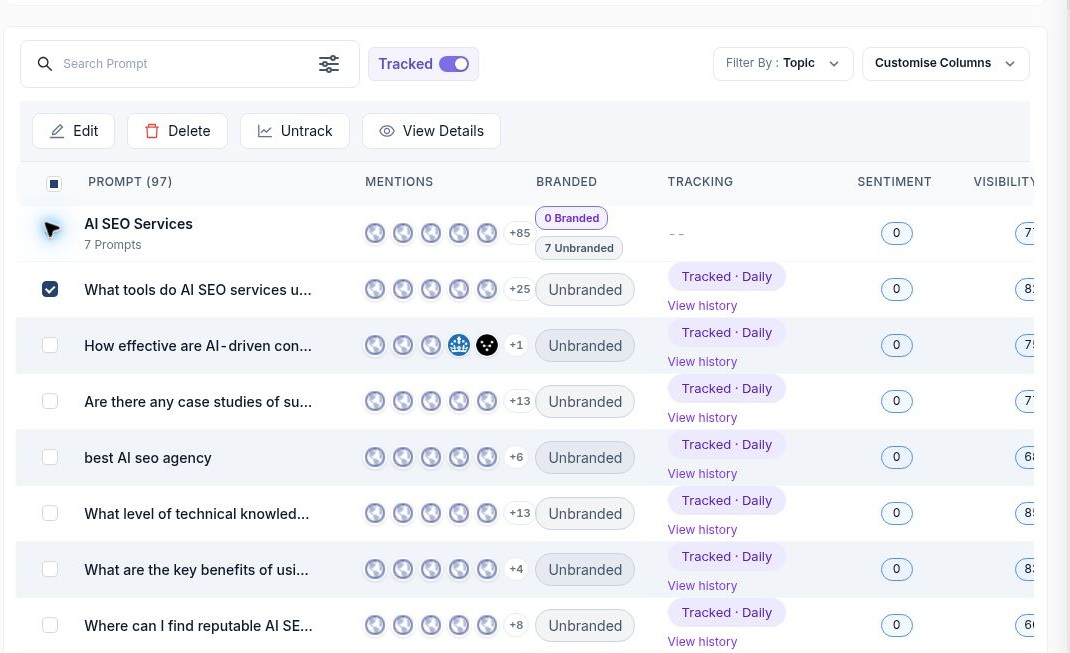
Use the search field to find a question by its wording, or Filter By Topic to review a group. Collapse topic groups to move through a long list. Branded and unbranded labels help you distinguish questions that name the brand from those where it must earn a mention.
Use Tracked to narrow the list, Customise Columns to choose the metrics in view and Export to take the results out of SEO Stack. Select a row to reveal Edit, Delete, Untrack and View Details. Choose View history to investigate past answers.
 image
Open the results for one question
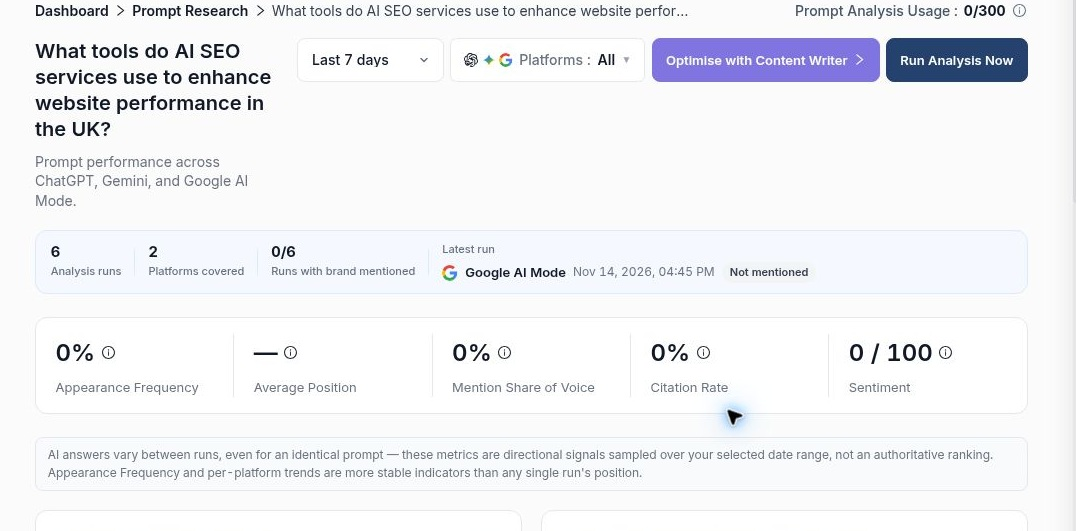
The example question asks “What tools do AI SEO services use to enhance website performance in the UK?” Open its history and check the platforms, region and run count before interpreting the cards. Across six UK runs on ChatGPT and Google AI Mode, Assertive Media appeared in zero answers and had a 0% citation rate. There is no brand position to report. With no mention to assess, a sentiment score of zero provides no evidence of a negative opinion.
The list showed a visibility score of 82 for this question. Use the detail report’s appearance rate when you want the percentage of answers containing your brand. Run Analysis Now starts a fresh analysis. Check the separate Prompt Analysis Usage counter first. Optimise with Content Writer opens the writing workflow.
 image
Compare platforms and inspect run history
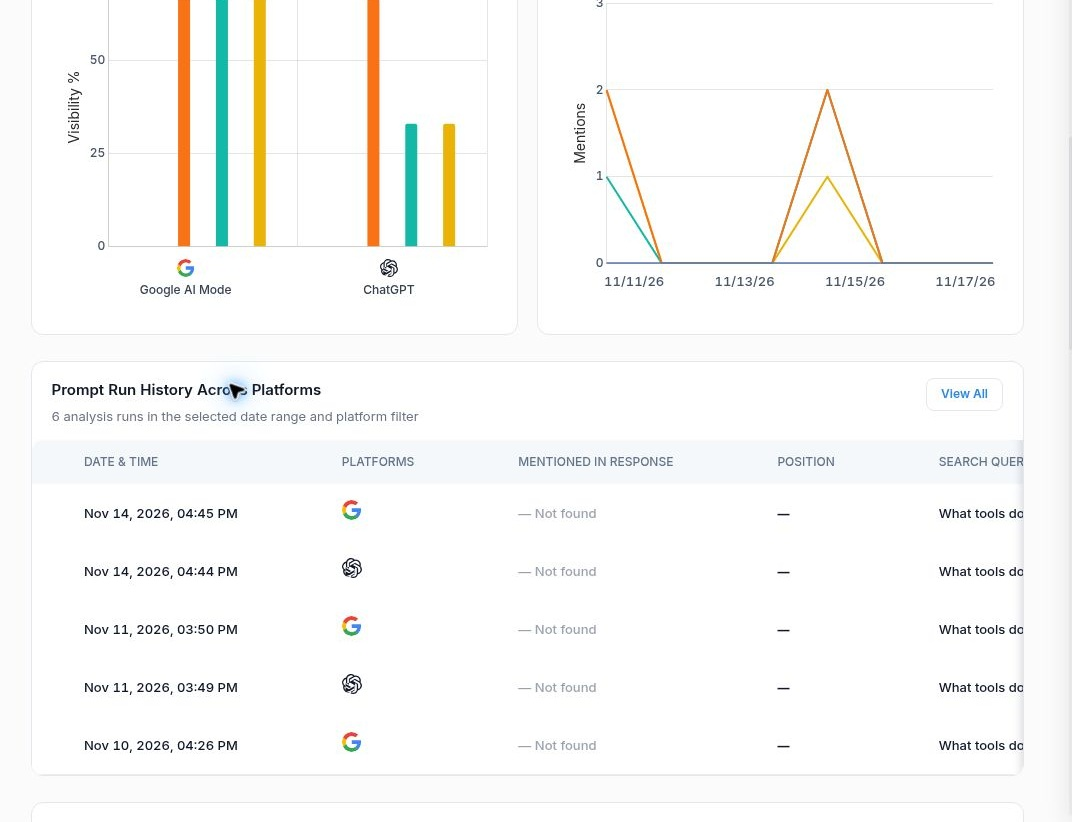
Switch the platform chart between appearance, mention share of voice, citation rate and sentiment. The trend chart lets you follow mentions or average rank over time. In the competitor comparison, Clearscope appeared in four of six answers (67%), with an average rank of 8 and a latest rank of 13. Ahrefs appeared in three (50%) and averaged 5.3. Frequency and position answer different questions.
Scroll to the run history and select View All for the full list. Pick a dated result and check the model, region, brand mention, position, underlying searches, response and citations. Here we follow the Google AI Mode run from 14 November at 4:45 pm.
 image
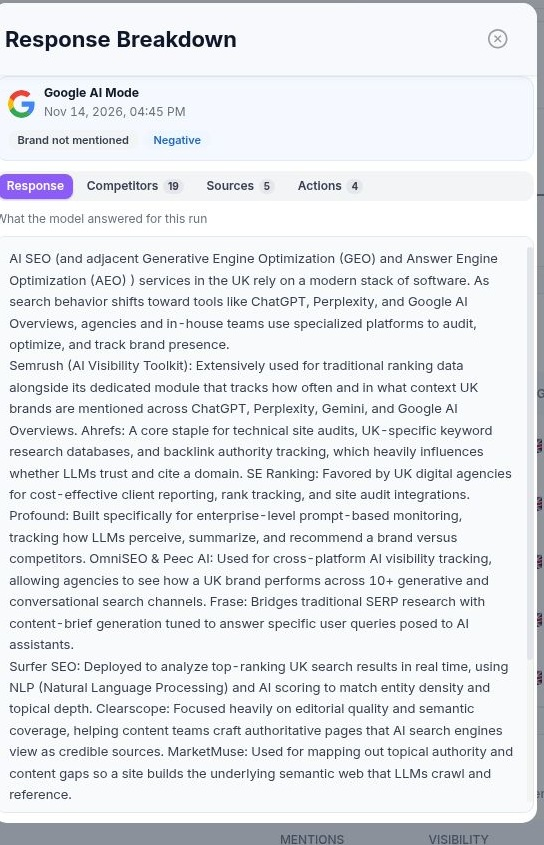
Read the model’s response
Open the run’s Response Breakdown and start on Response. Read enough of the original answer to see how the model interpreted the question. In this case it discussed software used by SEO providers. That distinction matters for an agency measuring whether buyers are likely to discover it.
 image
See which competitors appeared
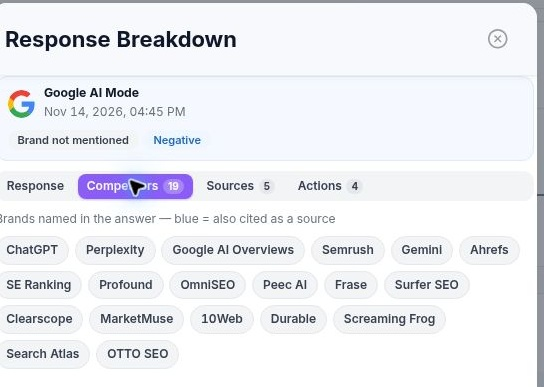
Open Competitors. This run identified 19 names. Blue highlighting marks names that were also cited. Use this list to check whether the answer featured businesses like yours, software suppliers or a mixture. A tool appearing in response to a tools question can explain a competitor gap without indicating that an agency lost a place on a supplier shortlist.
 image
Inspect the sources behind an answer
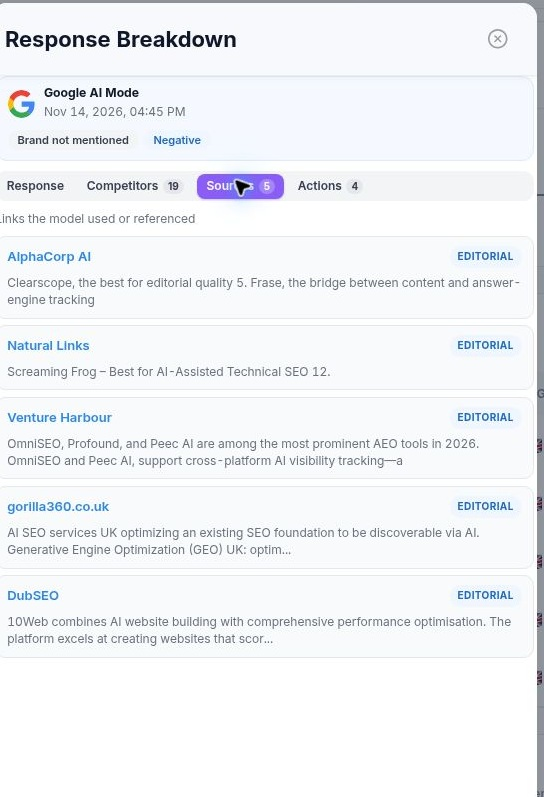
Open Sources to see the five sources recorded for this run. Read the excerpt beside each source to see what it contributed. One source, AlphaCorp AI, named Clearscope in connection with editorial quality. That gives you a specific claim to investigate when reviewing why a tool appeared.
 image
Evaluate the suggested actions
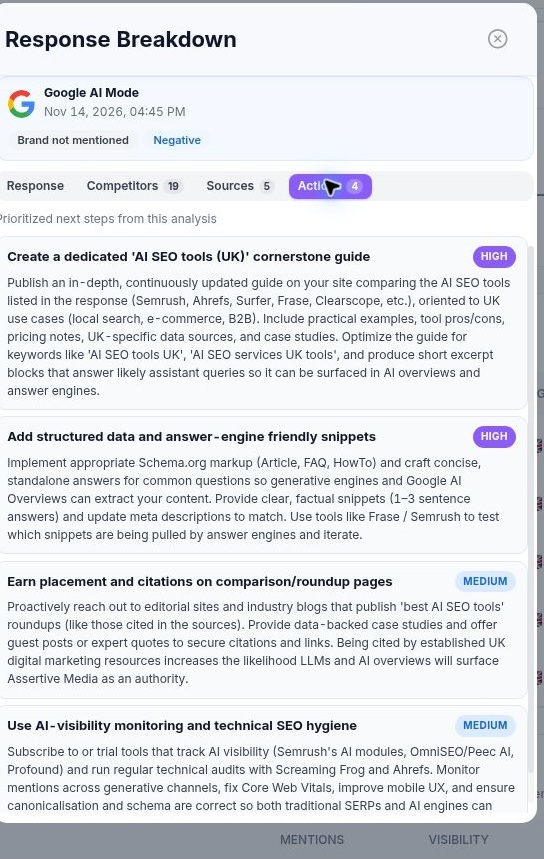
Open Actions to review the four suggestions attached to this response. One proposes a UK AI SEO tools guide. If your goal is to reach people comparing tools, decide whether you have first-hand testing or examples that would make that guide worth publishing. If you want to track agency selection, add a separate question asking which agencies a buyer should consider. Keep the original question so its history remains comparable.
 image
Compare sources and recommendations across runs
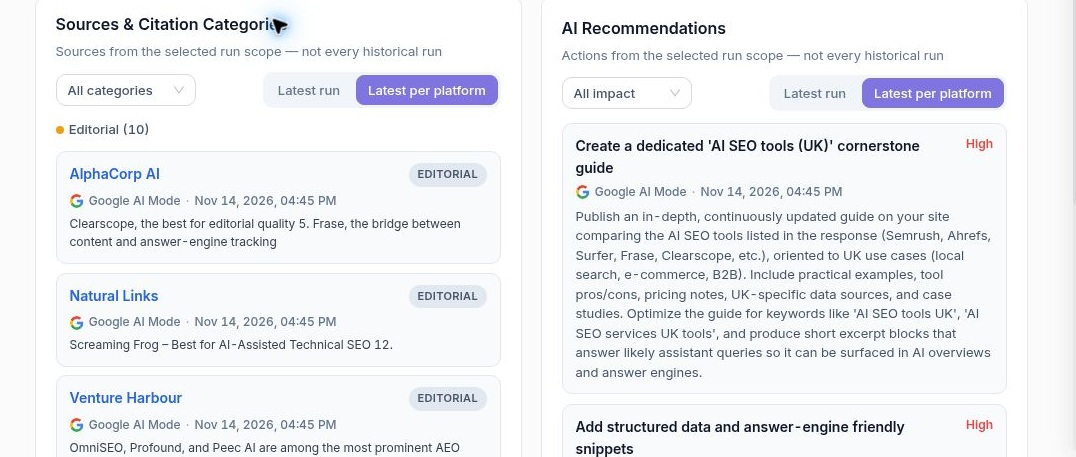
Back on the prompt detail page, scroll to Source & Citation Categories and AI Recommendations. Choose Latest run to investigate one answer or Latest per platform to compare the most recent result for each platform. Use the category and impact controls to narrow the evidence and suggested actions. Before briefing a writer, return to the relevant response and verify the source, the claim and how closely the question matches the audience you want to reach.
 image
More in Getting started
Website Overview: review your SEO and AI visibility performance
Use Website Overview to review search performance, AI visibility and SEO health, then choose the right report for your next action.
ReadWebsites and Dashboard: choose a project and review your portfolio
ReadWhat is SEO Stack?
What the platform does, what it sits on top of, and what it is not.
ReadHow data warehousing works
Why Google's 16-month window exists, and what SEO Stack does about it.
Read