Website Settings: configure your market, topics, competitors and groups
Website Settings supplies context for the selected website and organises its topics, competitors, pages and keywords. Use it to make AI suggestions relevant to your actual market and to define useful sets of pages or queries.
Set the website profile
- Select the correct website, then open Projects → Website Settings.
- Set Country, Language, Target Market and State / Region to match the business.
- Review the values and select Save when they are correct.
The page states that this context is reused for AI suggestions. A profile is not a Google ranking setting and does not change who can access the website. The example website had United Kingdom, English, National and England selected. For a local restaurant, review whether those values accurately represent its service area rather than copying them automatically.
Manage topics and competitors
Select Add Topic to open Manage Topics & Competitors. Step 1 lists existing topics with a Branded switch, Edit and Delete controls. To prepare a topic, enter its name, set its branded status and use Add. Suggest with AI is also offered. Select Next to reach the competitor step, which accepts a competitor domain and offers Add and Suggest with AI. Review the list and finish with Done.
The walkthrough opened both steps without changing the stored list. AI topic generation, editing, deletion and final saving were not executed. Add Competitors is also available on the settings page.
Choose topics that describe real customer needs: for example, restaurant menus, Kerala cuisine or South Indian restaurants in a particular location. Distinguish a question about your named brand from a general category question. Competitors should be relevant alternatives in the same market, not simply any domain appearing in an AI response.
Topics organise prompts; competitors supply a tracked comparison set. Neither is proof of demand or competitive strength. Check the questions, sources and results in Prompt Research and AI Visibility.
Create page and keyword groups
Groups let you name a selected set of URLs or queries. The creation dialogs use Search Console tables and include a date selector, Add Filters, Preset Filters and Expand.
| Group | Setup shown in the interface | Useful example |
|---|---|---|
| Page Group | Enter Group title, select page rows, choose Add selected URLs, then review and Create. | Commercial pages such as menu and booking. |
| Keyword Group | Enter Group Name, select query rows, choose Add selected keywords, then review and Create. | Menu-related queries or a brand query set. |
Wait for the table to load before interpreting an initial No data message. In the walkthrough the page dialog loaded seven URLs and the keyword dialog loaded 1,532 queries for Last 3 months. These are available rows in that scope, not fixed product limits. Tables showed clicks, impressions, CTR, position, last click date and click share. Use the date and filters to select suitable members, not to infer that membership will automatically update later.
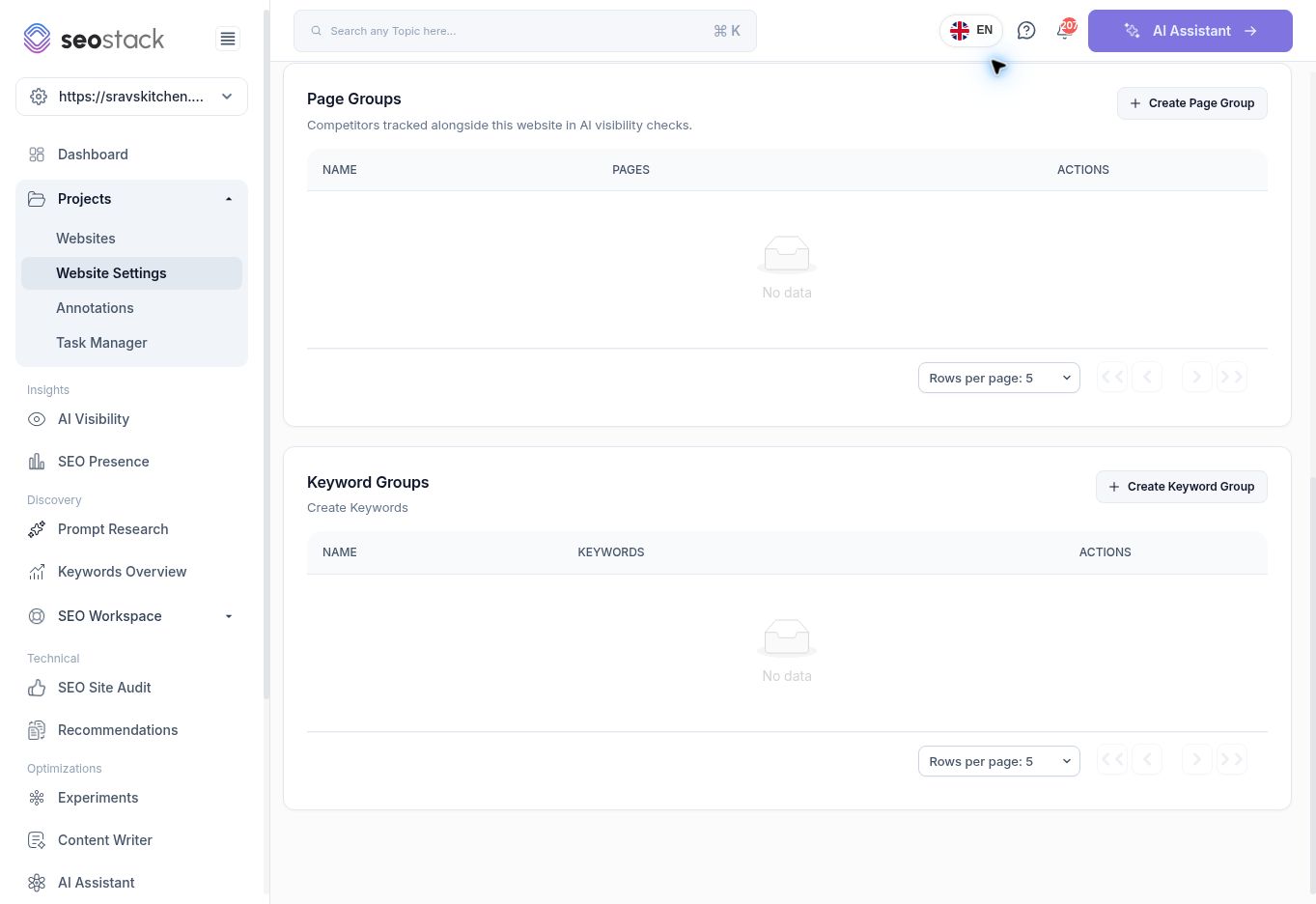 Page Groups and Keyword Groups on Website Settings.
No group was saved in this walkthrough. Automatic group refresh, downstream report compatibility and edit/delete behaviour remain unverified.
Page Groups and Keyword Groups on Website Settings.
No group was saved in this walkthrough. Automatic group refresh, downstream report compatibility and edit/delete behaviour remain unverified.
Example: prepare local visibility monitoring
Set the business's real market and language. Add topics representing its cuisine and location, then review the prompt wording in Prompt Research. Add genuinely comparable restaurants as competitors. Use a page group to organise important customer journeys, and a keyword group to keep brand searches separate from discovery searches.
If AI suggestions seem irrelevant, inspect this profile and topic list before treating the suggestions as a content strategy. An irrelevant keyword topic was observed elsewhere in staging, so human review of taxonomy is worthwhile.