AI Content Auditor: review a page against a target query
AI Content Auditor generates a query-focused assessment of a page. You choose the URL, search query, intent, niche and market, then review an AI summary, a content-alignment score and suggested improvements. It helps turn a broad content review into a practical editing brief.
When to use it
Use the auditor when an existing page receives relevant impressions but needs a closer review of how well its content answers the searcher's needs. It is also useful before rewriting a page or briefing a writer. Combine its suggestions with the page's actual content, Search Console performance and business requirements.
Generate an audit
- Open SEO Workspace → Content Tools → AI Content Auditor.
- Select New AI Report.
- Choose the page URL.
- Review the suggested lead queries by clicks and impressions. Select an appropriate suggestion or enter a Custom Query.
- Choose the intended search intent: Commercial, Informational, Navigational or Transactional.
- Check Niche and Market. The walkthrough used General and English – UK.
- Select Apply and wait for the report row to appear.
- In Actions, select the clipboard-shaped report button to open the findings.
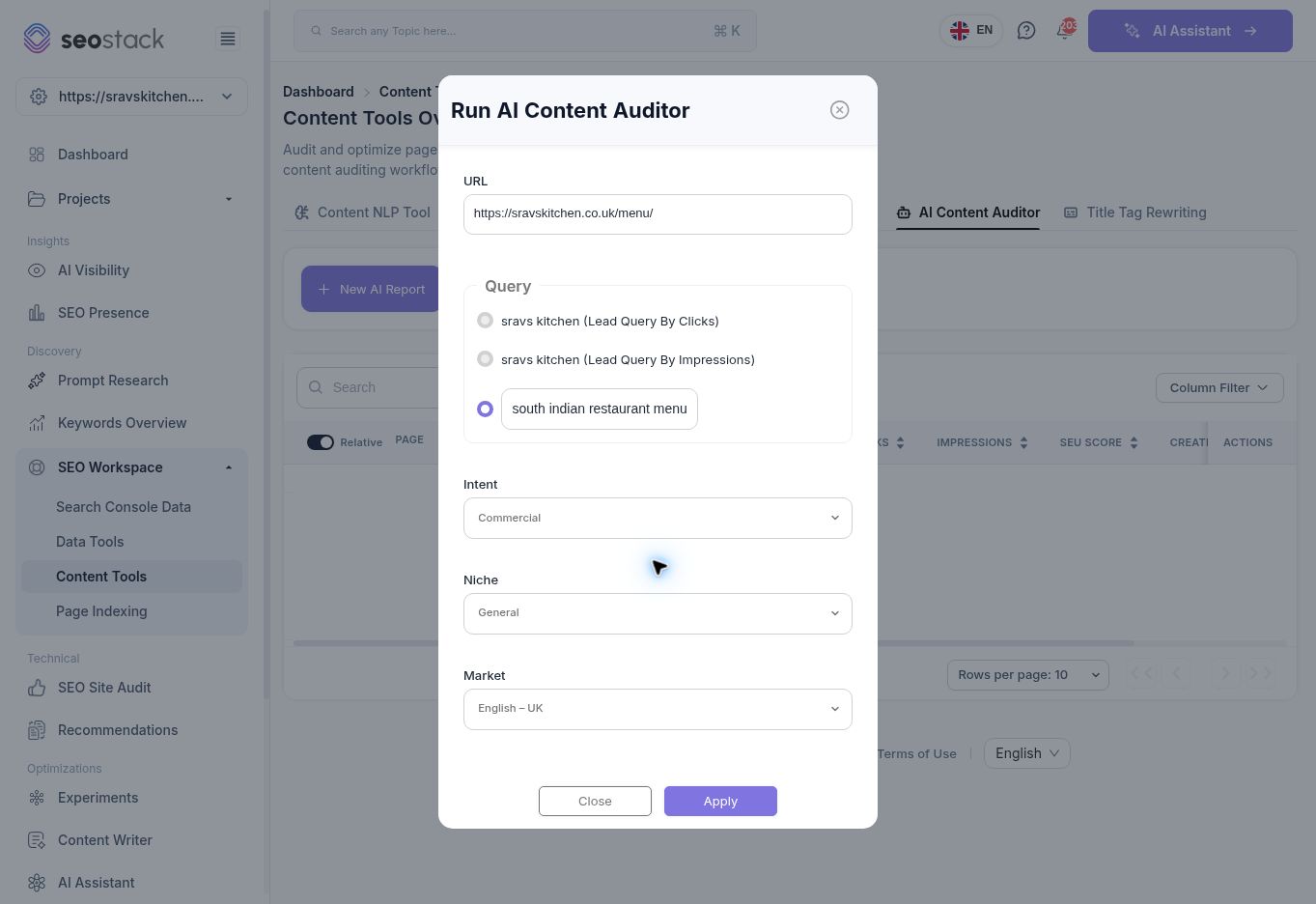 AI audit setup with the menu page, custom query, commercial intent and UK market.
The query should represent a real need the page can satisfy. The current top query may be a brand name, whereas a planned improvement may target a relevant non-branded phrase.
AI audit setup with the menu page, custom query, commercial intent and UK market.
The query should represent a real need the page can satisfy. The current top query may be a brand name, whereas a planned improvement may target a relevant non-branded phrase.
Read the report list
The table shows Page, Niche, Query, Clicks, Impressions, SEU Score, Created At, AI Tokens Used and Actions. Search and Column Filter help you find and display reports. The Page link opens Search Console Data for that URL; the report action opens the content assessment.
AI Tokens Used records usage for the report. It is not a monetary price. The tested report displayed 4,024 tokens. Confirm your account's allowance and pricing separately if you plan to generate many reports.
Interpret the findings
The report begins with the URL, chosen keyword and intent, market, niche, performance figures, lead queries, HTTP Status and SEU Score. Below these, it presents an AI summary and a separate content-alignment score out of 10, followed by improvement suggestions.
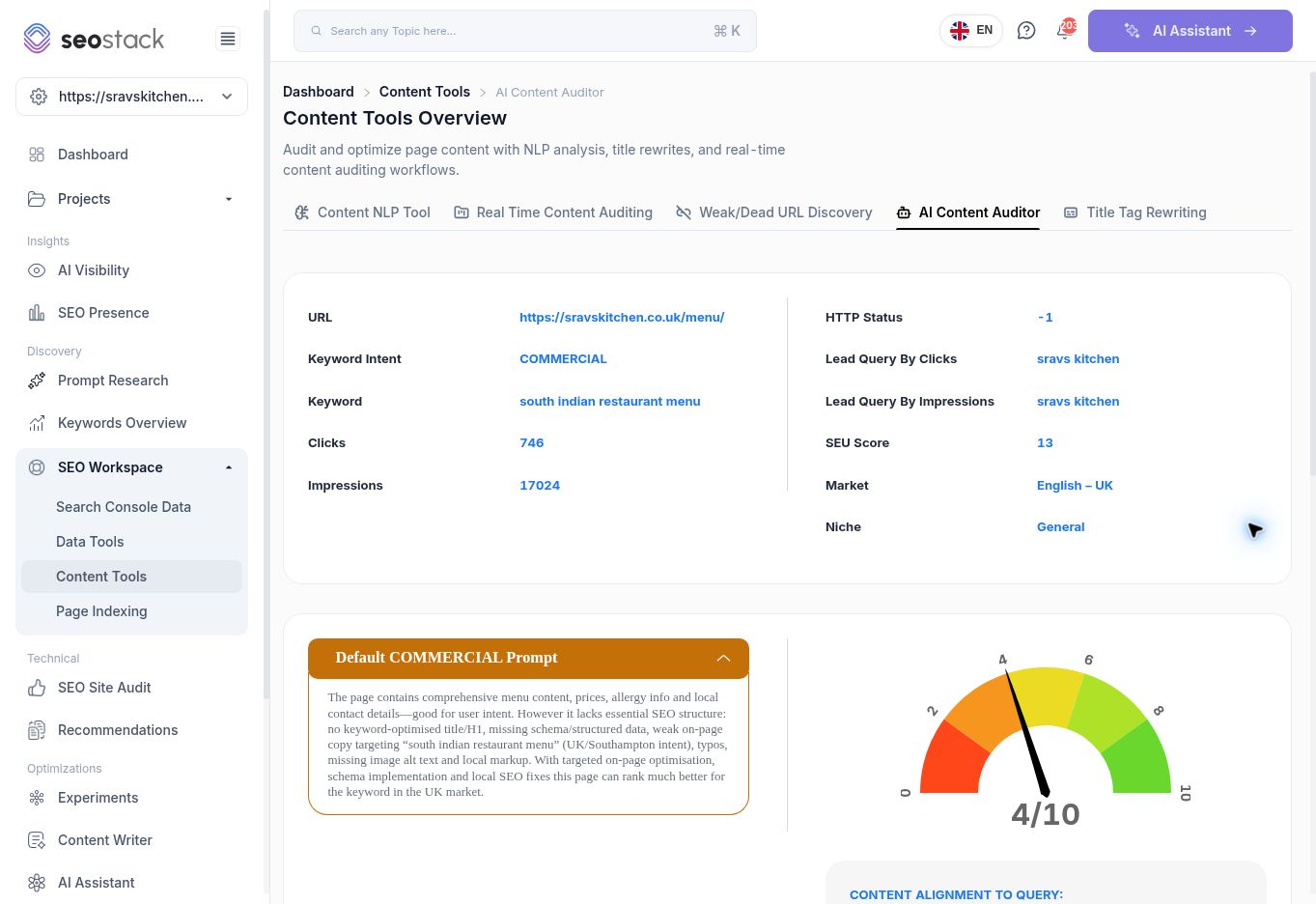 Generated content audit showing its context and the content-alignment score.
Keep the scores separate. In the walkthrough, SEU Score was 13, while content alignment was 4/10. They are different measures. Neither is a Google ranking score or a probability that the page will rank.
Generated content audit showing its context and the content-alignment score.
Keep the scores separate. In the walkthrough, SEU Score was 13, while content alignment was 4/10. They are different measures. Neither is a Google ranking score or a probability that the page will rank.
Treat the suggestions as review candidates. Verify claims about missing headings, metadata, images or structured data against the actual page before creating tasks. An AI recommendation does not establish a technical defect, guarantee a ranking improvement or confirm eligibility for a search feature.
The tested report showed HTTP Status -1. This is not a standard HTTP response code and does not prove the page is unavailable. Check the URL through URL Inspection or a technical audit before drawing a conclusion. The date window behind the report's Clicks and Impressions was not displayed, so do not compare those totals directly with another report using a known date range.
Example: improve a restaurant menu page
The walkthrough audited a menu page for south indian restaurant menu, with Commercial intent and the UK market. The AI suggested reviewing the title and headings, adding a useful introduction, correcting spelling, checking image descriptions and reviewing structured data.
Turn this into a short editing workflow:
- Confirm that the menu, prices and customer information are accurate.
- Check whether the existing title and headings clearly describe the page.
- Review each suggested content gap and keep only changes useful to customers.
- Validate technical recommendations separately before implementation.
- Record the changes and publication date in an annotation.
- Compare later performance using consistent dates, queries and page filters in Search Console Data.
A better score alone is not proof of a better business result. Review relevant clicks, enquiries or bookings alongside the usefulness and accuracy of the revised page.
Troubleshooting
If no report appears, check the selected URL, query, intent and market before trying again. An empty table can mean no reports have been created for the selected website. If a report contains unexpected facts or a non-standard status value, verify the source page rather than implementing the recommendations automatically.
The walkthrough verified report creation and opening the resulting assessment. It did not verify the circular-arrow action or every niche-specific prompt.