Team Members: manage access to website workspaces
Team Members brings account membership and website permissions into one screen. Use it to give colleagues access to the projects they work on and review existing access.
Review team access
Open Team Members in the sidebar. The page shows Total Team Members, Plan Seats Used and Assigned Workspaces, followed by a searchable table of first name, last name, email, permissions and actions. Column Filter controls the table's display. Existing rows show website permissions and offer Edit team member and Delete team member.
The interface's summary labels did not fully reconcile in staging: seven members were listed while a separate label showed 36 Standard Members. Use the actual member rows and workspace permissions for an access review; do not assume every summary number counts unique people.
Prepare an invitation
- Select Add Person.
- Enter the colleague's email, first name and last name.
- Use Filter workspaces to locate the intended website.
- Review its Read and Write permission checkboxes.
- Check all selected workspaces and the active-permission count before choosing Invite.
The form also includes All Workspaces, which applies permissions across the listed websites. Use that option only when access to every workspace is intended.
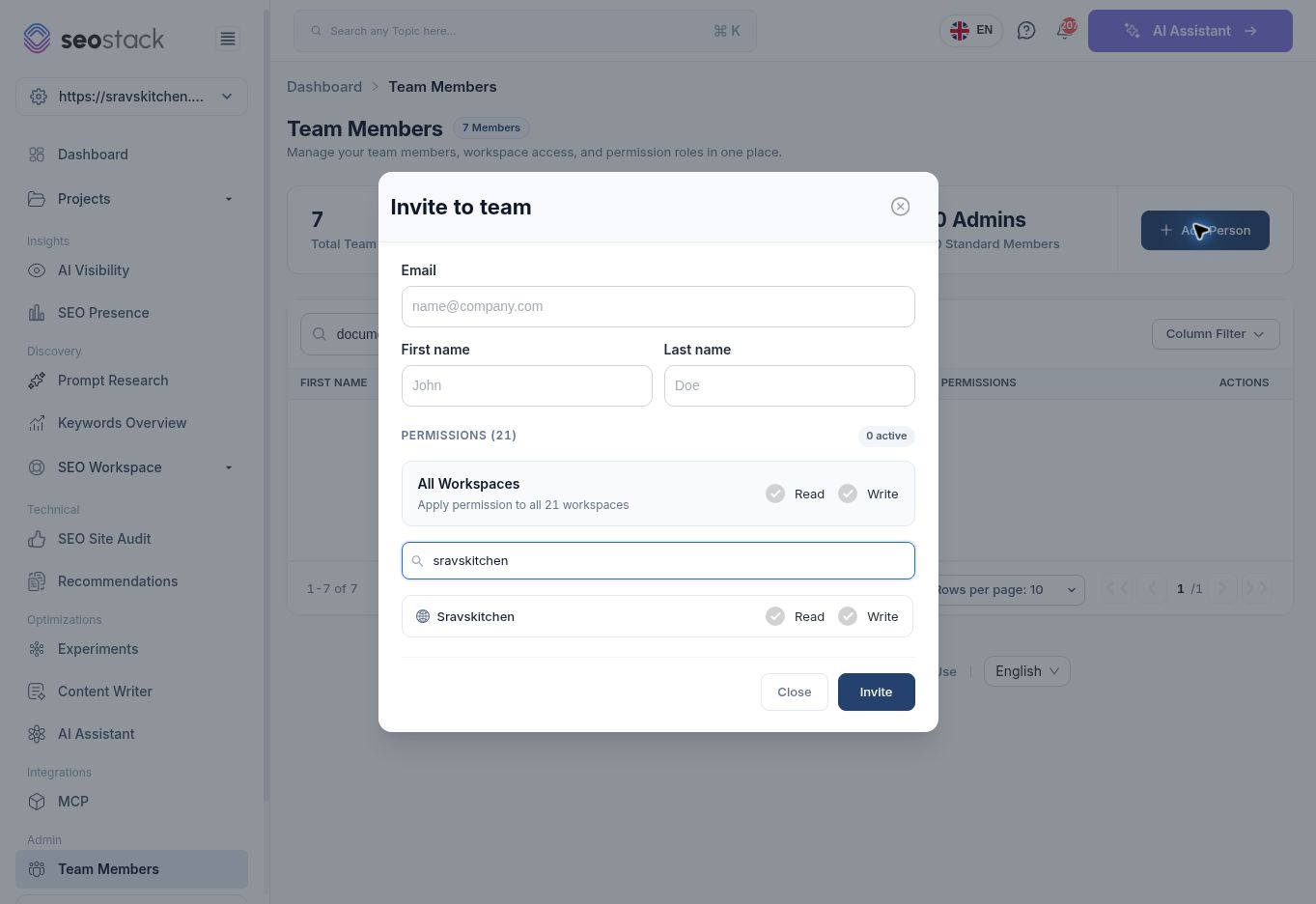 Invitation form filtered to a single workspace; no invitation was sent.
Read and Write are the exact permission labels presented. The full action-level permission matrix, inheritance and whether Write requires Read were not tested; do not describe either checkbox as a complete administrator role.
Invitation form filtered to a single workspace; no invitation was sent.
Read and Write are the exact permission labels presented. The full action-level permission matrix, inheritance and whether Write requires Read were not tested; do not describe either checkbox as a complete administrator role.
Example: bring in a content reviewer
An agency working across several clients can filter the invitation form to the reviewer's client website and select the permissions appropriate to their work. Review the selected domain carefully, especially if a workspace display name is unfamiliar. Confirm the colleague can access the intended project after the invitation is accepted.
Edit or remove existing access
Locate the member and use the row's Edit control to review their details. The Delete control is also present. The walkthrough inspected the invitation form without sending an invitation, editing a member or deleting access. Invitation delivery, acceptance, edit confirmation and removal behaviour remain unverified.
If someone cannot see a project, check their workspace access as well as their membership. Plan seat limits shown in this account are account-specific and should not be copied into public plan documentation as universal limits.