Recommendations: prioritise SEO opportunities and follow fix guides
Recommendations brings together opportunities from website health checks, audit findings, Search Console signals and setup information. It helps you choose work to investigate next and open relevant fix guides or tools.
Review your opportunities
- Select Recommendations in the sidebar.
- Let the data finish loading. The opportunity count and estimated traffic gain can update as Search Console signals arrive.
- Review Opportunities, Critical Issues, Quick Wins and the source label beneath SEO Health Score.
- Choose a category or search for an issue.
- Open a recommendation card or a Quick Wins entry.
- Review its evidence, affected URLs and fix guide before deciding on a change.
The categories observed were Technical, Off-Page SEO, On Page, Keyword Opportunity, Content, AI (GEO) and Website Setup. View All expands the initial list when only some opportunities are shown.
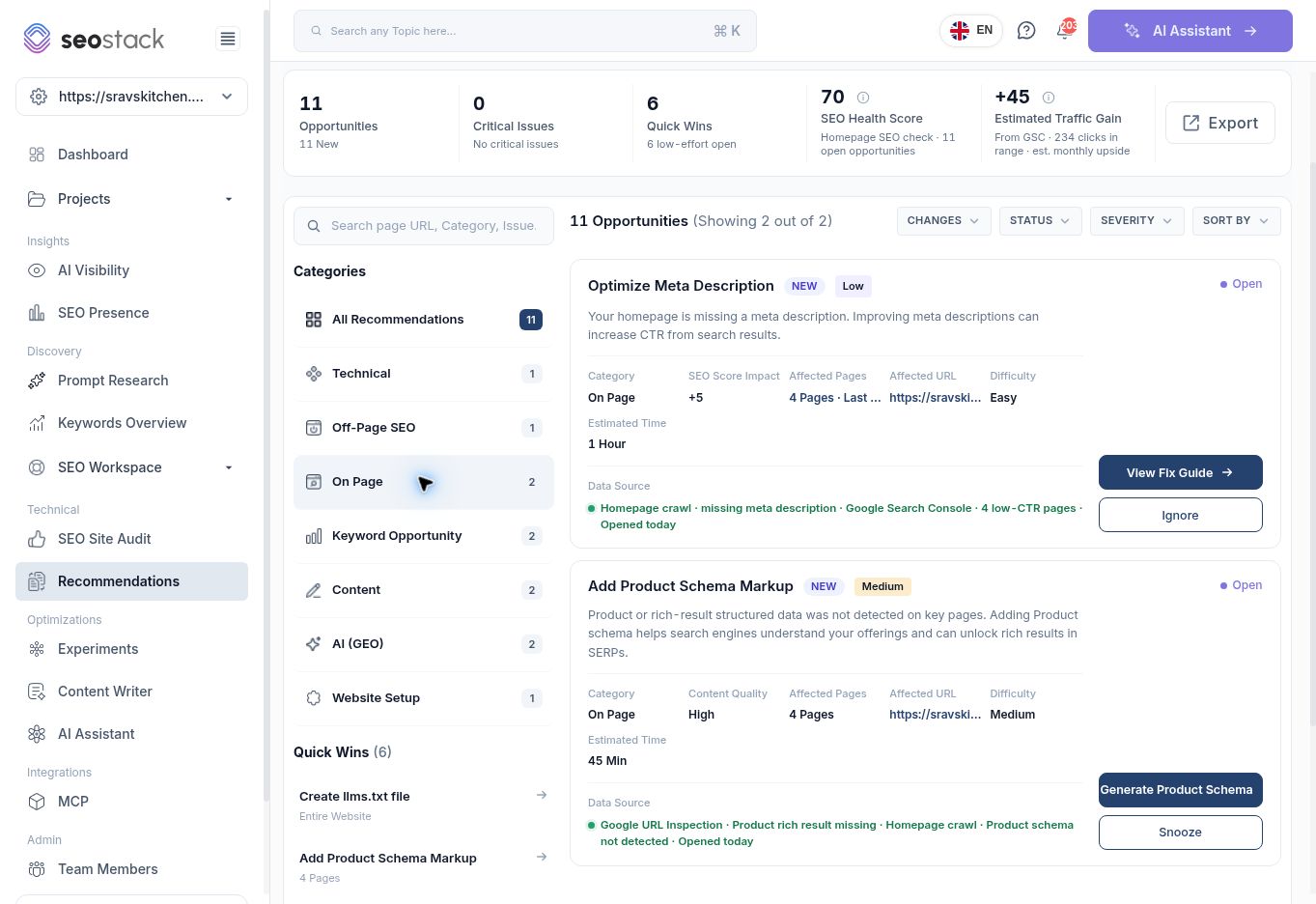 Recommendations filtered to On Page opportunities.
Understand a recommendation card
Read its Data Source first. A homepage crawl, full audit and Search Console performance signal answer different questions. Then check severity, scope, affected URLs, difficulty and estimated time. Use these to plan a review, not as guarantees of effort or results.
SEO Score Impact describes an estimated effect on the tool's score. It is not a Google score change. Estimated Traffic Gain is a modelled opportunity, not traffic already gained or a forecast you can promise. In the walkthrough, the summary changed from +0 while signals were loading to +45 estimated monthly upside, with 234 clicks in the stated range.
A zero Critical Issues count does not establish that the entire website is error-free. Check whether a full audit exists and what data the summary covers.
Filter the list
Use Changes, Status, Severity and Sort By to narrow the queue. The observed workflow-status choices were Open, In Progress, Snoozed and Ignored. These describe workflow organisation rather than proof that an issue has been fixed. Cards also offer Ignore; use it only after deciding the item is not relevant to your work.
The walkthrough tested category filtering and opened a fix guide. It did not change workflow statuses or ignore live recommendations.
Example: investigate a meta-description opportunity
The example Optimize Meta Description card combined a homepage missing-description finding with four low-CTR pages from the last 30 days. Its guide listed affected URLs, explained the opportunity and offered Open Content Editor.
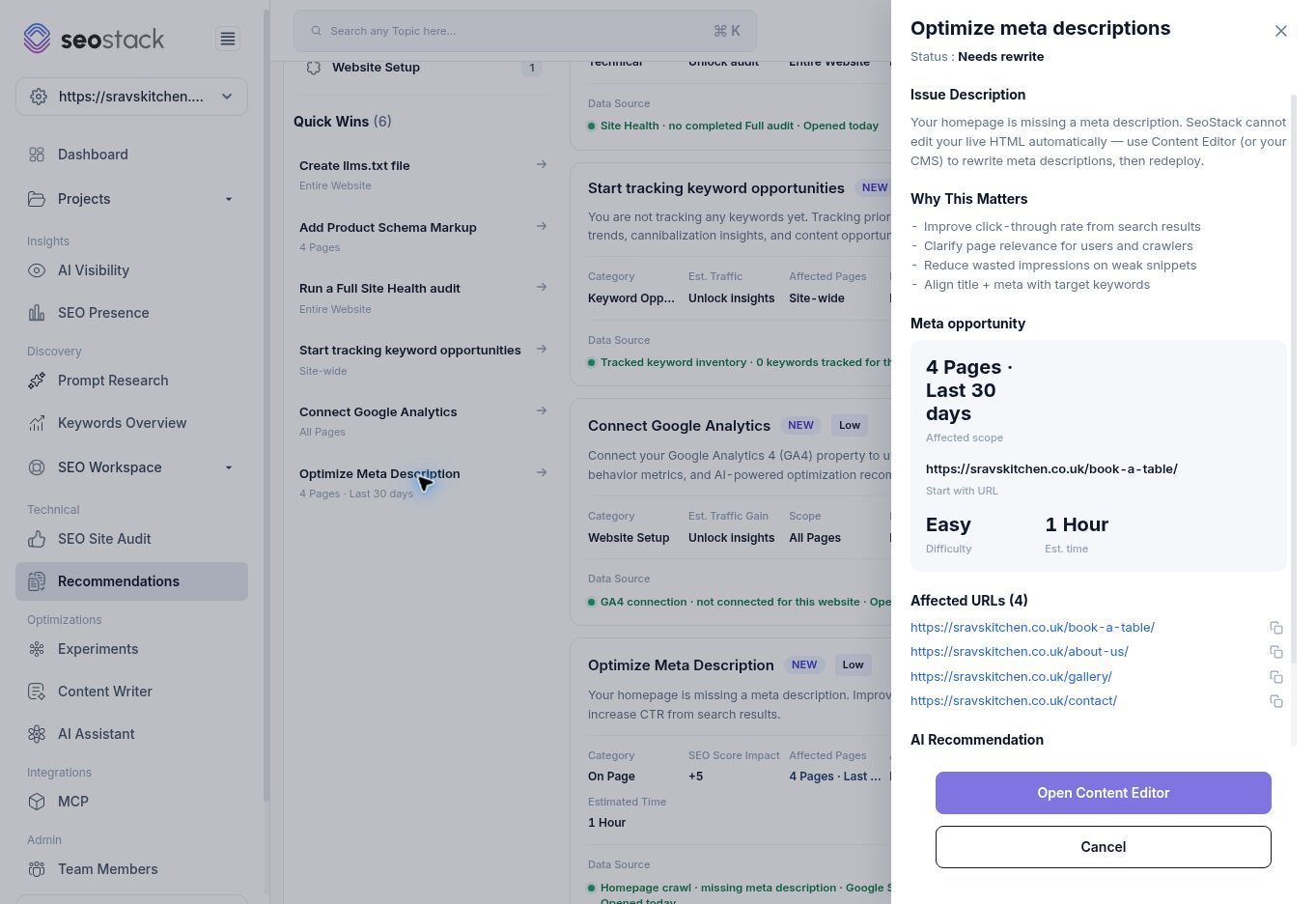 Meta-description fix guide with affected URLs and next action.
Do not assume that every listed low-CTR page has a missing description. Inspect each URL to establish its actual issue. Review the page's queries and search intent, then draft an accurate, useful description and publish it through the website's editing process. The guide explicitly states that SEO Stack cannot automatically edit the live HTML in this workflow.
Meta-description fix guide with affected URLs and next action.
Do not assume that every listed low-CTR page has a missing description. Inspect each URL to establish its actual issue. Review the page's queries and search intent, then draft an accurate, useful description and publish it through the website's editing process. The guide explicitly states that SEO Stack cannot automatically edit the live HTML in this workflow.
After deployment, record an annotation and review the next crawl or data refresh. Compare results using consistent date ranges and scope.
Use recommendations critically
An AI-generated recommendation can be a useful starting point while still needing validation. For example, check that a proposed structured-data type fits the real page; a generic Product recommendation is not proof that every page should use Product markup. Likewise, a suggested llms.txt file is not a guarantee of AI citations.
Prioritise actions with clear evidence, relevant business value and a practical implementation path. A short list of verified improvements is easier to measure than many unrelated changes applied at once.
Missing or changing results
If a recommendation asks you to run a full audit, connect analytics or track keywords, the relevant source may not yet be available. Follow the setup route appropriate to the feature. Allow loading to finish before taking screenshots or reporting counts, and check whether filters are hiding opportunities.