A Guide to Using Google Search Console Data Tools
In this KB we show you how to use the google search console data tools.
What is Search Console Data?
A practical guide to the tool, what the numbers mean, and how to use them to make SEO decisions.
 image
image
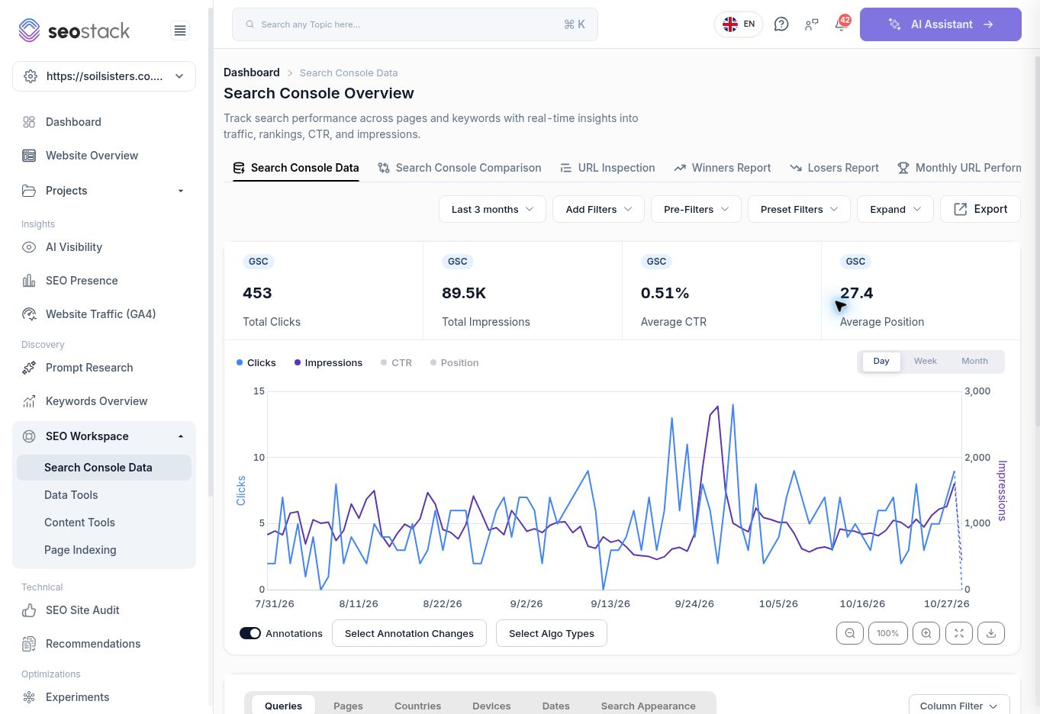
Live interface: Soil Sisters property, captured 30 October 2026.
Search Console Data is SEO Stack's workspace for exploring the connected website's Google Search Console performance. You can review search visibility and clicks over time, break the report down into queries and pages, filter the data, and compare performance with recorded website changes and algorithm events.
Start at SEO Workspace > Search Console Data. Check the website shown in the sidebar, then check the date range above the chart. The example above shows 453 clicks, 89.5K impressions, 0.51% CTR and an average position of 27.4 for the selected three-month period.
The point is to move from “traffic changed” to “these queries or pages changed, during this period, and this is what we need to investigate”. The report supplies evidence; the next action depends on the cause you establish.
Scope: this guide covers the main report and its comparison workflow. Related tabs such as Winners Report, Losers Report, URL Inspection and Monthly URL Performance are visible entry points, not separately audited tools in this guide. This is an illustrated guide and recording outline, not a finished video.
What the data actually means
Understand the four core metrics before deciding whether performance has improved.
| Metric | What it means | How to read it |
|---|---|---|
| Clicks | Recorded clicks from Google results to the site. | Search clicks are not the same measurement as GA4 sessions, users or leads. |
| Impressions | Recorded appearances of a link under Google's result-specific counting rules. | These describe visibility for this website. They are not total keyword search volume. |
| CTR | Clicks divided by impressions, multiplied by 100. | 20 clicks / 1,000 impressions = 2% CTR. Compare similar searches and segments. |
| Average position | Average topmost result position for the relevant aggregation. | A smaller number is better, but this is an average across the recorded impressions, not a fixed live rank. |
Read the metrics together
More clicks with worse average position can happen when a website begins appearing for many additional searches at lower positions. More impressions with a lower CTR can also reflect a changing query mix. Neither pattern alone proves an SEO problem.
For a combined CTR, divide total clicks by total impressions. Do not take a simple average of row percentages. Likewise, do not average average-position rows without the underlying weights.
Use the example correctly
The headline 27.4 average position does not mean every keyword ranks 27th. Break the report down by query, page, country or device to understand what is contributing to the overall figure. Round figures such as 89.5K are display abbreviations, so hand calculations using them can differ slightly from the unrounded data.
Queries, pages and the other views
Use each tab to answer a different question about the same selected reporting period.
 image
image
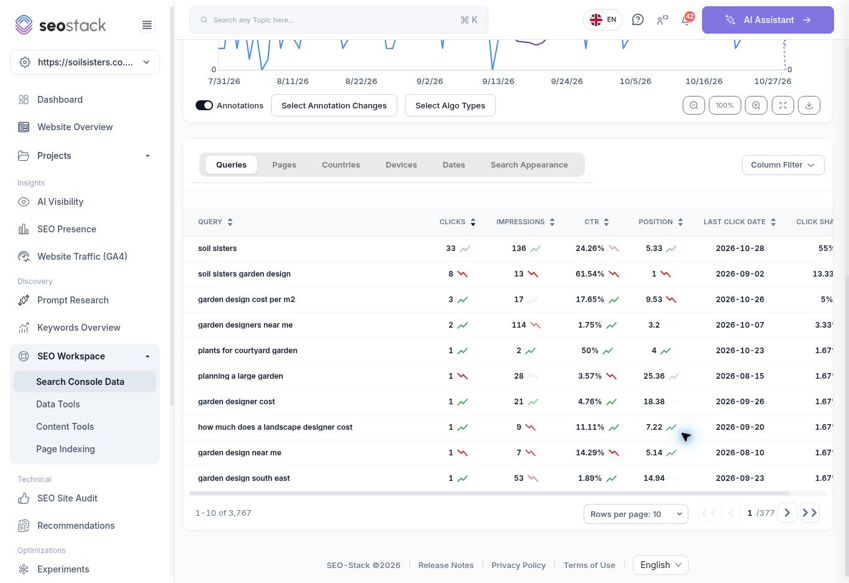
Queries view: search terms, performance metrics, row count and pagination.
| View | Question it helps answer |
|---|---|
| Queries | Which reported searches are showing the site and generating clicks? |
| Pages | Which reported URLs are receiving visibility and clicks? |
| Countries | Where did the searches originate? |
| Devices | How does performance vary by mobile, desktop or tablet? |
| Dates | When did the movement happen? |
| Search Appearance | Which reported search-result features contributed performance? |
In this example there are 3,767 query rows for the three-month period, although the screen shows ten at a time. Use Rows per page and the navigation controls below the table. The number of query rows describes this report's available distinct query entries; it is not the number of searches or a guaranteed list of every query Google has seen.
Last Click Date identifies the date shown by SEO Stack for a row's most recent recorded click in this view. It does not establish when the page was indexed, published or last crawled.
Filter the report around the question
A useful report starts with a clearly defined segment, rather than every query and URL mixed together.
 image
image
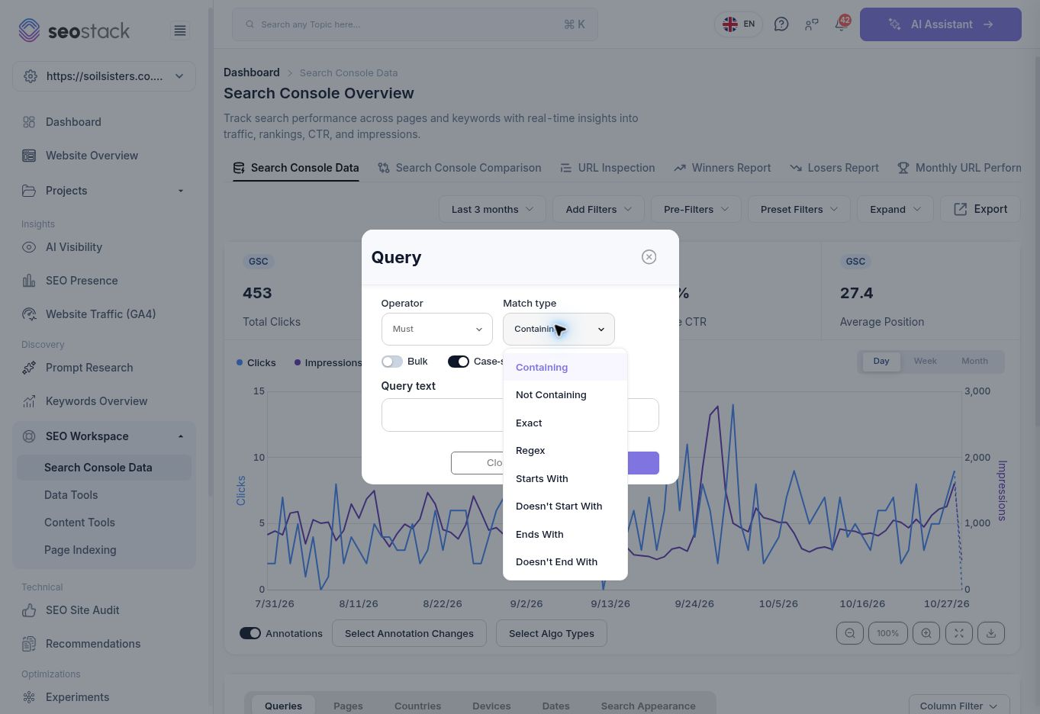
Add Filters > Query: the available match types.
Open Add Filters and choose Query, Page, Country or Device. In the query dialog, the observed match options are Containing, Not Containing, Exact, Regex, Starts With, Doesn't Start With, Ends With and Doesn't End With. The dialog also exposes Bulk and Case-sensitive controls.
A query filter can isolate a topic such as “garden design”, exclude a brand string, or focus on an exact search. A page filter can isolate a particular URL or a path such as /blogs/. Country and device filters help avoid mixing markets and device behaviour.
Pre-Filters offers URL patterns such as trailing slash and WWW variants, plus Informational, Navigational, Transactional and Commercial query shortcuts. Treat intent labels as useful starting segments and inspect the actual terms. Preset Filters opens a reusable filter library with group and new-preset controls.
Expand reveals the active filters; the tested query filter could be removed with Clear. Check active filters before quoting totals. Different filters can change which underlying data is included. The Operator menu displayed Must; this guide does not assume untested multi-filter logic.
Use filters to find SEO opportunities
Separate brand demand from topic visibility, then investigate the searches with meaningful business value.
 image
image
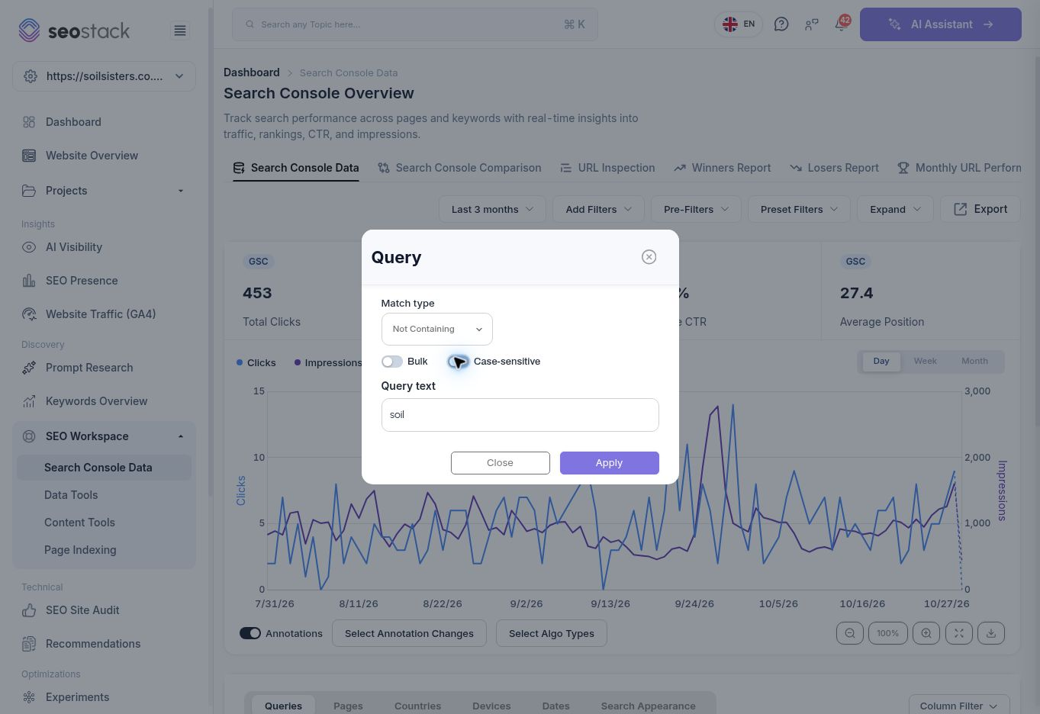
Tested example: Query > Not Containing > soil, with case sensitivity disabled.
1. Open Add Filters > Query. Choose Not Containing, enter a brand string and review the Case-sensitive setting. Click Apply. In this demonstration, excluding “soil” removed the obvious Soil Sisters terms from the query table.
2. Treat that as a demonstration, not a complete brand classifier. “Soil” could exclude legitimate non-brand gardening searches. For a production report, build a reviewed list of actual brand names, misspellings and variants, then validate the remaining rows.
3. Review relevant queries with visibility and limited clicks. Compare their position, country, device and intent. “Garden designers near me” showed 114 impressions and two clicks in the three-month example: worth inspecting, but too little evidence for a confident forecast.
4. Investigate the matching landing page, its search result and competitors before editing. Check whether the page answers the query, whether the title accurately communicates its value, and whether search features affect click behaviour. High impressions and low CTR alone do not diagnose the cause.
Optional scenario: impressions × a plausible CTR improvement gives an estimated click opportunity. For 10,000 impressions and a one-percentage-point improvement, that is 100 additional clicks. This is an assumption-based scenario, not a tool prediction or a promise.
Compare periods properly
Use Search Console Comparison to understand what changed, and keep the period labels visible.
 image
image
The comparison date menu offers previous-period, year-over-year and custom comparisons.
Open the Search Console Comparison tab. Click its comparison date button. The live menu offered 7 days, 28 days, 3 months, 6 months and 12 months against the previous period or year over year, plus Custom date ranges.
Choose a comparison that answers your question. Consecutive periods help investigate a recent movement. Year-over-year views help test a seasonal explanation. Check equal period length, weekday mix, filters and data availability; exclude incomplete recent days from a finished analysis.
In the live six-month example, the site recorded 773 versus 622 clicks, a gain of 151 or approximately 24.28%. That headline improvement did not mean every page improved. Switch between Queries and Pages to see the individual contributions.
The comparison table shows current-period values, previous-period values and differences for clicks, impressions, CTR and position. Column Filter lets you show or hide these fields. Simplify the table to the metrics relevant to the question you are answering.
Find and quantify click gaps
Start with the largest absolute losses. A large percentage change from a tiny base can distract from the real contribution.
 image
image
Pages comparison, sorted by Clicks (Difference) to bring losses to the top.
Workflow: open Comparison > confirm the two periods > select Pages > click the Clicks (Difference) column heading. Verify that the most negative values are at the top; reverse the sort if necessary. Repeat for Queries to locate the searches behind the movement.
| Observed example | Previous | Current | Difference |
|---|---|---|---|
| Homepage / | 274 | 203 | -71 |
| /blogs/gardens-to-visit/ | 40 | 6 | -34 |
| Winter garden revival article | 20 | 1 | -19 |
These three rows lost 124 clicks combined. That is their gross loss, not a 124-click site-wide decline: the overall site gained 151 clicks because gains elsewhere offset losses. To calculate a theme's share of all lost clicks, divide its losses by the sum of all negative differences in the same report scope. Include every result row, not just this first page.
For seasonally named pages such as a winter-garden article, repeat the comparison year over year before calling the loss a ranking problem. For broader patterns, group affected URLs by service, topic, directory or template and inspect each group.
Work out why the clicks changed
The difference column locates the movement. The other metrics help you decide what to check next.
| Pattern | Possible explanation to test | Next investigation |
|---|---|---|
| Clicks down; impressions down; matched-query positions stable | Lower demand or fewer relevant searches served. | Check seasonality, query coverage and market trends. |
| Clicks down; matched-query positions worse | Reduced ranking visibility. | Inspect affected landing pages, competitors and technical or content changes. |
| Clicks down; impressions stable or up; CTR down | Different query mix or changed click behaviour. | Segment device/country/query; inspect titles, intent and the live search results. |
| One page loses; another gains for similar queries | Possible URL substitution or cannibalisation. | Check query-to-URL allocation, canonicals and which page should rank. |
| Many URLs lose together | Potential shared issue or broad change. | Check templates, indexing, deployments and update timing. |
A worked example from this report
The homepage had 3,171 versus 2,858 impressions, but clicks fell from 274 to 203. CTR fell from 9.59% to 6.4%, while average position worsened from 20.32 to 35.81. That makes query mix and ranking visibility sensible next checks; it does not prove a title problem or an algorithm penalty.
Use a page filter to isolate the homepage, then review Queries. Compare the same queries between periods and check the relevant devices and countries. A site-wide average can change simply because the mix of impressions changed.
Turn the investigation into a task
Record the affected page, query group, absolute loss, supporting metrics, suspected cause and evidence needed. Prioritise commercially relevant losses and fix the established issue. Review leads or revenue separately in GA4 before assuming that every recovered click has equal business value.
These are diagnostic hypotheses, not automatic rules. Google recommends examining affected page/query groups and wider demand trends when investigating traffic changes. [5]
Record website changes with annotations
An annotation makes the change history visible when you return to evaluate the outcome.
 image
image
Comparison > Add Annotation: Details, Changes, and Metrics & Task.
In the tested comparison view, click Add Annotation. Under Details, the form provides URLs, a required Date, Authors and a Description. Use the actual implementation date and affected URLs. Explain exactly what changed, rather than writing “SEO improvements”.
Under Changes, select the relevant categories. The live form exposed 44 types, including Title & Meta Changes, Internal Link Improvements, Content Refresh, Redirect Changes and Site / Domain Migration.
Under Metrics & Task, optional baseline fields include Content Score, Majestic Trust Flow, AHREFS RD Count and Internal Link Count, plus a Linked Task selector. Only enter figures you have measured. These are supporting baselines, not Google ranking metrics or automatically verified measurements.
A good description could be: “Updated the garden design cost page title and pricing examples; added three internal links from relevant service pages.” The form also offers an email-alert option. Choose it only if wanted. Review the form, then use its final Add Annotation action when logging a real change.
Demonstration boundary: the form and its tabs were inspected, then closed. No fictional annotation, baseline or email alert was saved to the live property.
Evaluate work against the trend
Use the annotation controls to reduce noise and compare the right page or group before and after implementation.
 image
image
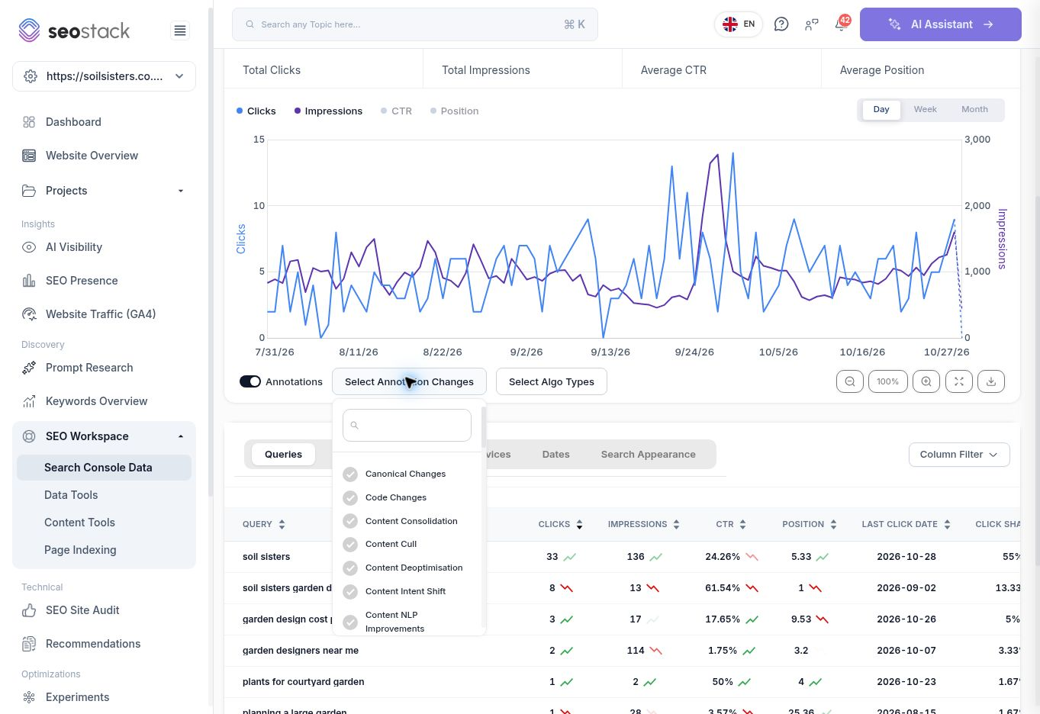
Annotations switch and Select Annotation Changes menu beneath the chart.
1. Turn on Annotations below the chart. Open Select Annotation Changes and choose categories relevant to the work, such as internal linking or content refresh. This control filters the types of change markers displayed.
2. Select a date range covering a sensible baseline and follow-up period. Filter the report to the affected URL or page group, and keep the scope the same on both sides of the comparison.
3. Review clicks, impressions, CTR and matched-query position trends after the change. Give Google time to discover and process a change; choose the review window according to data volume and the nature of the work, rather than assuming a universal seven-day outcome.
4. Check what else happened: core updates, seasonality, competing pages, releases and new content. Where practical, compare against similar unchanged pages. Several changes on the same date make individual effects harder to separate.
A rise after an annotation is a correlation. The annotation tells you when something was recorded; it does not prove that the change caused the rise. Use the timeline to organise the evidence and decide whether to retain, improve or investigate the work further.
Use core update overlays
Line up performance movement with algorithm events, then test the explanation instead of assuming causation.
 image
image
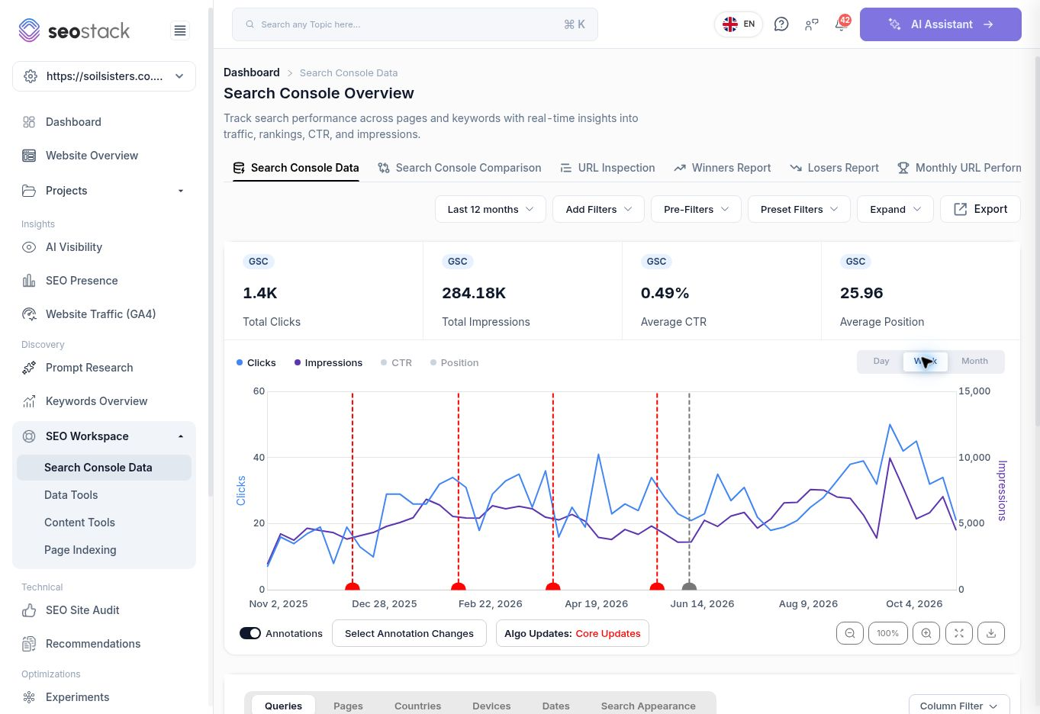
Last 12 months, weekly chart, Core Updates selected. Red event markers are visible.
Below the chart, open Select Algo Types and select Core Updates. Close the menu and choose a date range that includes the event. The tested example used Last 12 months and Week. A separate menu snapshot shows the Core Updates selection explicitly enabled.
Other visible categories included Spam Updates, Review Updates, Helpful Content Updates, Link Spam Updates, AI Overview Rollout, Indexing Issues and &num=100 Removal. These are product event categories; their presence does not mean every category applies to the selected property or period.
Look for sustained movement around the event and identify which pages or queries changed. Confirm the update's official start and completion dates in Google's Search Status Dashboard. The markers supply context; this guide has not independently audited the product's event-date catalogue.
Google recommends confirming that a core update has finished, waiting at least a full week after completion, then comparing an appropriate post-update week with a week before rollout. Review affected pages and queries before making broad changes. [6]
Keep annotations visible so an internal release is not mistaken for an update effect. Use Day to inspect timing, and Week or Month to see the broader trend. A visual overlap alone is not evidence of an algorithm penalty.
Data caveats that prevent bad conclusions
More accessible data is valuable. Understanding its scope is just as important as the number of rows.
Why query totals may not match headline clicks
Google withholds some query strings for privacy, while unfiltered chart totals can include their activity. Query filters change the available scope, so brand and non-brand filtered totals may not add back to the unfiltered headline. Source row limits and different aggregations can also affect reconciliation. Warehousing does not reveal query strings Google never supplies. [2, 3]
Pages, canonicals and aggregation
Google generally credits performance to its selected canonical URL. Property and page aggregation count visibility differently, so a page-table total or average need not equal the property-level headline. Check the selected dimension and filters before treating a discrepancy as a defect. [2, 4]
Missing and zero are different
A comparison row with previous position 0 and no previous impressions should not be interpreted as a real rank of zero, or a fall from position zero. It may represent unavailable observations in that period. Confirm whether the URL existed, whether data was available, and how the report represents missing values.
Reporting dates and freshness
Use the latest fully available data and the dates shown by the tool. The captured three-month query view included last-click dates up to 28 October while the capture was on 30 October. That observation does not establish a fixed ingestion delay or guarantee that every source was equally current.
Click Share needs its denominator defined
The live query row “soil sisters” showed 33 clicks and 55% Click Share while the headline showed 453 clicks. Those numbers use different apparent bases: 33 / 453 is about 7.3%. Do not describe that 55% as the share of all site clicks without verifying SEO Stack's denominator. The same applies to the meaning of filtered “of all” labels and the comparison basis of inline trend icons.
This guide deliberately explains Click Share as a product-derived field requiring denominator confirmation, rather than inventing a formula. The core click, impression, CTR and position definitions come from Google documentation; additional fields and controls are observed SEO Stack features.
A repeatable SEO review
Use this as a weekly or monthly routine, adjusting frequency to the site and its data volume.
• Check the property, date range, filters and latest complete data.
• Read the headline trend, then compare a suitable previous period and year over year where useful.
• Sort page and query click differences to locate material losses and gains.
• Group the movement by topic, directory, service or page type. Keep gains, gross losses and net change separate.
• For the highest-priority groups, compare impressions, CTR and matched-query positions, then segment devices and countries.
• Check annotation history and core update timing. Confirm the cause with technical checks, search-result inspection or demand evidence.
• Create a specific task, implement the justified change and log the actual work in an annotation.
• Return after a suitable observation window and assess the same segment. Review conversion impact separately.
Reporting and exports
The main report's Export menu exposed Google Sheets, CSV and PDF. The chart also has Download Chart as Image, zoom controls, reset-to-100% and fullscreen. Use these to document the evidence and make a report easier to read. Export actions were not executed in this walkthrough, so permissions, file contents and all-row export behaviour have not been verified.
A useful report sentence
“Overall clicks increased by 151 across the selected six-month comparison, but the homepage lost 71. We are checking its affected query groups and device split before choosing a fix.”
That separates the measured result, the page-level concern and the next investigation. It is more useful than claiming that all SEO improved because the headline went up.
More in Search Console
Search Console Data: analyse queries, pages and search traffic
Filter Google Search Console data, inspect individual pages and turn search performance into practical SEO actions.
ReadSearch Console Comparison: find what changed between two periods
Compare clicks, impressions, CTR and position across queries and pages, and distinguish absolute changes from percentage changes.
ReadWinners Report: find queries and pages gaining clicks
Identify growing queries and pages, examine their monthly trends and decide which improvements to investigate or extend.
ReadLosers Report: investigate declining queries and pages
Find pages and queries losing clicks, distinguish large losses from small-baseline percentage changes, and build a focused investigation list.
Read