Annotations: record SEO changes and baseline metrics
Annotations records dated website events, releases and SEO changes. Use it to preserve context for performance charts and later reviews: what changed, which URLs were involved, who worked on it and what the baseline was.
Create an annotation
- Open Projects → Annotations → New Annotation.
- In Details, select the affected URLs, confirm the required Date and choose Authors where appropriate.
- Write a precise Description of the change. Include the original and replacement state when that helps later analysis.
- Review the optional checkbox for email alerts after significant changes.
- Open Changes and select the relevant change types.
- Open Metrics & Task to record optional baseline values and a linked task.
- Review the entry and select Add Annotation.
The walkthrough inspected all three sections without saving a fictional event or enabling email alerts.
Select useful change types
The tested form offered 44 types, including Title & Meta Changes, Content Refresh, Internal Link Improvements, Redirect Changes, Schema & Structured Data, Site / Domain Migration and Algorithm Update. Use the categories that describe what actually happened; selecting a category does not perform the change.
Record baselines
The Metrics & Task section includes Content Score, Majestic Trust Flow, AHREFS RD Count, Internal Link Count and Task.
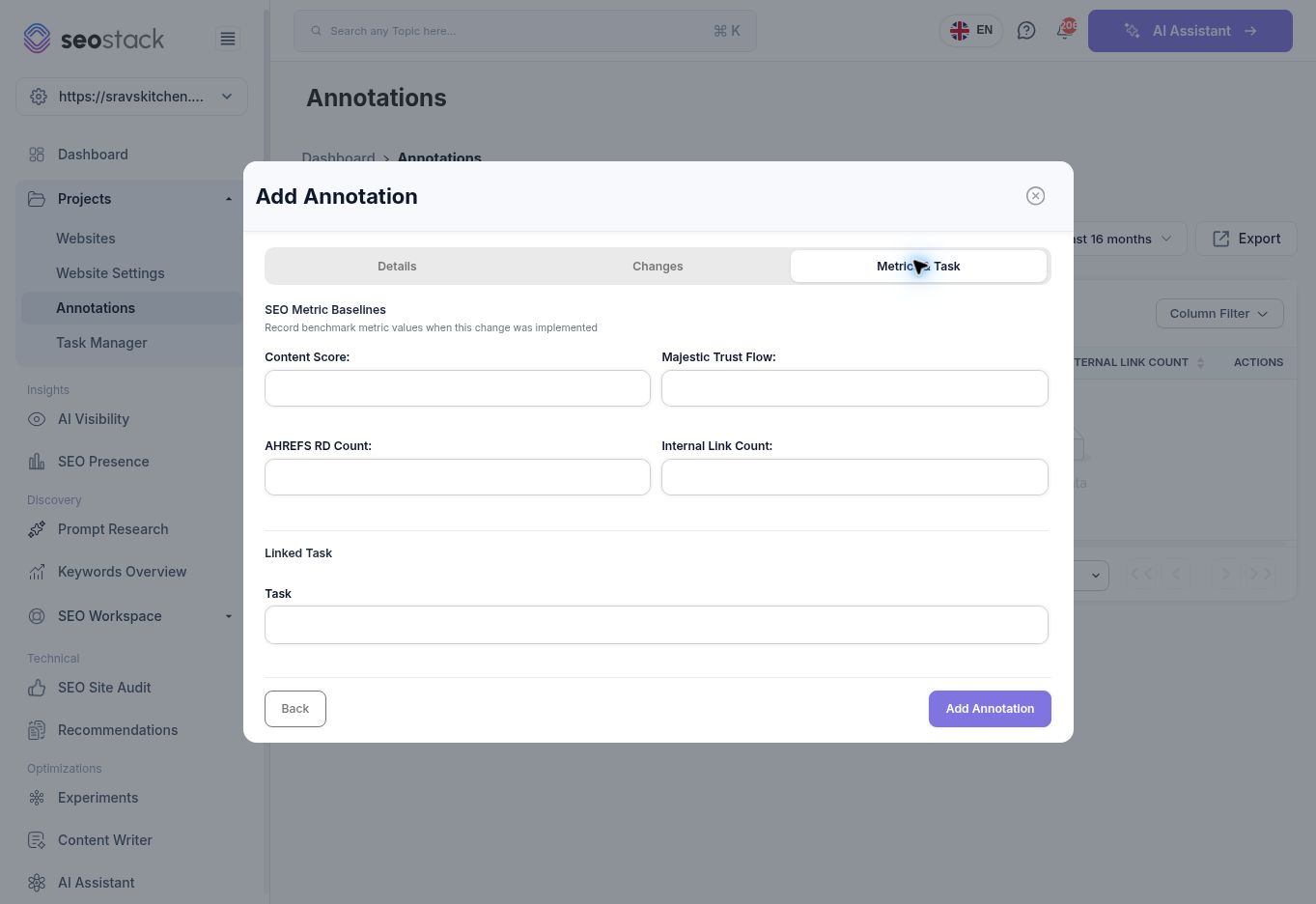 Annotation baseline metrics and linked-task fields.
These are benchmark-entry fields. Their presence is not proof that SEO Stack automatically collected current values from those external tools. Record only measurements you have, noting the source and date in the description when needed. A missing value should remain unknown rather than being filled with zero.
Annotation baseline metrics and linked-task fields.
These are benchmark-entry fields. Their presence is not proof that SEO Stack automatically collected current values from those external tools. Record only measurements you have, noting the source and date in the description when needed. A missing value should remain unknown rather than being filled with zero.
Find and review annotations
The list provides a date filter, search, Column Filter, sorting, pagination, Export and Import Annotations. Columns include date, URL, changes, content, baseline metrics, task, alerts, authors, website and creation/update information.
Search Console and some Data Tools expose annotation display controls. Use those to place recorded events alongside performance trends. Experiments also includes an annotation selector when configuring a change.
The walkthrough inspected the Import Annotations action but did not verify an imported file or its required schema. Use a confirmed template or product guidance before importing historical records in bulk.
Example: record a menu-page update
After a real menu-page title update, record the affected URL, deployment date, old title, new title and the reason for the change. Select Title & Meta Changes and link the implementation task. If you also modified the body copy, record that separately in the description so future reviewers do not attribute everything to the title alone.
Later, compare clicks, impressions, CTR and position around that date with consistent scope. An annotation makes timing visible; it does not prove the event caused every later performance change.
Troubleshooting
If an event is missing from the list or a chart, check the selected website, date filter and annotation scope. Confirm whether it concerns a specific URL or broader site changes. Use the date the change was implemented, rather than the date you happened to write the note.