Search Console & GA4 Data
Check how Google sees any URL on your website
SEO Stack gives you full URL inspection just like Google Search Console does, so you can check the verdict, coverage state, indexability, canonicals and referring URLs for any page, and see the indexing state and HTTP status of every URL sitting alongside your Search Console performance data.
- 100% data privacy
- 99.99% uptime
- Nothing to configure
- Export anytime, no limits
Trusted by leading companies
The problem
Indexing problems are usually discovered late, because checking a URL means opening Search Console and inspecting it one at a time, and the indexing state of a page is never shown next to the clicks and impressions that page is actually generating.
SEO Stack inspects the URL through Google and stores the result against your Pages data, so the indexing state of a page sits next to the traffic it is earning rather than in another product entirely.
Inspecting
/digital-marketing/seo/
 Search ConsoleSEO Stack
Result stored against your Pages data
- HTTP status
- 200
- Index status
- Indexed
- Verdict
- Valid
- Coverage state
- Submitted and indexed
What URL inspection gives you
Everything Google Search Console tells you about a URL
SEO Stack offers full URL inspection just like Google Search Console does, so you paste in a URL, run the inspection and get the complete picture back without having to leave the platform your performance data already lives in.
Verdict and coverage state
The verdict Google has reached on the URL along with its coverage state, so you can see at a glance whether a page has been submitted and indexed or whether Google has decided against it.
Indexability and robots state
Whether indexing is allowed on the page, what your robots.txt is telling Google, and whether the last page fetch was successful, which is usually where the answer is when a page has disappeared.
Google canonical and user canonical
The canonical you declared and the canonical Google actually chose, shown next to each other. When those two do not match you have found the reason a page is not ranking, and it is a reason most people never check.
Referring URLs
The URLs Google knows are linking to the page you are inspecting, which is often the quickest way to understand how a page was discovered in the first place.
Last crawled date
When Google last crawled the page and whether it did so as mobile or desktop, so you know how current the rest of the data on screen actually is.
Rich results and structured data
Rich result validation with every detected item listed out, so you can confirm your structured data is being read properly rather than assuming it is.
Inside the tool
Inspect one URL, or see the state of all of them
You can inspect any single URL on demand and get the full response back, and your indexing states and HTTP statuses also sit directly on the Pages report you already use for performance.
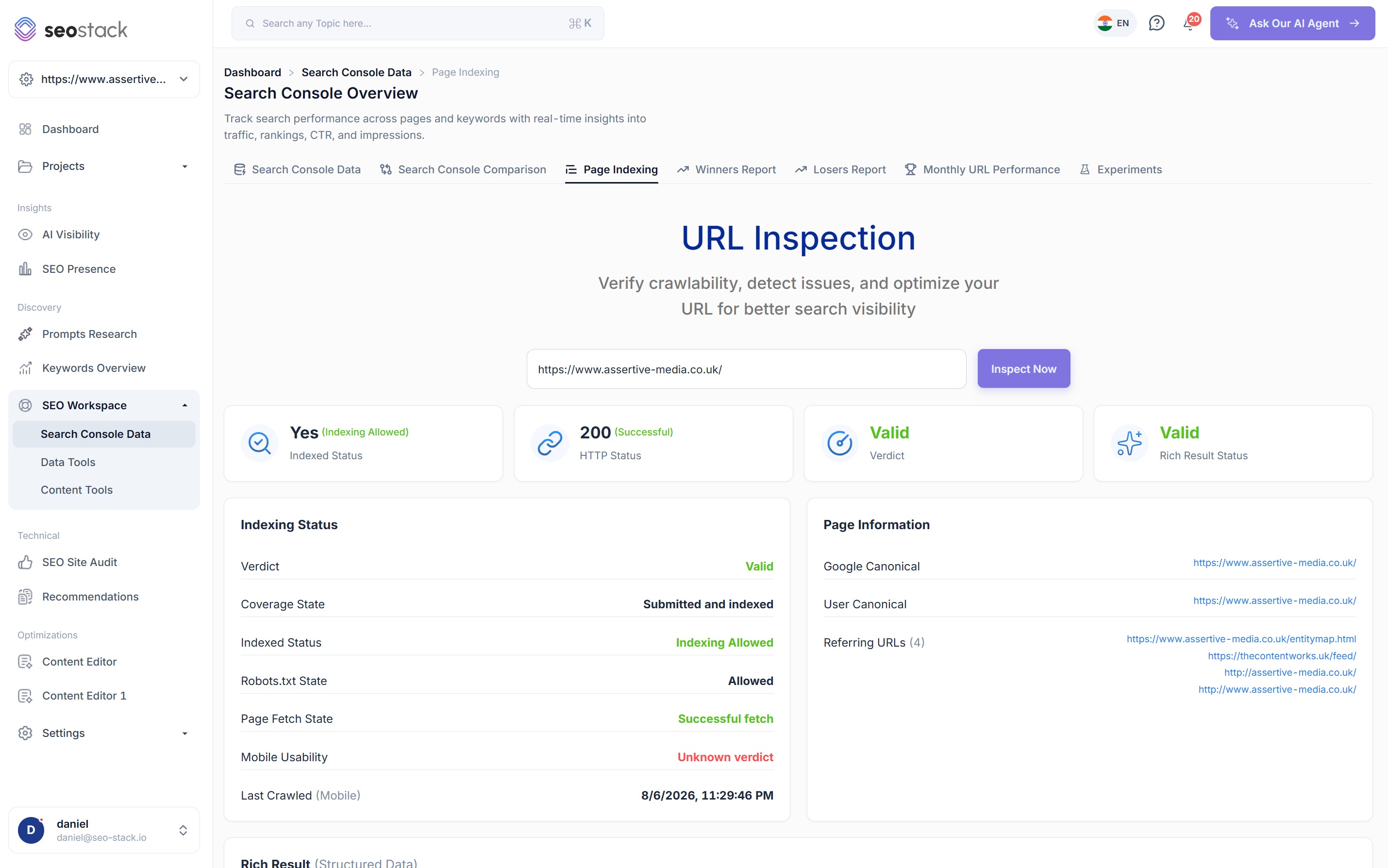
Paste a URL in and inspect it on demand
- Works on any URL on a property you have connected, so you are not limited to the pages that happen to be earning clicks
- Indexed status, HTTP status, verdict and rich result status shown across the top as soon as the inspection finishes
- Run it as often as you need while you are working through a fix
- The same data Google Search Console gives you, without switching between two products
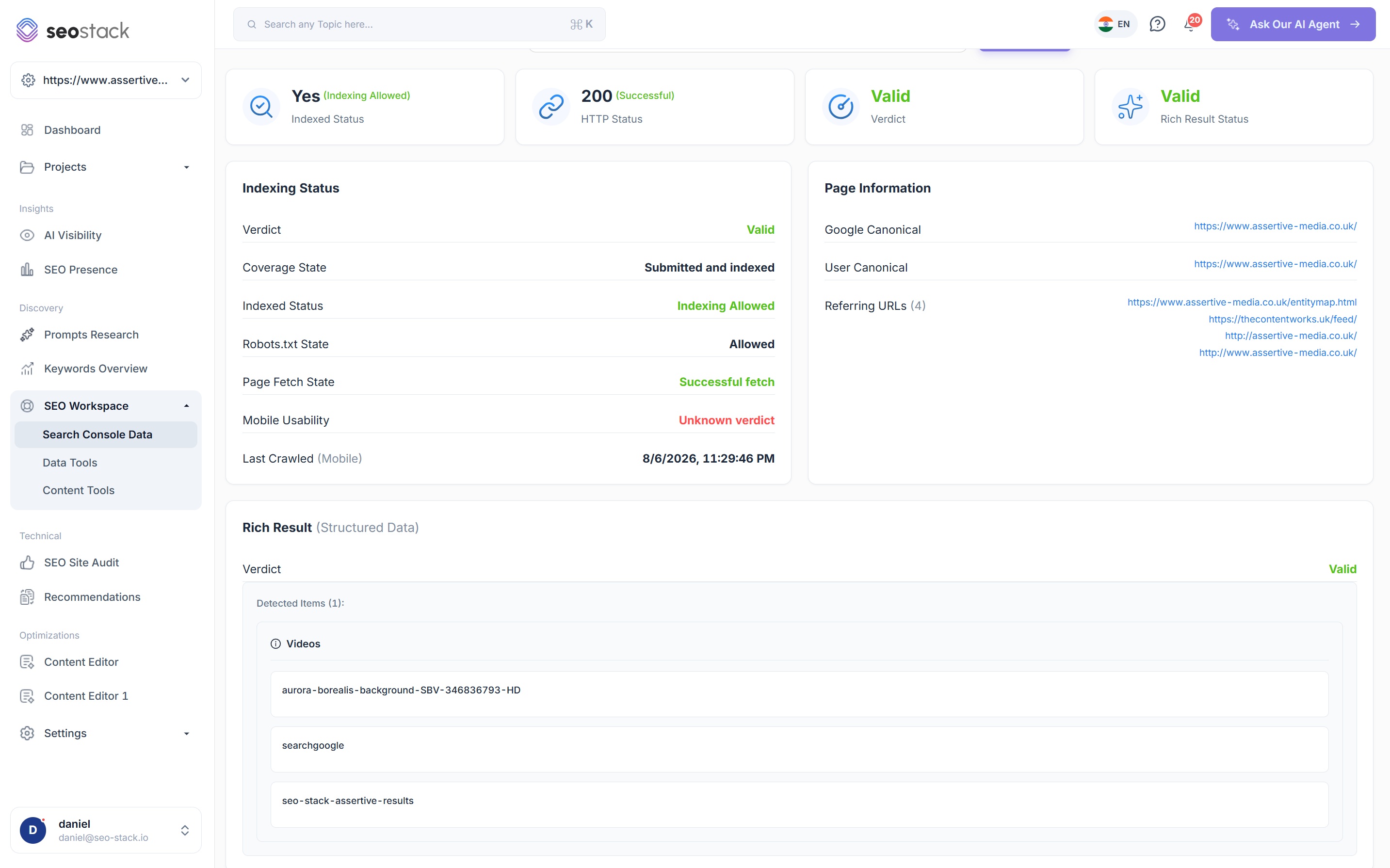
Indexing status and page information, side by side
- Verdict, coverage state, indexed status, robots.txt state, page fetch state, mobile usability and last crawled date
- Google canonical and user canonical listed together so a mismatch is obvious
- Every referring URL Google knows about for the page
- Rich result verdict with each detected structured data item named individually
The canonical comparison is the one to watch
If Google has picked a different canonical to the one you declared, that page is not going to rank on its own merits and nothing in your performance reporting will explain why.
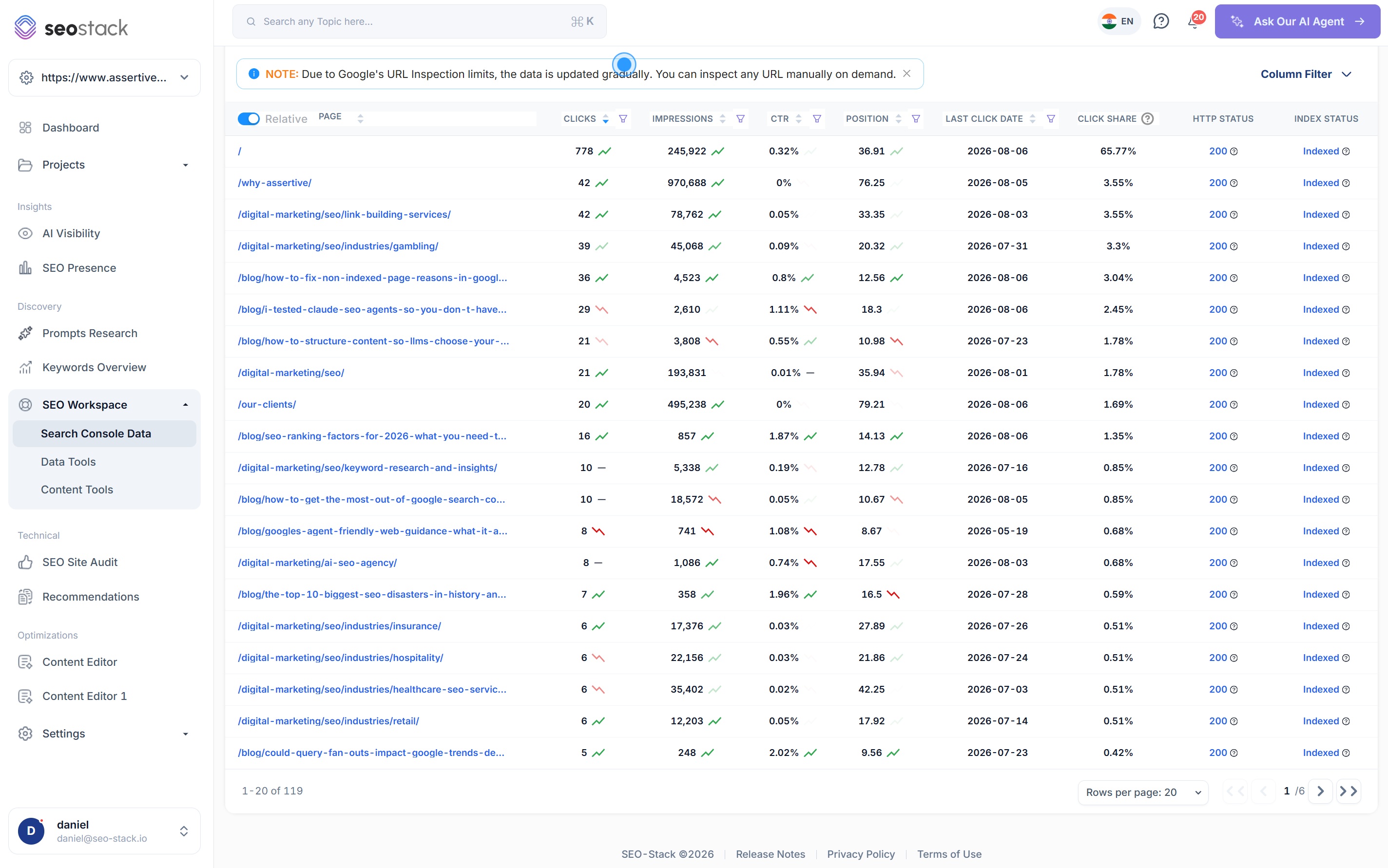
Indexing state and HTTP status on every page you report on
- Index status and HTTP status columns sit on your Pages report next to clicks, impressions, CTR, position, last click date and click share
- You can see immediately when a page earning real traffic is returning something other than a 200
- Sort and filter the report as normal, the indexing columns come with it
- Because the data is warehoused, you are looking at every page rather than a truncated sample
This is the join most tools are missing
Performance data and indexing data almost always live in separate places, which is why a page can quietly break and still look fine on a traffic chart for weeks.
On the roadmap
Page indexing at scale, with AI helping you clear it up
Full URL inspection is available today. The features below are being built and are not live yet, so we would rather tell you that now than have you sign up expecting them.
Indexing states across 2,000+ URLs
Rather than inspecting URLs one at a time, you will be able to track the indexing state of thousands of pages at once and watch how those states change over time.
Every non indexed page reason
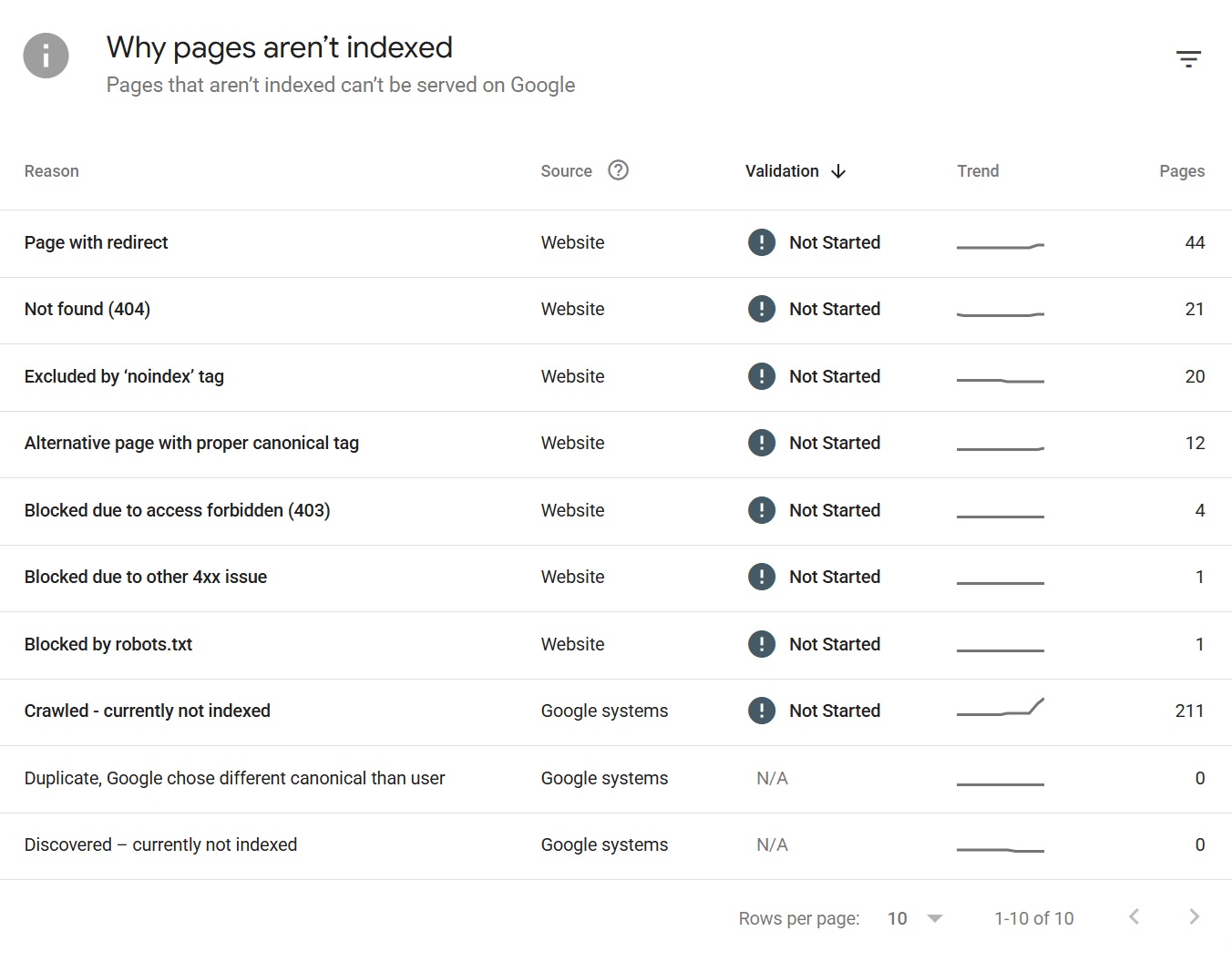
You will be able to view all of your non indexed pages grouped by the reason Google gave, along with the specific URLs sitting behind each one, so you can work through them properly.
AI Assistant auditing on indexing
We are building AI Assistant integration directly into indexing, so the assistant can audit the pages that are not indexed, explain why they are not being indexed and give you actionable recommendations to fix them.
You will be able to see every reason a page is not indexed
Non indexed pages are usually where the biggest and quickest wins are hiding, because a page that is crawled but not indexed has already done the hard work of being found, it simply has not convinced Google that it is worth keeping. Being able to see every reason in one place, with the URLs behind each one, is what turns that from a vague worry into a list of jobs.
- Crawled, currently not indexed
- Discovered, currently not indexed
- Not found (404)
- Excluded by 'noindex' tag
- Page with redirect
- Alternative page with proper canonical tag
- Duplicate, Google chose a different canonical than user
- Blocked by robots.txt
- Blocked due to access forbidden (403)
- Blocked due to other 4xx issue
AI Assistant, coming soon
AI that tells you why your pages are not being indexed
Search Console will tell you that a page is crawled and currently not indexed, but it will never tell you why, and working that out across a few hundred URLs by hand is the kind of job that never quite gets done. We are building AI Assistant integration into indexing so that the assistant can audit those pages for you and explain what is actually going on.
More on the AI AssistantIt audits the pages, not just the count
Knowing that 211 pages are crawled but not indexed does not tell you anything useful on its own. The assistant will look at the pages themselves and tell you what they have in common.
Actionable recommendations
You will get specific things to do rather than a status, whether that is thin content that needs consolidating, internal linking that needs improving or canonical tags that are pointing somewhere they should not be.
Prioritised so you start in the right place
Not every non indexed page is worth fixing, and plenty of them should not be indexed at all. The point of the audit is separating the pages that matter from the noise.
What you get out of it
The outcome, not the feature list
See which of your pages Google has chosen a different canonical for
Spot indexing and HTTP problems on pages that are still earning clicks
Understand why your pages are not being indexed and what to do about it
Connect a property. Watch the data start stacking.
Warehousing begins the moment you connect your Search Console property, there is no Google Cloud project to set up, no BigQuery and no schema to design. You simply connect your property and SEO Stack starts storing every row of your data from that day onwards.
- Credit card required
- Cancel within the trial and you won't be billed
- No contracts