Content NLP Tool: create a page brief for a target query
Content NLP Tool creates and lists NLP briefs for selected pages and queries, with Inlinks-labelled scores and an action linking to the generated brief. Use it when you need a focused content-analysis starting point for a page update.
Create a brief
- Open SEO Workspace → Content Tools → Content NLP Tool.
- Select New NLP Brief.
- Enter or select the full page URL.
- Review the suggested lead query or enter a Custom Query.
- Check Market. Choose the language and location relevant to the page's intended audience.
- Select Create Brief.
- Wait for the row to appear in the brief list and for available scores to populate.
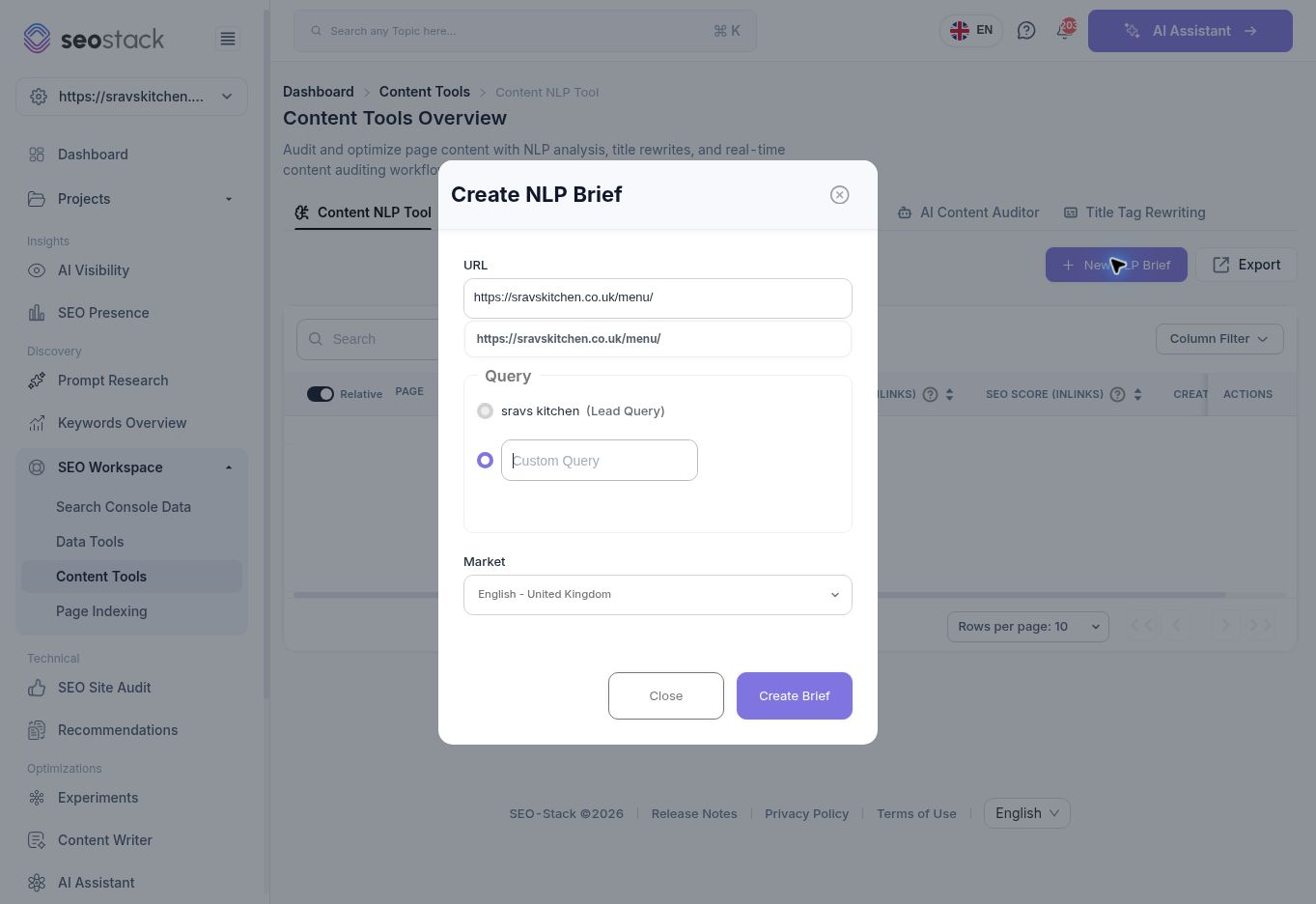 NLP brief setup with URL, query and market controls.
Choose a query that reflects the page's purpose. The leading current query may be branded, while the planned content improvement targets a different relevant need. Do not select a broad phrase solely because it sounds valuable.
NLP brief setup with URL, query and market controls.
Choose a query that reflects the page's purpose. The leading current query may be branded, while the planned content improvement targets a different relevant need. Do not select a broad phrase solely because it sounds valuable.
Read the brief list
The list contains Page, Lead Query, SEU Score (Inlinks), SEO Score (Inlinks), Created At and Actions. It also provides search, column visibility, sorting, relative URL display, pagination and export.
The tested setup created a menu-page brief for south indian restaurant menu in the UK market. The resulting row showed 13% under SEU Score and an external Inlinks brief link. The SEO Score had not yet populated at the captured point.
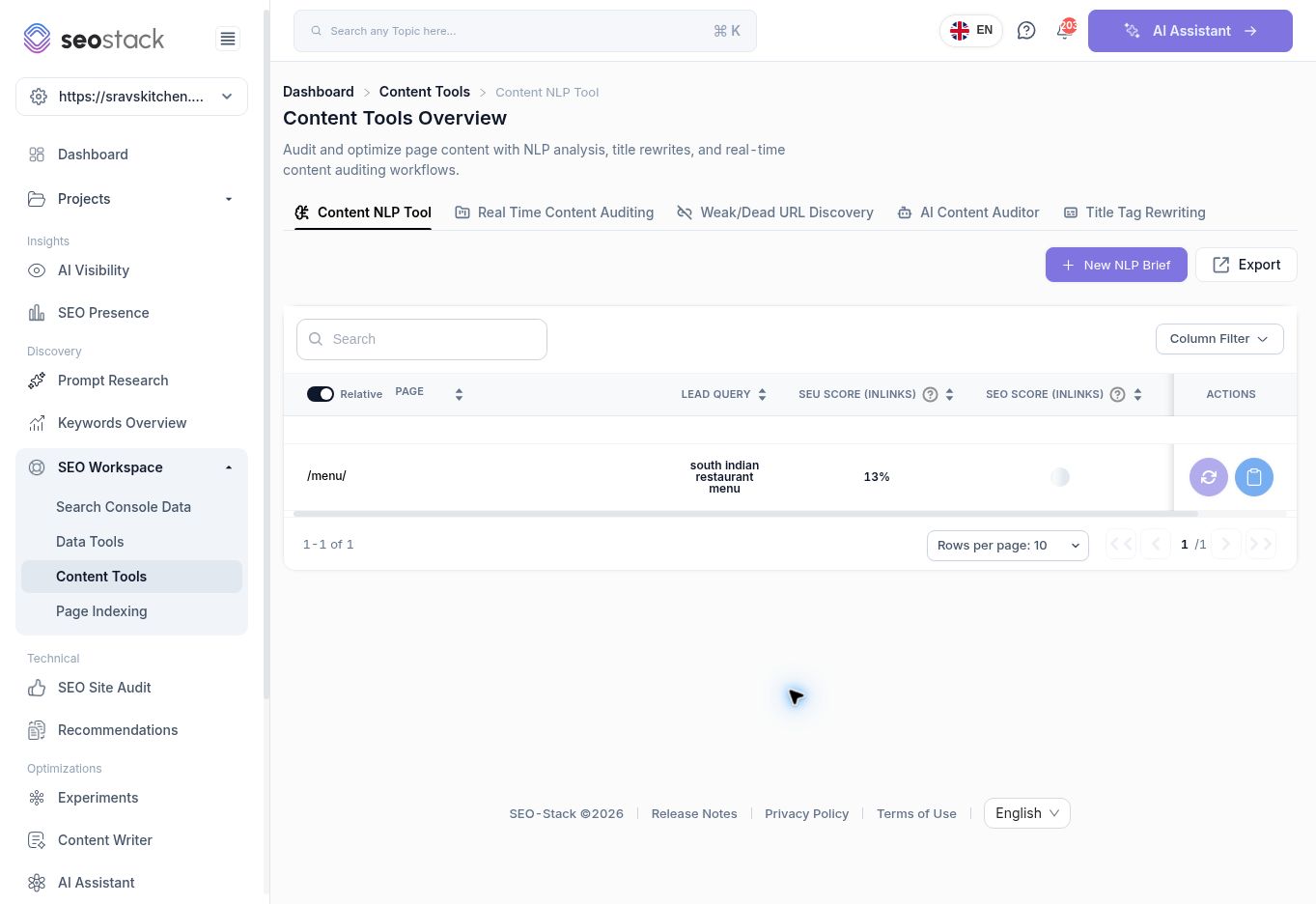 Created NLP brief row.
These are tool-specific analysis scores, not Google scores or a probability of ranking. An empty score is not a confirmed score of zero. The precise score formulae were not exposed during this walkthrough.
Created NLP brief row.
These are tool-specific analysis scores, not Google scores or a probability of ranking. An empty score is not a confirmed score of zero. The precise score formulae were not exposed during this walkthrough.
Example use case
A writer is updating a restaurant menu page. Create the brief using the existing URL and the relevant menu query. Open the generated brief through its Actions link, review its evidence, and turn relevant findings into a writing brief that preserves accurate dishes, prices and customer information.
Do not add every suggested topic or phrase simply to increase a score. The finished page should still answer the intended customer need clearly. Check accuracy and usefulness before measuring the effect in Search Console Data.
Troubleshooting and scope
If the table is empty, there may be no briefs for the selected website. If creation does not complete, check the URL, chosen query and market before repeating it. A generated row confirms brief creation; it does not confirm that every score or external report has finished processing.
This walkthrough verified creation and the resulting report link. It did not verify the full external Inlinks report workflow or the refresh action's behaviour.