Account Management: preferences, usage, billing and support
Account Management brings profile settings, subscription allowances, database usage and preferences into one place. Use it to understand your account's limits, update supported personal settings and find support resources.
Open account management
Select the account control at the bottom of the sidebar, then Profile. The account menu also displays token usage, a reset date, Top up Tokens and Sign Out. Values shown there belong to the current account and billing period.
Choose the appropriate section
| Section | What the walkthrough showed | How to use it |
|---|---|---|
| User Profile | Personal details, image change, disabled role and email fields, phone, default market and password fields. | Review the editable fields and use Save Changes for intended updates. |
| Subscription & Billing | Current plan and status, Manage Subscription and Invoices, usage allowances, Get More controls and plan cards. | Check the limit relevant to the feature you want to use. |
| Access Log | Monthly database-access table and Summarized Access Log by website. | Investigate database queries, rows and bytes fetched. |
| Preferences | Language, Region and notification categories, plus Edit Profile and Save Changes. | Review your application preferences and available notification settings. |
No account settings, subscription, password, billing details or notifications were changed during documentation. Purchase, cancellation, invoice access and account-deletion workflows were not executed.
Read feature allowances
The billing screen separately listed websites, storage, team members, AI tokens, Inlinks API calls, refresh cadence, export rows, Google Analytics pages, AI visibility prompts, tracked keywords, device/location coverage, site audits, crawl pages, content pieces and data timeframe.
Treat these as distinct allowances. For example, an available audit count does not necessarily mean you have enough crawl-page allowance for a large audit. A zero tracked-keyword count on one website is not the same as the account-wide count.
Several counters explicitly state monthly. Check the period and the specific counter rather than assuming all allowances reset together. Prices, currencies, plans and quotas are account- and date-dependent; this article does not reproduce staging prices as a public pricing table.
Understand Access Log
Despite its name, the inspected Access Log describes database access activity and data usage, not a user sign-in security log. Its detailed table includes Site URL, Date, Database Queries, Rows Fetched and Status. The summary includes Site URL, Bytes Fetched and Rows Fetched from Database.
In the walkthrough, the detailed monthly table was empty while the summary contained website usage. An empty detailed table therefore did not mean no data had been accessed. These database rows are not necessarily unique queries, unique visitors or indexed pages.
Review preferences
Preferences displays Language and Region plus notification options for Receive Emails, Reports & Updates and Quota & Usage Alerts. The screen also provides Edit Profile, Cancel and Save Changes. Check whether a field is editable in your account before changing it.
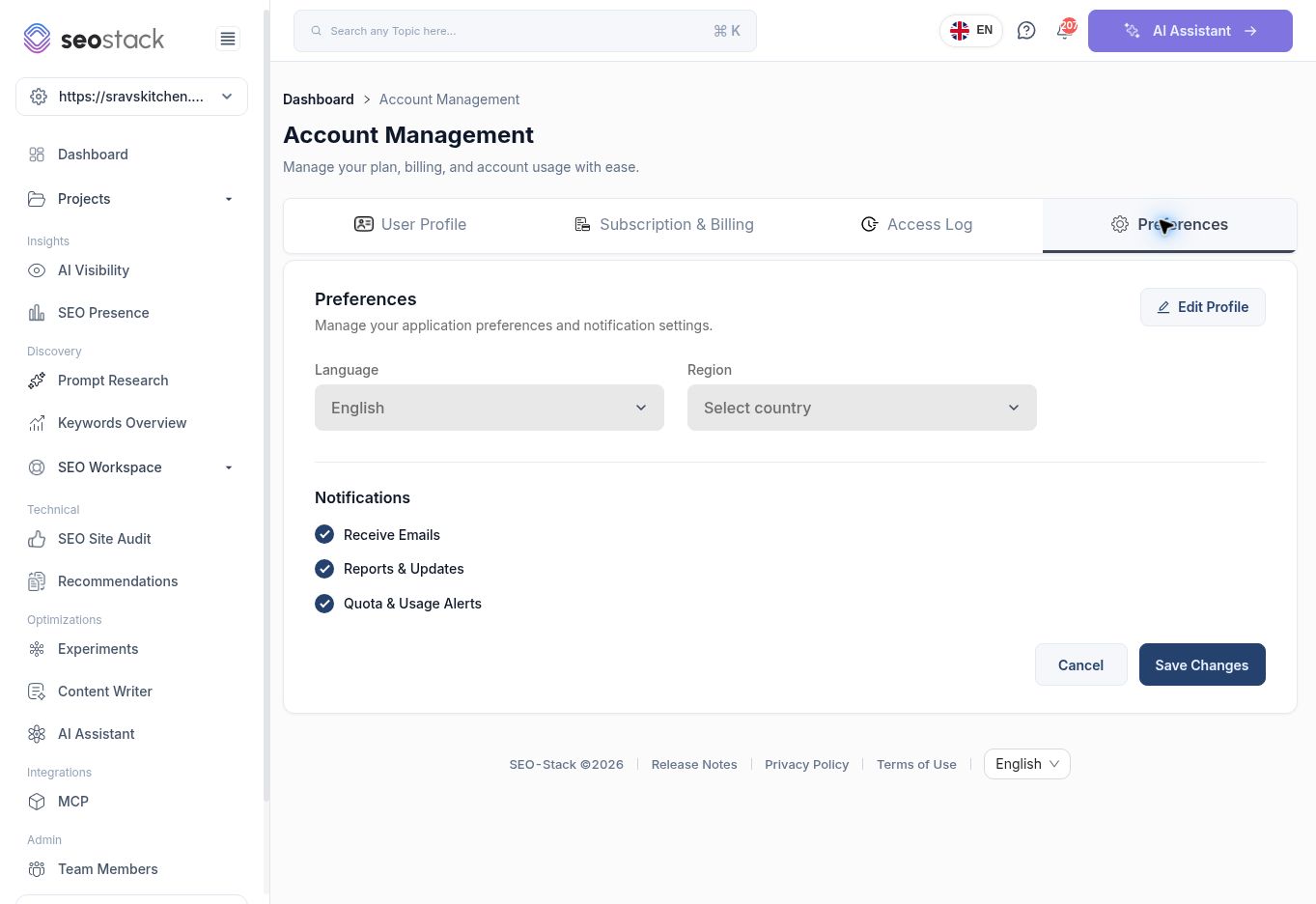 Account preferences and notification categories.
Account language or region preferences should not be confused with the website market profile under Website Settings or country filters in a report.
Account preferences and notification categories.
Account language or region preferences should not be confused with the website market profile under Website Settings or country filters in a report.
Find help and release notes
The top-bar Help control opens Help & Support, with Knowledge Base, Video Guides, Blogs, a message field and Contact Technical Support. No message was sent during this walkthrough. When reporting a problem, include the website, tool, exact dates and filters, what you expected, what happened and a relevant screenshot without credentials.
Release Notes in the footer opens the changelog, with dated entries and a date navigation list. Use it to understand documented product changes; it does not replace checking the current interface and the permissions available to your account.
Example: investigate a blocked analysis
If an analysis cannot run, review the feature's own status and usage indicator, then check the corresponding account allowance. Record any error and the reporting scope. If usage is available but the action still fails, contact support with that evidence rather than assuming that upgrading will resolve it.