How to Setup Prompt Tracking for AI Visibility
In this KB we explain how to set up your prompt tracking for AI visibility & to assess where and what you appear for.
In this KB article, we're going to explain how to setup AI visibility by picking and adding prompts to SEO Stack.
When a NEW WEBSITE is added to SEO Stack, you will be familiar with the onboarding process where you are asked to select topics - these topics are initially used to build an initial series of prompts, however, many people will want to track their own prompts.
We will cover both pre-existing topic selection and adding new prompts in this article.
To provide some clarity:
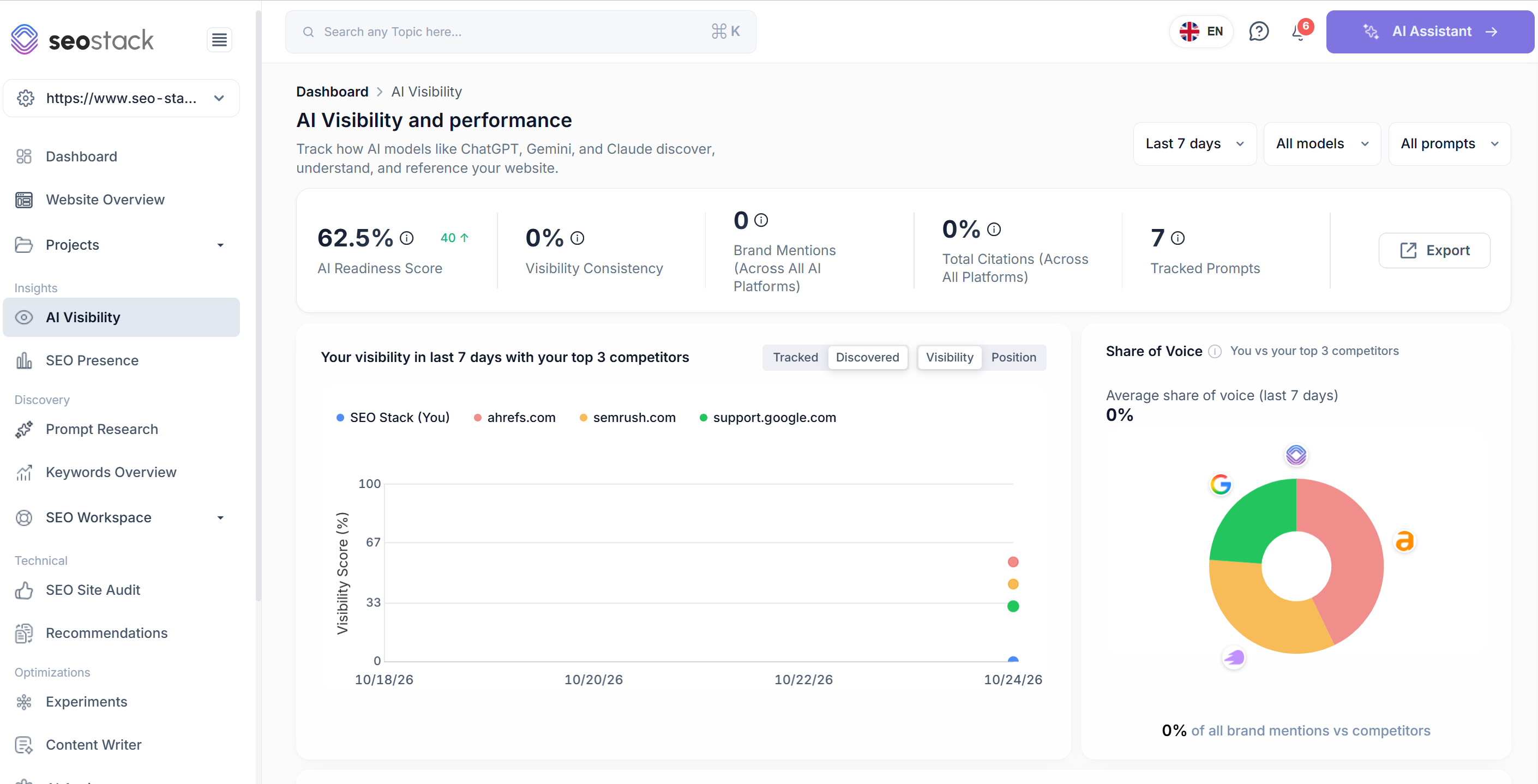
Your AI VISIBILITY SCORE is derrived from the prompts you track in prompt research - so the tools are tied together. If you add your prompts under prompt research, they will be tracked and used to calculate your "AI Visibility Score".
 image
image
This is why, it is important to select your prompts from the outset so that you can evaluate performance over time. Adding, chopping or changing prompts will impact your visibility score, therefore, we suggest at the outset to nail down your prompts early on.
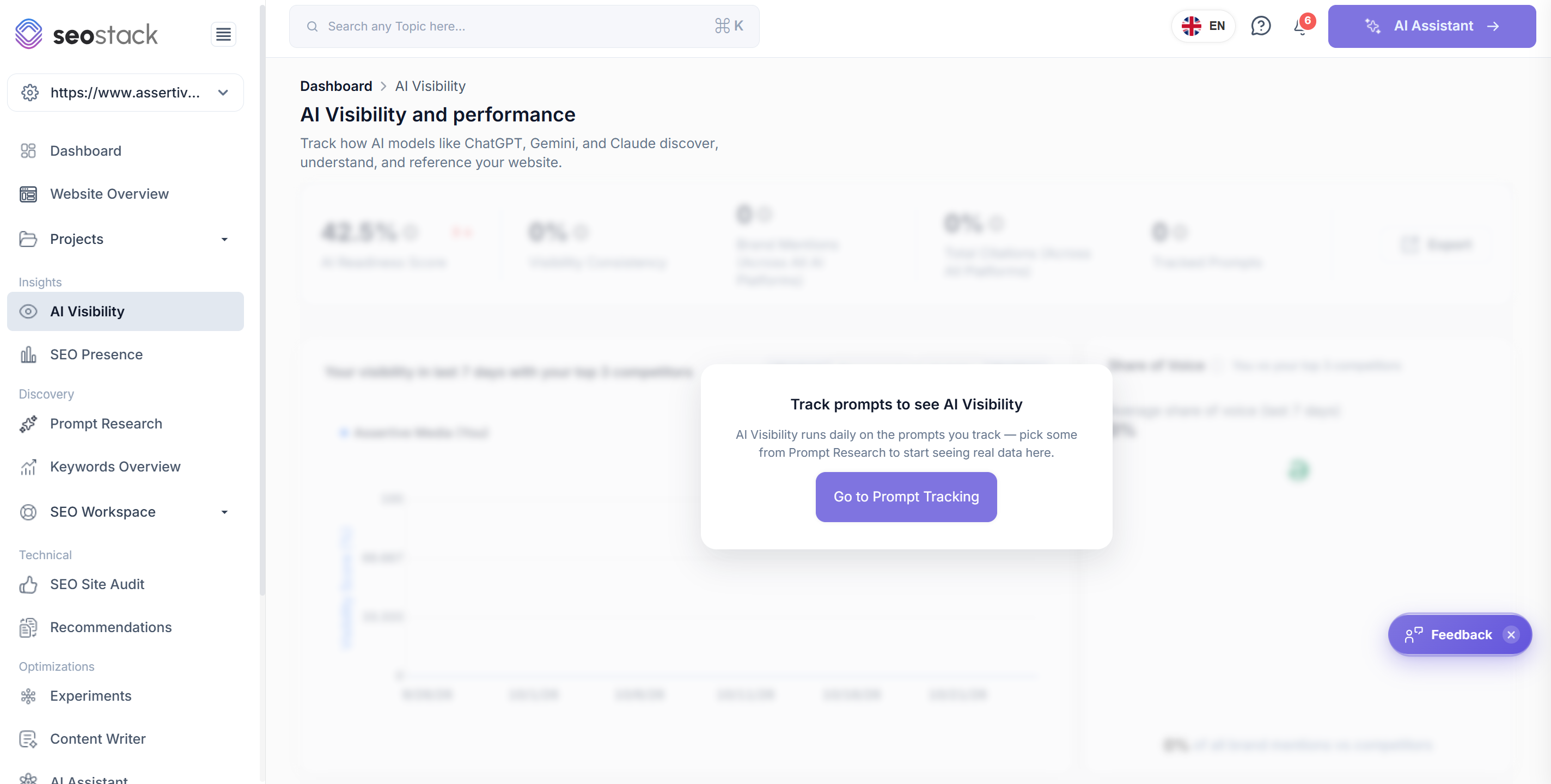
So, let's say you have just onboarded and you go to AI Visibility - you will be presented with this screen:
 image
image
So, first, click on go to prompt tracking.
It will take you to the PROMPT RESEARCH tool, this is where you can either choose from the pre-selected prompts or where you can add your own.
Using the pre-populated prompt data
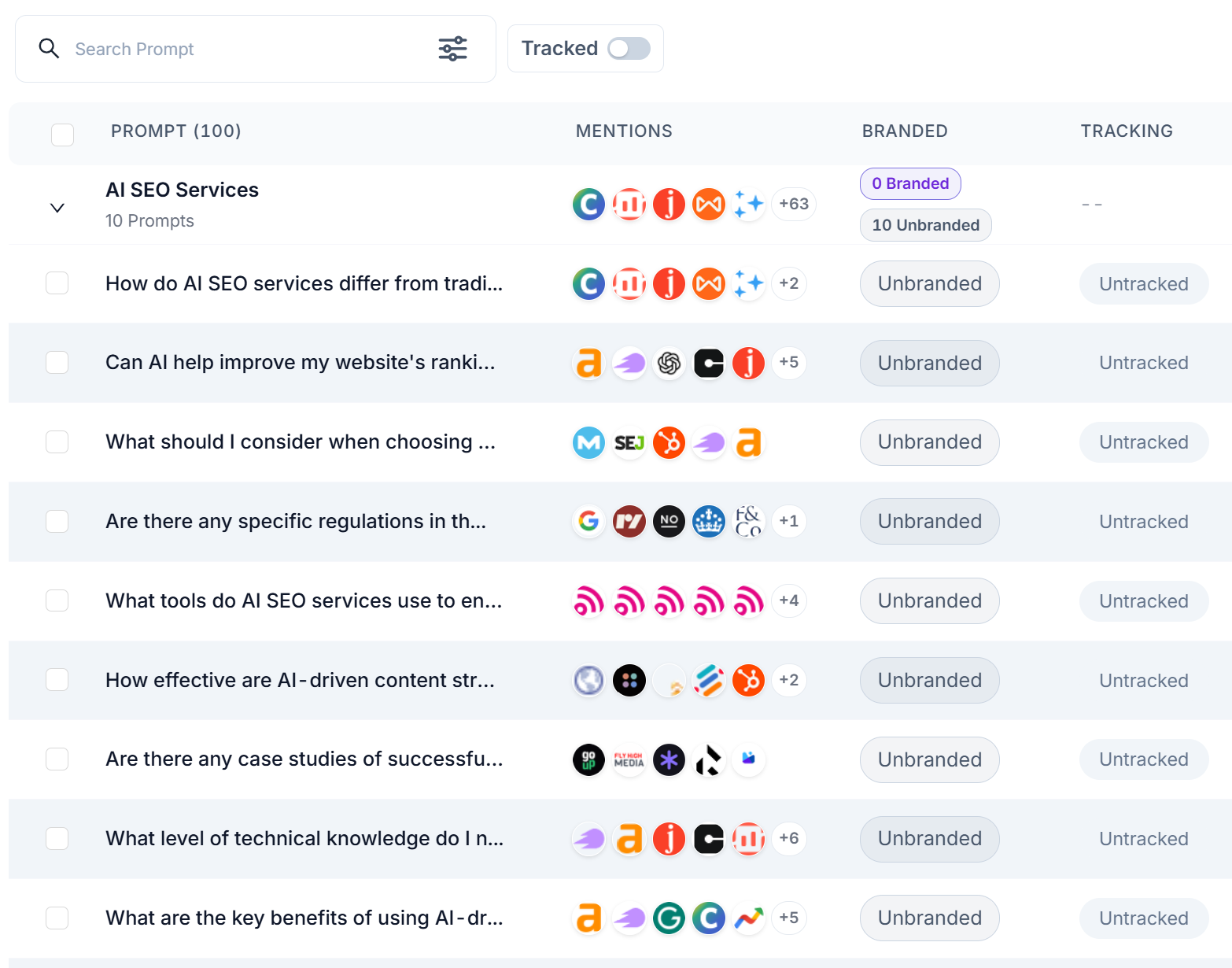
So, the original prompts you see are defined from the topics you selected during onboarding. SEO Stack derives prompts from Google Search Console data and AI to evaluate potential things to track. To track some of the automatically generated prompts simply use the tick boxes to the left of the prompt.
 image
image
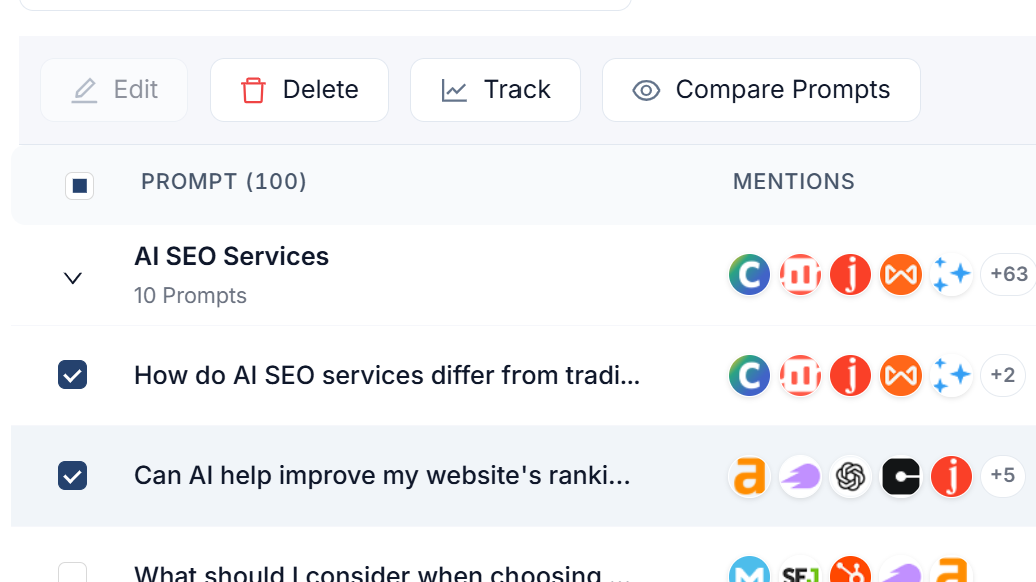
Once you select 1 or more prompts, you will see a track button >
 image
image
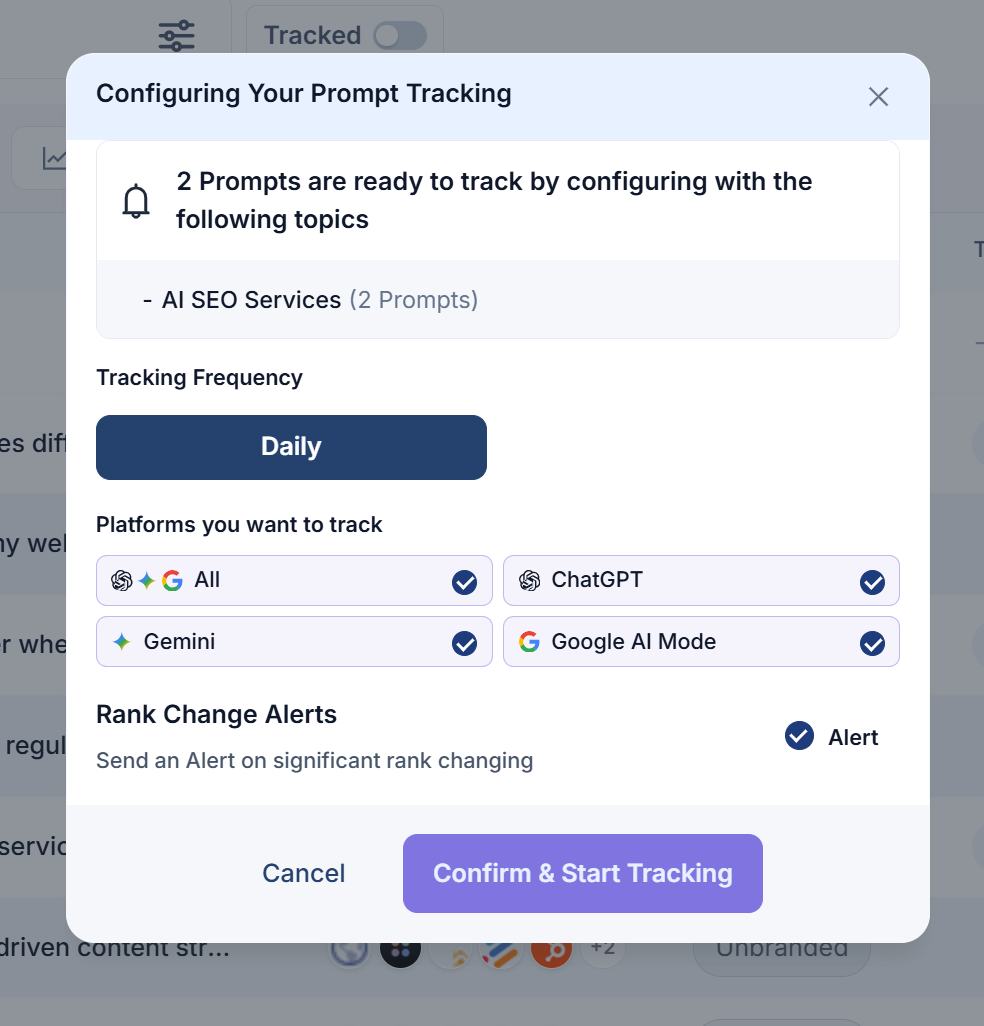
Once you select TRACK, you will be given an option to track by frequency and LLM i.e.
 image
image
Once you click confirm & start tracking, these prompts will start being tracked.
Remember - your AI Visibility score is derived from this data.
Tracking your own prompts
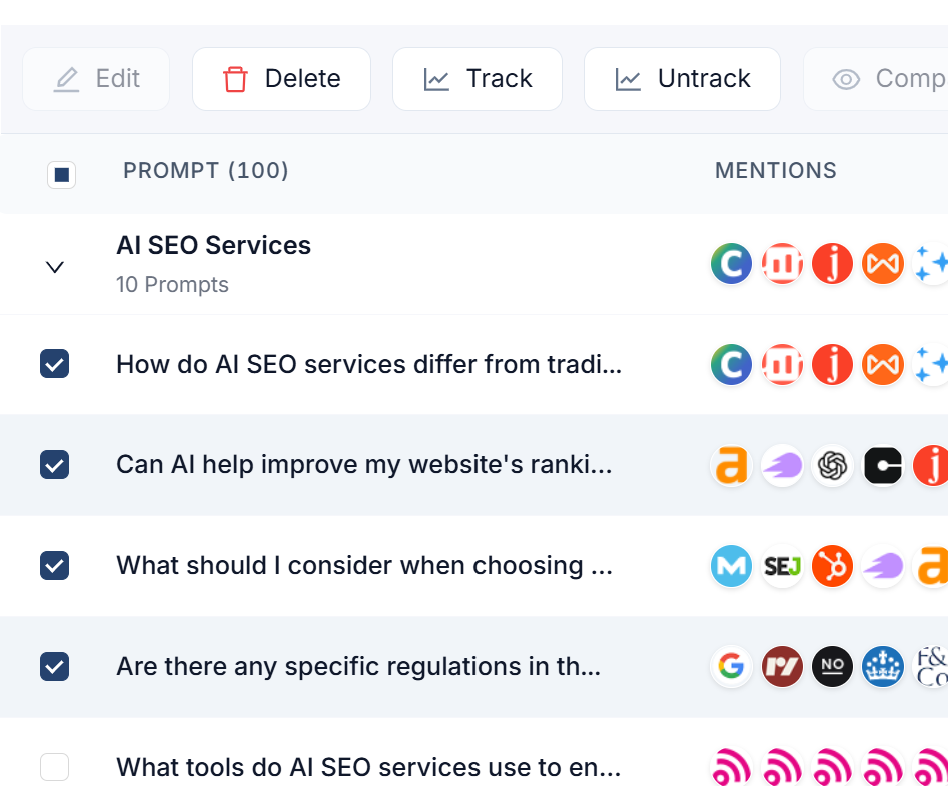
If you want to track your own prompts, you may need to delete some of the pre-existing prompts (depending on your plan and allowances). To delete some of the pre-existing prompts to make way for your own prompts simply select each prompt and then click delete.
 image
image
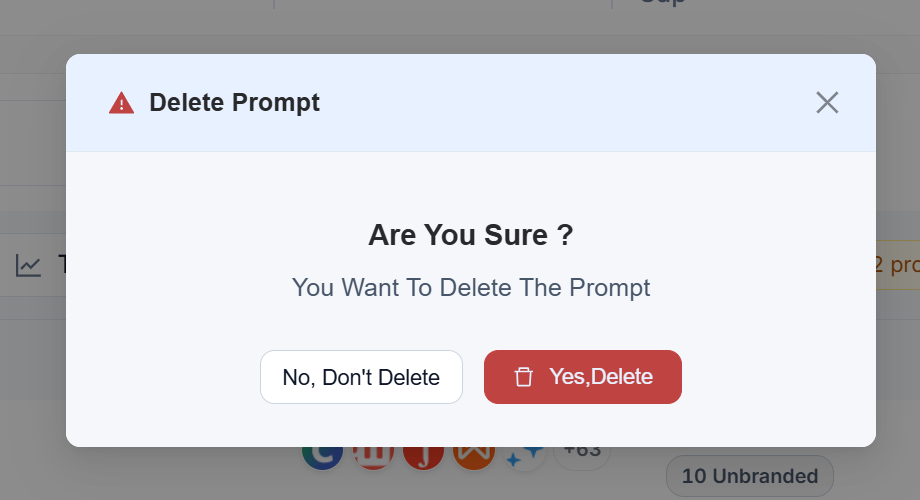
Then a pop up will show -
 image
image
Once deleted you can then begin adding your own prompts.
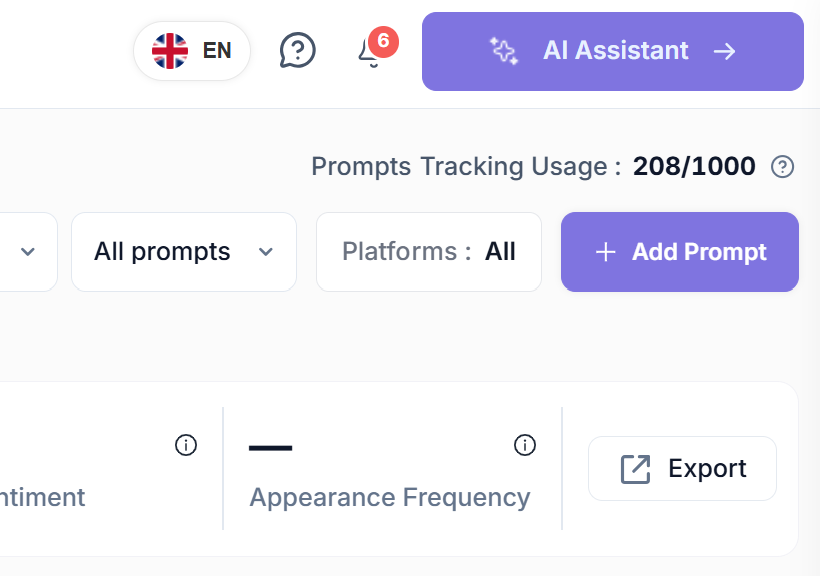
On the top right hand corner, below the AI Assistant button, select +Add Prompt
 image
image
You can then either add 1 prompt at a time or you can bulk upload prompts from a CSV.
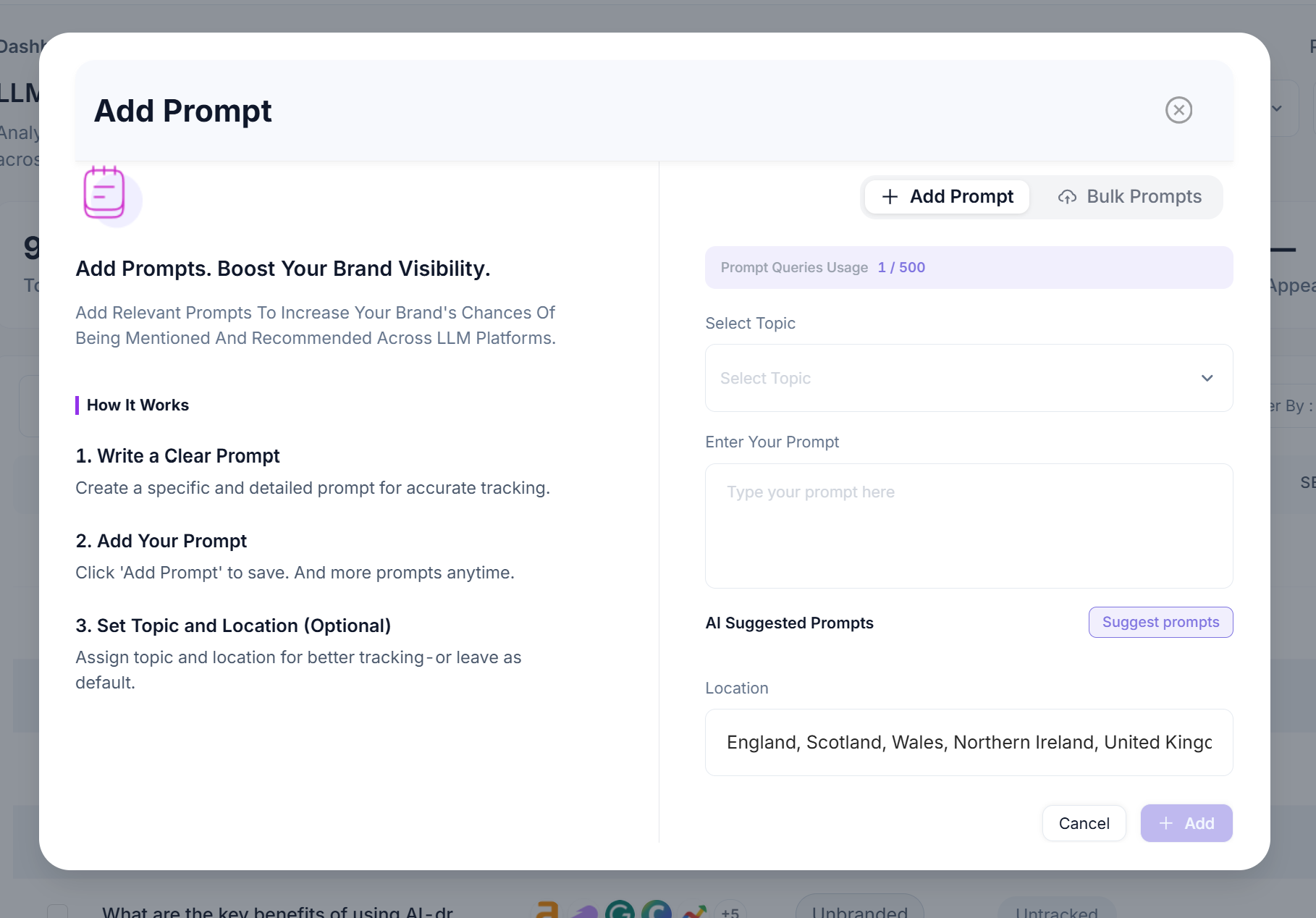 image
image
If adding a single prompt simply select the topic the prompt belongs to:
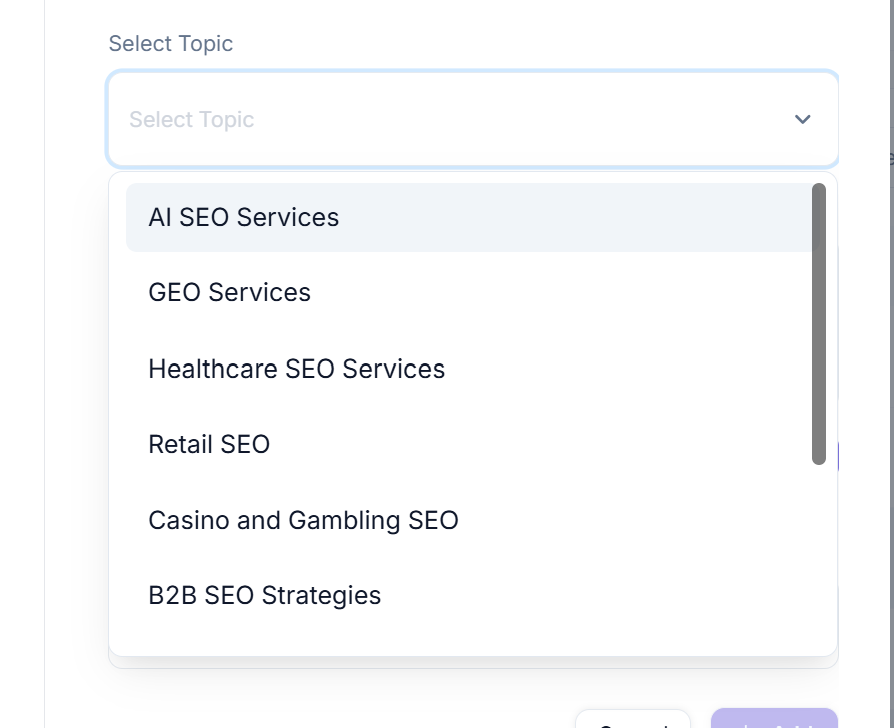 image
image
Then enter your prompt and the target locations and click +Add
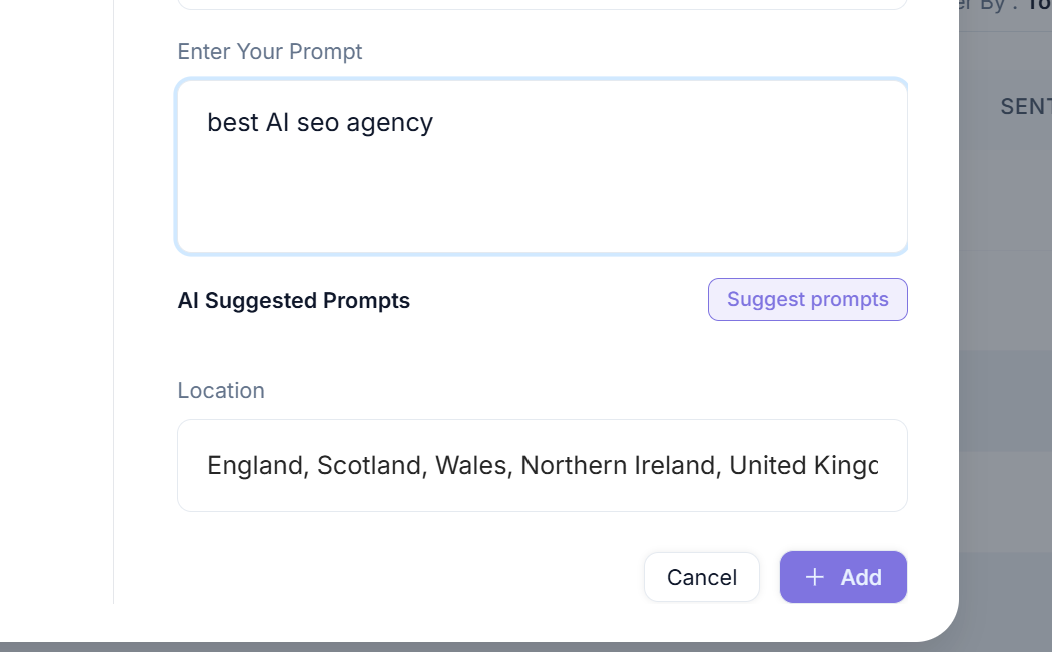 image
image
Once added, it may take a minute or 2 to show in the list (refresh the screen).
Once your prompt is showing, simply select it and click TRACK
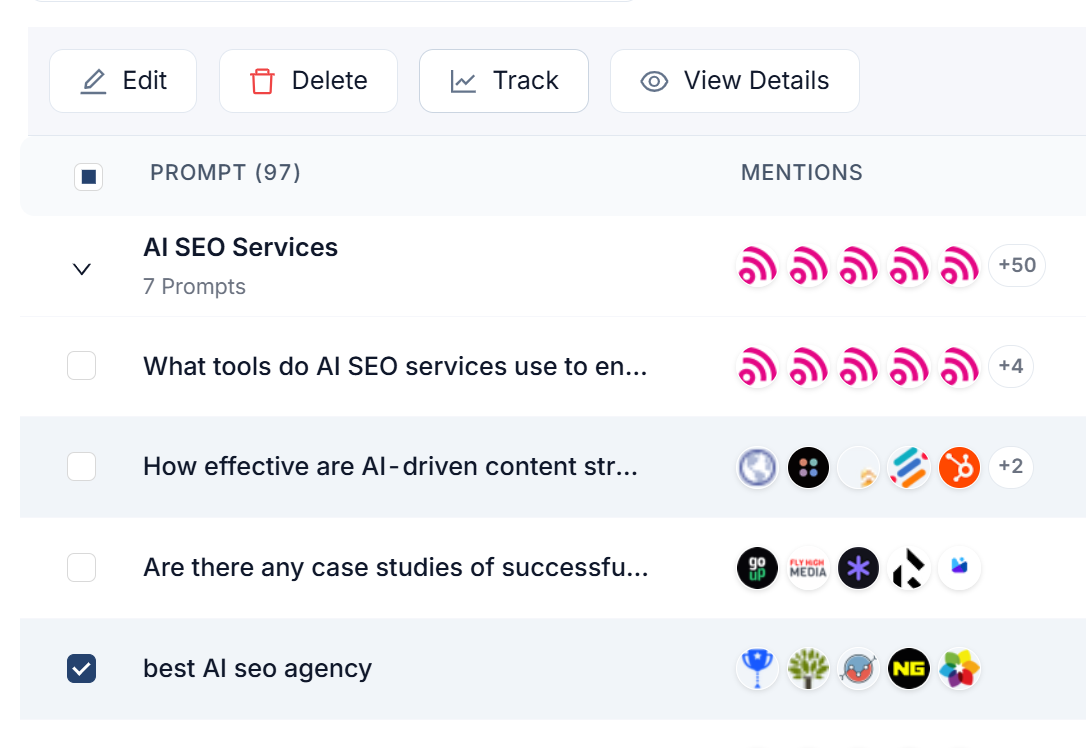 image
image
And then your own prompt will be tracked.
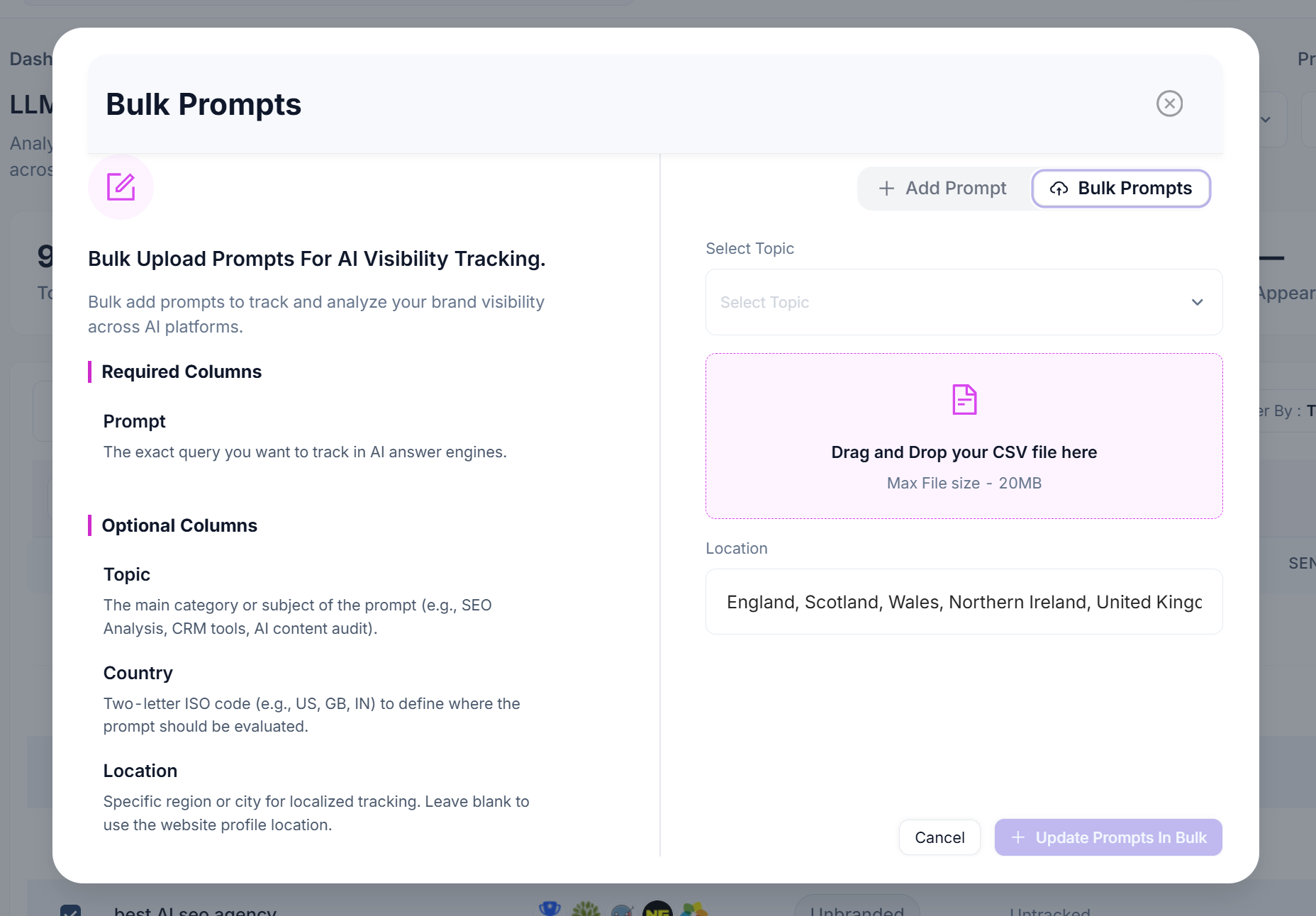
If you wish to upload PROMPTS in bulk, you can select the bulk prompts option:
 image
image
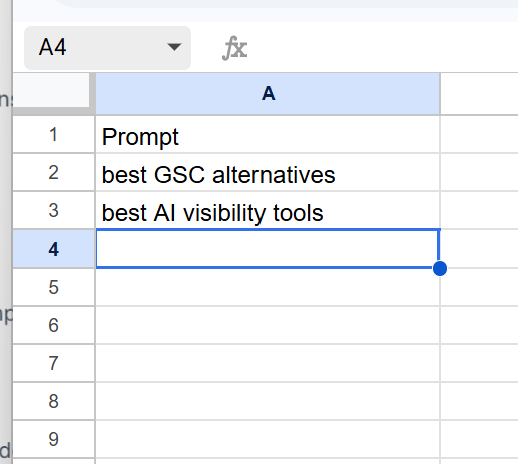
You can simply use Google Sheets or Excel, COLUMN A heading should say "Prompt"
 image
image
Enter your prompts, export to a CSV and then upload to SEO Stack.
Again, once added, wait a minute or 2 before selecting the newly added prompts and then select TRACK to set up tracking.
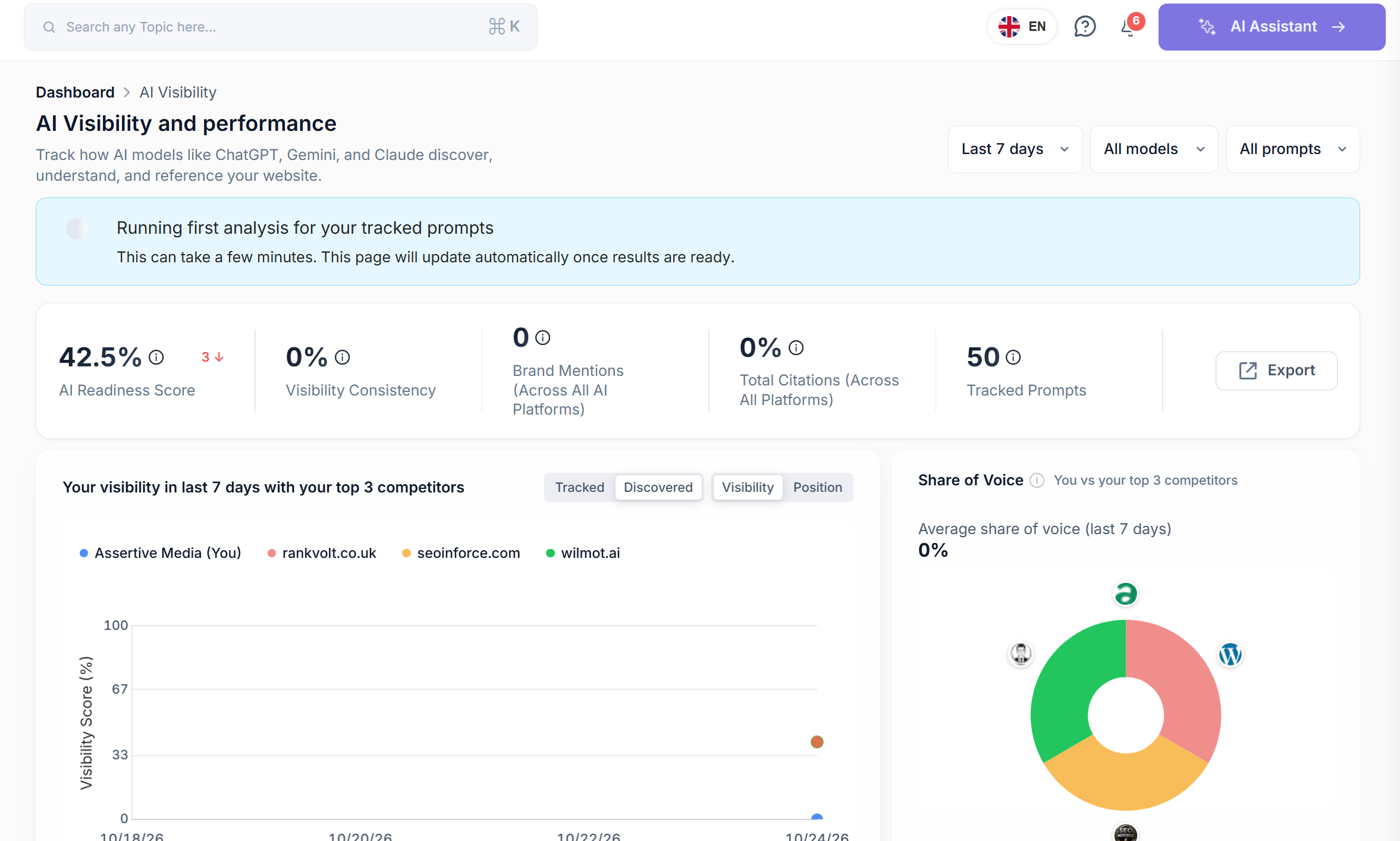
Once you have added all the prompts you want and have selected TRACK for, your AI VISIBILITY score will be generated.
 image
image
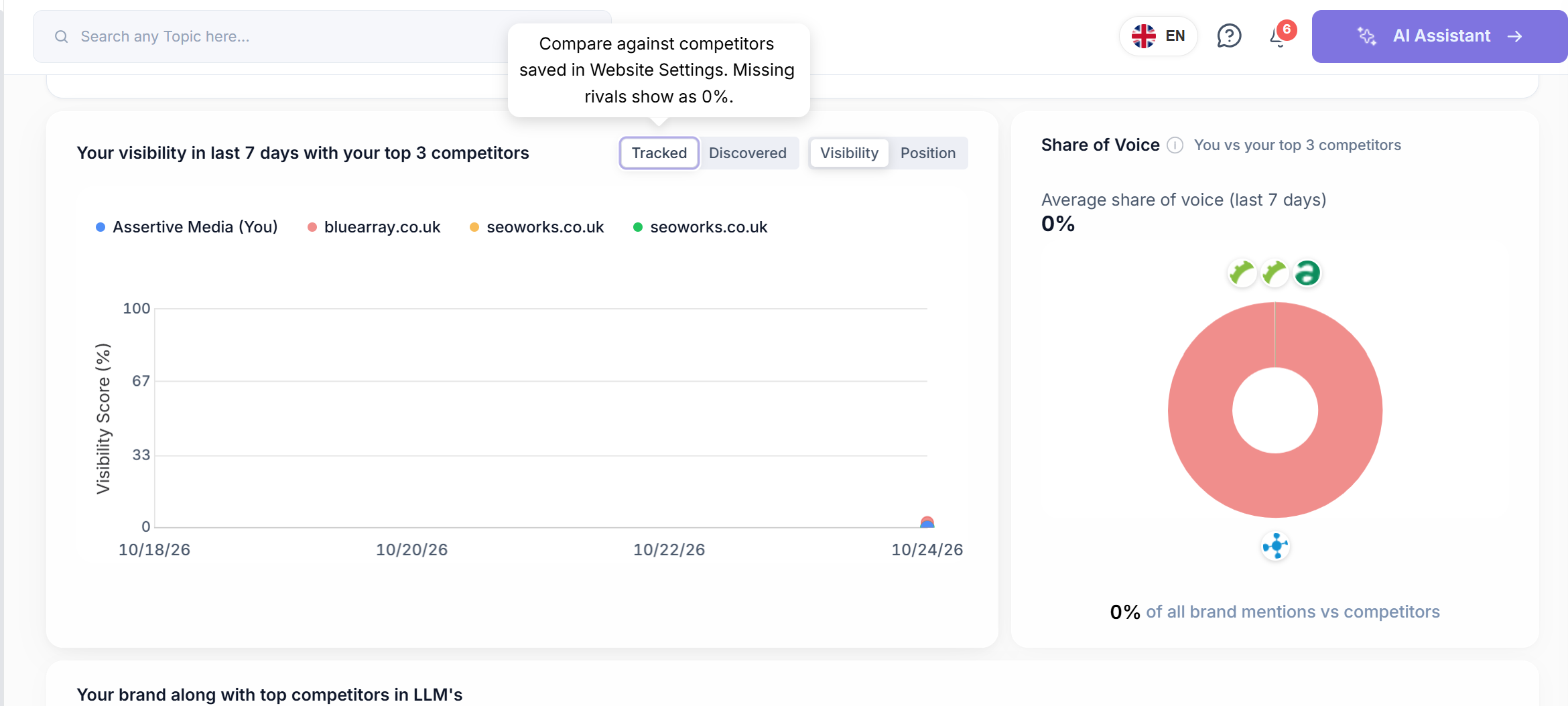
It will usually take a few minutes to run the first analysis. You can then flick the AI VISIBILITY chart between tracked and discovered.
Tracked is your performance vs competitors you specified on onboarding (you can change the competitors in settings) and discovered is based on sites that appear more for the prompts you track.
 image
image