Content Writer: review existing pages and create editable drafts
Content Writer combines a live-page review with an AI-assisted drafting and optimisation editor. Use it to assess existing content, create a new draft, compare writing versions and prepare content for editorial review. The screen also calls this workspace AI Content Editor and AI Content Optimizer.
Review an existing page
- Open Content Writer in the sidebar.
- Keep Optimize Existing Page selected.
- Type or search for the URL, then select the matching URL from the dropdown.
- Select Review With Content Writer.
- Check the URL, review date, content preview, performance figures and quality breakdown.
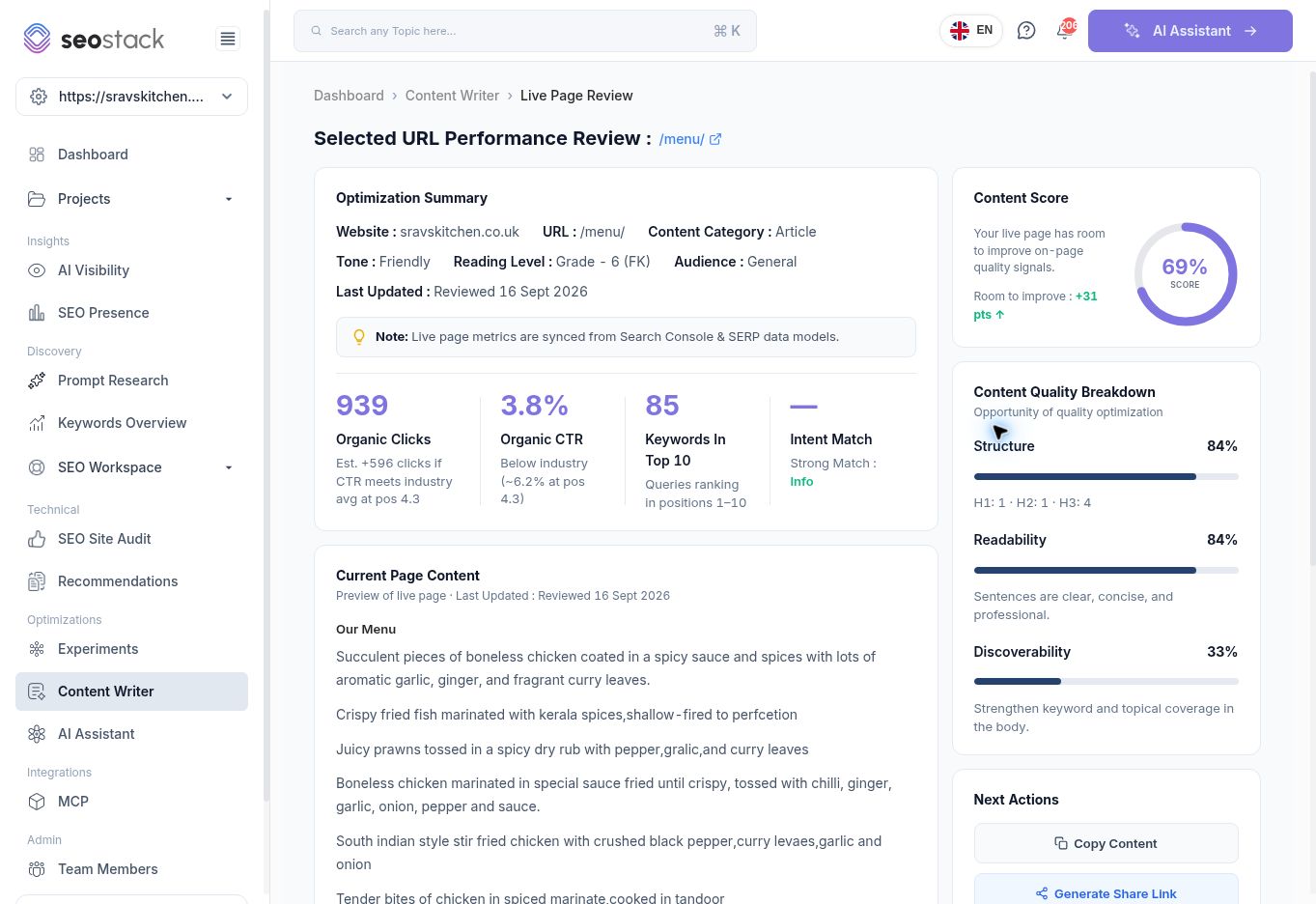 Live menu-page review with performance and content-quality measures.
The example menu review showed 939 Organic Clicks, 3.8% Organic CTR, 85 Keywords In Top 10 and a 69% Content Score. Its quality breakdown showed Structure, Readability and Discoverability separately. The review did not expose a selectable date range, so do not compare its totals directly with another report using a different known window.
Live menu-page review with performance and content-quality measures.
The example menu review showed 939 Organic Clicks, 3.8% Organic CTR, 85 Keywords In Top 10 and a 69% Content Score. Its quality breakdown showed Structure, Readability and Discoverability separately. The review did not expose a selectable date range, so do not compare its totals directly with another report using a different known window.
Read automated classifications critically. The menu page was labelled Article and its intent description said Info. Those labels are analysis outputs to review, not definitive descriptions of the business purpose.
The page also offers Copy Content, Generate Share Link, Optimize another URL and Re-Optimise page. Re-Optimise opens a confirmation asking for the primary keyword, initially populated from the current query context. Check that keyword carefully. The confirmation says it will rewrite the live HTML for the URL; this walkthrough did not proceed through that existing-page rewrite or verify its publishing behaviour.
Create new content
- Return to Content Writer and select Create New Content.
- Choose a content type: Article, Blog, Landing Page, FAQ, Email Template or Social Posting.
- Enter focused source content in the editor. Keep the actual topic prominent and supply accurate facts.
- Select Create With Content Writer.
- In Content Analysis, review Target URL, Content Type, Tone, Reading Level and Audience.
- Choose the optimisation goals relevant to the content.
- Select Analyze with AI and Optimize content.
- Review the generated text in the editor before saving or sharing it.
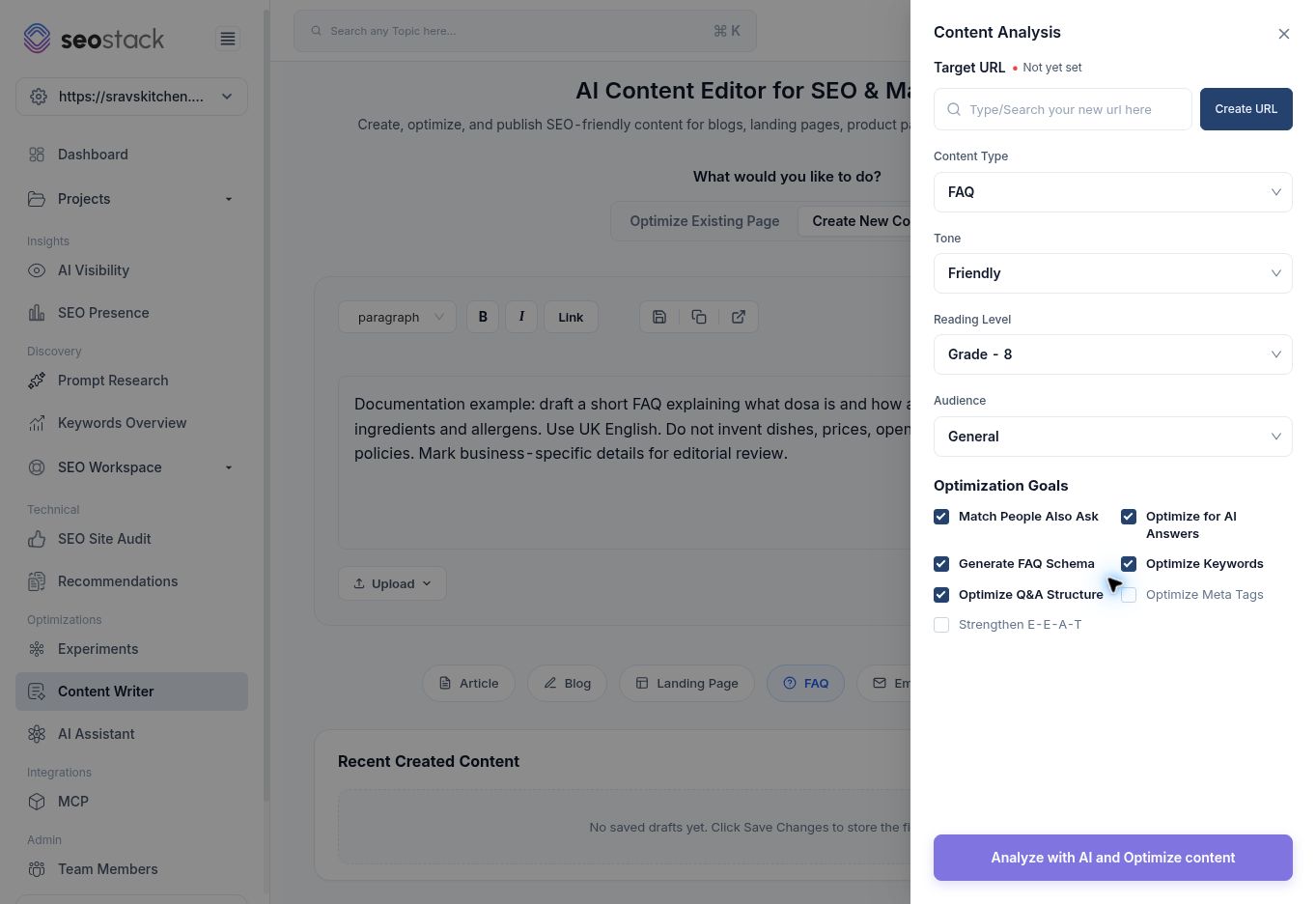 Content Analysis settings for a new FAQ.
For FAQ content, the observed goals included Match People Also Ask, Optimize for AI Answers, Generate FAQ Schema, Optimize Keywords, Optimize Q&A Structure, Optimize Meta Tags and Strengthen E-E-A-T. Selecting a goal requests optimisation; it does not prove a search feature or visibility improvement has occurred.
Content Analysis settings for a new FAQ.
For FAQ content, the observed goals included Match People Also Ask, Optimize for AI Answers, Generate FAQ Schema, Optimize Keywords, Optimize Q&A Structure, Optimize Meta Tags and Strengthen E-E-A-T. Selecting a goal requests optimisation; it does not prove a search feature or visibility improvement has occurred.
The walkthrough successfully generated an Unsaved draft. The usage counter increased by one, from 7/150 to 8/150, in that account. Allowances are account-specific; check your current counter.
Edit and review a draft
The generated editor includes heading/paragraph formatting, bold, italic, links, content type, tone and More settings. It also shows a Version selector, Upload, Discard, Re-generate, Review Page and Save Changes, with save, copy and HTML-export controls in the toolbar.
Review Page opens the optimisation review, including the suggested URL, metadata/content, suggested ranking keywords, expected scores and a View Changes control. Review Page was tested; version switching, the diff view, upload and exports were not tested.
The starting screen explains that Save Changes stores content in Recent Created Content or Recent Optimized pages. A saved draft should not be assumed to be deployed to your website. This walkthrough generated and reviewed a draft without saving it, generating a share link or publishing it.
Separate estimates from observed results
The new-content review explicitly labels its figures as projected estimates from content-quality and Search Console/SERP models, not live Google rankings. Expected Organic Clicks, Expected Search Visibility and Expected Keywords In Top 10 are projections.
The observed visibility explanation weighted SEO 40%, Discoverability 35%, Structure 15% and Readability 10%. That describes the displayed model, not a Google ranking formula. “AI Visibility Improved” in the optimisation summary does not establish that an AI system has started citing the draft.
Likewise, a projected click opportunity on a live-page review depends on the modelled CTR benchmark. It is not a guaranteed gain after rewriting.
Example: prepare a useful restaurant FAQ
Start with a focused draft headed “Dosa FAQs”, followed by the actual questions and verified answers. Avoid leading the input with administrative phrases such as “Documentation example”: in this walkthrough, that phrase led the system towards the topic “documentation” and produced unrelated suggested keywords and a /documentation URL.
The generated text also added business-specific claims that were not supplied. Remove or verify every such claim, particularly statements about ingredients, staff training or dietary suitability. Do not publish an output merely because its score is high.
A practical review sequence is to check topic relevance, factual accuracy, business details, heading structure, links, metadata and any generated schema. Only then move the approved content into the website's publishing process and record the change date for later performance review.
Troubleshooting
If Review With Content Writer is disabled, select the URL option after typing rather than leaving only search text. If generated content drifts from the intended subject, correct the source content and topic context before regenerating. If a score or classification conflicts with the visible page, inspect the evidence and use editorial judgement rather than optimising solely to satisfy the score.