Experiments: plan and measure SEO changes
Experiments provides a place to record an SEO change, its hypothesis, the affected scope and comparison settings. Use it to organise a title update, content refresh, internal-link change or other defined intervention and review subsequent performance.
Plan the experiment
Choose one clear question before opening the form. For example: “Will a clearer menu-page title improve relevant query CTR?” Record what will change, why you expect it to help and what evidence would support the hypothesis. Avoid combining many unrelated changes when you want to understand one intervention.
Creating an experiment record is separate from implementing the change on your website.
Configure a new experiment
- Open Experiments and select Create Experiment.
- Enter a descriptive Name.
- Choose an existing Annotation, if relevant, and set the actual Change Date.
- Select the Experiment Types that describe the work. Options include Title & Meta Changes, Content Refresh, Internal Link Improvements and many other technical and content changes.
- Choose Target Pages, and narrow Target Queries, Target Countries and Target Devices as appropriate.
- Write the Hypothesis and select Next.
- In Change Details, enter a description of the actual changes. This field is required. You can also enter a Task URL, such as a related Jira or Asana link.
- Continue to Data Comparison Settings. Enter Pivot Date and Comparison Duration. The observed duration default was 28 days.
- Review Include GA4 Metrics? and the associated Metrics selector. The form names Pageviews, Bounce Rate and Conversions as additional metrics. Use these only with suitable connected data.
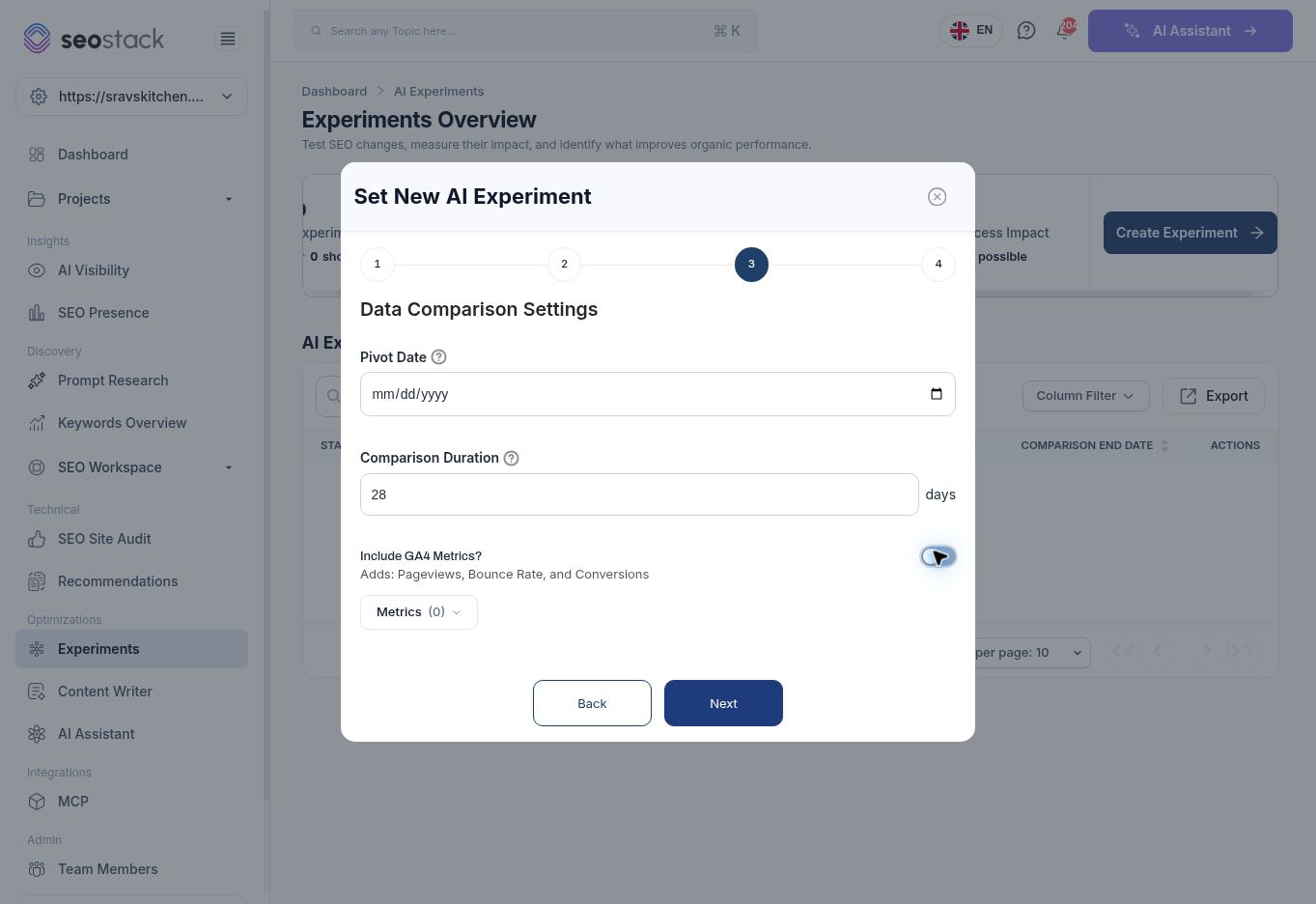 Experiment comparison settings with pivot date, duration and optional GA4 metrics.
The wizard displays four steps. This walkthrough verified the first three. The staging form continued to report that Pivot Date was required after a date was entered, so the final review, saving and result-detail screens were not verified. Do not use these instructions as confirmation of a successfully saved experiment.
Experiment comparison settings with pivot date, duration and optional GA4 metrics.
The wizard displays four steps. This walkthrough verified the first three. The staging form continued to report that Pivot Date was required after a date was entered, so the final review, saving and result-detail screens were not verified. Do not use these instructions as confirmation of a successfully saved experiment.
Read the experiment overview
The overview shows counts for Experiments, Running and Winning Experiments, plus Overall Success Impact. The list contains Status, Name, Description, Hypothesis, Created At, Change Date, Comparison End Date and Actions, with search, column controls and export.
The selected website had no existing experiments. Its zero summary values therefore describe an empty inventory, not a conclusion that previous SEO work had no benefit. The formulas behind Winning Experiments and Overall Success Impact were not available in this walkthrough.
Example: a menu title change
After approving and publishing a more descriptive menu title, record the old wording, new wording, URL and deployment date. Select Title & Meta Changes, target the menu URL and use the hypothesis agreed before the change. Keep country, device and query scope consistent when comparing periods.
When reviewing performance, look at impressions and position alongside CTR and clicks. A CTR change with a major ranking change is harder to attribute solely to a title. Consider seasonality, other deployments and changes in query mix before drawing a conclusion.
An increase after a change is useful evidence, but does not by itself demonstrate causation or statistical significance. Do not call an experiment a winner solely because one metric increased over a small sample.
Troubleshooting
Required-field validation can prevent progression. Confirm the date visibly remains selected after leaving its field. If it repeatedly clears or still shows a required-field error, capture the problem and ask support to check the staging form. Do not substitute a false change date simply to complete the wizard.