Winners Report: find queries and pages gaining clicks
Identify growing queries and pages, examine their monthly trends and decide which improvements to investigate or extend.
Winners Report provides a focused view of queries and pages gaining clicks between two periods. It is useful for finding emerging opportunities, reviewing successful content and identifying changes worth investigating further.
Open and use the report
- Open SEO Workspace → Search Console Data → Winners Report.
- Select the comparison period using the date button.
- Choose Queries Growing for search phrases or Pages Growing for URLs.
- Review the current and previous clicks, then the Click Change and Click Change % columns.
- Read the monthly columns and Click Trend to see whether the gain is sustained or concentrated in a short period.
- Use Add Filters, Preset Filters and Expand to manage a relevant segment.
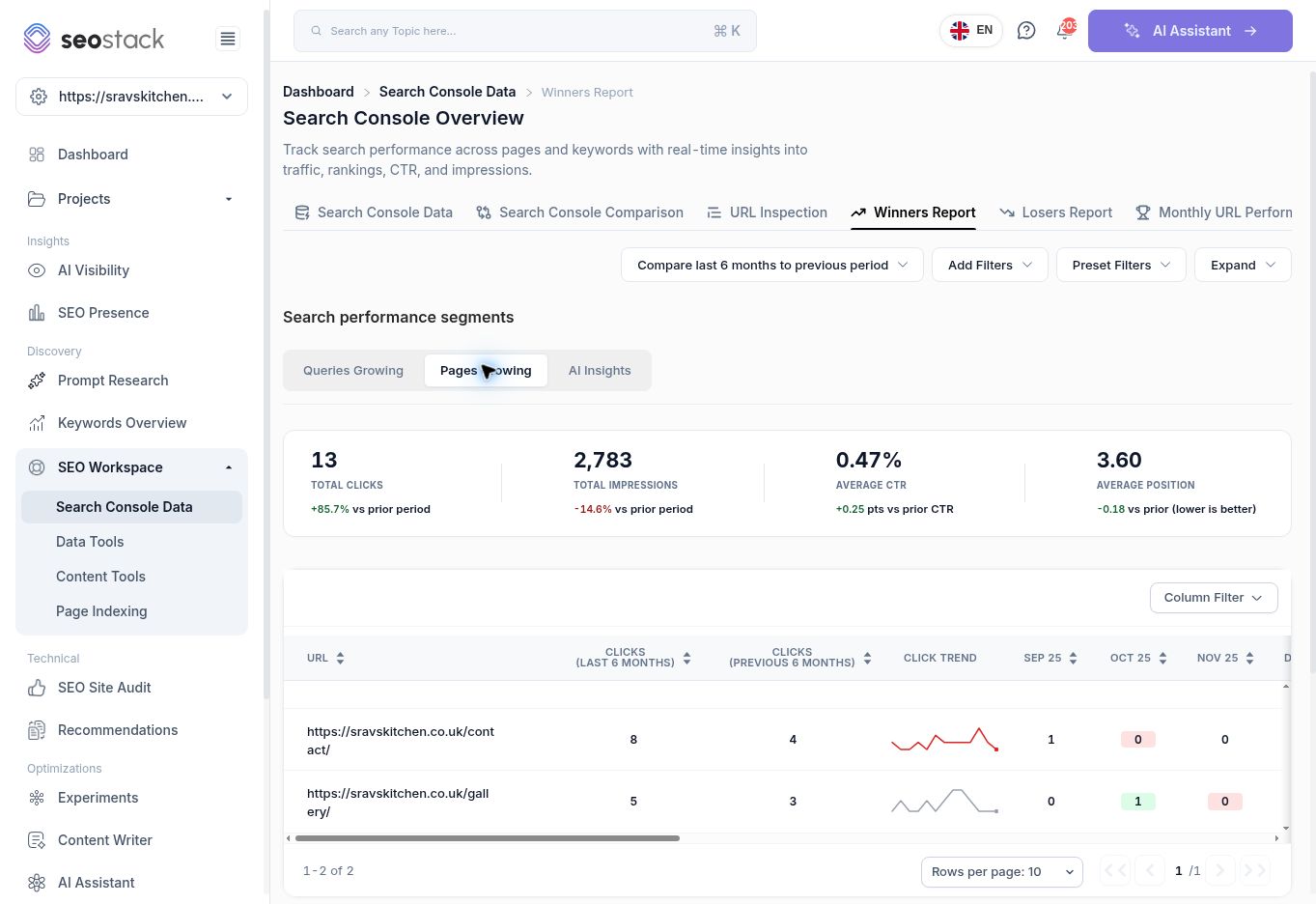 Winners Report with Pages Growing selected.
Understand the results
The report shows summary cards for Total Clicks, Total Impressions, Average CTR and Average Position. These change with the selected growing-query or growing-page segment. They should not be quoted as whole-site totals.
The table includes the query or URL, both periods' clicks, a trend line, monthly click columns, click change, percentage click change, impressions, CTR, position and position change. Scroll horizontally or use Column Filter to reach the metrics you need.
Prioritise absolute growth and relevance together. A small baseline can make a percentage increase look impressive. If the previous period has zero clicks, a conventional percentage increase is undefined; the reviewed report displayed a dash for such rows.
The month columns provide context, but check date boundaries and incomplete months before comparing them. Do not assume summing whole calendar-month columns will reproduce a rolling-period total exactly.
Example: choose which growing page to investigate
In the reviewed six-month comparison, Pages Growing included the contact page, increasing from 4 to 8 clicks, and the gallery page, increasing from 3 to 5. The contact page's 100% growth represents four additional clicks, not a large traffic breakthrough.
If the contact page supports enquiries, it may still warrant investigation. Open its page-specific data in Search Console Data and review the queries. Check whether the gain comes from relevant discovery, branded searches or an unusual short-term event before deciding to expand the content.
Example: investigate a growing query
The query indian restaurant southampton increased from 8 to 15 clicks in the reviewed report. That is seven additional clicks and 87.5% growth. The next step is to establish which page received those clicks and whether it answers the query well.
The label “winner” describes the click comparison. It does not prove that every metric improved or that an SEO action caused the gain. Use Search Console Comparison for an exact current-versus-previous view of impressions, CTR and position.
AI Insights
The report exposes an AI Insights tab and Generate AI insights for this report. The interface describes this as a summary of the current table with follow-up questions. Treat generated explanations as suggestions to verify against the rows.
The summary cards beneath the table can refer to query or page results. Read the entity named in a summary before assuming it describes only the tab currently selected.
Useful actions after reviewing winners
- Protect and maintain pages that are bringing relevant traffic.
- Inspect emerging queries for missing information on the existing landing page.
- Review whether useful internal links could help users reach the page.
- Compare gains with recorded site changes without assuming causation.
- Use the same dates and filters in the next reporting cycle.
If no growing results appear, check the date range, filters and available history. It may simply mean no rows qualify in that scope. Use Losers Report to examine declining segments or Search Console Comparison for the broader picture.
More in Search Console
A Guide to Using Google Search Console Data Tools
In this KB we show you how to use the google search console data tools.
ReadSearch Console Data: analyse queries, pages and search traffic
Filter Google Search Console data, inspect individual pages and turn search performance into practical SEO actions.
ReadSearch Console Comparison: find what changed between two periods
Compare clicks, impressions, CTR and position across queries and pages, and distinguish absolute changes from percentage changes.
ReadLosers Report: investigate declining queries and pages
Find pages and queries losing clicks, distinguish large losses from small-baseline percentage changes, and build a focused investigation list.
Read