MCP integrations: make SEO Stack data available to an AI client
The MCP page provides access-key management, connected-app controls, client configuration examples and an interactive catalogue of SEO Stack tools. Its purpose is to let an authorised AI client work with the SEO data available to your account.
This article covers the SEO Stack interface and a successful built-in read-only tool test. Connecting an external client was not tested. The staging page's client-specific snippets should be validated against the supported production setup before they become a copy-and-paste integration tutorial.
Understand access keys and connected apps
Open MCP in the sidebar. The page shows server status and an Access keys list with key name, masked key, status, created date, last used and Revoke. Generate Another Key is available. The page explicitly states that keys authenticate as you and grant the same access as your login.
Keep a key private and associate it with its intended client. Do not place real keys in knowledge base articles, screenshots, shared prompts or public code. No key was generated, revealed or revoked during this walkthrough.
Connected apps lists OAuth-authorised clients separately from access keys. Its explanation says revoking an app immediately disconnects it. An empty connected-app list does not mean that no API keys exist.
Review the connection instructions
The Connect a client area provides Claude Desktop, Gemini and ChatGPT tabs and Copy Config. The observed examples use an MCP server URL and an Authorization bearer-key placeholder. Use the values supplied for your intended environment and confirm the supported method for your client version.
The inspected server was the staging server. Do not publish its endpoint as the production endpoint or assume that a snippet shown in staging proves compatibility with a particular client. This article deliberately omits an untested production URL.
Explore the available tools
Each entry explains its purpose and expands to show Tool input (JSON) and Run. The catalogue included these groups:
| Need | Tools shown |
|---|---|
| Identify an authorised website | List My Websites. |
| Search performance | Query Search Performance; Get Search Console Min Max Date; Get Overall Metrics; Get Metrics Over Time. |
| Dimension analysis | Group By Dimension; Get Metrics Aggregated By Dimension. |
| Period comparison | Compare Periods; Get Search Console Data Comparison. |
| Query and page relationships | Group By Two Dimensions; Get Search Console Metrics Aggregated By Two Dimensions. |
| Website sections | Get Metrics Aggregated By URL Segment; Get Metrics Compared By URL Segment. |
| Context around changes | Get Annotations; Get Algorithm Updates. |
| AI visibility | List LLM Tracker Results; Check AI Visibility; Get AI Visibility Dashboard Data. |
| Prompt history | List Prompt Trackers; List Prompt LLM Visibility History. |
| Website configuration | List Topics; List Website Competitors; Get Website Profile. |
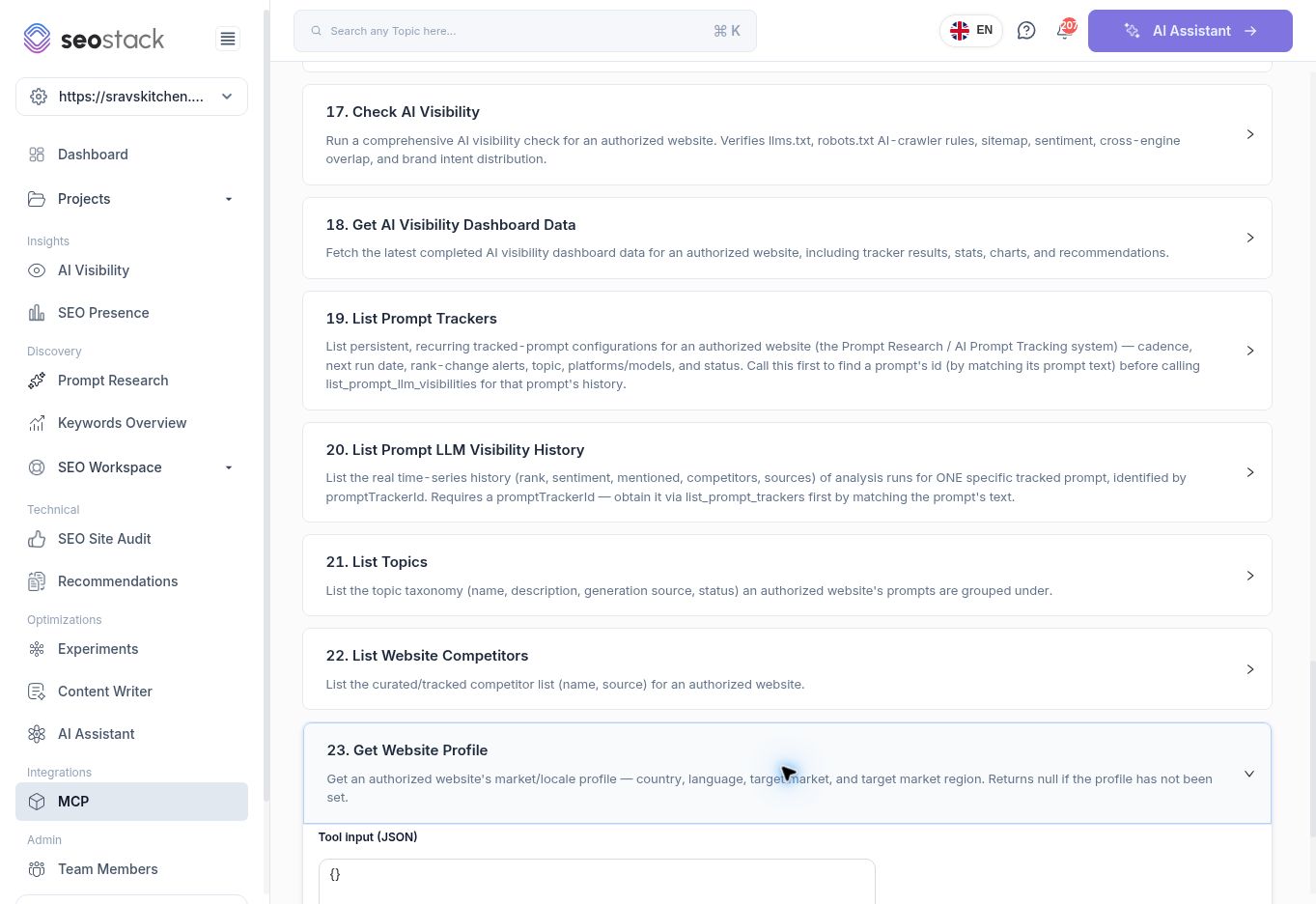 AI visibility, prompt history and website-context tools in the MCP catalogue.
Some entries have similar descriptions. Do not infer that they have identical input schemas or outputs. The visible catalogue is a starting point, not a complete API schema reference.
AI visibility, prompt history and website-context tools in the MCP catalogue.
Some entries have similar descriptions. Do not infer that they have identical input schemas or outputs. The visible catalogue is a starting point, not a complete API schema reference.
Test a read-only tool
- Expand List My Websites.
- Review the input; the walkthrough used the displayed empty JSON object,
{}. - Select Run.
- Inspect the result before requesting any website-specific metric.
This test returned a websites array with websiteId, name, URL and clickhouseTable, plus a total count. The explanatory text referred to _id, but the actual output used websiteId; use the field actually returned. The visible response contained 20 rows with a total of 21, so do not assume the first response necessarily contains every accessible website. Pagination behaviour needs confirmation.
The catalogue explains that the Search Console metric tools use the returned data index, while AI visibility tools use the website identifier. Do not invent either identifier. For prompt history, first identify the relevant tracked prompt, then request history for its promptTrackerId.
Example requests after a verified connection
- “Compare this website's last 28 complete days with the previous 28. Show the five pages with the largest absolute click decline, exact dates and impressions, CTR and position.”
- “Compare /blog/ and /products/ performance using the same period and URL-segment depth.”
- “Find this tracked prompt and summarise its available run history by platform, separating mentions from citations.”
Check date coverage, filters and aggregation when interpreting results. A successful website-listing test confirms that this built-in tool returned data; it does not establish that every other tool, external client or Google Analytics connection works. Check AI Visibility is described as running a check, so treat it differently from simply retrieving a stored result.