Keywords Overview: investigate ranking queries and track priorities
Keywords Overview combines ranking-query performance, topic grouping, trends and a tracked-keyword inventory. Use it to find important queries, inspect gains and losses, understand which URLs appear and organise the terms you want to monitor.
Start with the correct scope
Open Keywords Overview and check Device, date range, country and Intent. The example used Last 30 days and Global. Review Total Ranking Keywords, Average Position, Top 10 Keywords and New Ranking Keywords before opening individual rows.
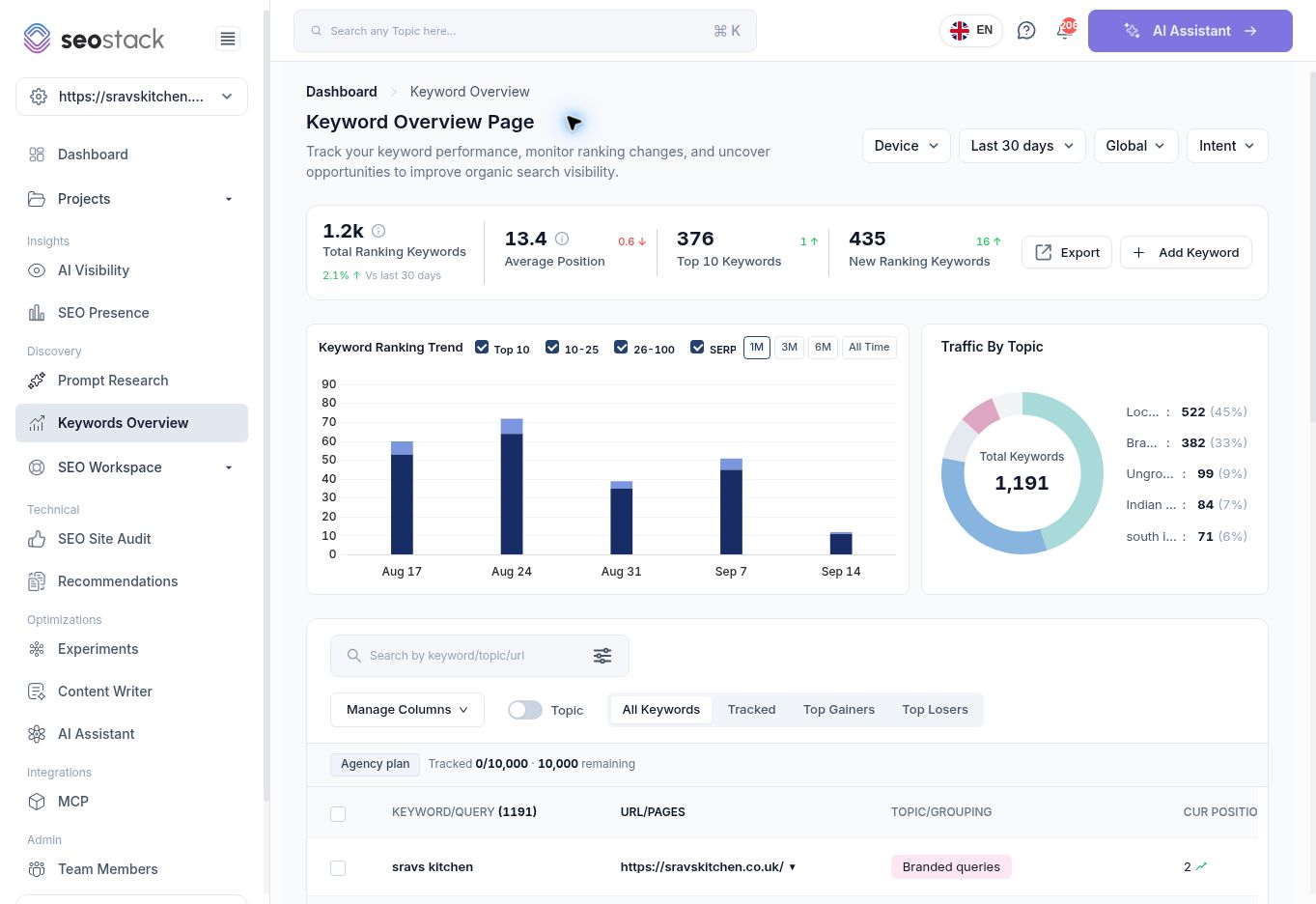 Keyword overview and tracking inventory.
The example showed 1,191 ranking keywords but 0 tracked keywords. Ranking data can exist without deliberately adding terms to the tracking inventory. Do not treat Total Ranking Keywords as the number using the tracked-keyword allowance.
Keyword overview and tracking inventory.
The example showed 1,191 ranking keywords but 0 tracked keywords. Ranking data can exist without deliberately adding terms to the tracking inventory. Do not treat Total Ranking Keywords as the number using the tracked-keyword allowance.
Explore trends and topics
Keyword Ranking Trend provides Top 10, 10–25, 26–100 and SERP Features toggles, with 1M, 3M, 6M and All Time views. Check the actual chart scope before comparing it with a summary card.
The Traffic By Topic chart displayed a Total Keywords count and topic counts. Read those labels rather than assuming its percentages are shares of clicks. Review topic relevance as well: the tested restaurant inventory included an unrelated “Local SEO auditing services” grouping. An assigned topic is not proof that the categorisation is correct.
Find useful queries
Use Search by keyword/topic/url, the filter control, Manage Columns, the Topic switch and the All Keywords, Tracked, Top Gainers and Top Losers views. The table shows query, URL/pages, grouping, current position, impressions, clicks, CTR, intent and actions.
The tested Top Losers view narrowed the inventory to 140 keywords. Read the underlying metric: a query can lose position while CTR rises, so a “loser” label does not mean every metric declined.
Read a keyword detail page
Select View Detail on a row. The detail page provides scope controls, current rank, GSC average position, impressions/CTR, optional GA4 sessions, a metric-switchable performance chart and ranking URLs.
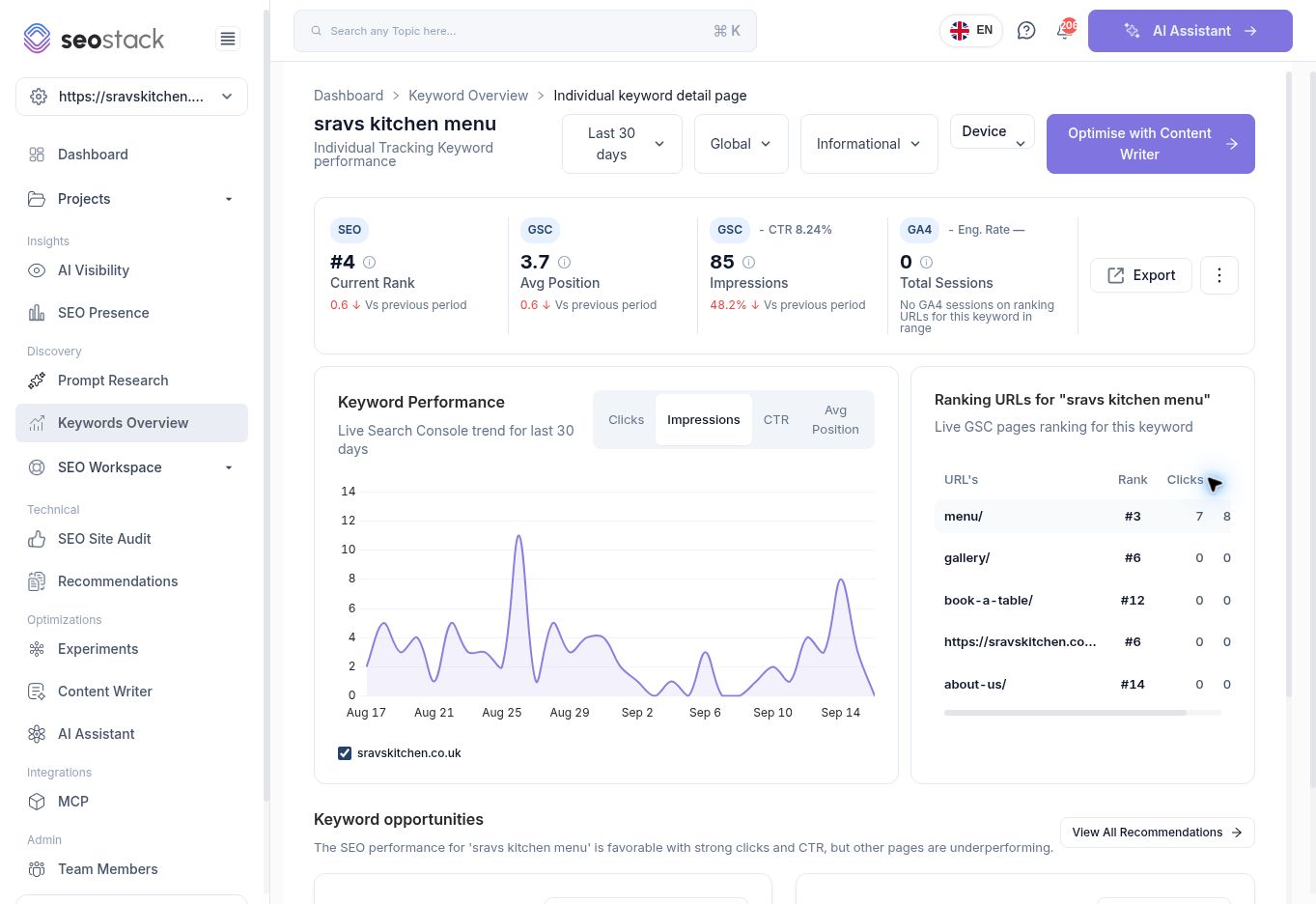 Individual keyword report for a branded menu query.
For sravs kitchen menu, the example showed Current Rank #4, GSC average position 3.7, 85 impressions and CTR 8.24%. The menu URL row separately showed rank #3, seven clicks and CTR 8.97%. Query-level and URL-level figures use different scopes, so they need not be identical.
Individual keyword report for a branded menu query.
For sravs kitchen menu, the example showed Current Rank #4, GSC average position 3.7, 85 impressions and CTR 8.24%. The menu URL row separately showed rank #3, seven clicks and CTR 8.97%. Query-level and URL-level figures use different scopes, so they need not be identical.
Do not present Current Rank as a guaranteed live search-result position for every searcher. Check the source label and the more precise average-position metric.
The detail page showed zero Total Sessions even though GA4 was not connected for this site elsewhere in the platform. Confirm the analytics connection and scope before reporting zero as measured traffic. Sessions on ranking URLs would also not, by themselves, establish sessions attributable to one exact search query.
Add a keyword
- Select Add Keyword.
- In Single, select or create a topic and enter the keyword.
- Review Search Console suggestions after selecting a topic.
- Add an optional Tag.
- Choose the required Search Intent and an optional Target URL.
- Review the details and select Add Keyword.
The walkthrough inspected the form without submitting a new tracked keyword.
Add keywords in bulk
Switch to Bulk to enter terms separated by commas or new lines. The import area accepts CSV, TXT, XLS and XLSX files, with a displayed maximum of 20 MB. Choose one topic for the batch or use Let AI organize into topics, then review the tag, intent and target URL before submitting.
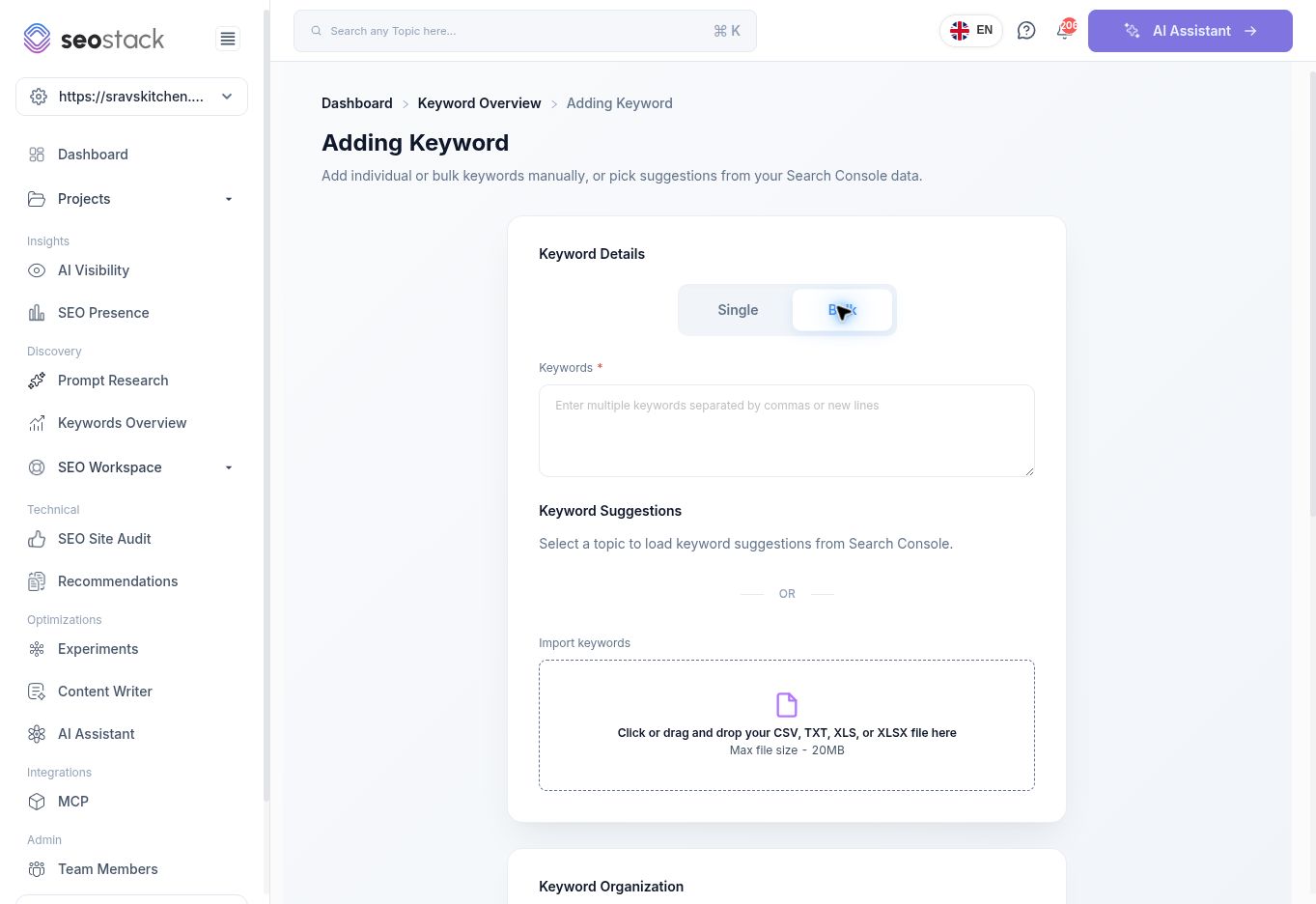 Bulk keyword input and supported file types.
Bulk import processing and AI topic assignment were not executed during this walkthrough. Check the grouping after import before relying on topic-level reporting.
Bulk keyword input and supported file types.
Bulk import processing and AI topic assignment were not executed during this walkthrough. Check the grouping after import before relying on topic-level reporting.
Example: investigate a menu-query decline
Open Top Losers, find the branded menu query and select View Detail. Compare impressions, clicks, CTR and average position. Review all ranking URLs to check whether the intended menu page remains the main destination.
Several pages appearing for a brand query can be normal. Investigate whether the wrong page is taking relevant visibility or providing a poor customer experience before deciding to consolidate content or change internal links. Keep the menu, booking and gallery pages' distinct purposes in mind.
AI opportunity cards can suggest content work or other actions. Verify the problem before following the suggestion. Low clicks on a secondary URL for a branded menu query do not automatically mean that secondary page should be rewritten to compete with the menu.
Troubleshooting
If Tracked is empty, check whether any keywords have been deliberately added. If totals differ between reports, compare dates, filters and query versus page aggregation. If a topic is irrelevant or an intent seems wrong, review the assignment rather than using it as an unquestioned basis for a content plan.