Using Search Console Filters - How to Apply, Layer, Filter + More
Learn how to use the google search console data filters in SEO stack including layered filtering, applying multiple conditions, saving filters etc.
Layer filters to isolate the data you want
SEO Stack lets you combine inclusion and exclusion rules, build query or URL shortlists in bulk, and save the combinations for reuse. Start at SEO Workspace > Search Console Data > Add Filters, then choose Query or Page.
 image
image
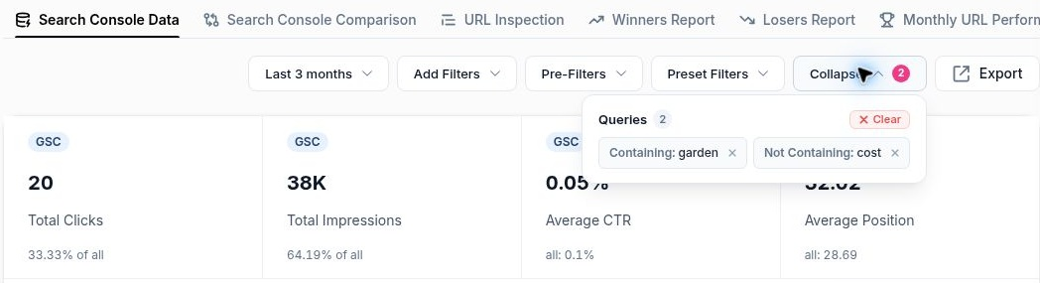
Live example: two query filters applied together. Expand shows the active rules.
Example: contain “garden”, exclude “cost”
1. Add a Query filter. Set Containing, choose Must, enter garden and click Apply. 2. Add another Query filter. Choose Not Containing, enter cost and click Apply. 3. Open Expand to check that both rules are present.
The result includes queries such as “garden designers near me”, while queries such as “garden design cost per m2” are excluded. The second rule adds to the first: you do not have to replace your existing filter.
MUST and SHOULD: the useful distinction
MUST = all required inclusion conditions. With two contains terms, a query must contain both. SHOULD = any of the alternative inclusion conditions. With a shortlist of exact queries, a row can match any one entry.
Build each example from a clean filter state. Use Expand > Clear to clear the relevant query or page rules. Exclusion match types hide the Operator selector in this interface; choose the negative match directly.
Tip: check Match type, Operator, Bulk and Case-sensitive before Apply. The interface can retain previous selections, and changing the match type can reset the operator.
Show only a specific set of queries or pages
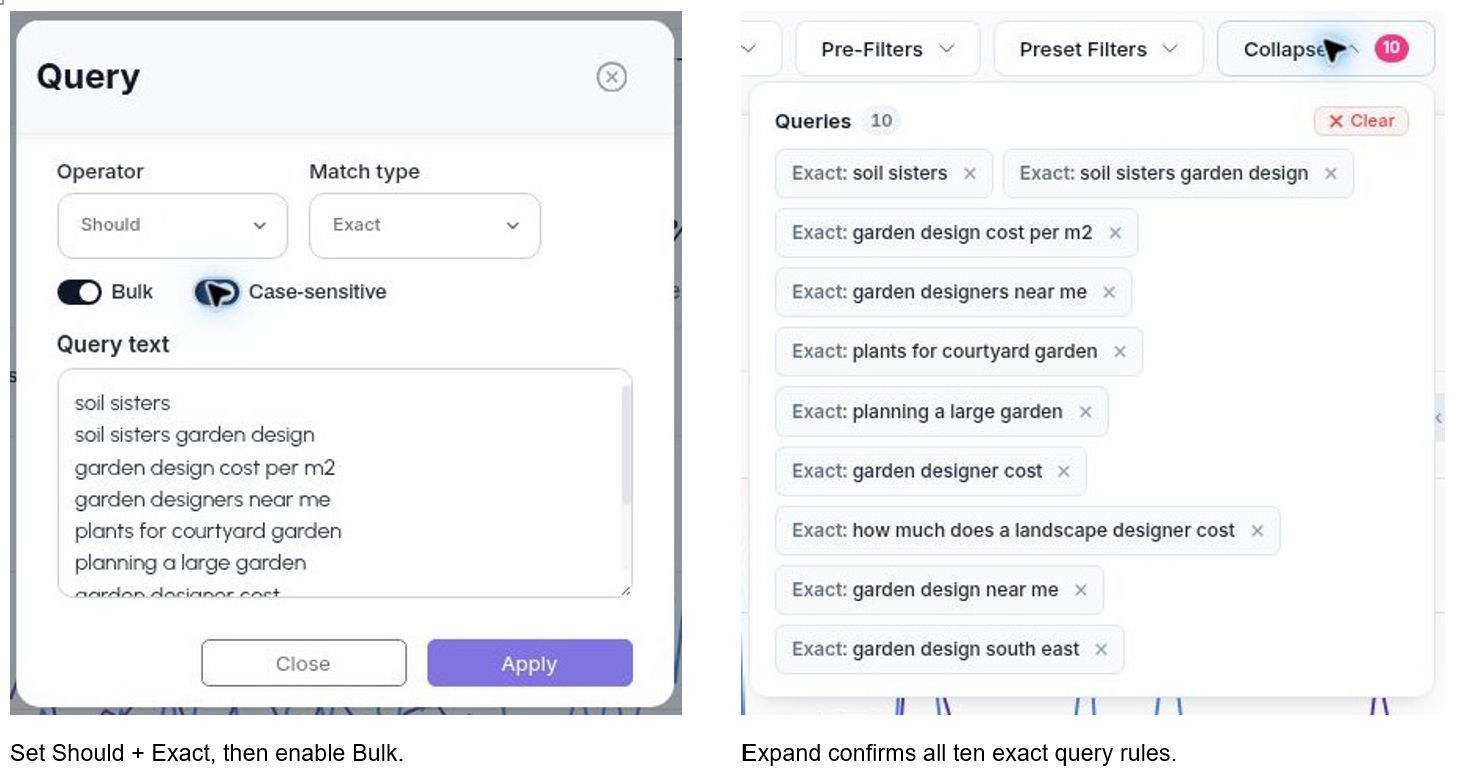
Use SHOULD > EXACT when you want to report on a defined shortlist. For ten different queries, each row should match one of the ten; it cannot equal all ten at once.
 image
image
| Set Should + Exact, then enable Bulk. | Expand confirms all ten exact query rules. |
Apply a ten-keyword shortlist
1. Clear the previous query rules. 2. Open Add Filters > Query and set Exact, then Should. 3. Enable Bulk. Paste one complete query per line. 4. Review case sensitivity, then click Apply. The live example returned 1-10 of 10 matching query rows.
Example entries include “soil sisters”, “garden design cost per m2” and “garden designers near me”. Exact matches the full query text; Containing would also admit longer queries containing that text.
Use the same approach for a page shortlist
Choose Add Filters > Page instead. Set Exact > Should > Bulk and paste one complete URL per line. Use the full stored URL, including https://, the correct host and any trailing slash. The Pages table may display a shortened path even though the filter is applied to the full URL.
Useful for: a campaign landing-page list, ten priority service pages, a content refresh batch, or a fixed keyword group. Only listed items with data in the selected period will appear; supplying ten values does not guarantee ten results.
Bulk contains: choose ANY or ALL
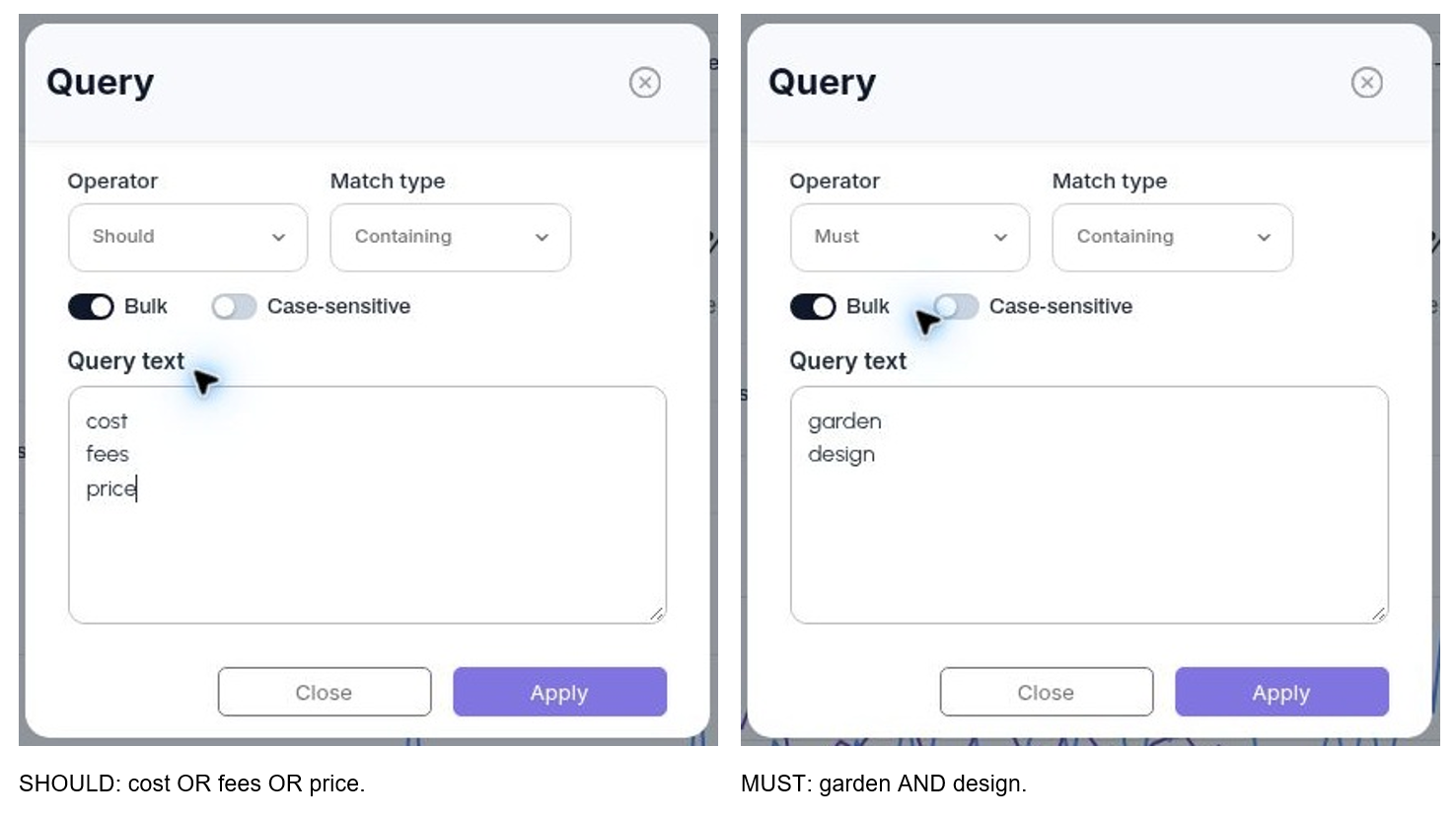
Bulk turns each new line into a separate condition. The operator determines whether the query needs to contain any listed term or every listed term. Set the match type before checking the operator.
 image
image
| SHOULD: cost OR fees OR price. | MUST: garden AND design. |
SHOULD + Containing: any listed term
Clear previous query rules. Choose Containing > Should, enable Bulk, then enter cost, fees and price on separate lines. Click Apply. This creates a pricing-related segment: a query can contain any one of those strings. The tested results included “garden designer cost” and “landscape prices”.
MUST + Containing: every listed term
Clear the previous query rules. Choose Containing > Must, enable Bulk, and put garden and design on separate lines. Click Apply. A query needs both strings, in any order, such as “garden designer cost”.
Containing is substring matching. “Design” can match “designer”, and “price” can match “prices”. Use Exact for a complete query match, or carefully chosen regex when you need more specific boundaries. Do not paste separate alternative full keywords under MUST + Exact: one query cannot equal several different strings simultaneously.
Filter by the beginning or end of a URL
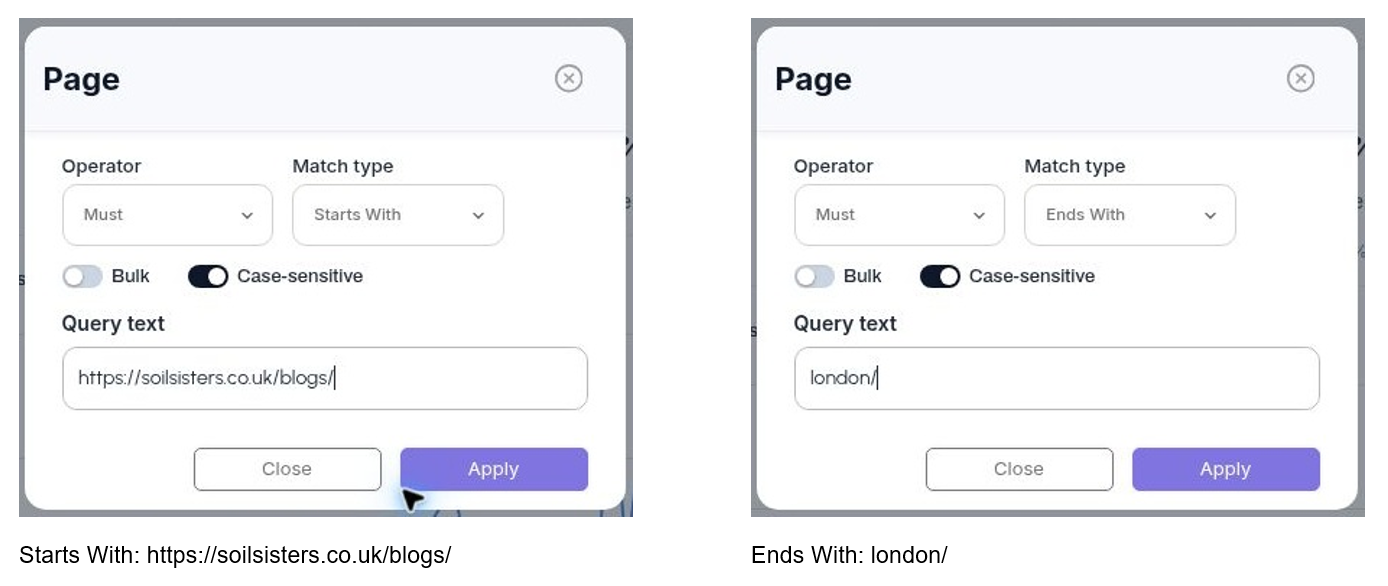
Use Add Filters > Page. Each example below was applied in the live report. Copy the full URL prefix when using Starts With; the shortened path in the table is a display choice.
 image
image
| Starts With: https://soilsisters.co.uk/blogs/ | Ends With: london/ |
Include a directory and suffix: apply Starts With using the blog URL prefix above. Add Ends With using london/. Both positive rules used Must. Together they returned blog URLs ending in london/, including /blogs/garden-design-cost-london/.
 image
image
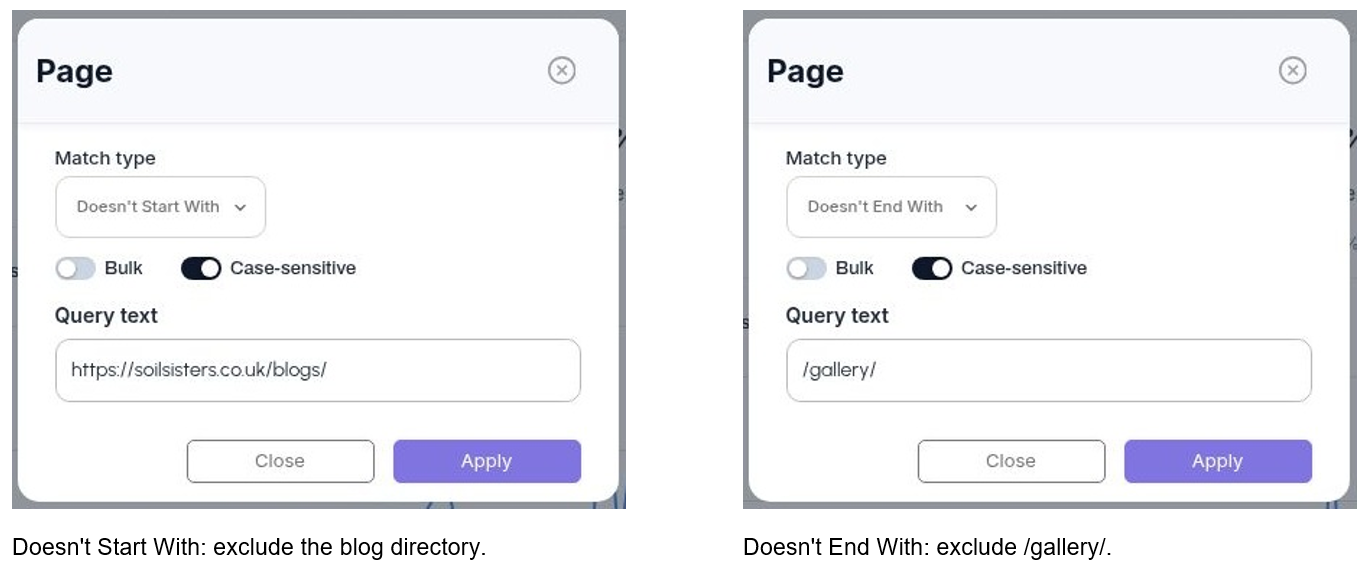
| Doesn't Start With: exclude the blog directory. | Doesn't End With: exclude /gallery/. |
Exclude a directory and suffix: clear the previous page rules. Apply Doesn't Start With using https://soilsisters.co.uk/blogs/, then add Doesn't End With using /gallery/. The resulting page view excluded blog URLs and the gallery suffix while retaining pages such as /garden-design/.
Be precise: Ends With london/ differs from Containing london. A URL ending london-and-beyond/ does not end london/. Trailing slashes and URL parameters can affect suffix matches. Open Expand to confirm the rules you have layered.
Save filters as reusable presets
Build and verify the active filter combination first. A saved preset gives the segment a recognisable name so you can return to it without entering each rule again.
 image
image
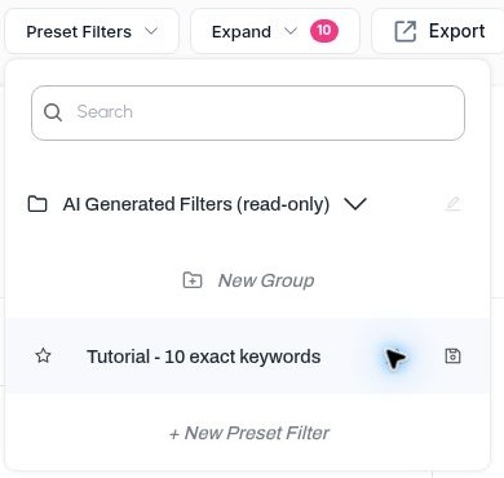
| Type the preset title and click the save icon. | The saved preset appears as a selectable item. |
Save the ten-keyword shortlist
1. Apply the ten-query Should + Exact example. 2. Open Preset Filters. 3. Click + New Preset Filter in the main preset list. 4. Enter a clear name, such as Tutorial - 10 exact keywords. 5. Click the save icon beside the title. Wait for the named preset to appear.
To use it again, open Preset Filters and click the saved name. The demonstration saved this preset and reapplied it after clearing other filters. Check the reporting period separately whenever you load a segment.
Pre-Filters and Preset Filters are different
Pre-Filters contains ready-made shortcuts. Preset Filters is the library where you save and organise your own combinations. The library also contains an AI Generated Filters group marked read-only; create your own editable group for your filters.
Name by purpose: “Priority service pages”, “Pricing queries” or “Non-brand garden searches” is easier to reuse than “Filter 1”.
Organise another preset inside a folder
 image
image
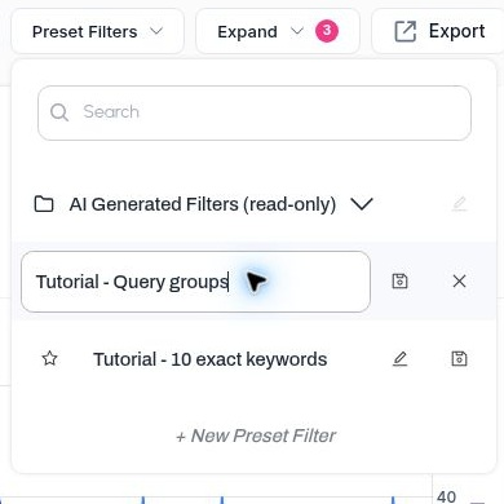
| New Group creates a folder in the preset library. | The pricing preset saved inside the new group. |
1. Apply the pricing segment: Should + Containing + Bulk, with cost, fees and price on separate lines. 2. Open Preset Filters > New Group. 3. Enter Tutorial - Query groups in Group Title, then click its save icon. 4. Click the new group name to open it. 5. Click + New Preset Filter inside that group, rather than the one in the main list. 6. Enter Pricing queries - cost OR fees OR price and click the save icon. 7. Confirm the named filter appears within the folder. Click it later to reapply the segment.
Why this makes complex reporting easier
You can combine readable include/exclude conditions, paste exact shortlists, choose ANY or ALL matching, and organise reusable segments in named folders. GSC also supports contains, excludes, exact and regex filtering; SEO Stack's practical advantage here is assembling and reusing these combinations through explicit rules and bulk lists.
Final check: right property and dates; right Query or Page scope; correct match type and operator; one bulk value per line; intended case sensitivity; active rules checked in Expand.
More in Search Console
A Guide to Using Google Search Console Data Tools
In this KB we show you how to use the google search console data tools.
ReadSearch Console Data: analyse queries, pages and search traffic
Filter Google Search Console data, inspect individual pages and turn search performance into practical SEO actions.
ReadSearch Console Comparison: find what changed between two periods
Compare clicks, impressions, CTR and position across queries and pages, and distinguish absolute changes from percentage changes.
ReadWinners Report: find queries and pages gaining clicks
Identify growing queries and pages, examine their monthly trends and decide which improvements to investigate or extend.
Read