URL Inspection: check indexing, crawl information and canonicals
Inspect a URL and interpret its coverage state, crawl information and Google-selected canonical.
URL Inspection helps you investigate how a URL is represented in the available inspection data. It brings together indexing information, fetch status, canonical URLs and referring URLs.
Use it when a page appears to have an indexing problem, when Google may have chosen a different canonical, or when you need crawl context before investigating poor search performance.
Inspect a page
- Select the relevant website.
- Open SEO Workspace → Search Console Data → URL Inspection.
- Enter the full URL in Enter / Search the URL you want to inspect.
- Select the matching URL from the suggestions.
- Select Inspect Now.
- Wait for the result, then read Coverage State, Verdict and the detailed fields together.
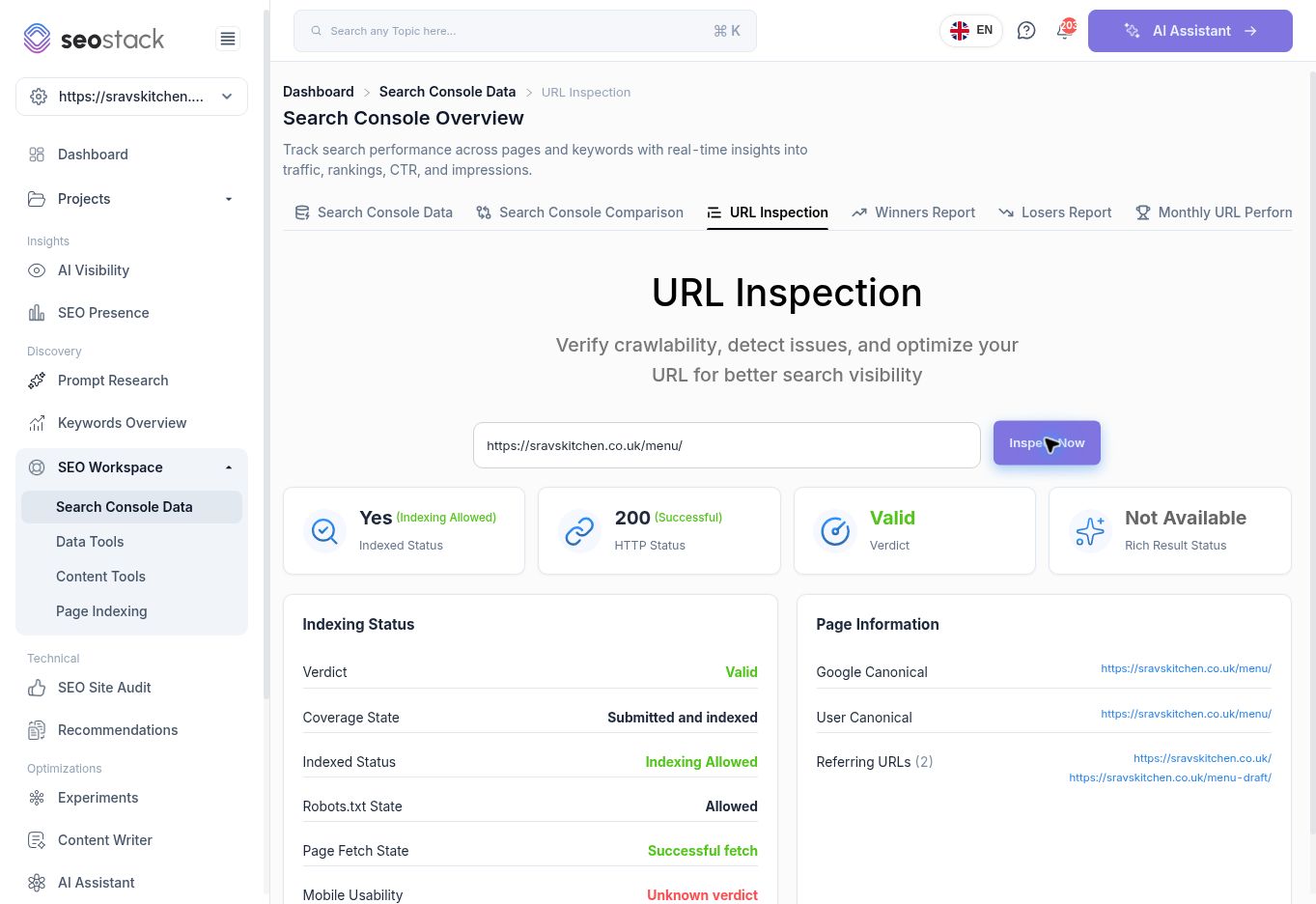 Completed inspection of the restaurant menu page.
Read the result
| Field | What to look for |
|---|---|
| Indexed Status | Read the underlying wording carefully. “Indexing Allowed” describes permission, not by itself a guarantee that the URL is indexed. |
| Coverage State | Read the explicit coverage description. The tested page returned “Submitted and indexed”. |
| Verdict | The summary verdict returned in the inspection result. |
| HTTP Status | The response status displayed by SEO Stack. The tested page showed 200. A successful response alone does not establish indexing. |
| Robots.txt State | Whether the inspected result reports crawling as allowed. |
| Page Fetch State | Whether the inspection reports a successful fetch. |
| Last Crawled | The crawl date and crawler context shown in the result. Use it to understand the age of the evidence. |
| Google Canonical | The canonical URL Google reports selecting. |
| User Canonical | The canonical URL declared by the website in the available result. |
| Referring URLs | URLs included in the inspection's discovery context. Do not treat the list as a complete backlink report. |
| Rich Result Status | The available rich-result result. “Not Available” should not automatically be treated as an error. |
Example: check whether canonicalisation is the issue
The inspected /menu/ URL returned Valid, Submitted and indexed, Allowed robots state and Successful fetch. Google Canonical and User Canonical both showed the menu URL.
For that inspected version, those results do not indicate a canonical mismatch. If the page still receives fewer clicks than expected, continue into its query performance instead of assuming that an indexing fix is needed.
If the two canonicals differ, compare the reported URLs and inspect whether the selected alternative is intended. Investigate the site's canonical declarations and relevant URL variants before making changes.
Understand the age and limits of the evidence
Inspection data is not necessarily a live test of the current page. Google's URL Inspection API documentation states that it reports the version in Google's index and cannot test a live URL's indexability. Check the reported crawl date before using the result to assess a recent deployment.
The reviewed page displayed a crawl date of 6 September during a 16 September review. A change made after that crawl would need more recent evidence.
The result also showed Mobile Usability: Unknown verdict. Unknown means the result does not provide a definitive verdict; do not turn that into a claim that the page fails mobile usability.
Troubleshooting
If Inspect Now is disabled, check that a URL has been entered and selected. Use a URL belonging to the selected property. If the result is unavailable, check the property connection and try an appropriate URL; do not diagnose a site issue from a missing result alone.
Other tables in SEO Stack explain that inspection data is populated gradually because of Google's inspection limits. An Inspect URL placeholder in those tables does not mean the page is excluded from Google.
This tool reports inspection information. It should not be described as a guarantee of rankings or as a request for Google to index a page.
More in Search Console
A Guide to Using Google Search Console Data Tools
In this KB we show you how to use the google search console data tools.
ReadSearch Console Data: analyse queries, pages and search traffic
Filter Google Search Console data, inspect individual pages and turn search performance into practical SEO actions.
ReadSearch Console Comparison: find what changed between two periods
Compare clicks, impressions, CTR and position across queries and pages, and distinguish absolute changes from percentage changes.
ReadWinners Report: find queries and pages gaining clicks
Identify growing queries and pages, examine their monthly trends and decide which improvements to investigate or extend.
Read