Task Manager: organise SEO work, deadlines and project notes
Task Manager organises work for the selected website through an overview, board, calendar, notes and activity history. Use it to turn verified findings into clear tasks, plan dates and keep project decisions alongside the work.
Create a task
- Open Projects → Task Manager.
- Select Create Task.
- Enter a task name and choose an assignee, or leave it Unassigned.
- Set High, Medium or Low priority and the appropriate status.
- Enter the required Starting Date, Deadline and Description.
- Select a group or create one if needed.
- Optionally attach supporting material. The form advertises PNG, JPG or PDF up to 2 MB.
- Review the details and select Create Task.
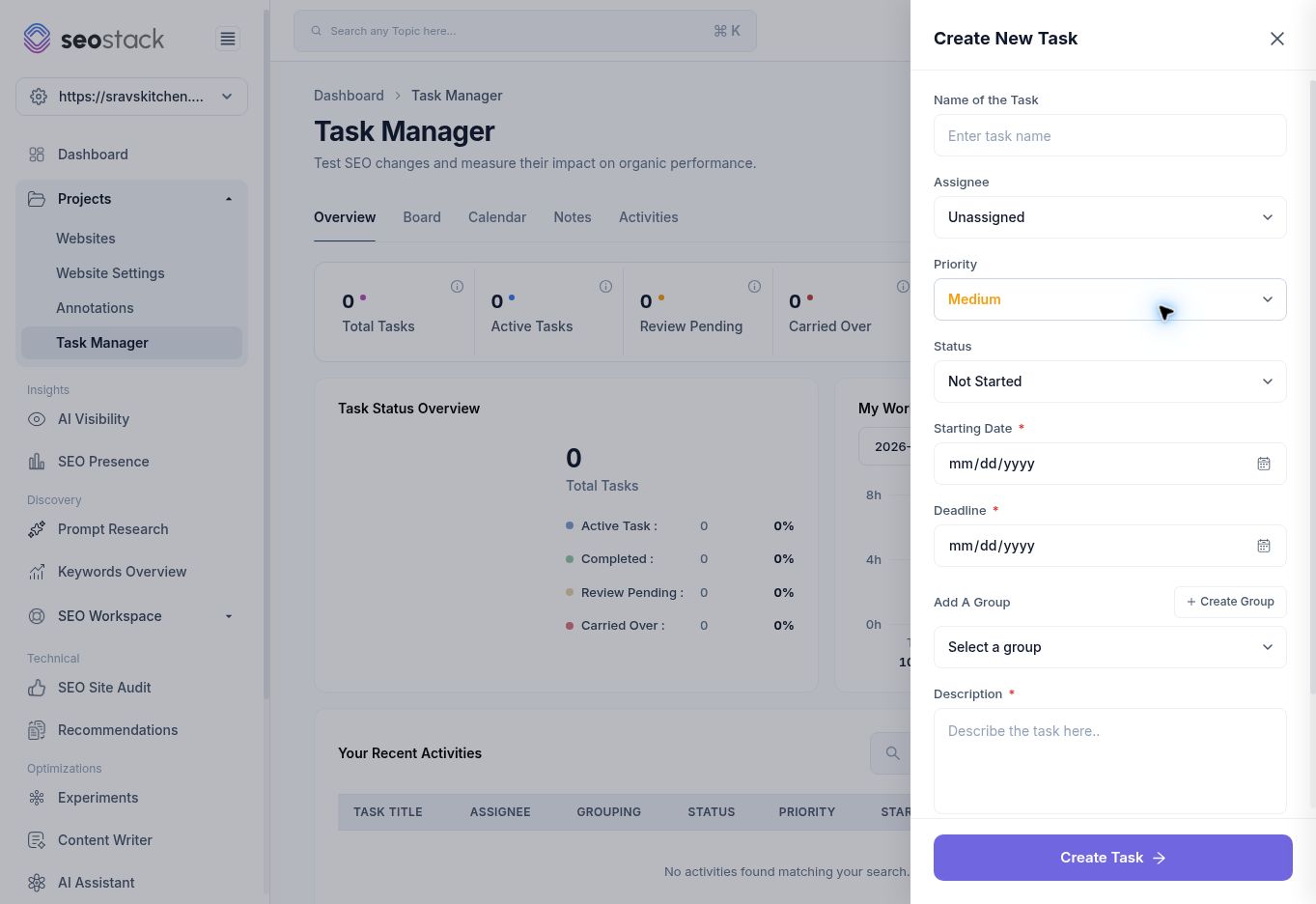 Task creation fields.
The observed statuses were Not Started, Started, In Progress, Pending Review, Needs Amends, Rejected, Approved and Complete. These are workflow states, not measured SEO outcomes.
Task creation fields.
The observed statuses were Not Started, Started, In Progress, Pending Review, Needs Amends, Rejected, Approved and Complete. These are workflow states, not measured SEO outcomes.
The walkthrough inspected creation without assigning or submitting a task. Attachment handling and post-creation task actions were not tested.
Choose a working view
| View | What it helps you do |
|---|---|
| Overview | Review total, active, pending-review, carried-over and completed counts, plus recent activities and My Work Time. |
| Board | Filter by group or status and choose Cards, List or Kanban presentation. |
| Calendar | View planned work using Day, Week, Month or Custom scope. |
| Notes | Capture research, ideas and decisions for the website project. |
| Activities | Review project task activity. |
The tested website had no tasks or notes, so the walkthrough verified these views and their empty states rather than a populated task lifecycle. An empty work-time chart does not establish that no work occurred outside the tool.
Keep tasks actionable
Use a name such as “Verify the booking page's missing-title finding” rather than “Improve SEO”. Include the URL, evidence, intended outcome and acceptance criteria. For an HTML-only audit warning, ask the owner to check rendered content before implementing a fix.
Use project notes for background research or decisions that do not yet need a deadline. Use an annotation after a real deployment to record when the website changed. An experiment can then capture the hypothesis and comparison settings for measuring the change.
Example: manage a menu-page improvement
Create a task to review the menu title and introduction, link the audit evidence in the description and specify that dishes and prices must remain accurate. Move the task to review when the proposed copy is ready. After approval and deployment, record the actual change date in Annotations and later review the relevant page/query metrics.
Completing the task means the work was completed according to your process. It does not mean rankings or traffic improved.
Troubleshooting
If a task is missing, check the selected website and the board's group, status, priority, assignee and date filters. Reset filters before concluding the task was removed. If creation is blocked, verify the required dates and description, and check attachment size and format if you added a file.