How to use the Task Manager tool in SEO Stack
An overview of how to use the task manager tools in SEO Stack.
Open Projects → Task Manager for the website you’re working on. This walkthrough uses one job throughout: review search performance for /marketplace after a baseline annotation. You’ll create a group for the work, give the task an owner and deadline, find it on the calendar and save the comparison method for the team.
 image
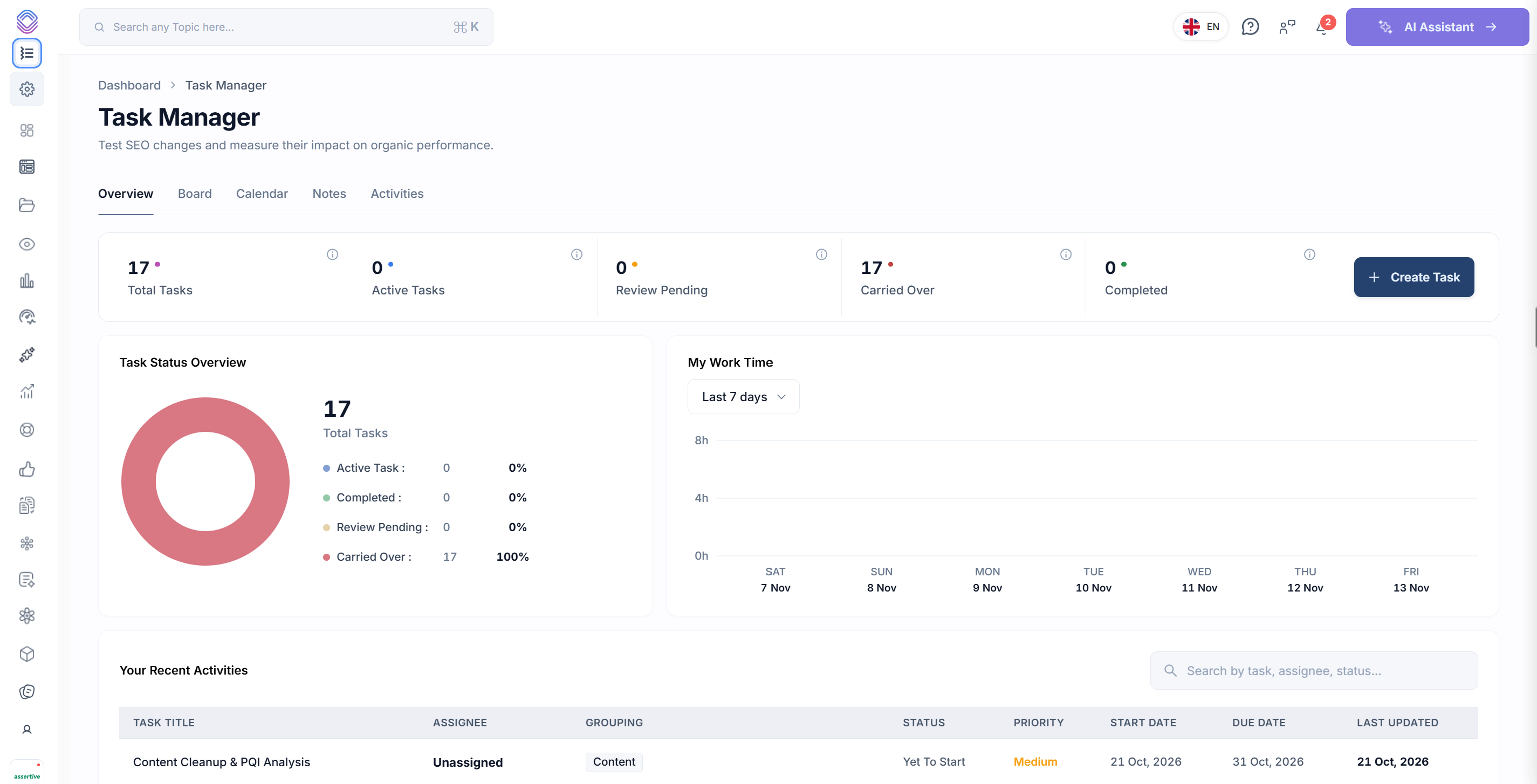
Overview — check what needs attention
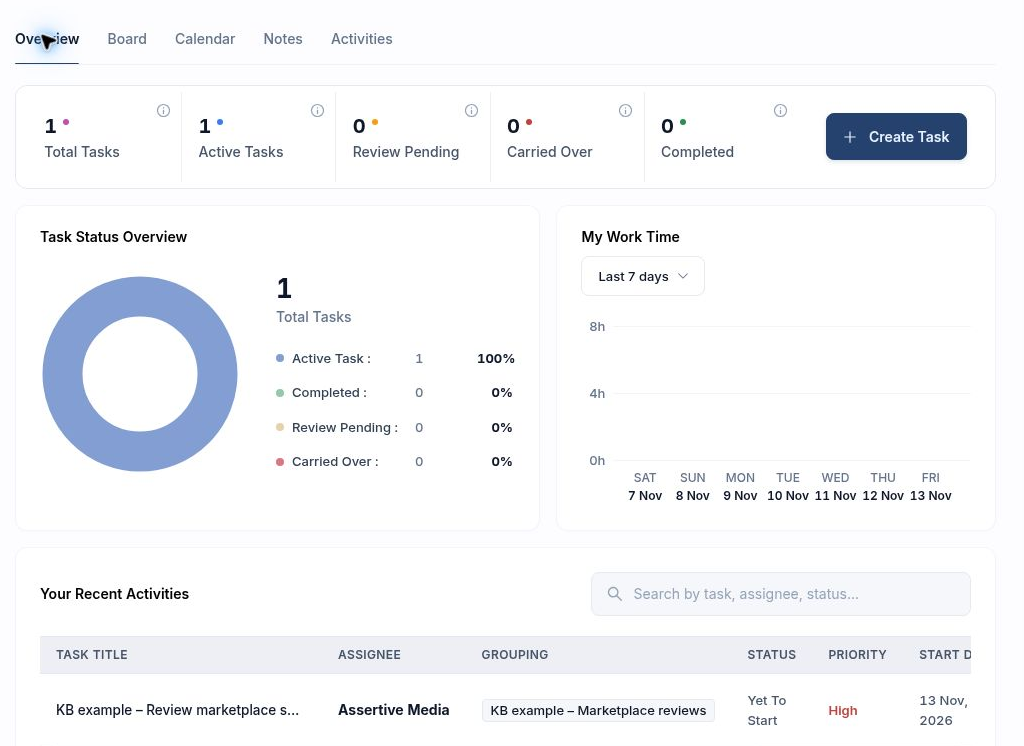
Use Total Tasks to see the size of the project workload. Active Tasks, Review Pending, Carried Over and Completed show how that work is distributed. If several tasks are waiting for review, open Board and filter by status to find them. The Task Status Overview gives counts and percentages.
My Work Time plots recorded hours over the period you select. A task’s start date and deadline describe its schedule. They do not enter hours on this chart. Under Your Recent Activities, search by task, assignee or status, or select View All for the longer activity list.
 image
Overview after adding the marketplace review task.
Create a group for related tasks
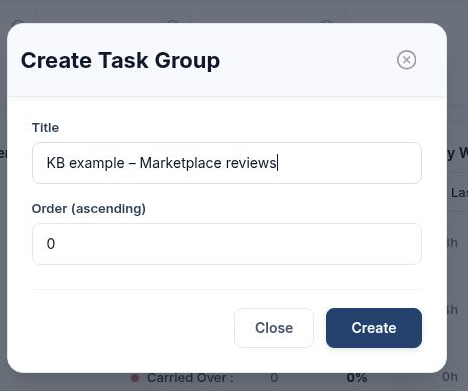
On Board, select Create Group. You can also create one inside the task form, under Add A Group → Create Group. Enter a descriptive Title. Here we used “KB example – Marketplace reviews” so future jobs for the same review can sit together. Order (ascending) controls the group sequence, with lower values first. Select Create.
Creating the group makes it available for selection. To assign work to it, choose its name in the task’s Add A Group dropdown. To find work already assigned to it, use Filter By Group on the board.
 image
Create Task Group asks for a title and an ascending order value.
Create a task and assign it to the group
\1. Choose Create Task and enter an action someone can complete. Our example is “KB example – Review marketplace search performance”.
\2. Under Assignees, search for the team member and tick their name. We selected Assertive Media. Set Priority to High, Medium or Low and choose the current Status. The example starts at High priority and Not Started.
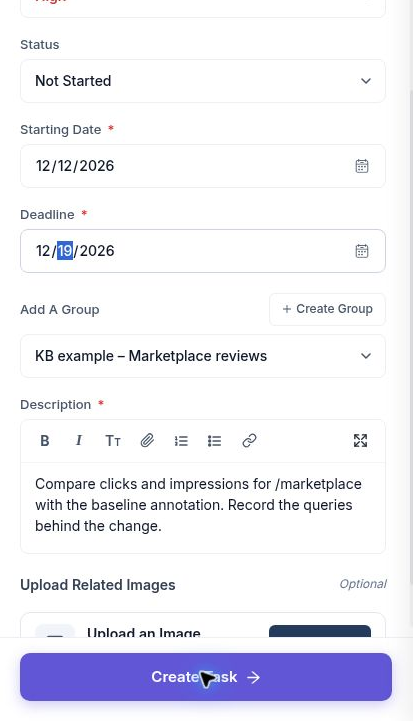
\3. Enter a Starting Date and Deadline. Here the review runs from 13 to 20 November 2026. Under Add A Group, select the marketplace group you just created.
\4. Use Description to specify the expected output. Here the owner needs to compare clicks and impressions for /marketplace with its baseline, then identify which queries account for the change. Use the editor for links and lists. The optional upload accepts PNG, JPG or PDF up to 2 MB.
\5. Select Create Task. In Board → List, check the group, priority, deadline and assignee in the saved row. Repeat the group selection on subsequent tasks that belong to the same piece of work.
 image
The task form shows the selected dates, group, description and Create Task control.
Board — switch between Cards, List and Kanban
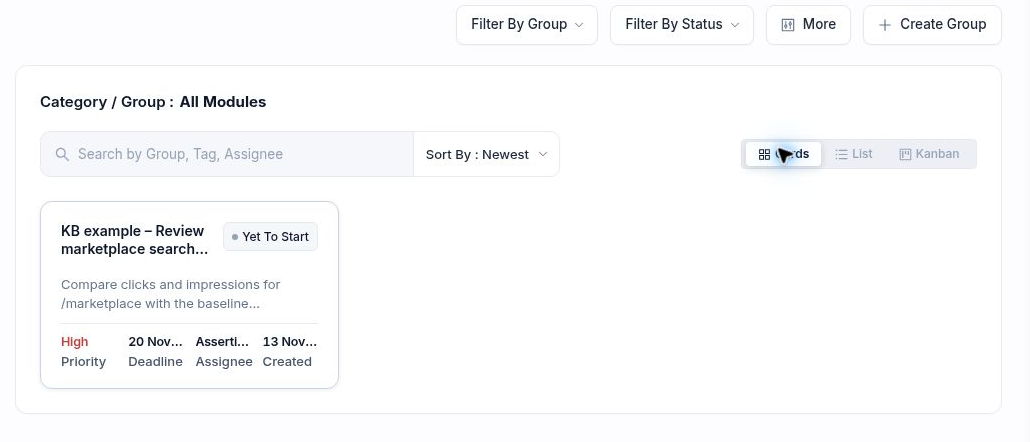
Open Board and select Cards. A card gives the task description space alongside its owner, priority and due date. This is a useful view when you need to understand the brief before opening a task.
 image
Cards view of the marketplace review.
Compare tasks in List
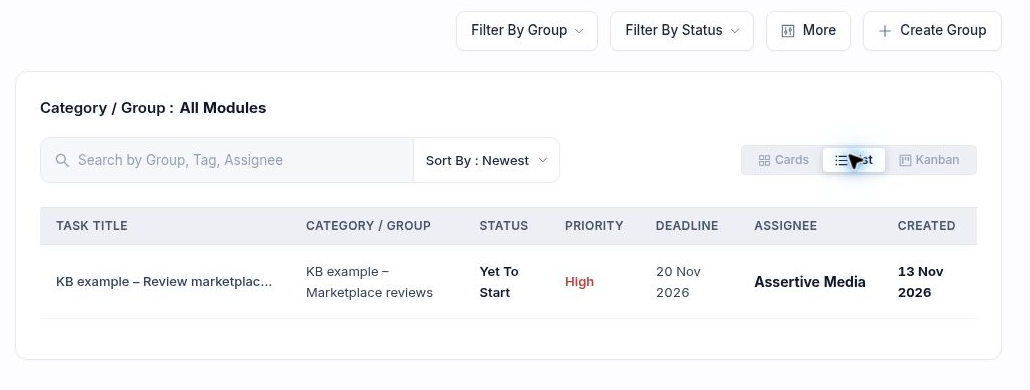
Click List beside Cards. Read across the row to check task title, category or group, status, priority, deadline, assignee and creation date. Here the row confirms that Assertive Media owns the High priority marketplace review and that it is due on 20 November. Use the sort menu above the results to change the displayed order.
 image
List places the assignment and deadline on the same row.
Follow work through Kanban
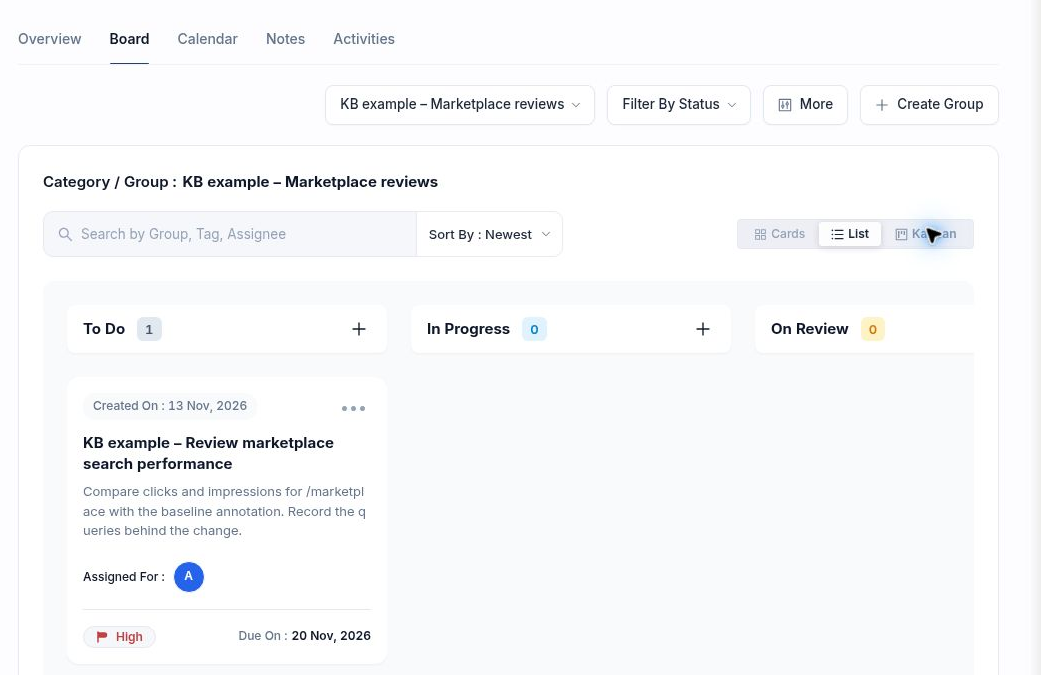
Click Kanban to group cards by workflow stage. The board includes To Do, In Progress, On Review, Completed and Rejected. The same task that List labels “Yet To Start” appears in To Do. Switching layouts preserves its assignment and deadline. The count above each column shows how much work is in that stage.
 image
The saved marketplace review appears in the To Do column.
Apply filters to narrow the board
Use Filter By Group and select the marketplace group. The Category / Group label confirms your selection. Use Filter By Status when you only want work at one stage. The search field accepts a group, tag or assignee.
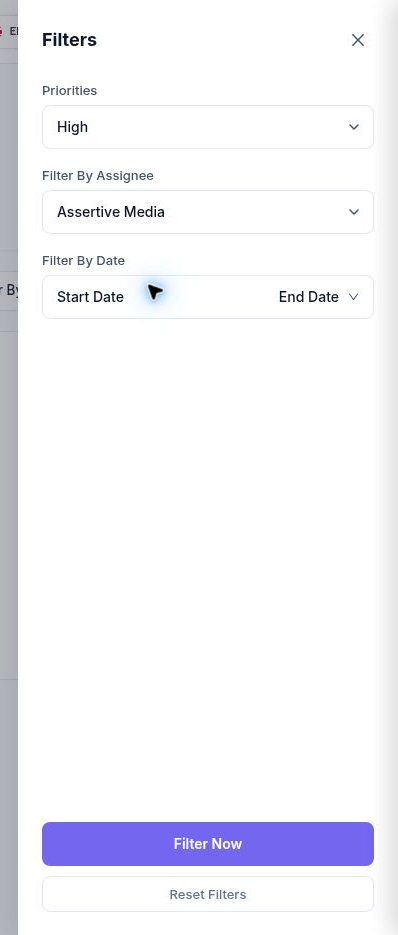
For a more specific question such as “Which high-priority tasks does Assertive Media own?”, open More, choose High under Priorities and Assertive Media under Filter By Assignee, then click Filter Now. You can also set a start and end date. Use Reset Filters in the drawer when you want to broaden the results again. If a task is missing, check the group and status controls as well.
 image
The More drawer with High priority and Assertive Media selected.
Calendar — see when work is scheduled
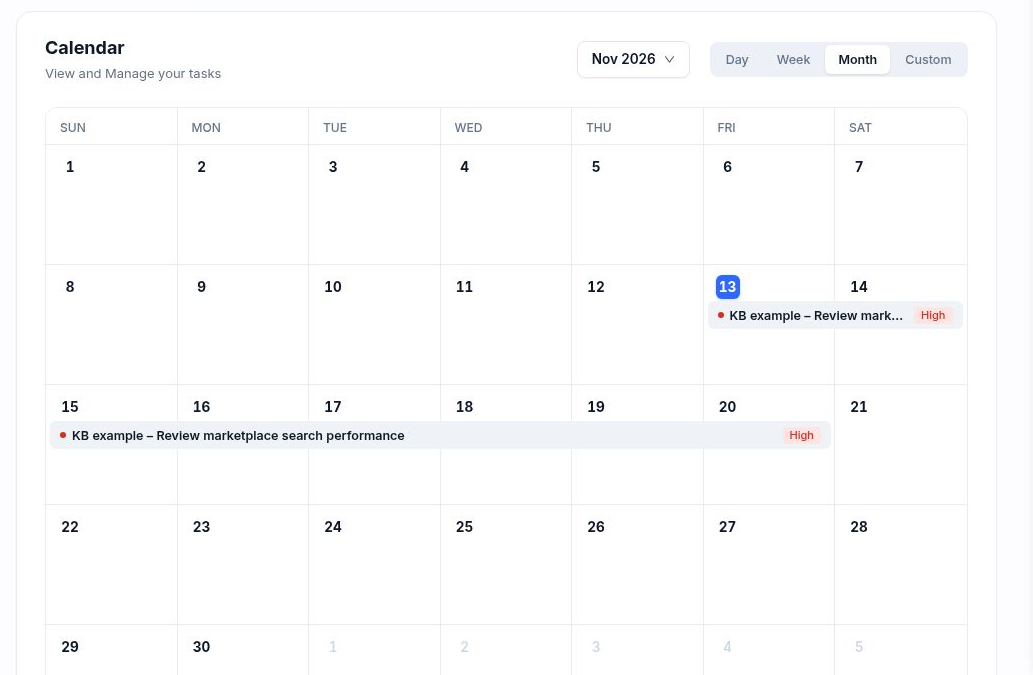
Open Calendar and use the month selector to reach November 2026. Month gives the overall schedule. The marketplace task spans 13–20 November, so it appears on more than one date. Select an empty date cell to begin creating a task for that day.
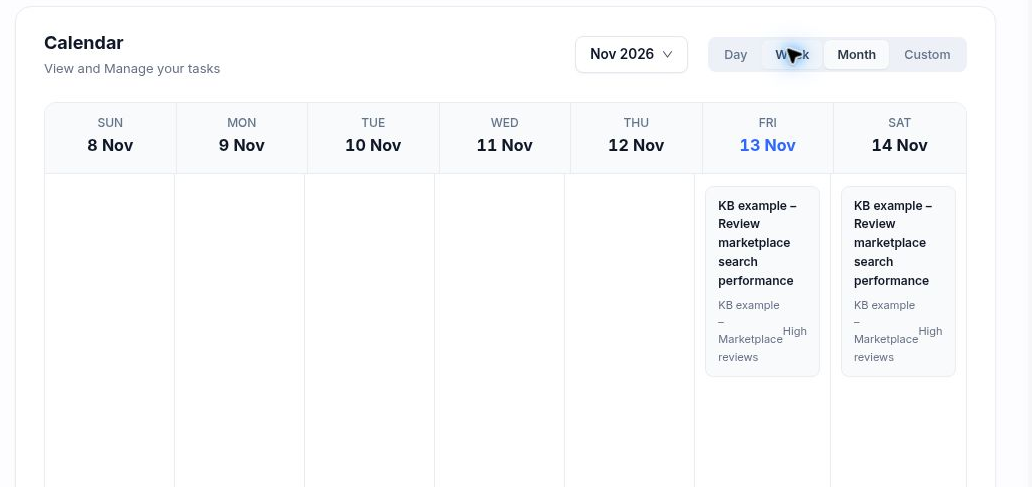
Switch to Week to see the tasks alongside their groups and priorities for the displayed week. Day narrows the view to one day and Custom lets you choose a reporting interval.
Month view puts the marketplace review on the dates covered by its schedule.
 image
Week view shows the task, group and priority on the scheduled days.
 image
Notes — save the review method
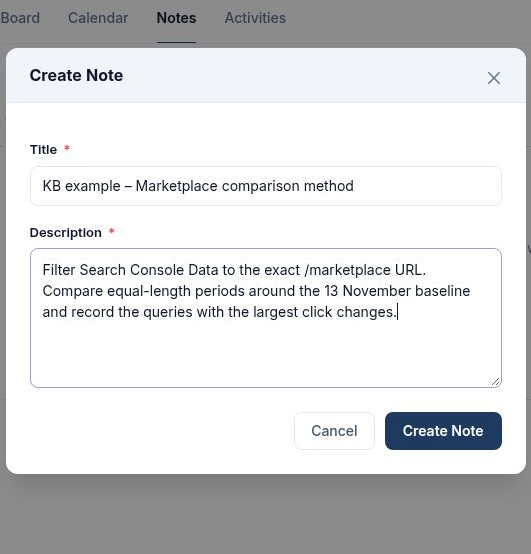
Open Notes → Create Note. Enter a Title that someone can recognise later and add the method, decision or research in Description. Both fields are required. For this project we saved “KB example – Marketplace comparison method”, with instructions to filter Search Console Data to the exact URL, compare equal-length periods and record the queries with the largest click changes.
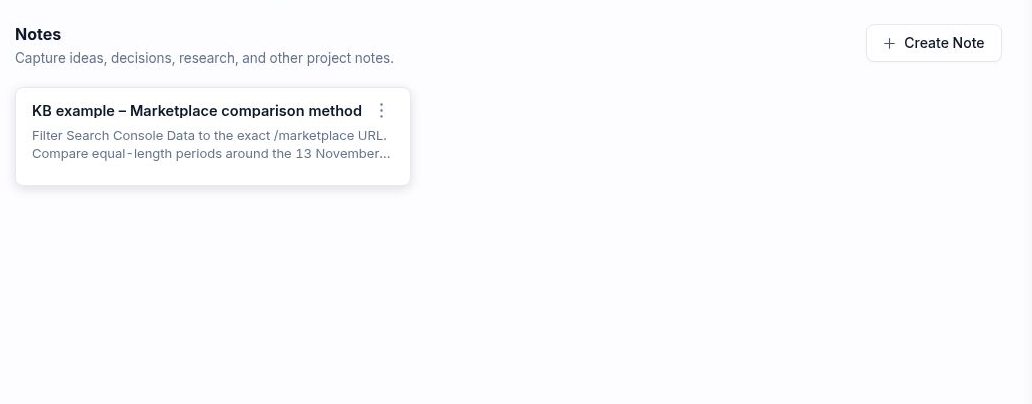
Select Create Note and check the new card in Notes. The note belongs to the project. The group, owner and deadline for carrying out this review are on the task.
 image
The note form holds the title and the comparison method.
 image
The saved method appears as a project note.
Activities — find the latest task record
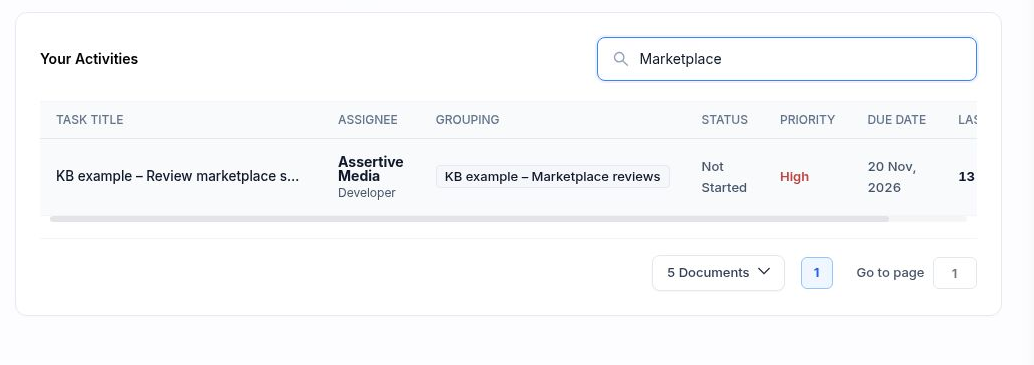
Open Activities and type Marketplace into the search box. The matching row shows the title, assignee, grouping, status, priority, due date and last update. In this example, the row confirms Not Started, High priority and a deadline of 20 November. Use this view when you need to report who owns a job and when its record was last updated. The page-size and pagination controls below the table help you work through a longer list.
 image
More in Getting started
Website Overview: review your SEO and AI visibility performance
Use Website Overview to review search performance, AI visibility and SEO health, then choose the right report for your next action.
ReadWebsites and Dashboard: choose a project and review your portfolio
ReadWhat is SEO Stack?
What the platform does, what it sits on top of, and what it is not.
ReadHow data warehousing works
Why Google's 16-month window exists, and what SEO Stack does about it.
Read