How to use the annotations tools
An explanation on how to use the annotations tool in SEO stack.
When a page starts gaining or losing clicks, the first question is often what changed and when. An annotation gives you a dated record of the work, the URLs involved and the measures you want to revisit. This walkthrough creates a baseline for the marketplace page on www.saasforsale.so.
Open the annotation log
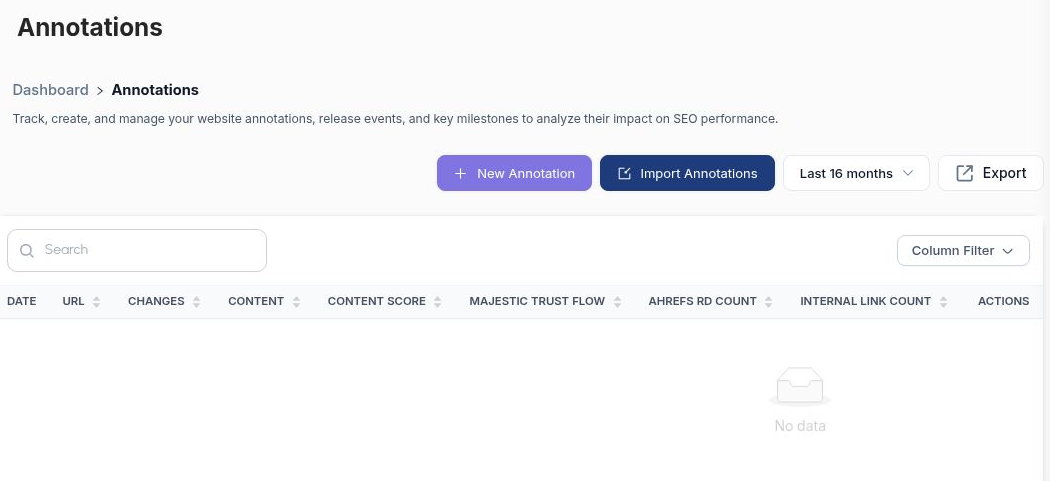
Select your website in the sidebar, then open Projects → Annotations. Each row records an event. Use the date selector to bring the period you want into view and Search to find an entry in a busy log. Column Filter lets you choose which fields to display. Use the horizontal scrollbar for fields beyond the edge of the table.
Choose New Annotation for a single event. Import Annotations is the starting point for bringing in existing records, and Export lets you take the log out of SEO Stack.
 image
The Annotations toolbar sits above the project’s change log.
1. Choose the affected URLs, date and author
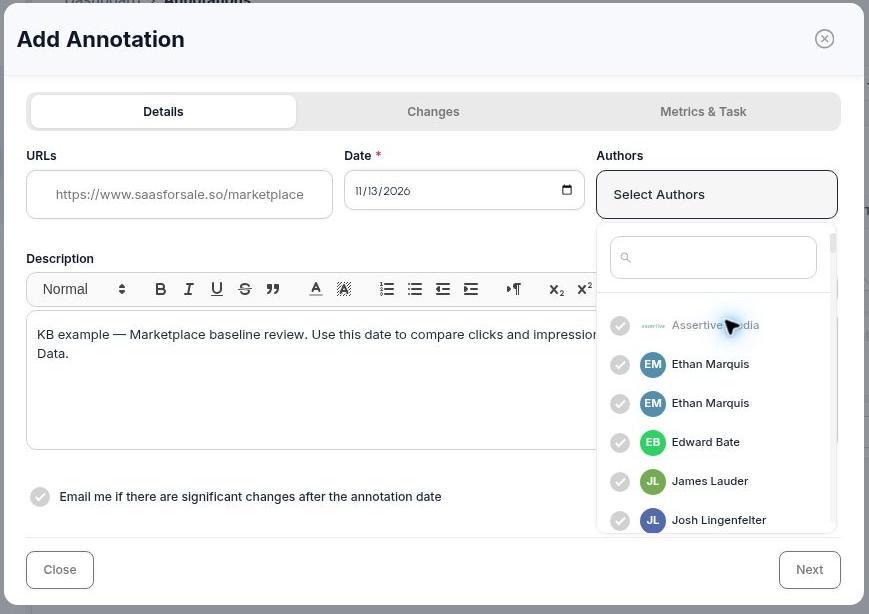
Click New Annotation. On Details, open URLs, search for the affected page and tick its checkbox. For the example, select /marketplace. If one release changed several pages, select the affected URLs together. For a sitewide event, spell out its scope in the description so a reader can distinguish it from a homepage-only change.
Set Date to the day the event happened. Under Authors, select at least one author. SEO Stack checks this when you submit, even though the field has no asterisk.
In Description, record what happened and what you intend to compare. For a title rewrite, include the previous and replacement title. For a baseline, record the page and metrics. This example records a baseline for clicks and impressions without claiming a page edit took place. Tick the email option if you want alerts about significant changes after the annotation date, then select Next.
 image
The Details step links the note to a URL, date and author.
2. Select the type of change
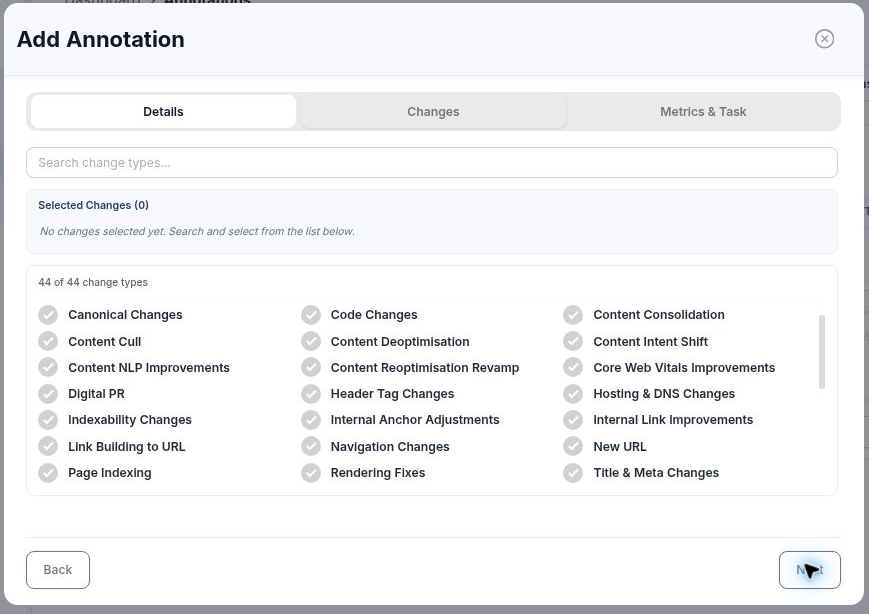
Use Search change types to narrow the checklist. For a rewritten title, select Title & Meta Changes. If the same release also added links from relevant category pages, select Internal Link Improvements as well. The Selected Changes count shows how many categories you’ve applied.
For the marketplace baseline, leave the checklist empty because the event records a measurement point. Click Next.
 image
The Changes step lets you classify several pieces of work under one event.
3. Add baseline metrics and save
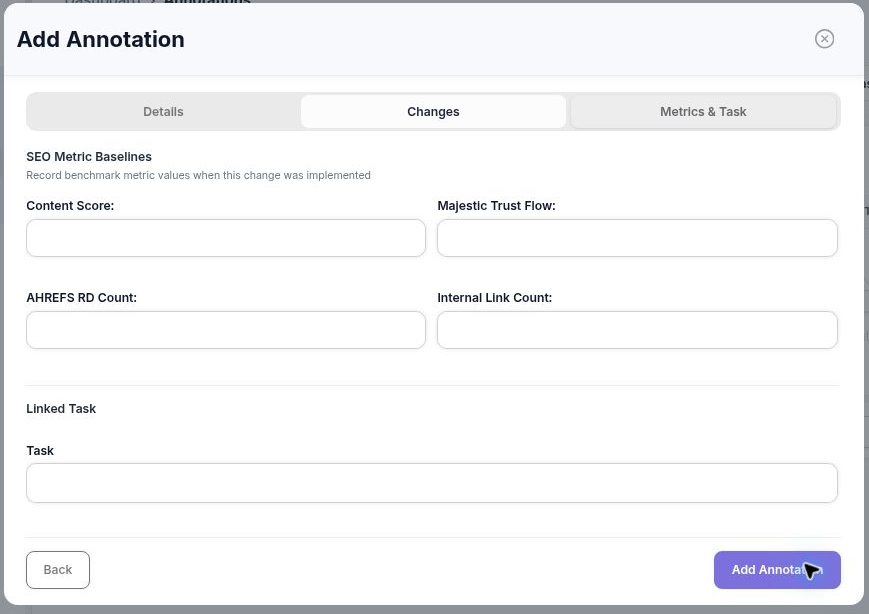
On Metrics & Task, enter any benchmark values you measured on the event date. Content Score records the page’s content score, Majestic Trust Flow records its Majestic score, AHREFS RD Count records referring domains and Internal Link Count records the internal-link count you measured. Use the same source and scope when comparing later. Leave an unmeasured value blank so a reader can distinguish it from a measured zero.
If the work already has a task, choose it under Linked Task. For this example the metrics and task were left blank. Select Add Annotation to save.
 image
The final step holds benchmark values, the task selector and Add Annotation.
4. Find the entry and use it in a review
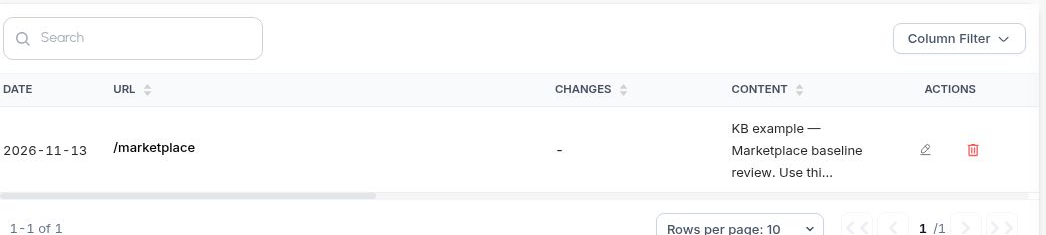
Back in the log, check the date, URL and opening words of the note. The saved example appears against /marketplace on 13 November 2026. The Changes column shows a dash because no change type was assigned. Scroll across for the task, alerts, authors, website and record history.
To follow up, open Search Console Data, apply an exact page filter for the marketplace URL, and compare equal-length periods before and after the baseline. Check clicks and impressions together, then inspect the queries contributing to the movement. For an actual release, the annotation gives you a date to investigate. Check other changes in the same period before attributing the result to that release.
 image
The new marketplace baseline appears in the project log.
More in Getting started
Website Overview: review your SEO and AI visibility performance
Use Website Overview to review search performance, AI visibility and SEO health, then choose the right report for your next action.
ReadWebsites and Dashboard: choose a project and review your portfolio
ReadWhat is SEO Stack?
What the platform does, what it sits on top of, and what it is not.
ReadHow data warehousing works
Why Google's 16-month window exists, and what SEO Stack does about it.
Read