How to use Keyword Overview and set up rank tracking
Learn how to use the keyword overview and ranking tracking tools in SEO Stack
Use Keyword Overview to find the queries your site ranks for, see which topics are gaining ground and schedule checks for the terms you care about. This walkthrough follows two Assertive Media queries from the ranking table into their scheduled tracking results.
Choose the project and reporting period
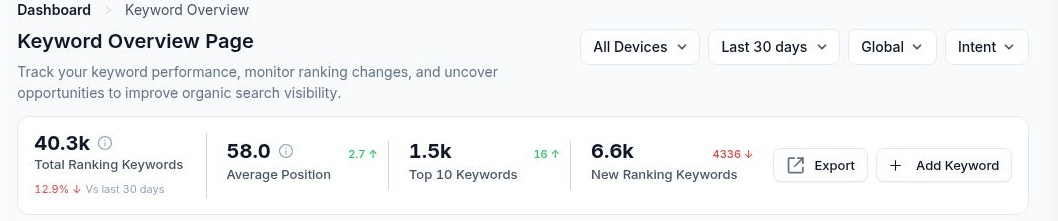
Under Discovery → Keywords Overview, select your Search Console website. These examples use www.assertive-media.co.uk. Set the device, date range, country (shown as Global when unrestricted) and search intent before comparing results. Use Export to take the report out of SEO Stack.
Total Ranking Keywords counts queries recorded in the selected scope. Average Position summarises their search position. A smaller position number is better. Top 10 Keywords counts queries in the first ten positions. New Ranking Keywords highlights queries newly appearing in the comparison. Read the change beside each figure against the previous period. A new ranking can be for a page that has existed for years.
 image
Read the Keyword Ranking Trend
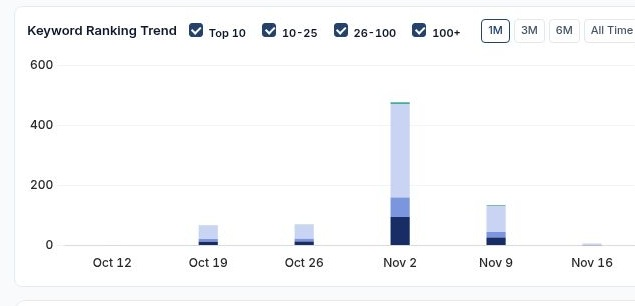
Each stacked column shows the number of keywords recorded in the displayed position bands for that point in time. The colours correspond to Top 10, 10–25, 26–100 and 100+, as labelled in the interface. Use the checkboxes to isolate a band. Switch between 1M, 3M, 6M and All Time to change how much history you can see.
For example, if the total column grows, leave only Top 10 selected. You can then see whether first-page visibility also grew or whether the extra queries appeared further down the results. To find which individual terms moved, open Top Gainers or Top Losers below.
 image
Use topics to understand the mix of queries
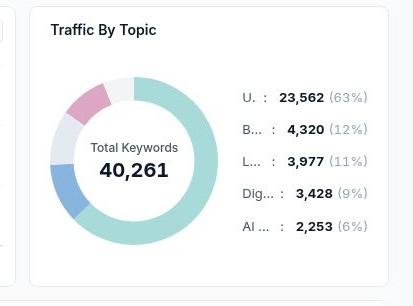
Traffic By Topic groups queries by labels such as Branded queries, Local SEO auditing services and AI SEO Services. Read the unit in the centre of the ring. Here it says Total Keywords, so the slices describe keyword counts. To measure visits or search traffic, look at clicks or sessions in the relevant report. Ungrouped means a query has no topic assignment.
Use the Topic switch above the keyword list to change how you browse groups. Search for a topic name to narrow the table. Separating brand queries from service queries helps explain why two groups with similar visibility can generate very different click-through rates.
 image
Find opportunities in the keyword table
Start in All Keywords. Search by keyword, topic or URL, or open the filter icon beside the search box. Switch to Top Gainers or Top Losers to investigate movement. Sort by current position, impressions, clicks or CTR. Use the rows-per-page control and page arrows to continue through the results. The header checkbox selects the current page.
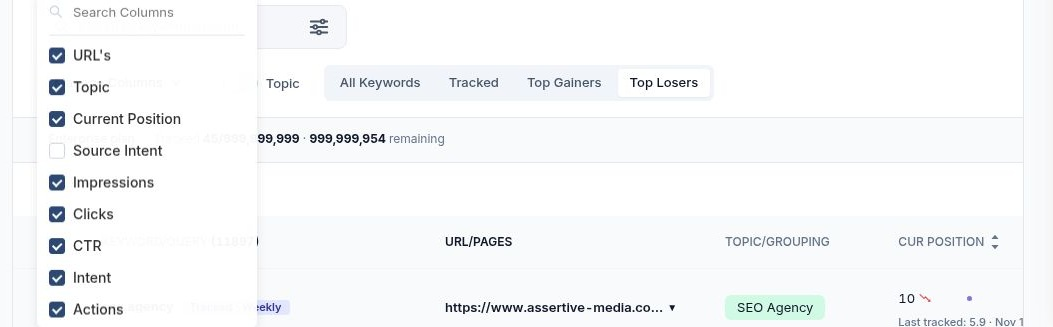
Manage Columns lets you show or hide URLs, topic, current position, source intent, impressions, clicks, CTR, intent and row actions. For a ranking loss, keep URL, position, impressions and clicks visible. A fall for a query that supplied 50 clicks deserves a different assessment from a fall for one that supplied none. Use the URL dropdown where available to inspect the pages associated with the query.
 image
Select keywords and start rank tracking
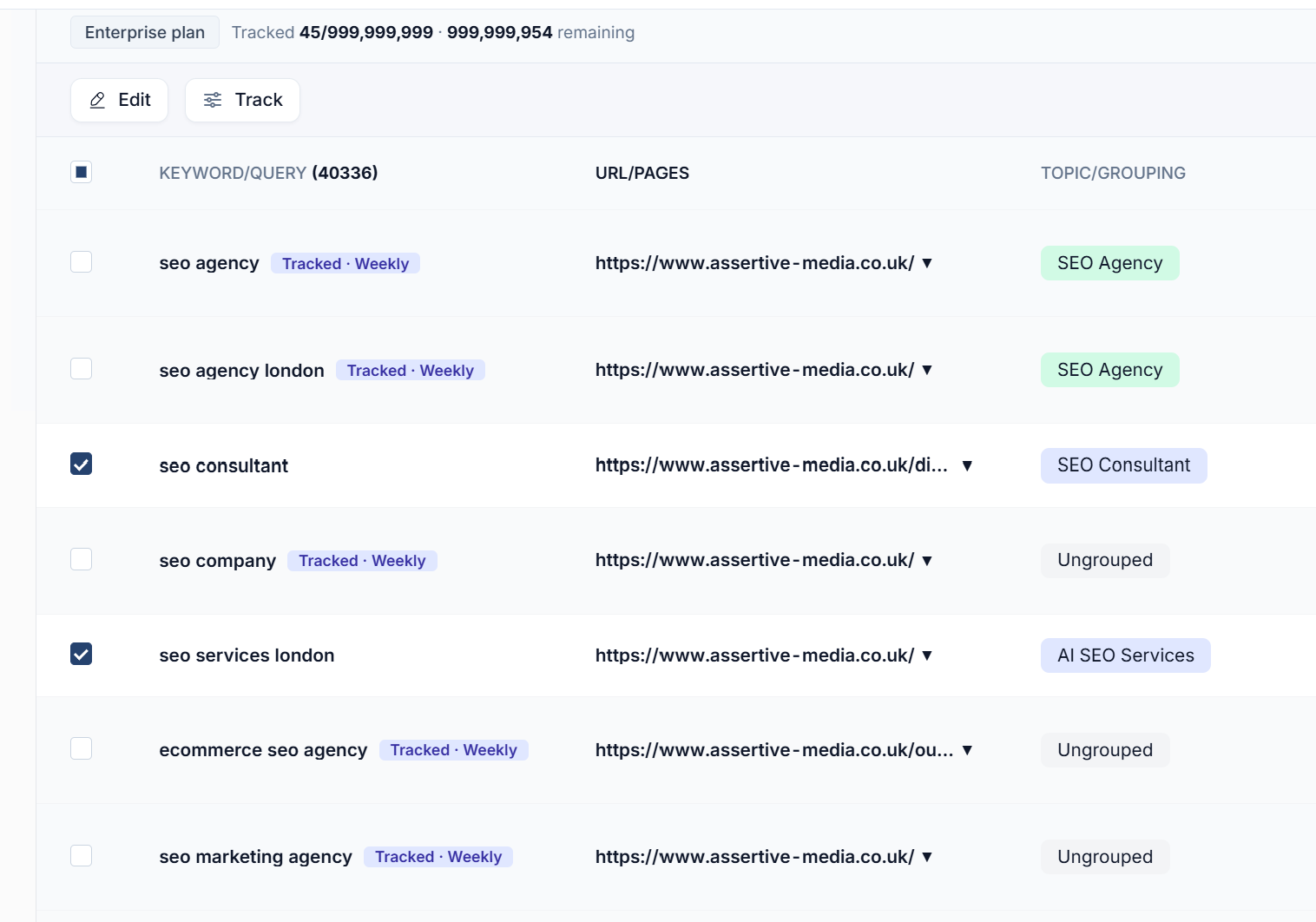
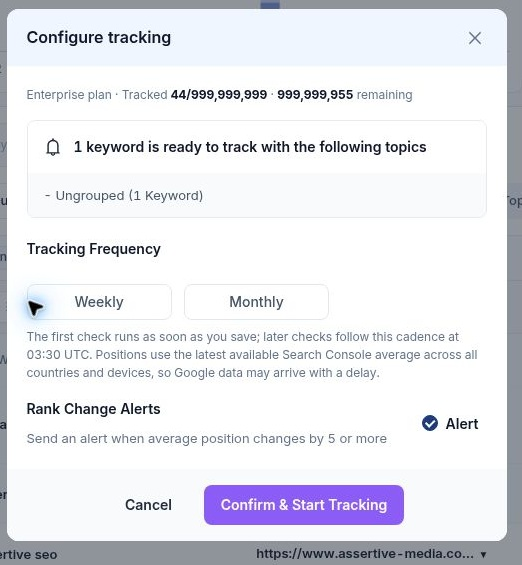
Tick the checkbox beside each query you want to monitor. A Track button appears above the table. Click it to open Configure tracking. The dialogue lists the number selected, their topics and remaining tracking capacity. You can select several terms in one go. An ungrouped keyword can also be tracked.
 image
Choose Weekly or Monthly. Leave Alert enabled if you want a notification when average position changes by five or more. Click Confirm & Start Tracking. The first check runs on save and subsequent checks follow the selected cadence at 03:30 UTC. Checks use the latest available Search Console average across countries and devices. Google’s reporting delay can affect which data is available.
 image
Verify the keyword and its first result
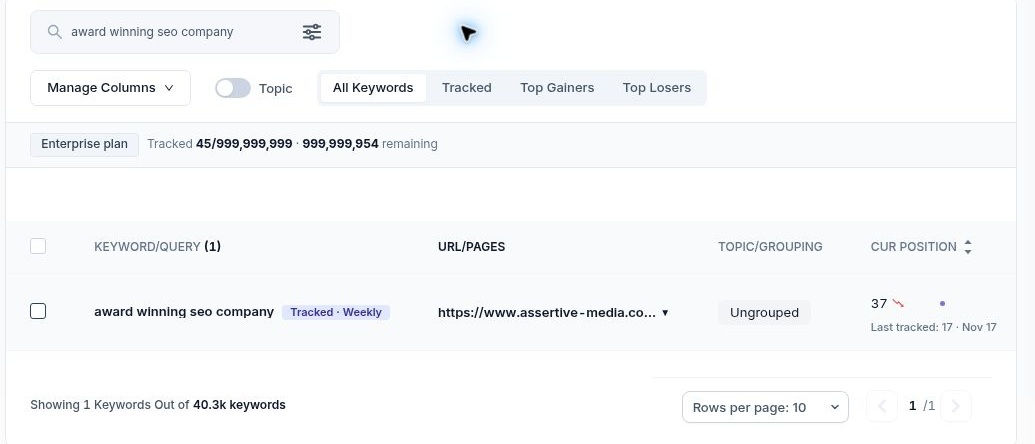
Open Tracked and search for the exact term. For this walkthrough we added award winning seo company. SEO Stack confirmed weekly tracking, displayed the Tracked · Weekly badge and recorded position 17 on 17 November. The table showed 37 under Cur Position for the report period. The two figures answer different questions because the scheduled check and the reporting period cover different dates.
 image
Open Keyword Performance Tracking History
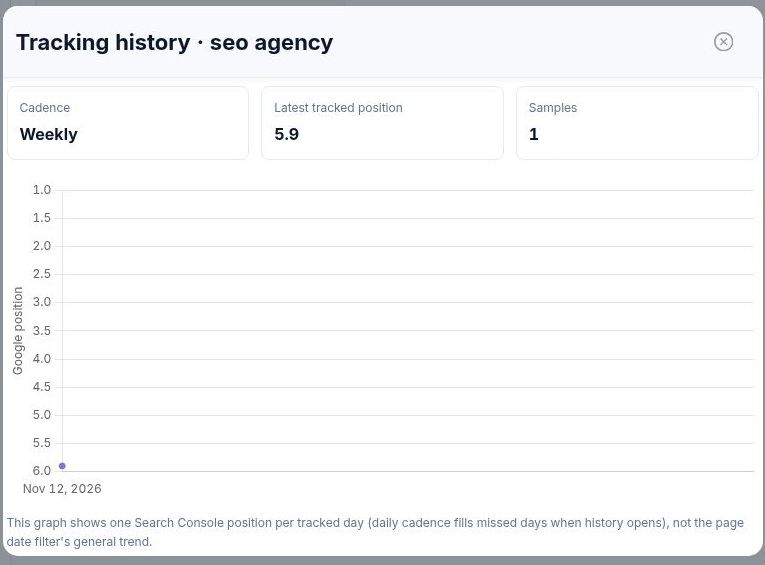
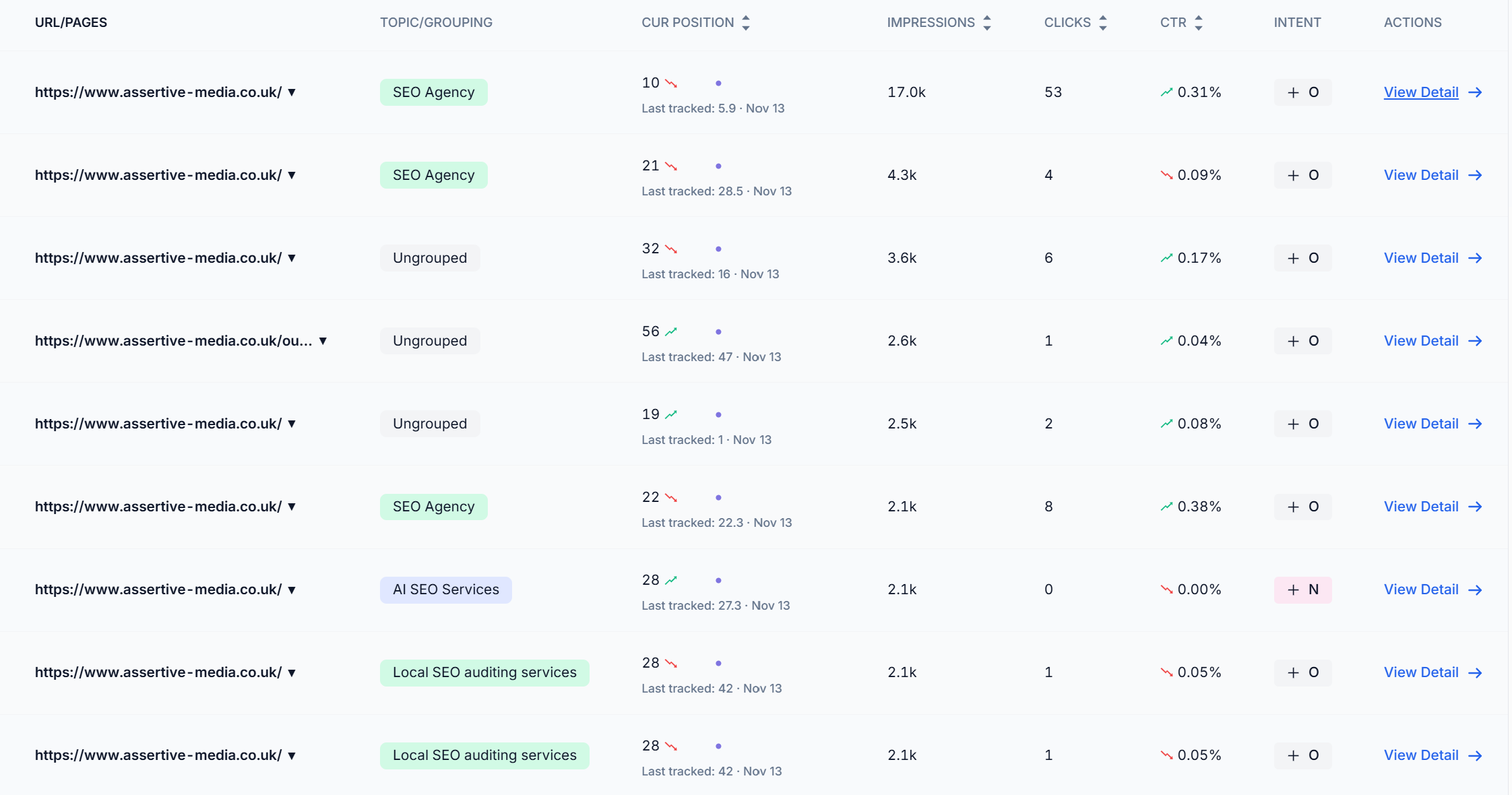
In Tracked, find the existing keyword row. Under Cur Position, click its small trend chart or the Last tracked value. The Tracking history · seo agency pop-up shows the cadence, latest tracked position, sample count and a graph with one Search Console position per tracked day.
 image
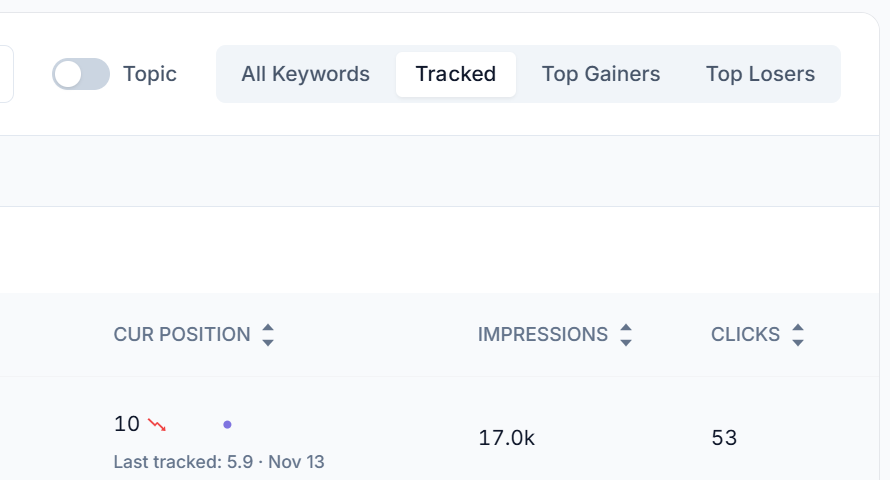
In this project the cadence was weekly and the latest sample was 5.9 on 13 November. The pop-up contained one sample, so it establishes a baseline. After the next check, compare the two dated points to see the direction of movement. A change from 5.9 to 4.9 would mean an improvement of one average position.
 image
Use View Detail to investigate the ranking
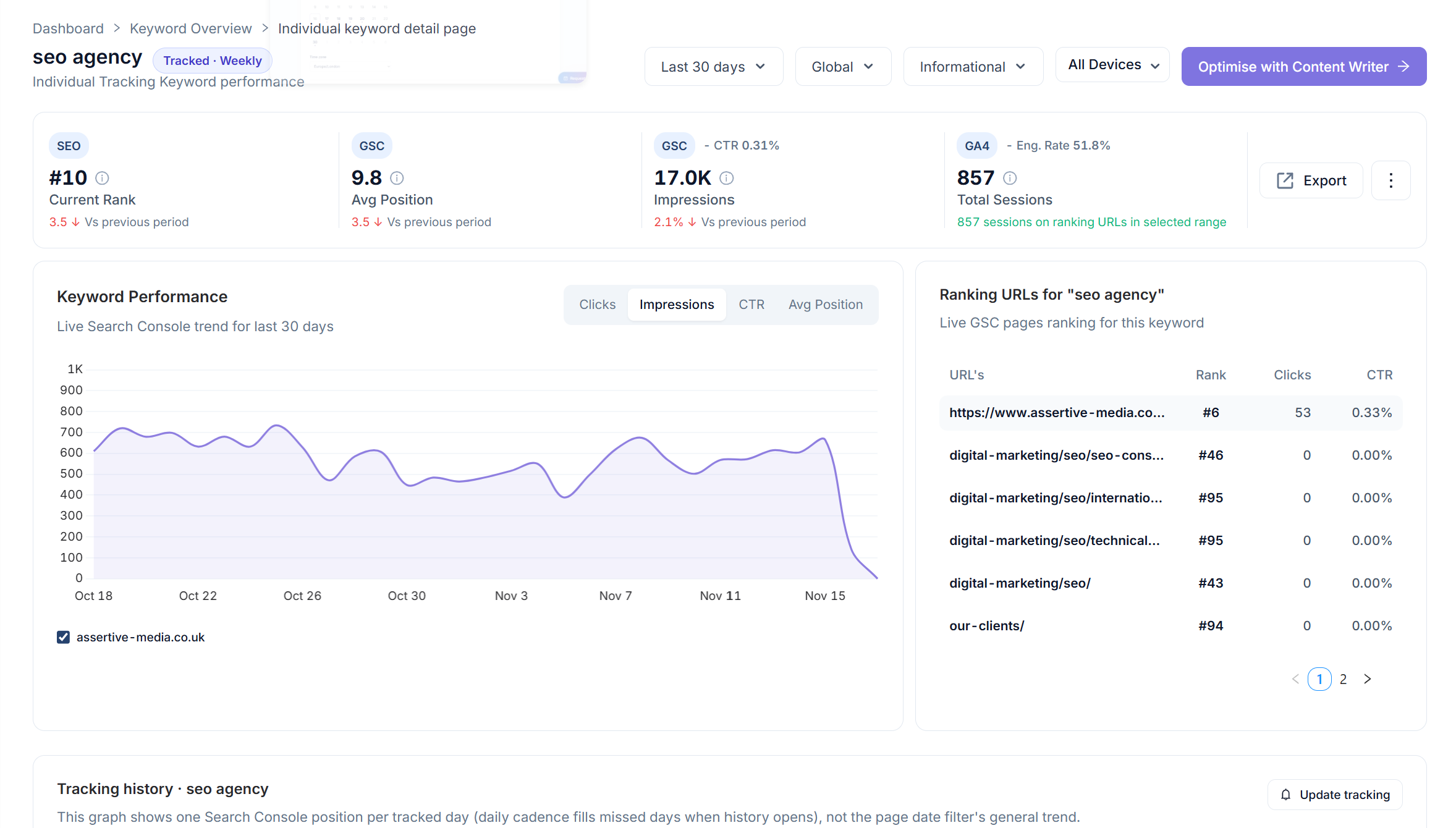
Choose View Detail on the keyword row to open its individual report. Change the period, country or device, review the intent, and switch Keyword Performance between Clicks, Impressions, CTR and Avg Position. For seo agency the 30-day report showed average position 9.8, a rounded current rank of 10, 17.0K impressions and 0.31% CTR. Use Avg Position here when you want to inspect movement across the reporting period between scheduled checks.
 image
Ranking URLs breaks the query down by page. The homepage recorded 53 clicks at rank 6, while the consultancy URL recorded zero at rank 46. The GA4 card showed 855 sessions on ranking URLs across the period. Those pages can receive sessions from other queries and channels. Further down, use Update tracking to change the schedule, review Keyword opportunities, or open Optimise with Content Writer when you have identified a page to work on. The individual report also has Export and a more-actions menu.
 image
Add your own keywords individually or in bulk
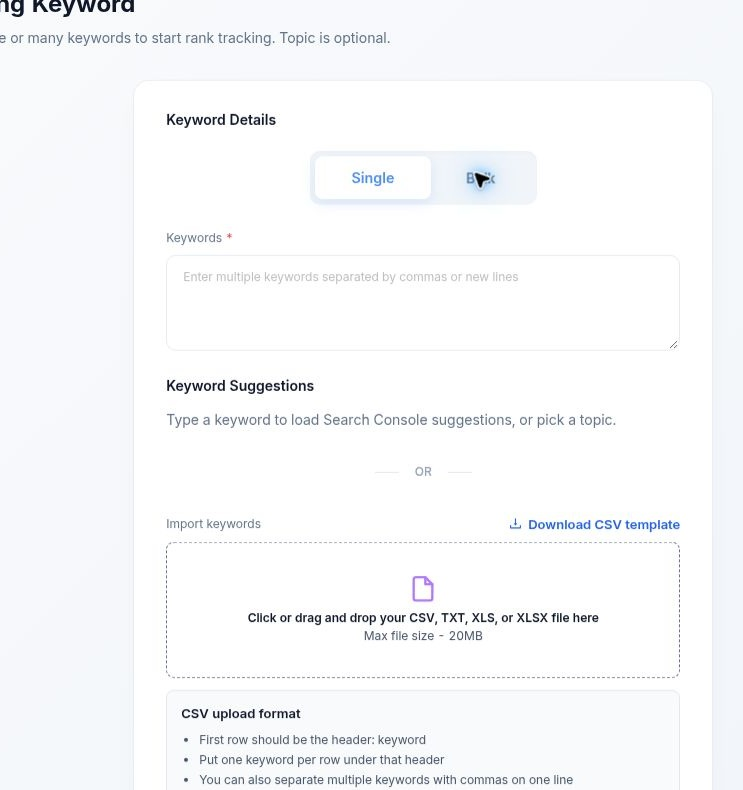
Use Add Keyword → Single to enter a keyword directly. Type a phrase to load Search Console suggestions, or pick a topic. Select or create an optional topic, add an optional tag, choose the search intent and optionally select a target URL. Choose Track Keyword to start tracking. A target URL lets you record which page you intend to rank, then check the actual result in Ranking URLs.
In Bulk, paste keywords separated by commas or new lines, or upload CSV, TXT, XLS or XLSX up to 20 MB. For CSV, download the template or use keyword as the first-row header and put one term per row. Apply one topic to the batch or choose Let AI organize into topics. Review the tag, intent, target URL and keyword count before choosing Track Keywords.
 image
Review the Performance Summary and AI Insights
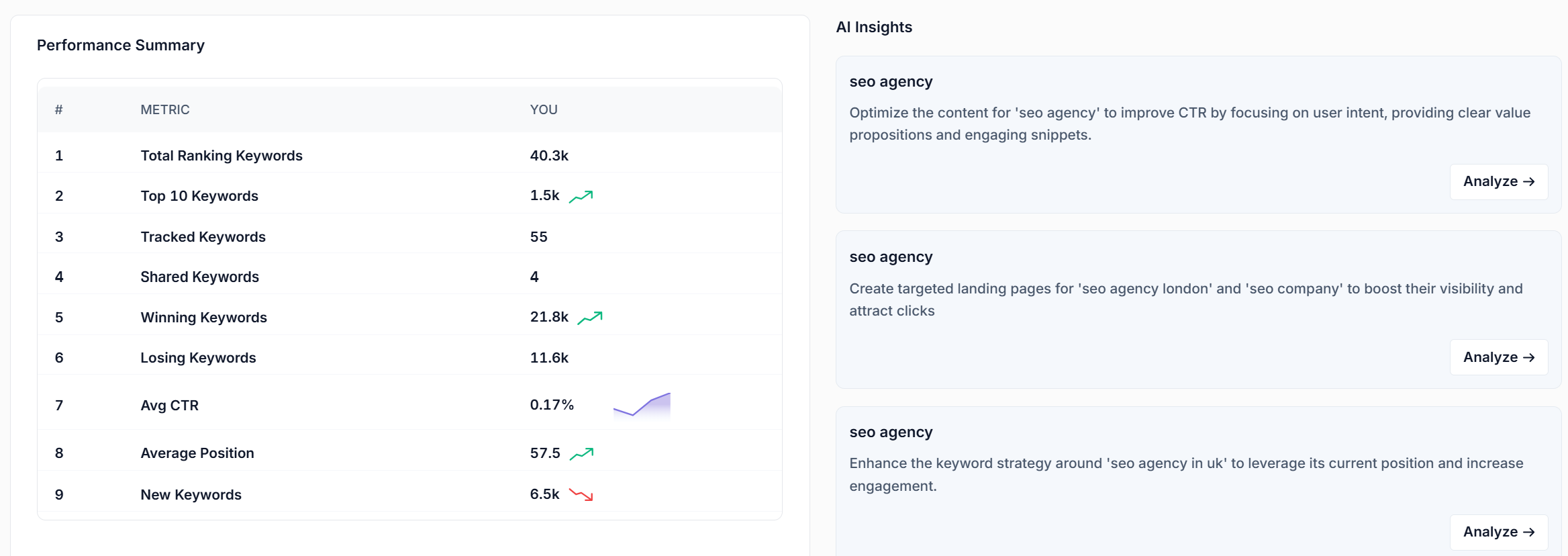
Below the keyword table, Performance Summary brings together total, top-ten, tracked, shared, winning, losing and new keywords alongside average CTR and position. Use it to decide which table view to open next. If losing keywords are increasing, open Top Losers and sort by clicks to see which losses affect traffic. AI Insights highlights issues when available. If the panel is empty, the interface suggests adding tracked keywords or widening the date range.
 image
More in Getting started
Website Overview: review your SEO and AI visibility performance
Use Website Overview to review search performance, AI visibility and SEO health, then choose the right report for your next action.
ReadWebsites and Dashboard: choose a project and review your portfolio
ReadWhat is SEO Stack?
What the platform does, what it sits on top of, and what it is not.
ReadHow data warehousing works
Why Google's 16-month window exists, and what SEO Stack does about it.
Read