How to view traffic for pages no longer indexed in Google - Non indexed page reasons in GSC
Google Search Console tells you which pages aren’t indexed, but when you’re investigating a traffic decline, the number of URLs in each indexing reason only tells you so much. What did those
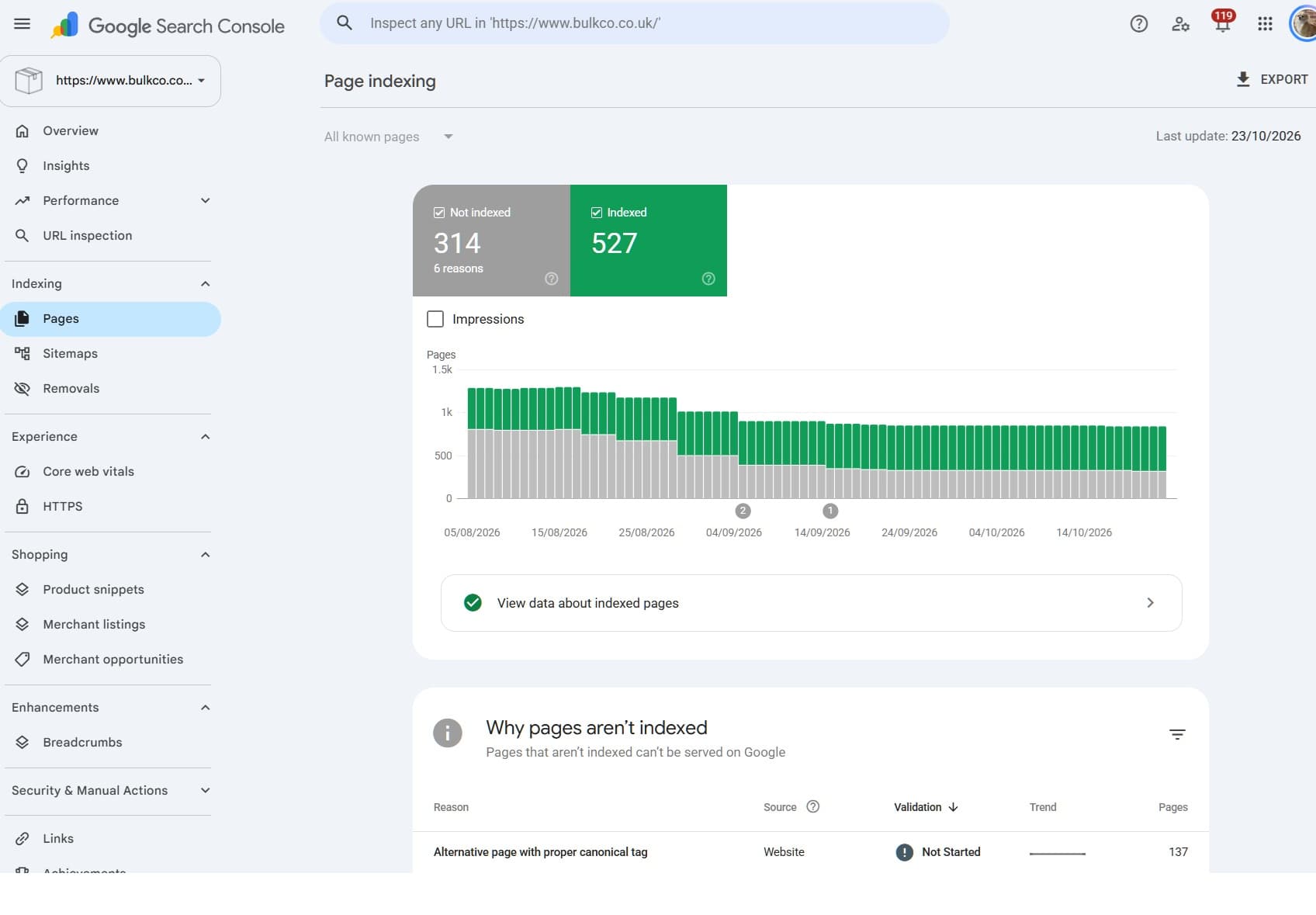
Google Search Console tells you which pages aren’t indexed, but when you’re investigating a traffic decline, the number of URLs in each indexing reason only tells you so much.
What did those URLs actually contribute in respect of clicks or impressions?
We've all seen it in GSC, we go into indexing > pages, we can see what the non indexed reasons are and a sample of the URLS, but, what about how much those URLS may have contributed over time?
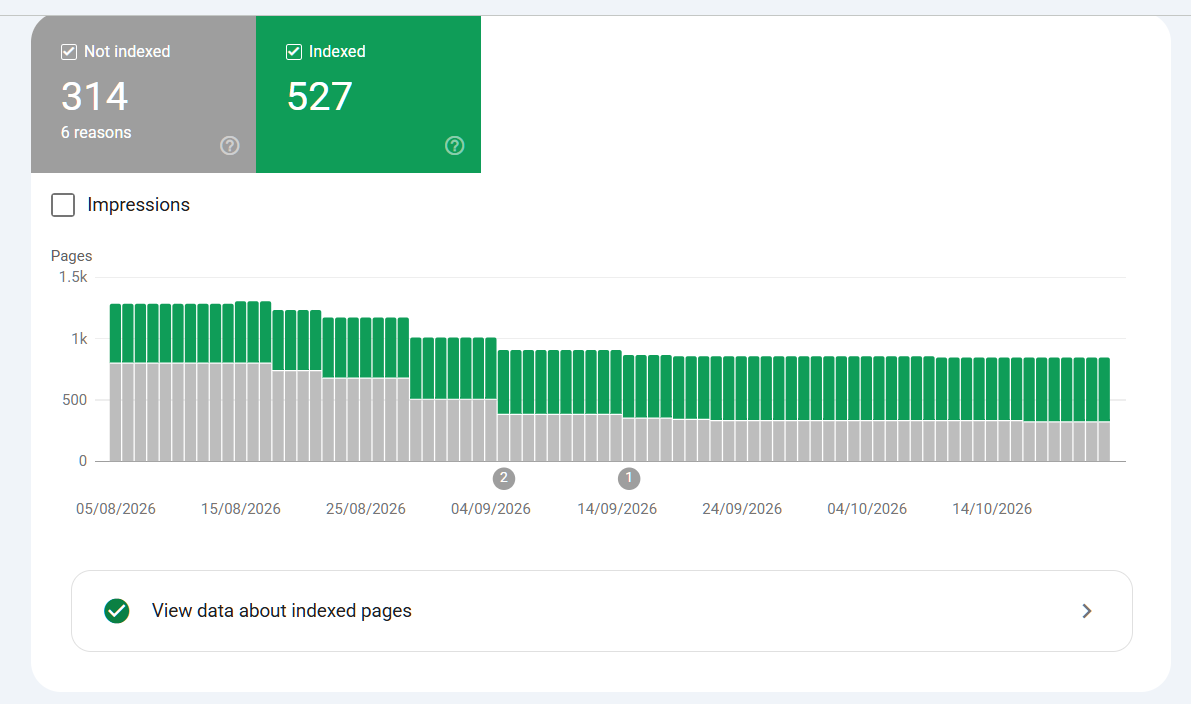
Did any of the non indexed page reason URLS generate clicks? Were they ranking for relevant searches? Have commercially important pages disappeared, or are you looking at old parameters, duplicate URLs and pages that were never supposed to be indexed anyway?
You would be surprised at how many clicks are actually lost to URLS that are still active but no longer indexed -
However, you can often find NOT FOUND URLS are a treasure trove of "historic" clicks that were lost to a client / someone in the business deleting the URLS.
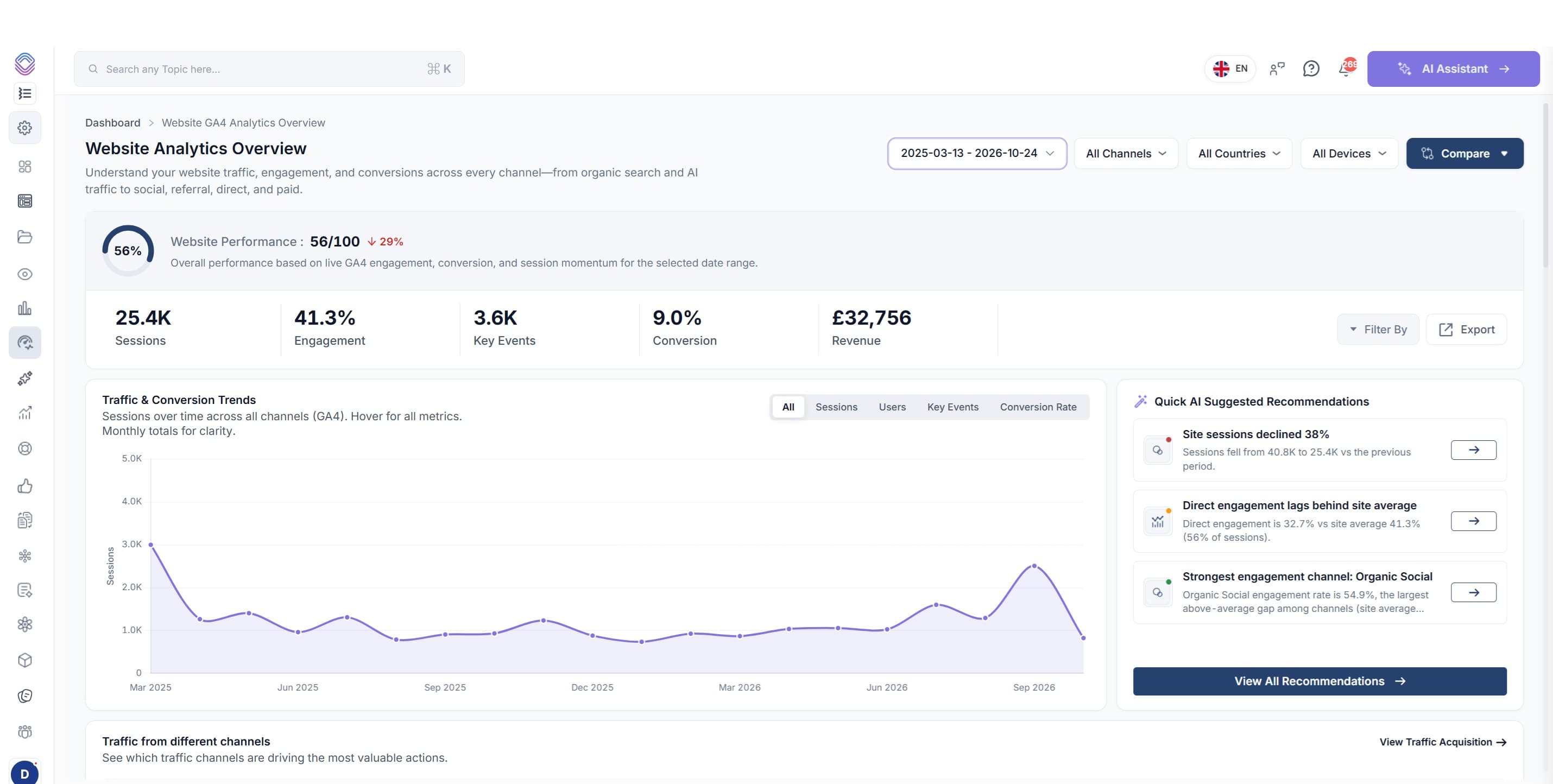
We analysed 1 client site during an audit and 12% of their clicks was lost to just deleting content and not redirecting the URLS accordingly! What you see below is ACTUAL data for 727 not found URLS where 400 of the URLs generated 1 or more clicks.
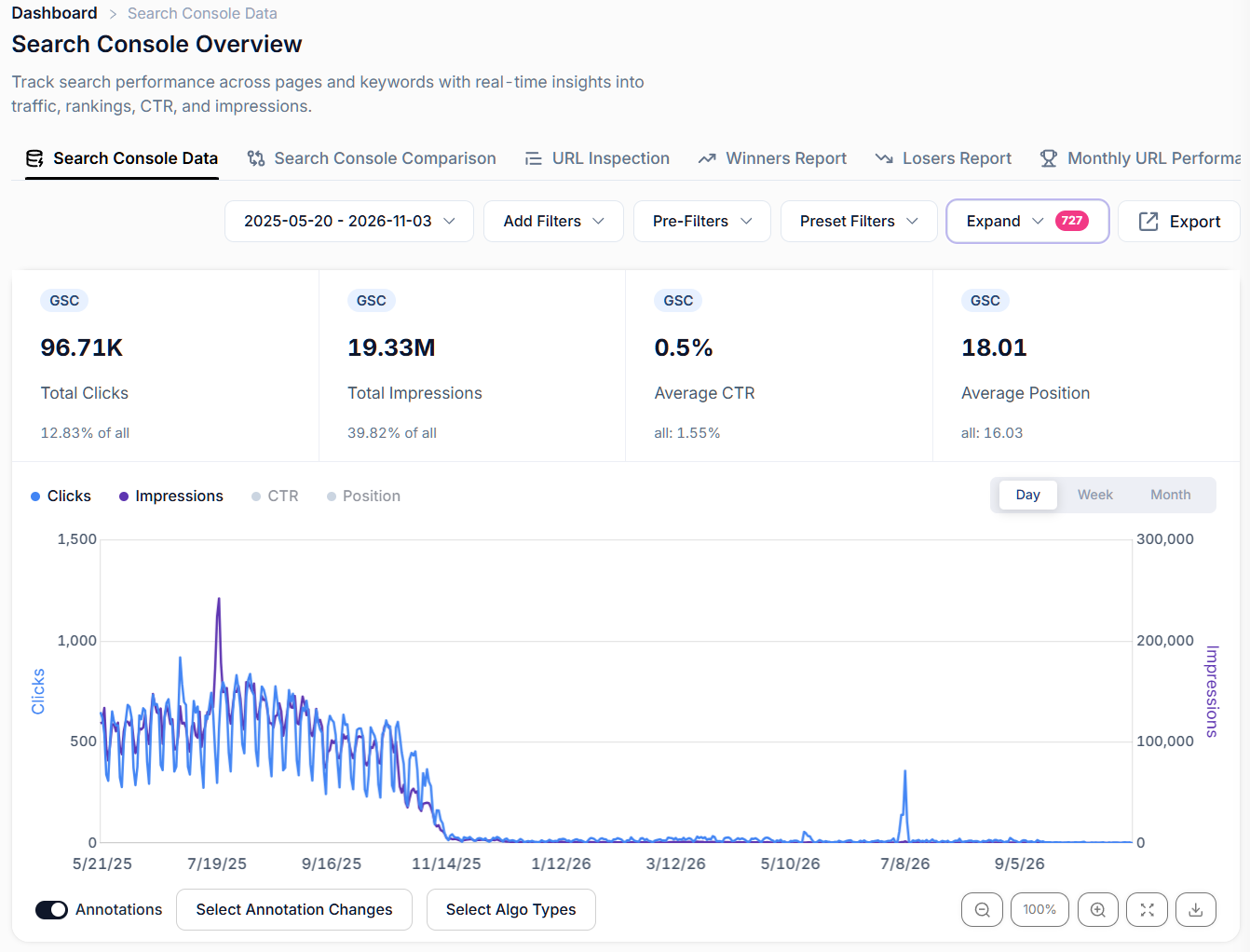
If you were just looking at their GSC data you would see this >
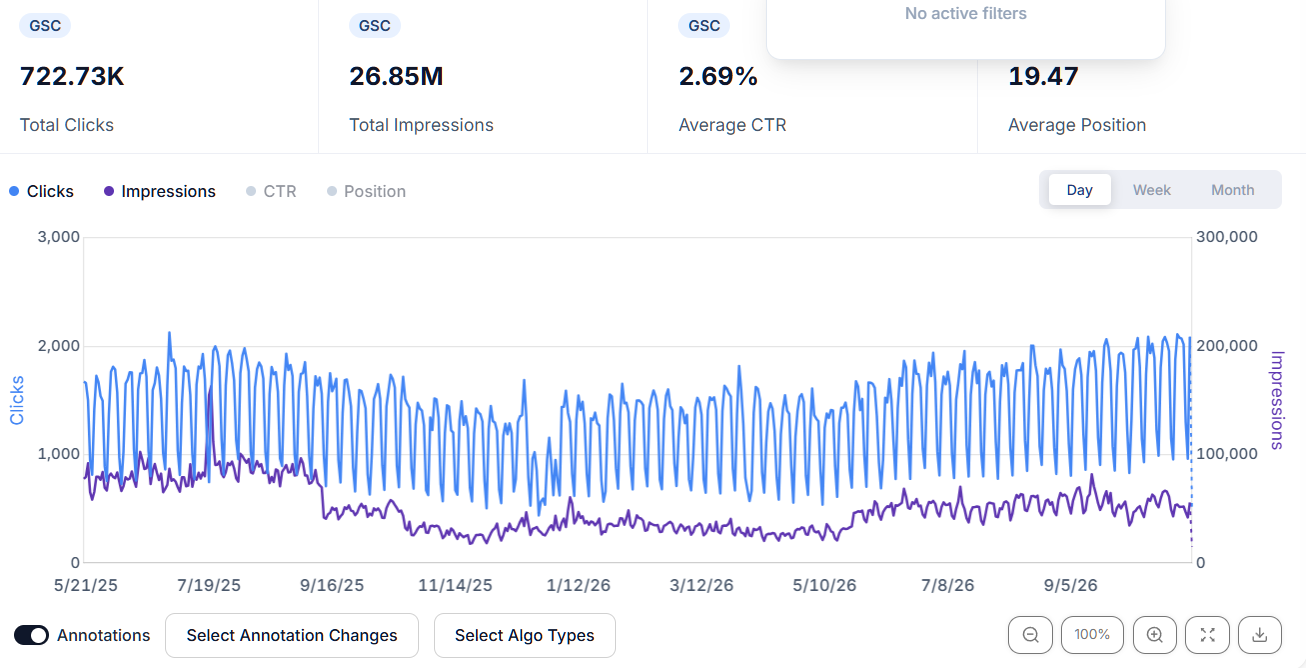
Notice the dip?
That was found quickly and easily by analysing the click loss from all of the clients NON INDEXED PAGE reasons.
There's a caveat here, there’s a BIG difference between 500 excluded URLs that contributed nothing and five deleted pages that used to bring in clicks, impressions and new business!
With SEO Stack, you can take the URLs from each non-indexed page reason, apply them as a bulk exact-match filter and see their historical search performance. You can then save each group into a custom filter folder, making it easy to switch between indexing reasons without having to export and paste everything again.
Here’s how to do it, what to look for and how to use the data to decide what actually needs your attention.
Why look at historical performance for non-indexed pages?
If a page isn’t indexed now, that doesn’t mean it has never been indexed or never generated traffic.
A deleted category page might have delivered clicks for years, a group of URLs affected by an accidental noindex directive might previously have contributed a meaningful share of organic traffic (clicks and impressions over time). Pages that now redirect may have performed well before a migration, with their replacements failing to pick up the same visibility - or failing to recover at all.
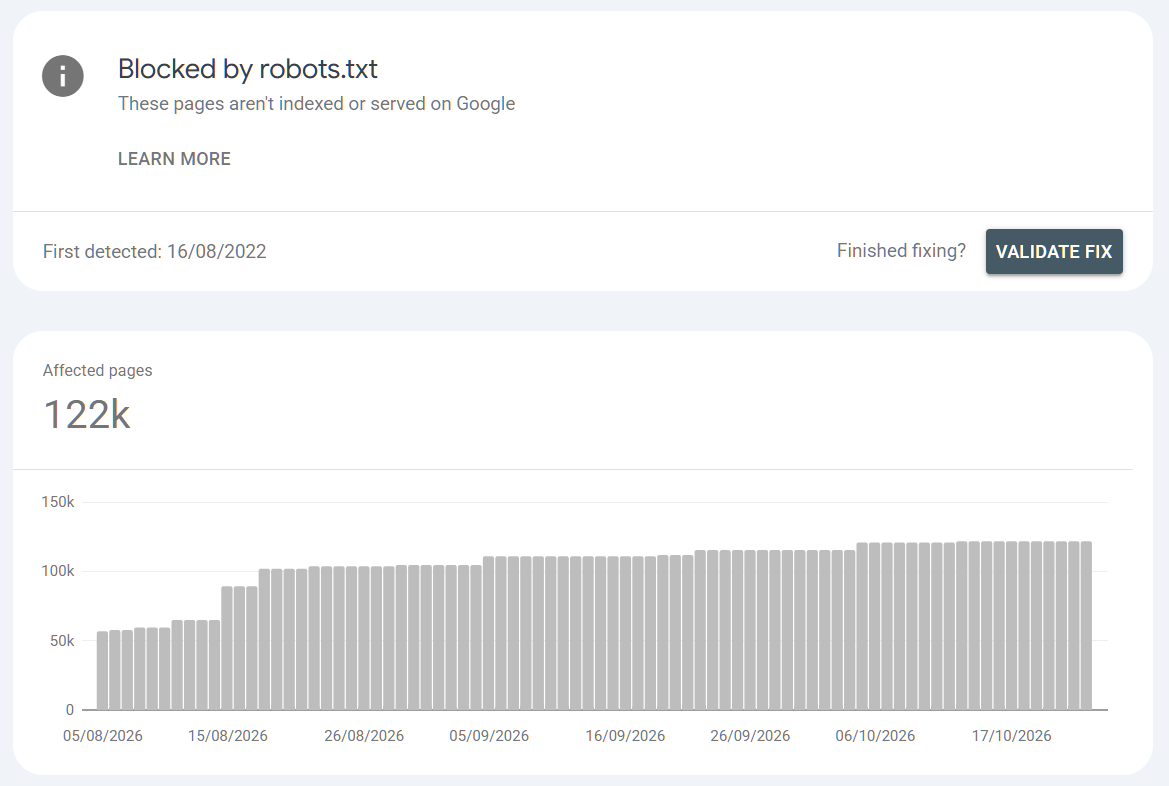
We've seen it all, we've even seen clients incorrectly apply robots.txt directives, they saw a massive increase in blocked URLS not realising the detriment to clicks and impressions - it does happen and it's not uncommon!
Equally, for some non indexed page reasons you might find that an entire exclusion group has barely contributed anything.
That’s useful too as it helps you avoid spending hours trying to “fix” URLs with no clear reason to be indexed.
The purpose is to connect indexing reasons with performance, so you can prioritise work based on what the URLs did and what they should be doing now.
You’re not trying to get every URL into Google. Redirects, duplicates and intentionally excluded pages can all belong outside the index. Google’s own guidance makes that distinction: a non-indexed URL isn’t automatically an error.
Step 1: Open the Page indexing report in Google Search Console
Select the property you want to investigate, then go to:
Indexing → Pages → Examples
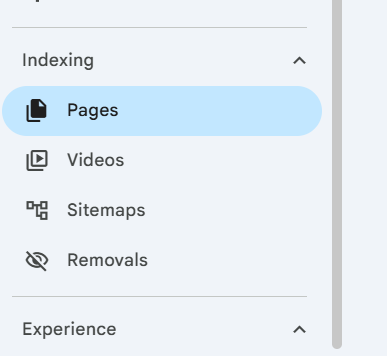
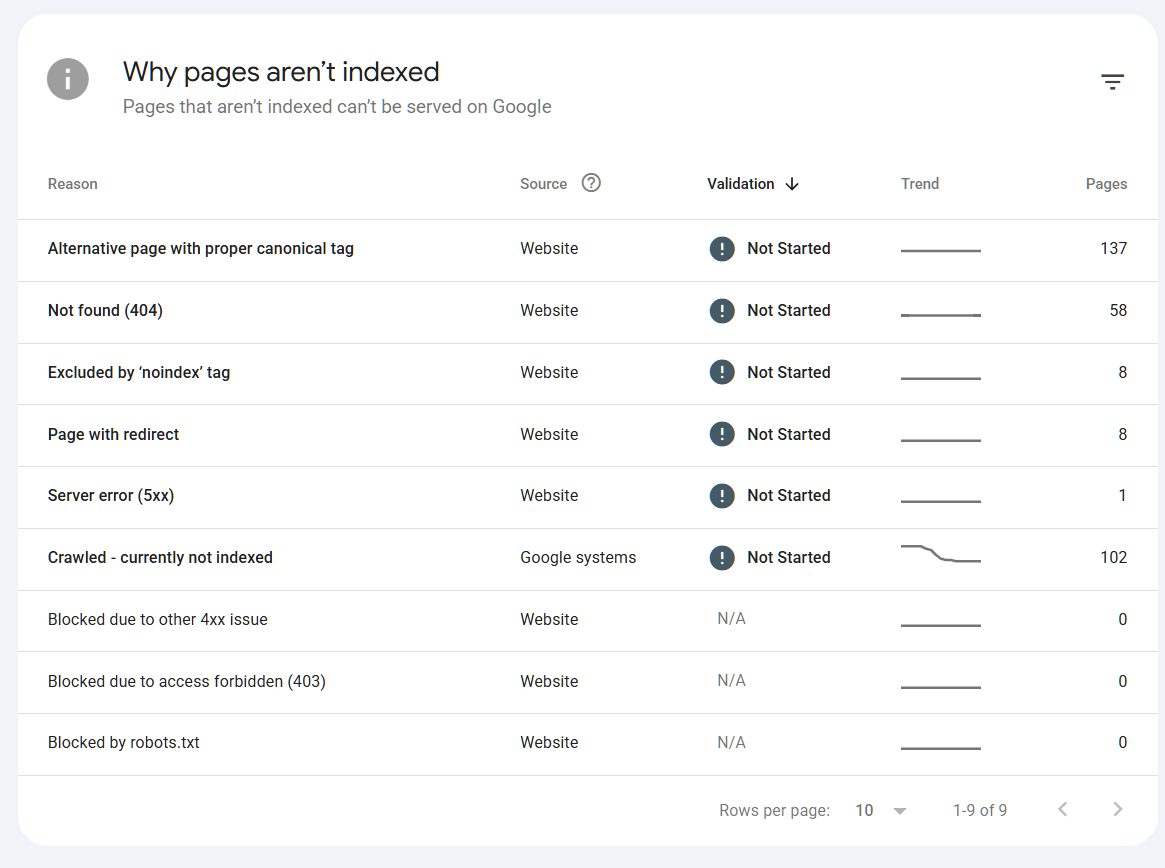
You’ll see the different reasons Google has reported, along with the number of affected URLs.
Click into the reason you want to analyse first. For example:
Crawled – currently not indexed
Not found (404)
Alternate page with proper canonical tag
Page with redirect
Excluded by ‘noindex’ tag
Just note there can be LOTS of reasons why pages are not getting indexed!
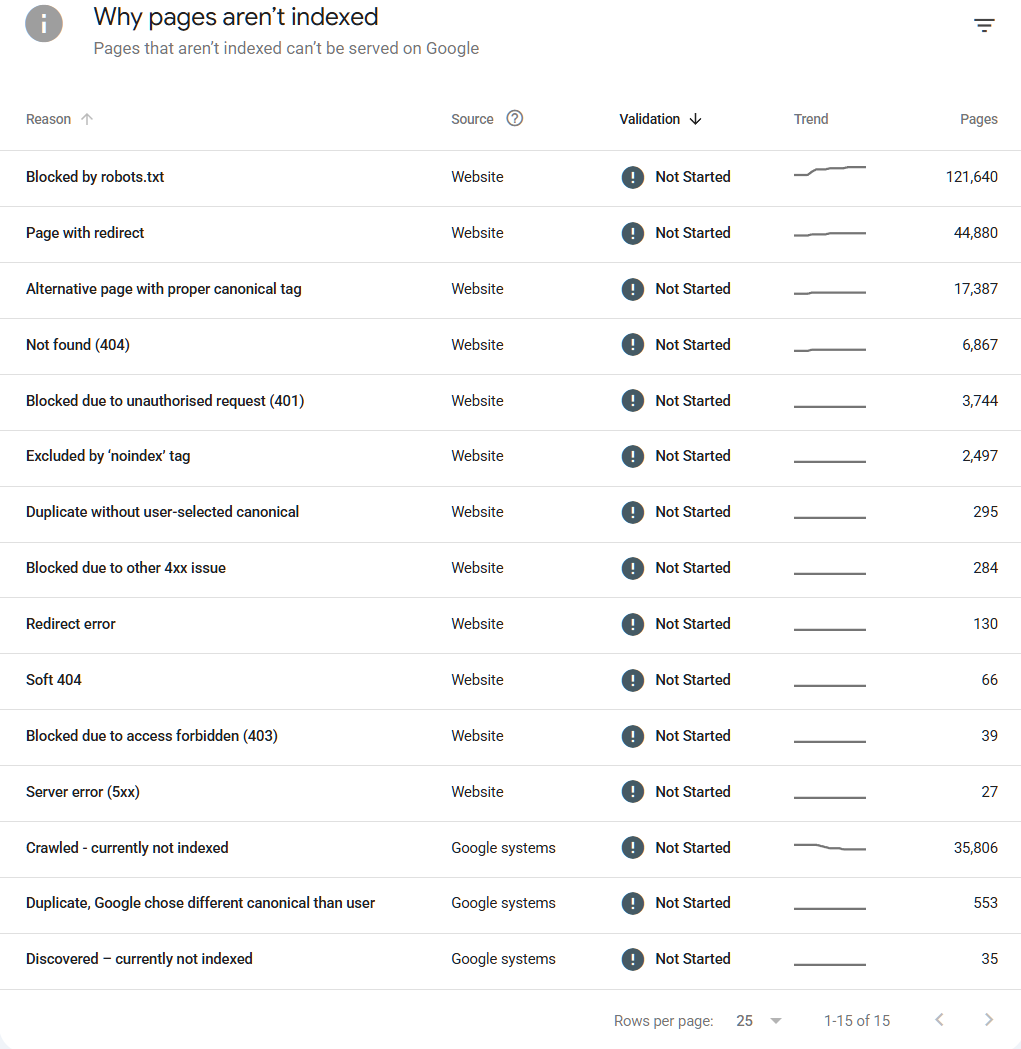
Start with the groups most relevant to what you’re investigating, if traffic dropped after a website rebuild, the 404 and redirect groups are obvious places to look. If important live pages appear to be disappearing from search, start with those pages’ reported indexing reasons.
Bear in mind that the URL examples available in the report are limited. On larger websites, your export may represent part of the affected group rather than every URL counted against that reason.
Step 2: Export the URLs and copy the URL column
Inside the selected indexing reason, click Export (top right corner)
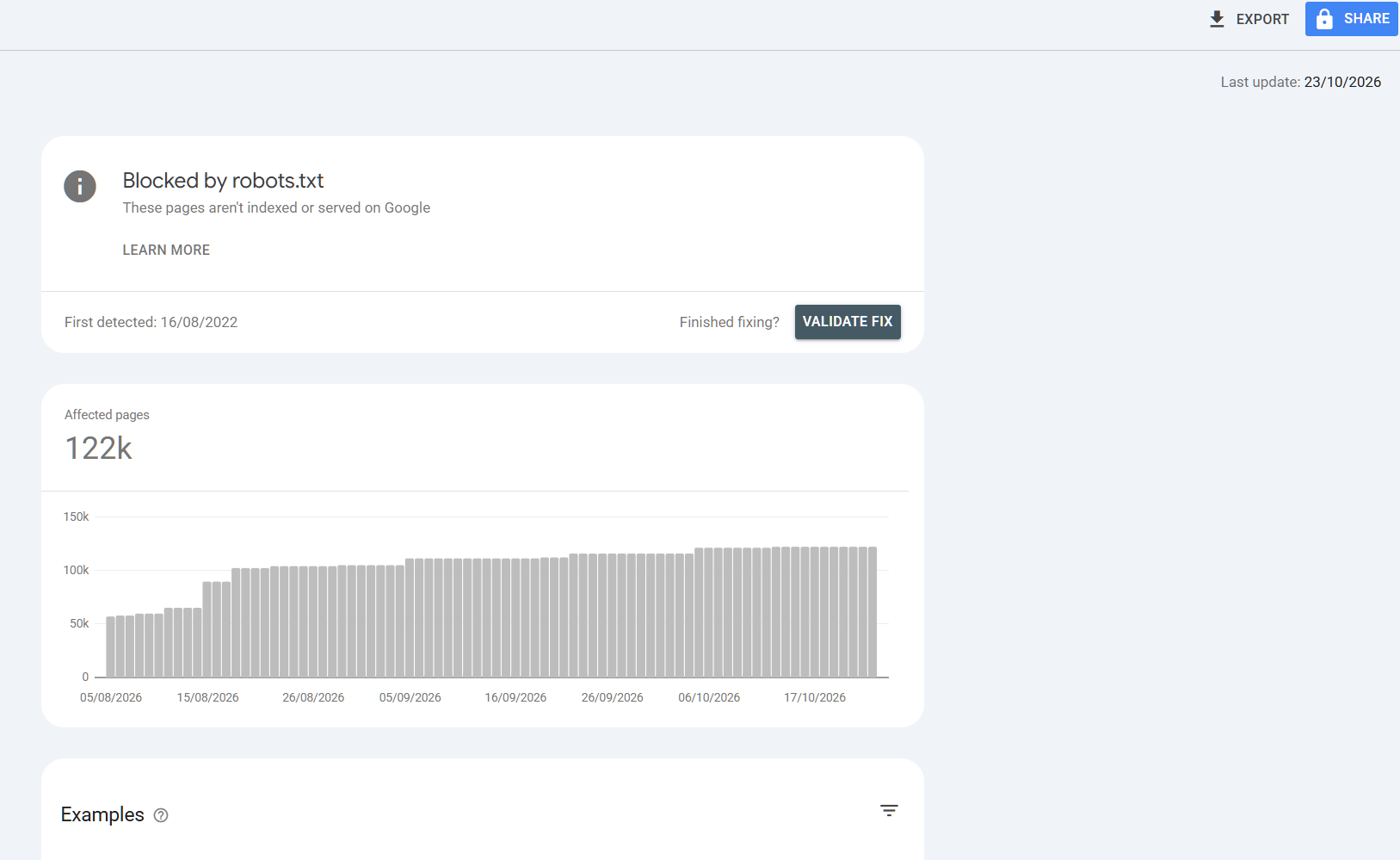
You can export to Google Sheets or download a CSV, open the export and copy the URLs from the URL column.
Copy the URLs themselves, excluding the column heading and the last-crawled dates. Keep one URL per line, you can select the column (ommiting the first row)
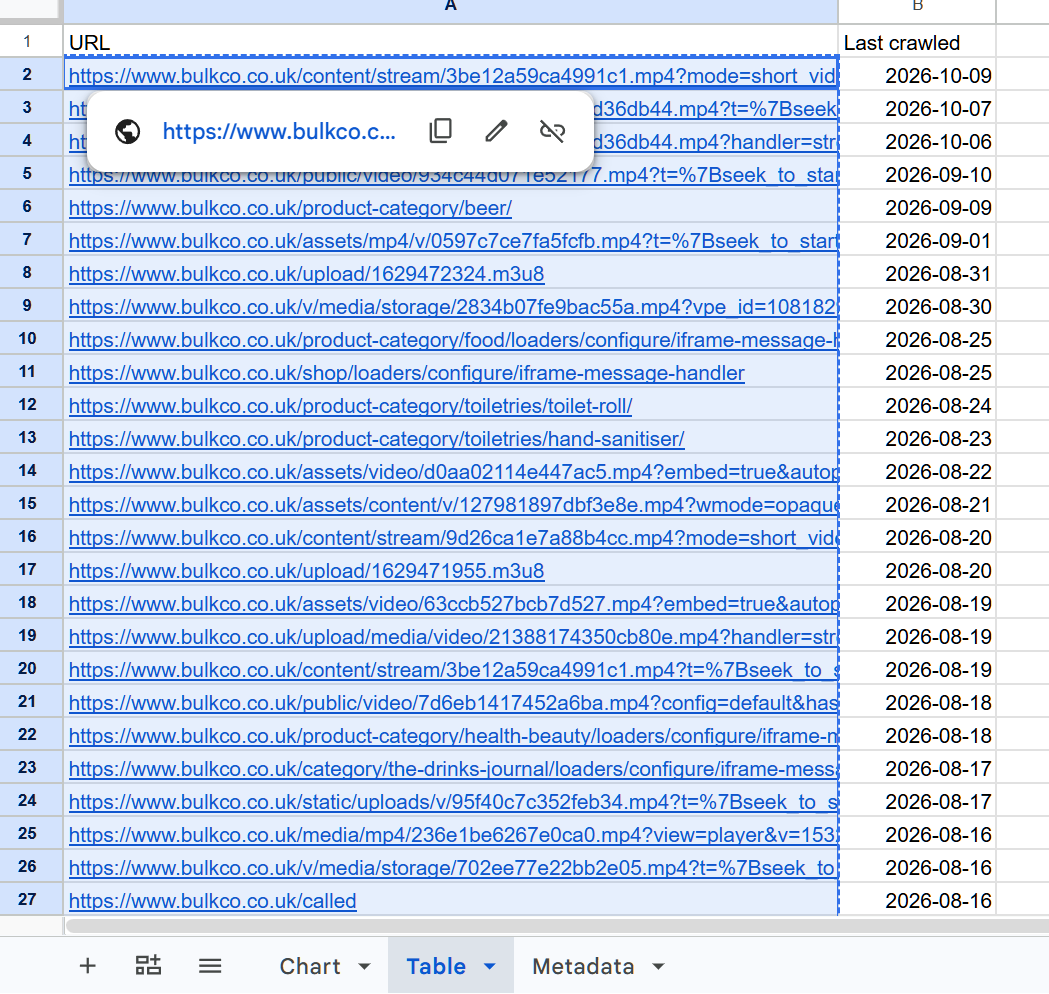
Use the full URLs as exported, including parameters and trailing slashes. You’re about to match specific URLs, so changing them can change what the filter returns.
It’s also worth checking what you’ve actually exported, a list containing genuine product categories alongside media files, parameters and strange generated paths needs some interpretation.
In most cases, just select the top 1000 URLS and copy them to the clipboard.
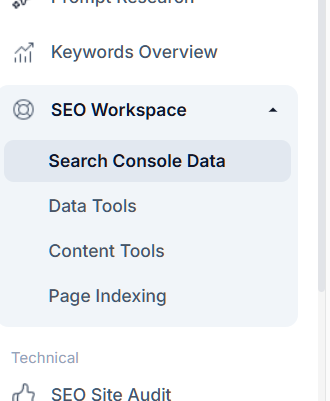
Step 3: Open Search Console Data in SEO Stack
Go into the same website property in SEO Stack and open Search Console Data.
Choose the date range you want to investigate.
For this exercise, start with the longest relevant period available in your account, in SEO stack this is known as the first data point. Looking at narrow timeframes like last 28 days won’t give you much insights about a page that stopped generating clicks a while ago, I would just select first data point to get the maximum timeframe:
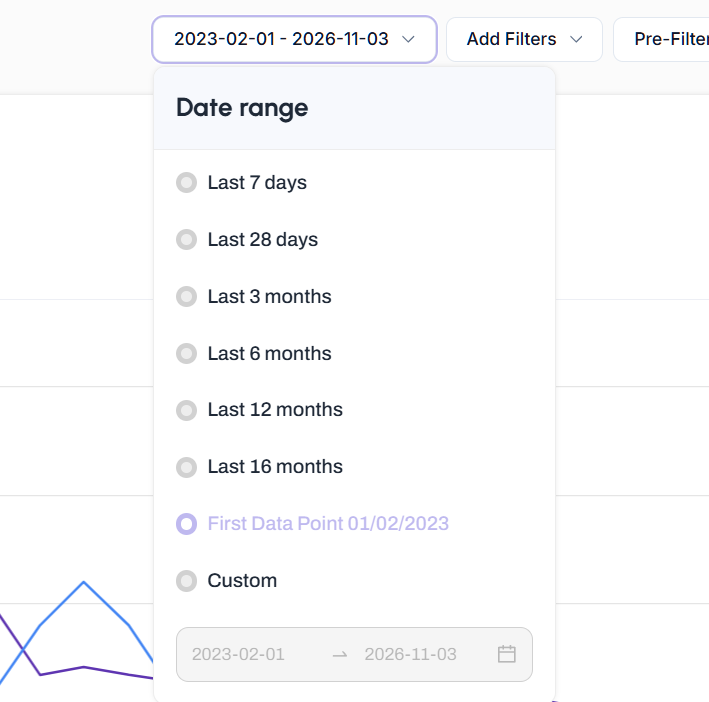
Longer history lets you see whether the URLs previously performed, whether their visibility declined gradually and whether there was a noticeable point where clicks disappeared.
The history available depends on the data retained for that property. Extending the date range won’t recreate historical data that hasn’t been stored.
Step 4: Add a bulk PAGES filter using SHOULD → EXACT
Click Add Filters, then select Page.
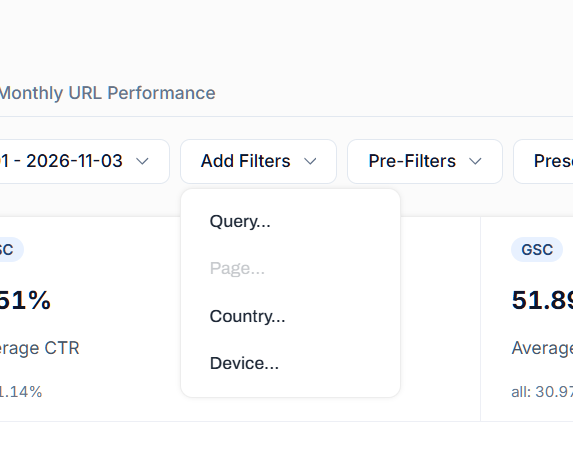
Set the filter to:
Setting | Select |
|---|---|
Filter dimension | Page / PAGES |
Operator | SHOULD |
Match type | EXACT |
Bulk | Enabled |
Paste your copied URLs into the text box, with one URL per line, then click Apply.
It should look like this (you can disable case sensitive if you wish)
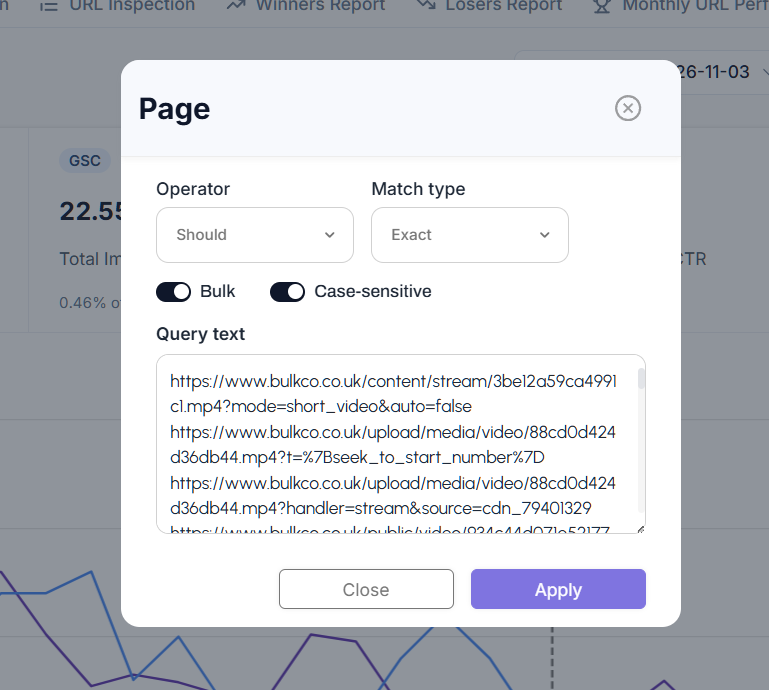
SHOULD → EXACT is the important part.
SHOULD allows a result to match any URL in the list, EXACT means it must match an individual URL value rather than simply contain part of it.
So, if you paste 100 URLs, you’re asking SEO Stack to return performance for URL one OR URL two OR URL three, continuing through the list.
You’re not asking a page to match all 100 URLs simultaneously.
You’re also not applying a broad “contains” filter that could pull in other pages sharing the same path.
Check the case-sensitive setting if your website uses URL paths where letter case matters, and clear any unrelated filters that could unintentionally restrict the results.
Step 5: Look at the group’s historical performance
Once applied, the chart and metrics show the available performance data for the matching URLs.
Look at:
Total clicks and impressions.
The displayed share of overall clicks for the selected period.
How performance changes over time.
Which individual pages have recorded data.
Which reported queries generated visibility and clicks.
In the example shown in the video, the URLs grouped under Crawled – currently not indexed recorded 115 clicks and approximately 22,550 impressions, representing 0.21% of all clicks across the selected period.
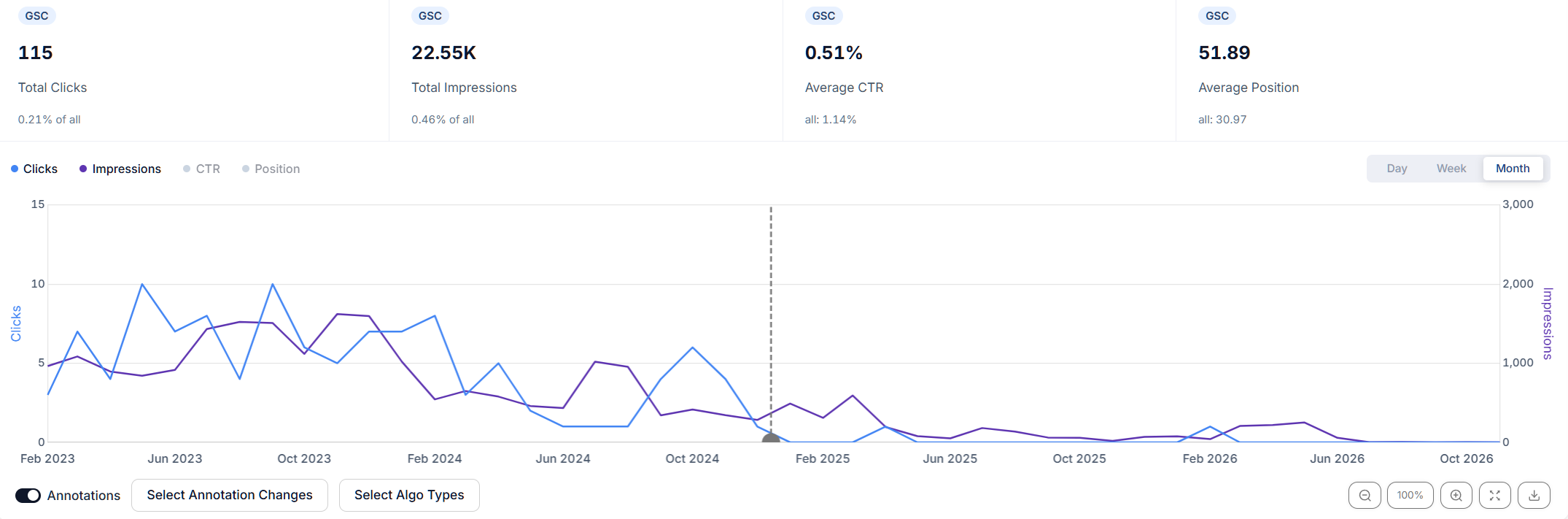
The chart shows that most of their click activity was earlier in the timeline, with very little later on.
That gives us something more useful than a count of excluded URLs. We can see that this particular group made a relatively small historical contribution, then investigate whether any individual pages within it deserve attention.
It doesn’t mean the website has lost 0.21% of its current traffic because of that indexing reason.
That percentage describes the group’s recorded contribution across the selected date range. It isn’t a calculation of recoverable traffic, and the chart alone doesn’t establish why performance declined.
You’re applying today’s exported URL list to historical performance. You aren’t reconstructing each URL’s indexing status on every historical date.
Step 6: Save the group into a custom filter folder
Once you’ve applied the filter, save it as a preset.
Create a folder with a clear name, such as:
GSC Non Indexed Reasons
Then save the current filter using the corresponding reason:
Crawled – currently not indexed
Repeat the process for the other groups. Export the next reason, copy its URLs, replace the existing page filter and save it into the same folder.
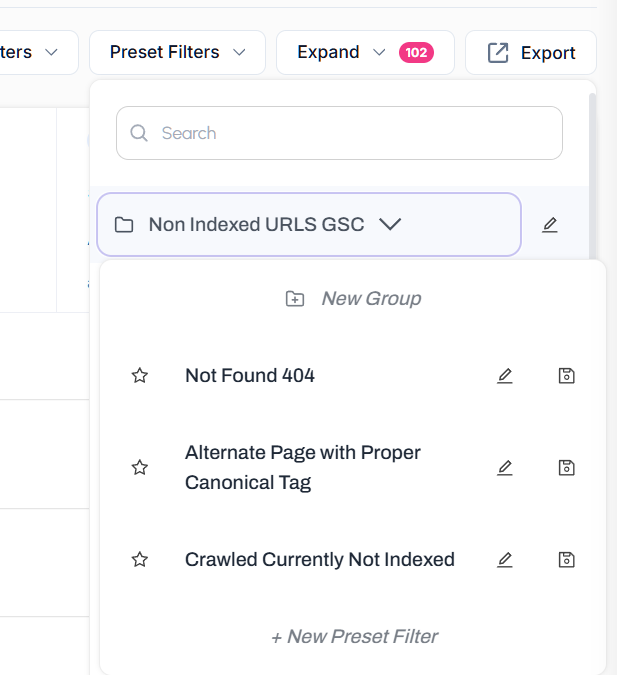
Your folder might contain:
Crawled – currently not indexed
Discovered – currently not indexed
Not found (404)
Alternate page with proper canonical tag
Page with redirect
Excluded by ‘noindex’ tag
You can then switch between these groups from Preset Filters, bringing up their performance without repeating the setup.
These are saved URL lists. If you want them to represent the latest GSC exclusions, refresh the exports and update the filters as those groups change. Adding the export date to the filter name also helps if you want to preserve a particular snapshot.
How to uncover opportunities from the results
Find deleted pages that used to bring in traffic
The 404 group is particularly useful when a website has lost traffic after pages were removed.
Apply the URLs, open the Pages tab and look for former performers. Then check what those pages were, what searches they appeared for and whether the website still serves that demand.
If a useful category was deleted accidentally, restoring it may make sense. If it moved, check whether there should be a redirect to its replacement. If the content is permanently gone and there’s no relevant replacement, a 404 may be entirely appropriate.
Don’t redirect everything to the homepage just to clear a report.
Check whether replacement pages picked up the traffic
Old URLs losing clicks after a redirect isn’t, by itself, evidence of a failed migration.
Look at the destination pages as well.
Did they gain visibility for the same searches? Are they relevant replacements? Did the old URLs stop performing while the new ones contributed very little?
Comparing both sides helps you identify where a migration or consolidation needs a closer look.
Find important live pages hidden inside a noisy group
A large exclusion group can contain plenty of URLs you don’t care about and a handful you absolutely do.
Historical clicks help surface former performers. Impressions and queries can also reveal relevant visibility that never translated into many clicks.
Then assess the pages themselves. Are they useful? Do they serve a distinct search intent? Are they internally linked? Can Google access their main content? Should they be indexed?
A page doesn’t need a history of clicks to deserve investigation. New commercial pages won’t have that history yet.
Separate low-impact housekeeping from work that matters
If a group consists of obsolete URLs, has no relevant historical performance and isn’t being linked to internally or included in sitemaps, there may be very little to action.
That’s a useful finding for an audit or client discussion.
You can explain which exclusions appear intentional, which need observation and which affect pages with a clear commercial purpose.
“No recorded clicks” needs context, though. Check the date range, URL matching and canonical destination before concluding that a URL never contributed anything. Google generally attributes performance to the canonical URL, which can leave duplicate URLs with little or no data of their own.
How to use this for each non-indexed page reason
The same filtering process works across the different reasons. What changes is the question you ask of the results.
Non-indexed reason | What to investigate |
|---|---|
Crawled – currently not indexed | Find useful live pages with historical clicks or relevant impressions. Review their content, rendered output, duplication, internal links and intended purpose. The label alone doesn’t establish a content-quality problem. |
Discovered – currently not indexed | Identify important URLs that need investigation, particularly new commercial pages. Review discoverability, internal links, sitemaps and server behaviour. Don’t expect every newly discovered URL to have historical performance. |
Not found (404) | Find former traffic-generating pages. Establish whether they should be restored, redirected to a relevant replacement or remain removed. Check internal links and sitemaps for references that need updating. |
Soft 404 | Review valuable pages for missing content, empty templates or error-like output. Decide whether they should provide a useful live page or return an appropriate removal response. |
Page with redirect | Compare the old URLs’ performance with their destinations. Investigate lost visibility where the replacement hasn’t picked up relevant traffic. |
Redirect error | Prioritise valuable affected URLs and inspect the redirect path for loops, broken destinations or excessive chains. |
Alternate page with proper canonical tag | Check the intended canonical’s performance. If consolidation is correct and the preferred page performs, the alternate URL generally needs no recovery work. |
Duplicate without user-selected canonical | Review which version should represent the content. Compare performance across the variants and align canonical signals, internal links and sitemap URLs. |
Duplicate, Google chose different canonical than user | Compare the preferred URL with Google’s selected version. Investigate whether important content is being consolidated into an unsuitable page. |
Excluded by ‘noindex’ tag | Separate deliberate exclusions from accidental ones. Former performers are useful priorities when a template or deployment may have introduced noindex unintentionally. |
Blocked by robots.txt | Check whether valuable public pages were blocked accidentally. Review the affected paths and current crawling rules. |
Server error (5xx) | Identify affected commercial pages and former performers, then investigate availability using current checks and server logs. |
Blocked due to unauthorised request (401) | Establish whether authentication is intentional. Investigate public pages that should be accessible without signing in. |
Blocked due to access forbidden (403) | Check whether security rules, firewall settings or permissions are preventing access to important public pages. |
Blocked due to other 4xx issue | Identify the response being returned and investigate the cause, prioritising useful pages and former performers. |
Use the indexing reason alongside current checks. For example, Google documents redirect errors separately from ordinary redirected pages, and a robots.txt block is a crawling restriction rather than a dependable way to remove a URL from search.
Use the AI Assistant to explore the filtered URLs
You can also ask SEO Stack’s AI Assistant to help investigate the URLs and their available performance data.
Give it a specific task, for example:
Analyse these URLs from the GSC “Crawled – currently not indexed” export. Identify which previously generated the most clicks, when performance declined and which reported queries contributed. Separate what the data shows from possible explanations, and flag where further checks are needed.
For a 404 export:
Review these 404 URLs and identify the strongest former performers. Show their historical clicks, impressions and relevant queries, then list the checks needed to decide whether restoration or a relevant redirect is appropriate.
That gives you a starting point for investigation. You still need to check the current pages, replacements and technical setup before deciding what to change.
Can you do this directly in Google Search Console?
You can investigate individual URLs in GSC, use regex to match groups, or export performance data and join it against your exclusion list in a spreadsheet.
So it’s possible to work towards a similar analysis. GSC supports regex filters for multiple URLs, although building an exact-match expression requires the appropriate escaping and anchors.
SEO Stack makes this workflow much quicker: copy the exported URLs, apply PAGES → SHOULD → EXACT, inspect their performance and save the group for reuse.
When you’re investigating a decline, that lets you move beyond “Google isn’t indexing these pages” and start asking which URLs mattered, what changed and where there’s a worthwhile opportunity to recover visibility.

Founder, SEO Stack
Daniel is the founder of SEO Stack. He has spent over 2 decades working on technical SEO and search data, and built SEO Stack after hitting the same Search Console limits on client work one time too many.
Daniel has extensive SEO experience having built SEO agencies, audit businesses & a thriving consultancy, in his spare time Daniel likes to run SEO experiments & to share findings.
Published 3 November 2026