How to Use Google Search Console for SEO
A practical guide to turning GSC data into rankings, traffic, and answers Why Google Search Console is the Most Underused Free Tool in SEO A lot of SEO tools charge hundreds of pounds a…
A practical guide to turning GSC data into rankings, traffic, and answers
Why Google Search Console is the Most Underused Free Tool in SEO
A lot of SEO tools charge hundreds of pounds a month to estimate what Google thinks of your site. Google Search Console tells you directly. It is the only SEO tool built by Google, fed by Google's actual crawl data, and designed specifically to show you how your website is performing in Google Search.
And yet, the majority of site owners either do not have it set up properly, check it once in a while to see if anything looks broken, or only look at the Performance report and leave the rest untouched.
You may of heard Google Search Console being referred to as "GSC", it used to be called webmsater tools until Google changed the name in May 2015.
This guide changes that. You will learn what every report in search console tells you, what action to take based on what you find/see, and how to build a repeatable SEO workflow around GSC data. We will also cover areas most guides do not touch, things such as: AI Overviews and their impact on CTR, using GSC for content audits, segmentation strategies that reveal hidden opportunities, and the correct way to compare date ranges.
One important thing before you start: GSC data has delays. Performance data is typically delayed by two to three days. Some reports, particularly Core Web Vitals, aggregate 28 days of real-world user data. Keep this in mind whenever you are looking for immediate cause and effect.
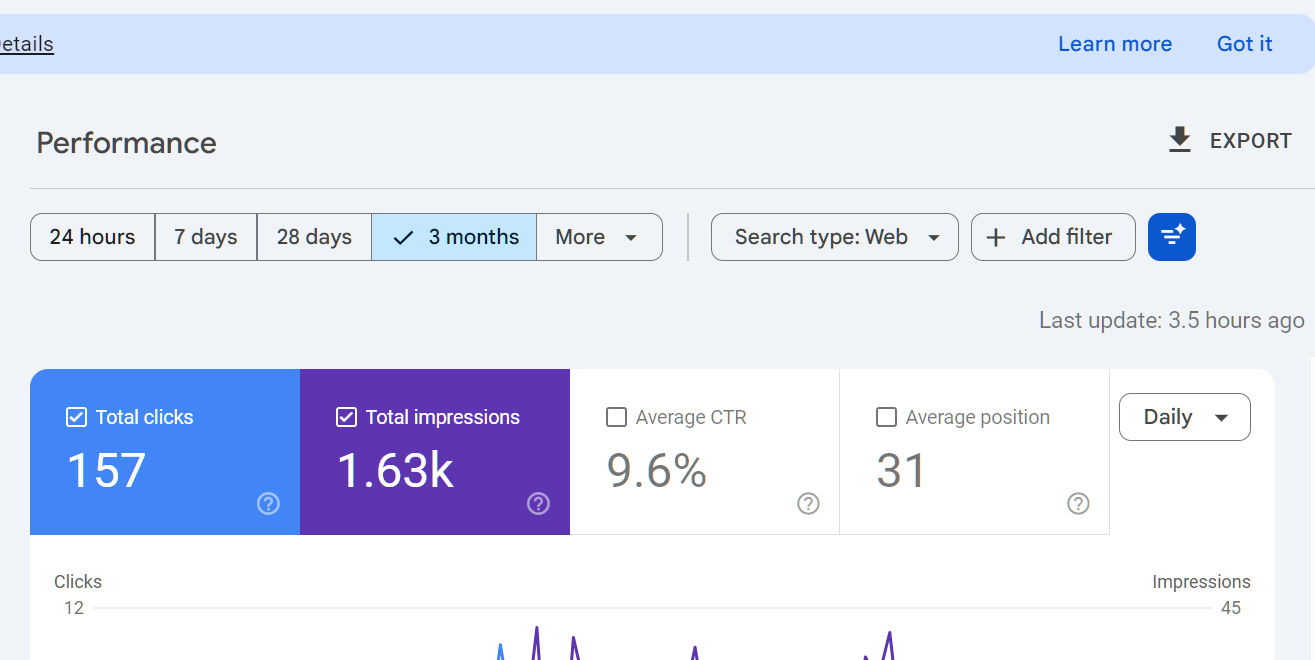
You can see when the data was last updated by looking at the right hand side of the performance interface - it will say how long ago the data was updated:
 Part 1: Setting Up Google Search Console Correctly
Adding Your Property
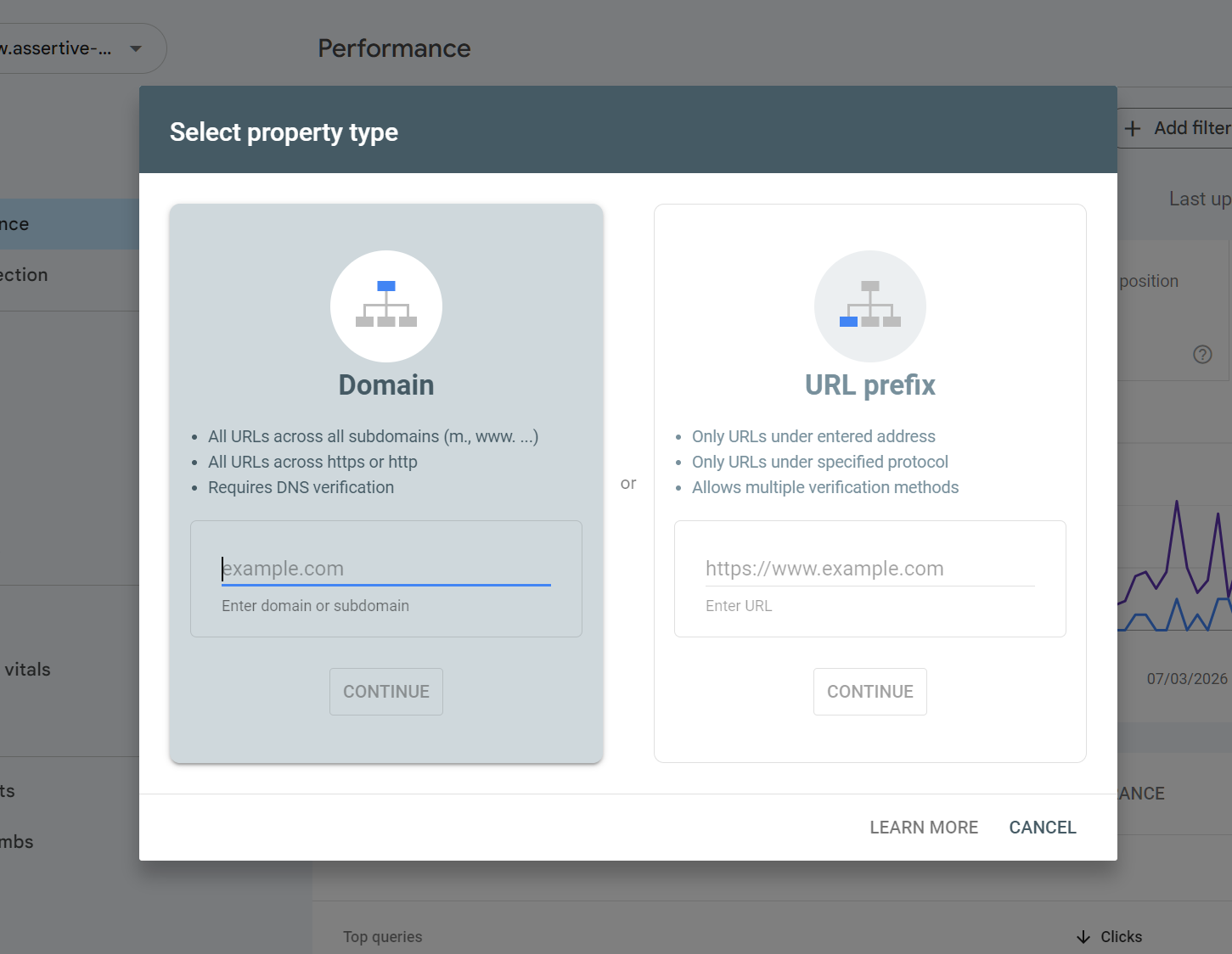
Go to search.google.com/search-console and sign in with a Google account. You will be prompted to add a property. There are two types.
Property Type | What It Covers |
Domain property | All URLs across http, https, www and non-www subdomains. This is the correct choice for almost every site. |
URL-prefix property | Only URLs that match the exact prefix you enter. Still useful for tracking a specific subdomain or subfolder separately. |
Use a Domain property as your primary setup. This gives you the complete picture. If you run a subdomain like blog.yourdomain.com on a separate CMS, add it as a separate URL-prefix property in addition to your domain property.
It will look like this, select the property most suited for your website - for MOST users, URL prefix is enough, only if you have a large, complex site or lots of sub-domains should you consider a domain property.
Verification Methods
GSC offers 5 ways to verify ownership. The fastest and most permanent is DNS verification.
It looks like this:
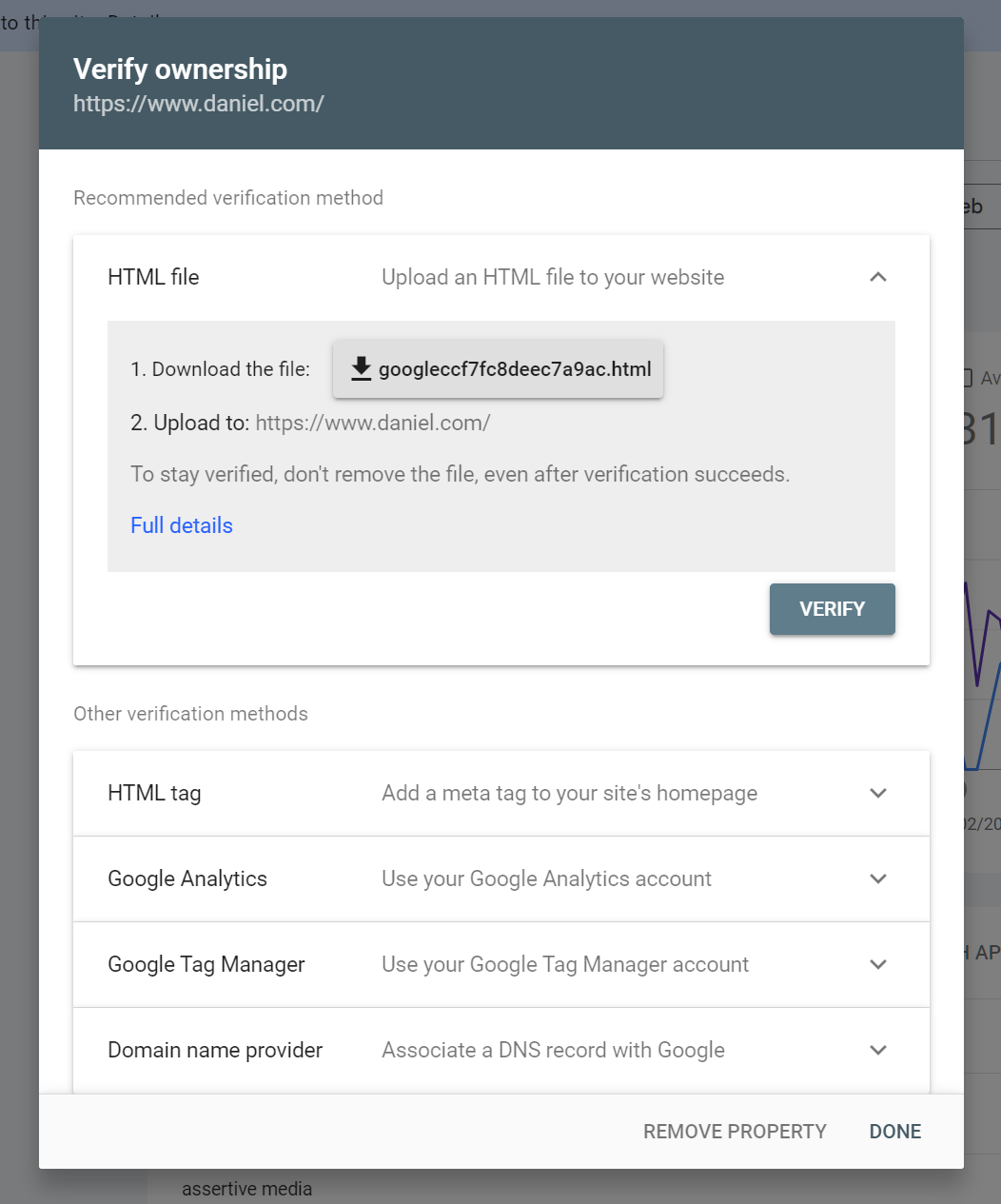
Here are your options and what is best / recommended for ease/permanency.
1. DNS record:
Log into your domain registrar, add the TXT record GSC provides. Verification survives site rebuilds and CMS changes. Recommended.
2. HTML file upload:
Upload a specific file to your root directory. Verification breaks if the file is deleted.
3. HTML meta tag:
Add a tag to your homepage head. Breaks if the page is rebuilt without it.
4. Google Analytics:
Works if you have GA4 set up with the same Google account. Quick but breaks if GA tracking changes.
5. Google Tag Manager:
Same principle as GA. Useful for sites without direct code access.
Add multiple users to your property. If you are the only verified owner and you lose access to the Google account, you lose access to GSC. Add at least one other owner from a different Google account.
You CAN recover a profile that you've lost access to by re-validating at any-time. Google ALWAYS keeps your search console data, so even if one of your validation options goes missing, it's quick and easy to re-validate and you won't lose your data!
What to Do After Verification
6. Submit your XML sitemap. Go to Sitemaps in the left nav, paste your sitemap URL (typically /sitemap.xml or /sitemap_index.xml), and click Submit.
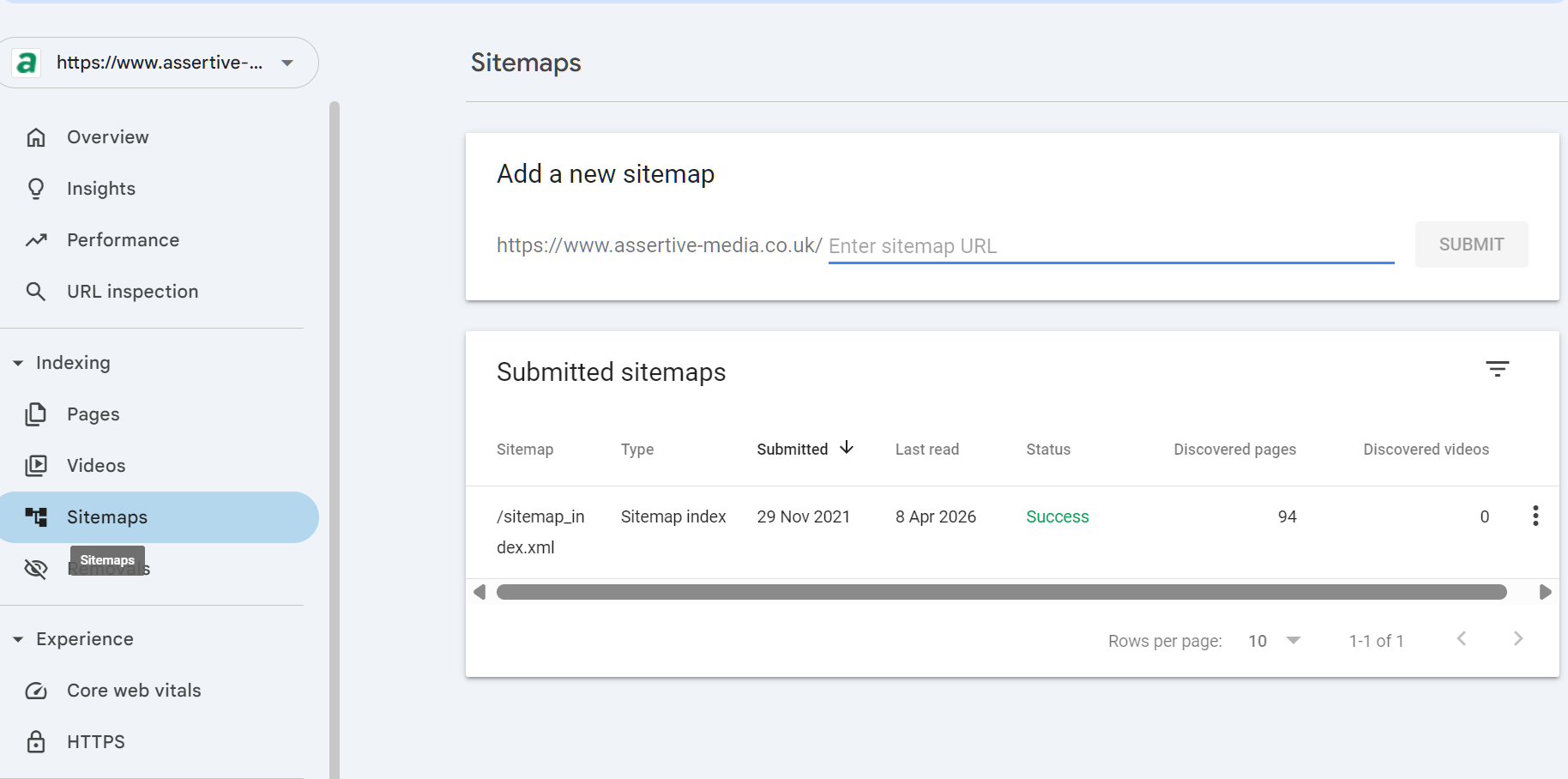
7. Wait 48 to 72 hours before drawing any conclusions. GSC needs time to crawl and process data for a new property.
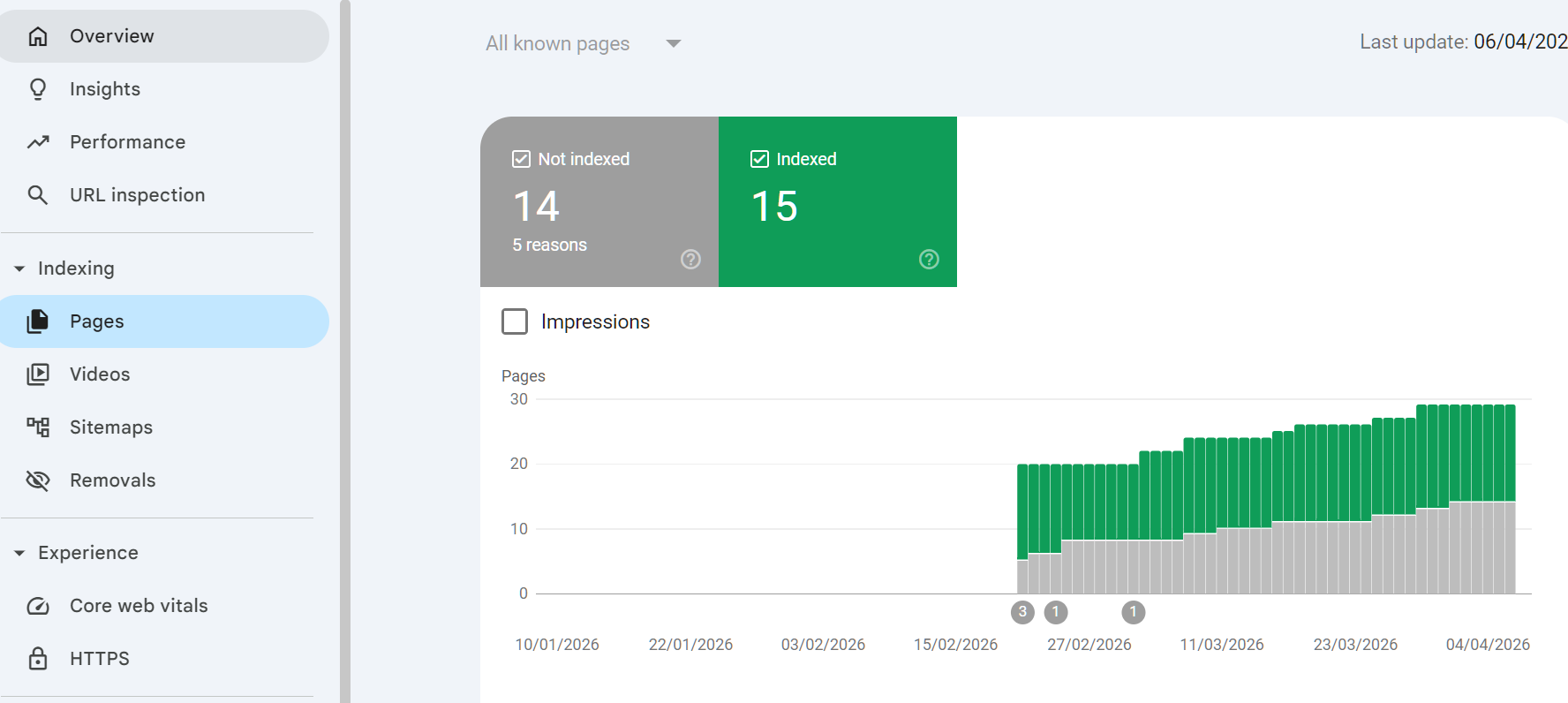
8. Check the Indexing > Pages report to see if there are any immediate crawl or indexing errors.
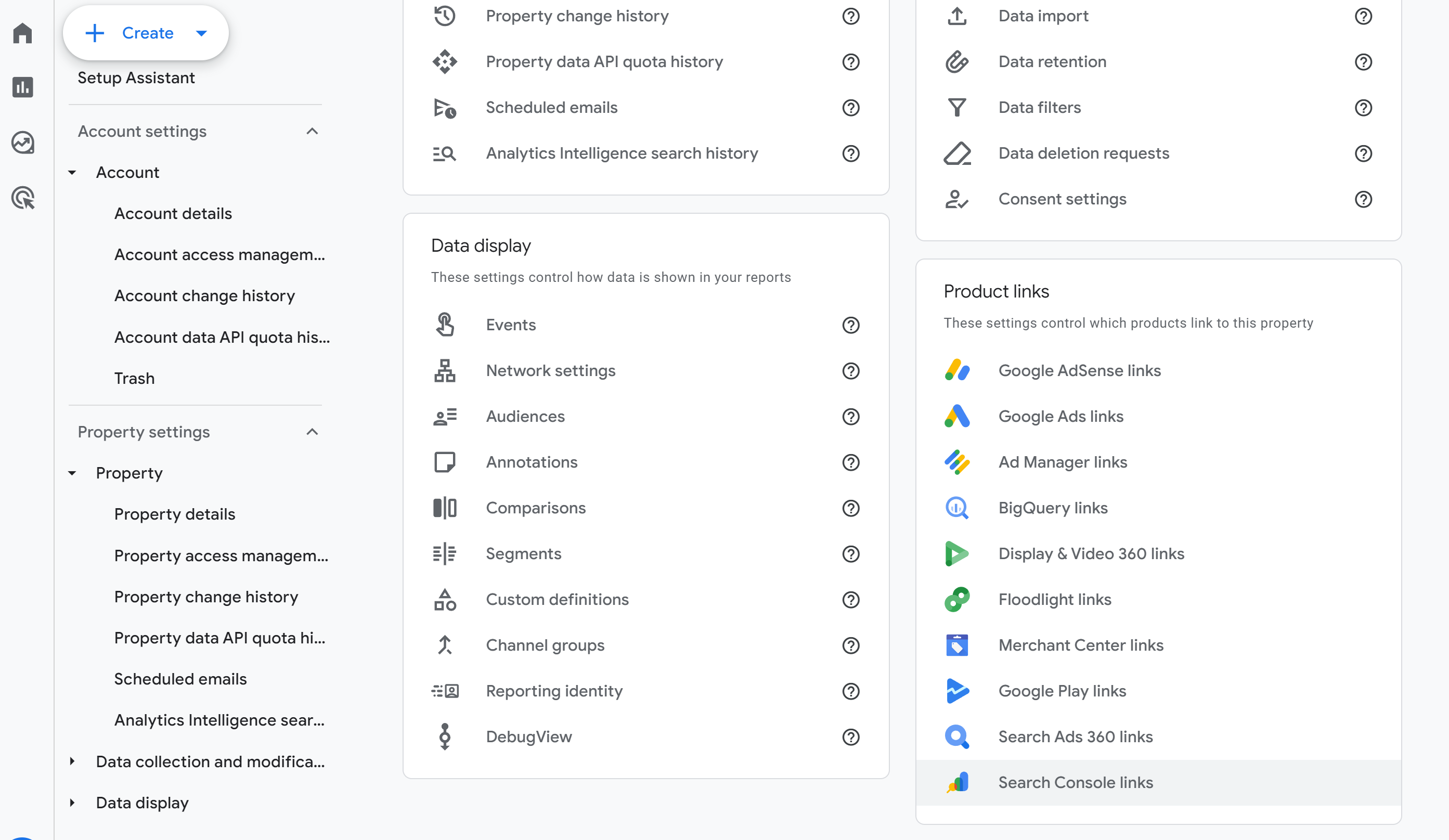
9. Link GSC to your GA4 account. In GA4, go to Admin > Property Settings > Search Console links. This lets you see GSC data inside Analytics alongside session and conversion data.
 Part 2: The Performance Report
What the Performance Report Shows
The Performance report is one of the most useful report in GSC for SEO purposes. It shows data from Google's actual search results for your website. This data is collected by Google as it tracks users at SERP level for what they search and what websites they click on, which is how search console can report on keywords/clicks/impressions etc without any tracking installed.
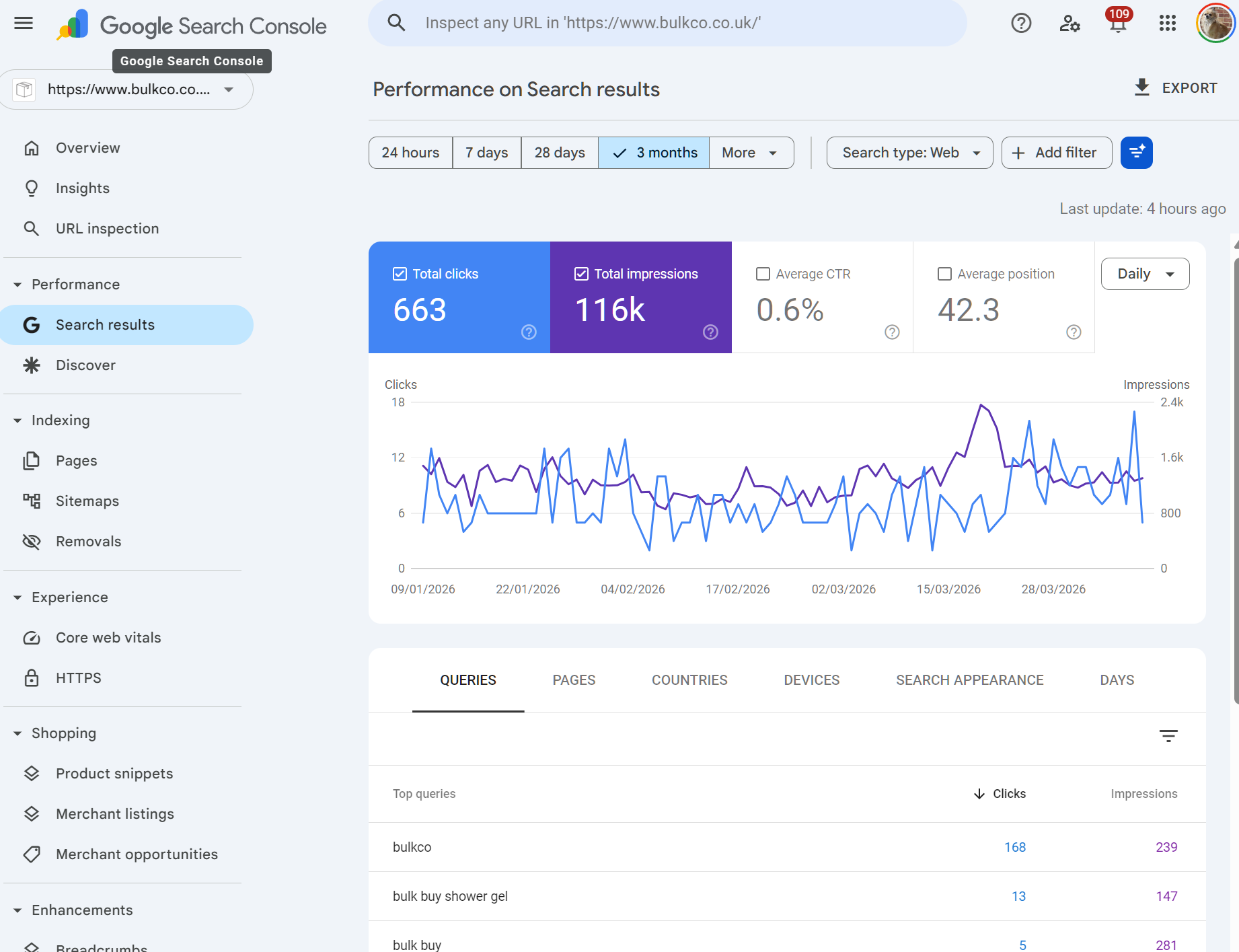
The four core metrics are:
Metric | What It Means |
Clicks | Number of times a user clicked through to your site from a Google search result |
Impressions | Number of times your URL appeared in search results (whether the user saw it or not) |
CTR | Click-through rate: clicks divided by impressions, expressed as a percentage |
Average Position | The average ranking position of your URLs for a given query or page |
By default, the report shows total performance for the past three months. Click on each metric to add or remove it from the chart.
Step-by-Step: Finding Your Best SEO Opportunities
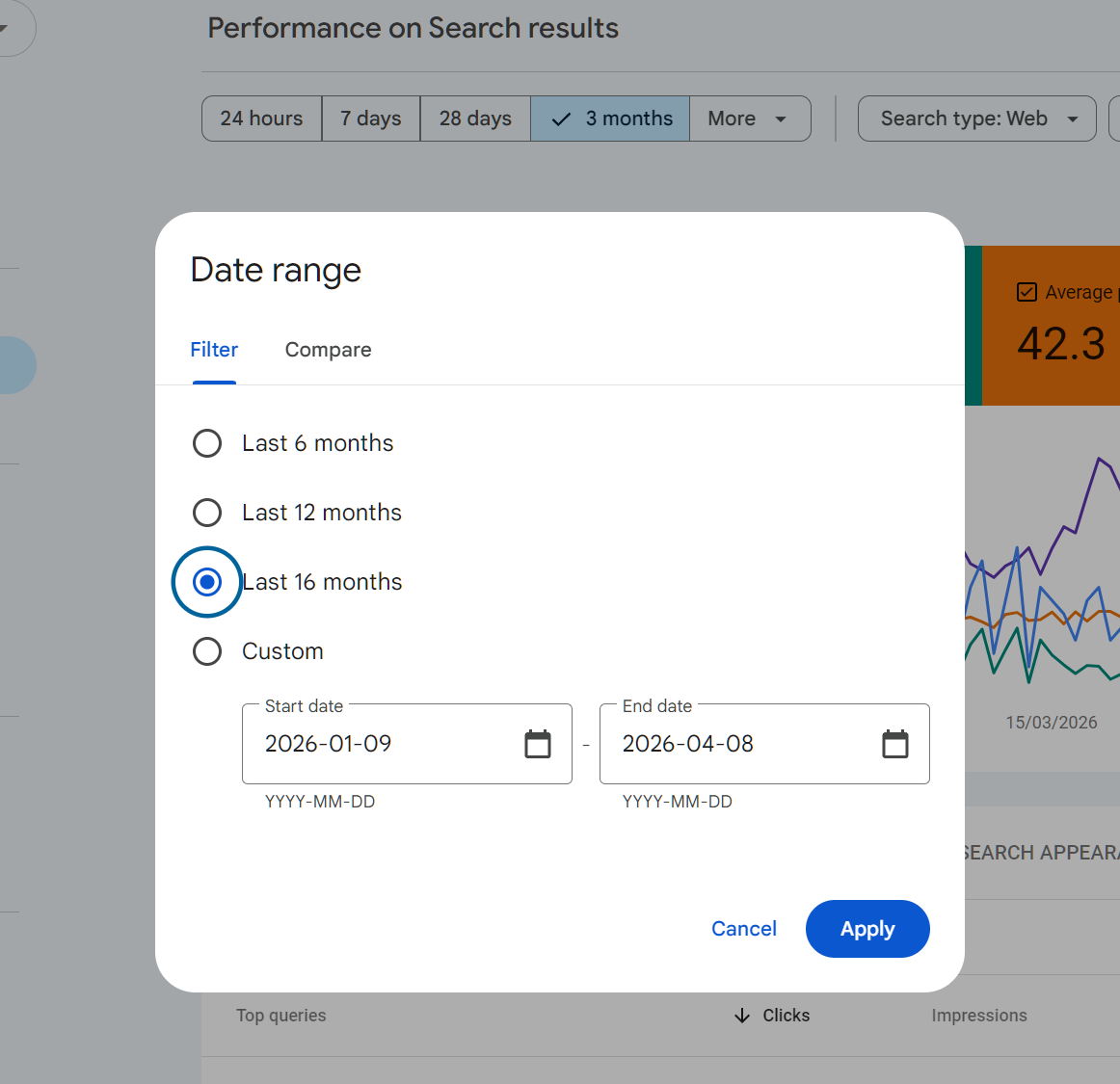
Step 1: Switch to 16-Month View
Change the date range to Last 16 months. This gives you the longest view available and lets you spot seasonal trends, the impact of algorithm updates, and long-term trajectory.
Step 2: Identify Striking Distance Keywords
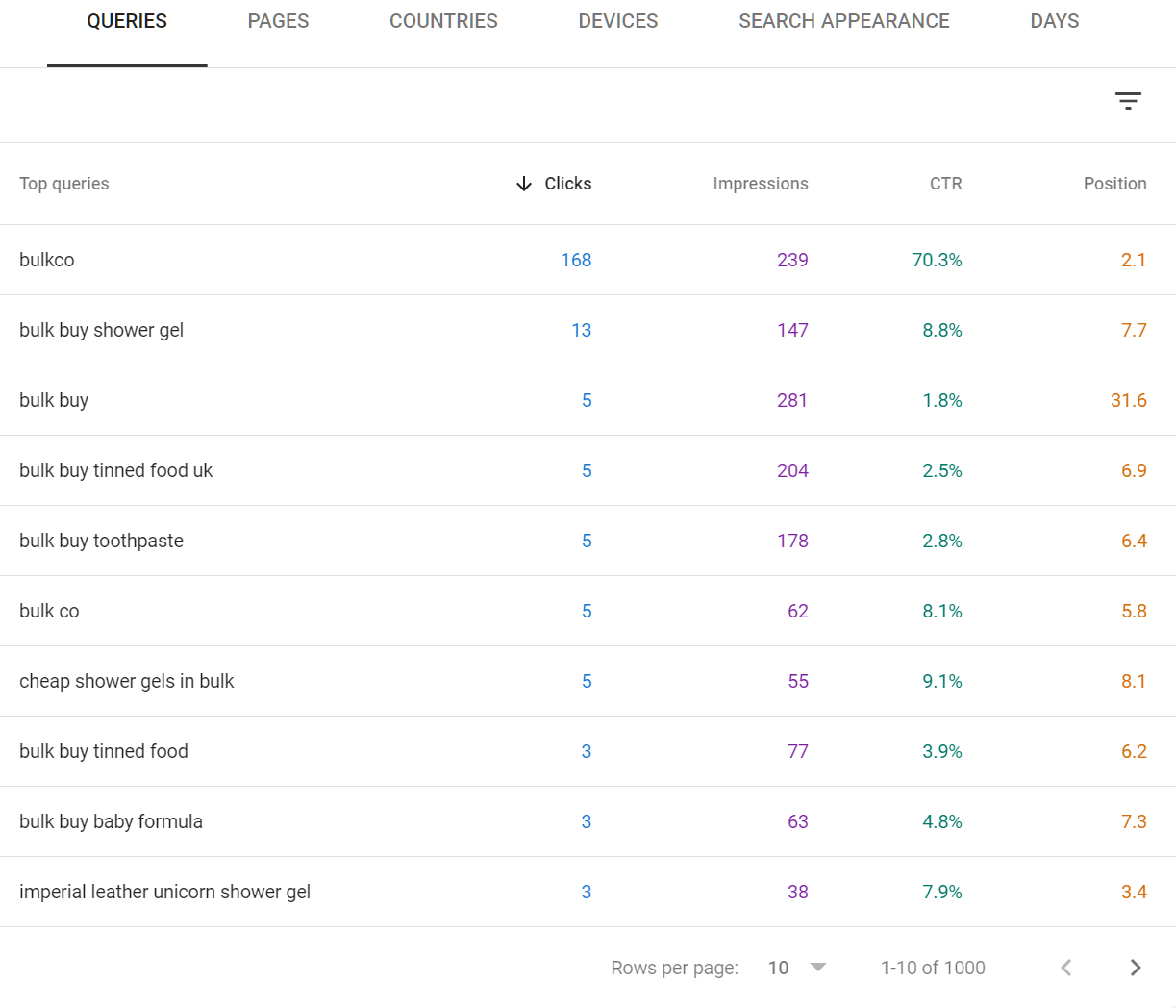
These are queries where you are ranking in positions 5 to 20. You are visible but not getting meaningful traffic. A targeted improvement to the page could move you to the top five where the bulk of clicks happen.
10. In the Performance report, click Queries.
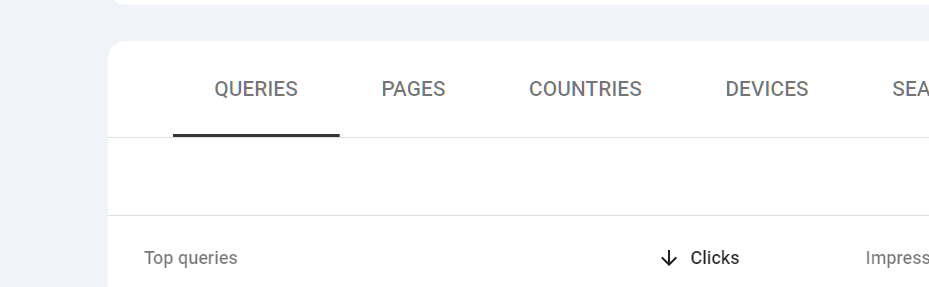
11. Click Average position to sort the data by position.
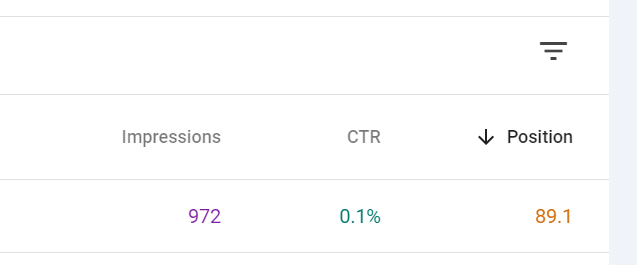
12. Filter to show only queries with an average position smaller than 20.
Click the little 3 lines to get a drop down, click on position
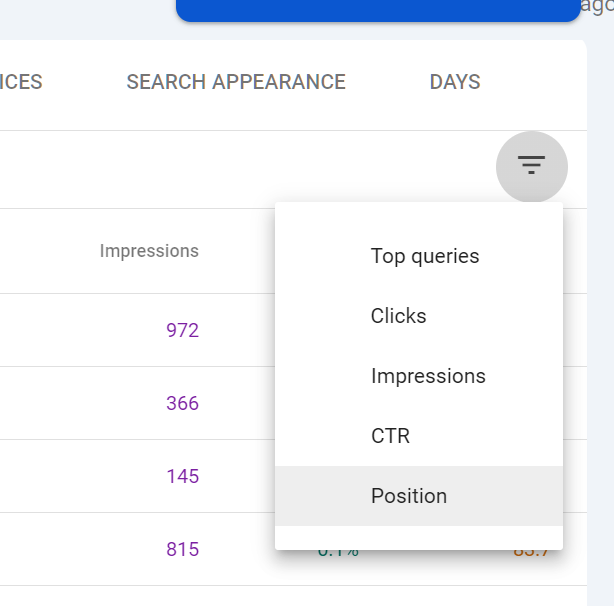
Then, the position filter will open:
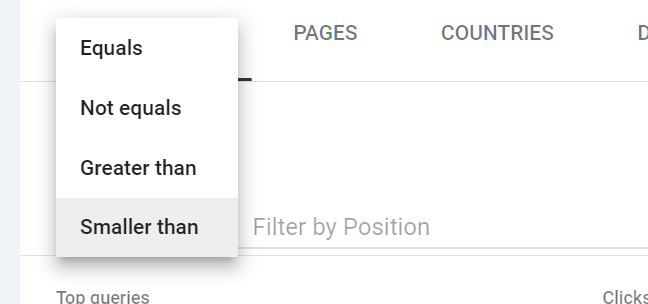
Select SMALLER THAN and put in 20 then click DONE.
13. Sort by Impressions descending. The queries at the top are your best opportunities: high search volume, reasonable current ranking, actionable with content improvement.
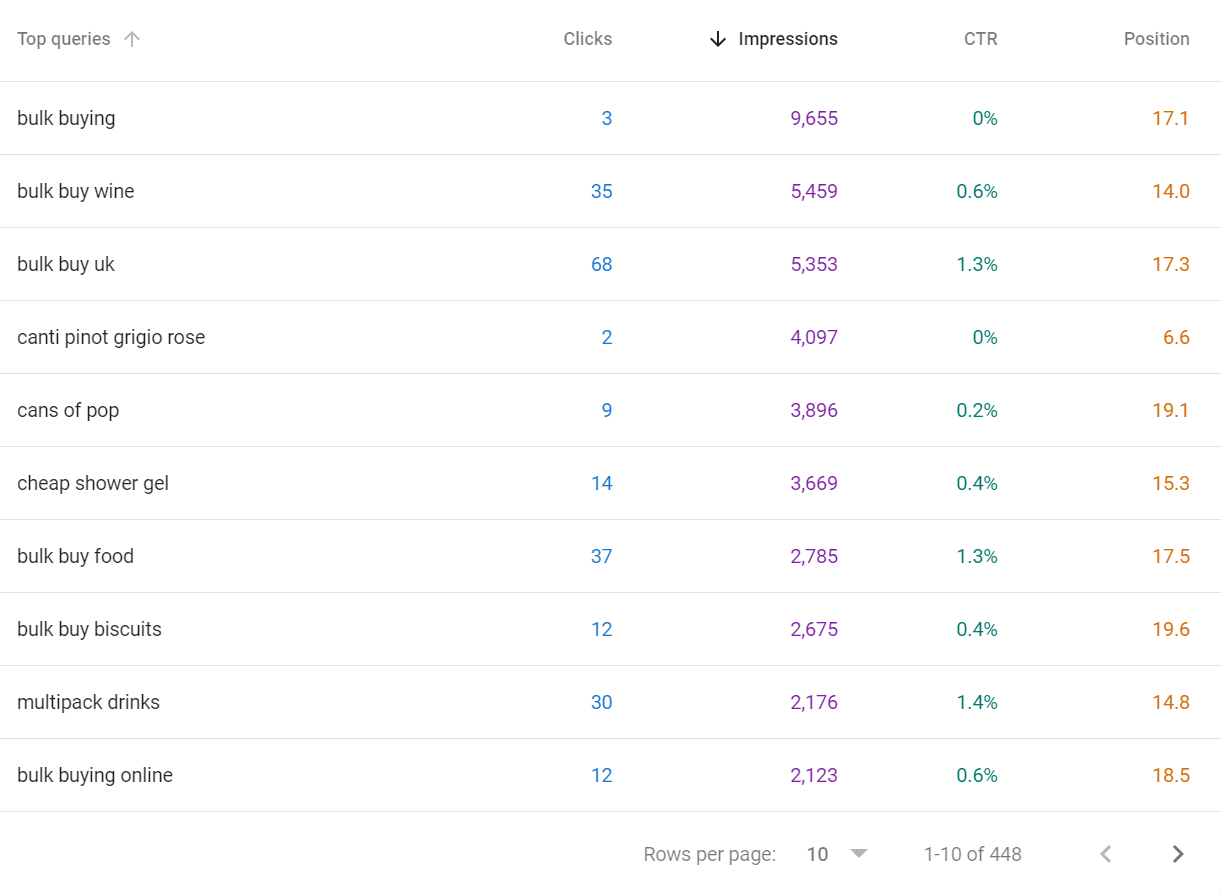
14. Click on each query to see which page is ranking for it.

Once you click on the query, then click on PAGES
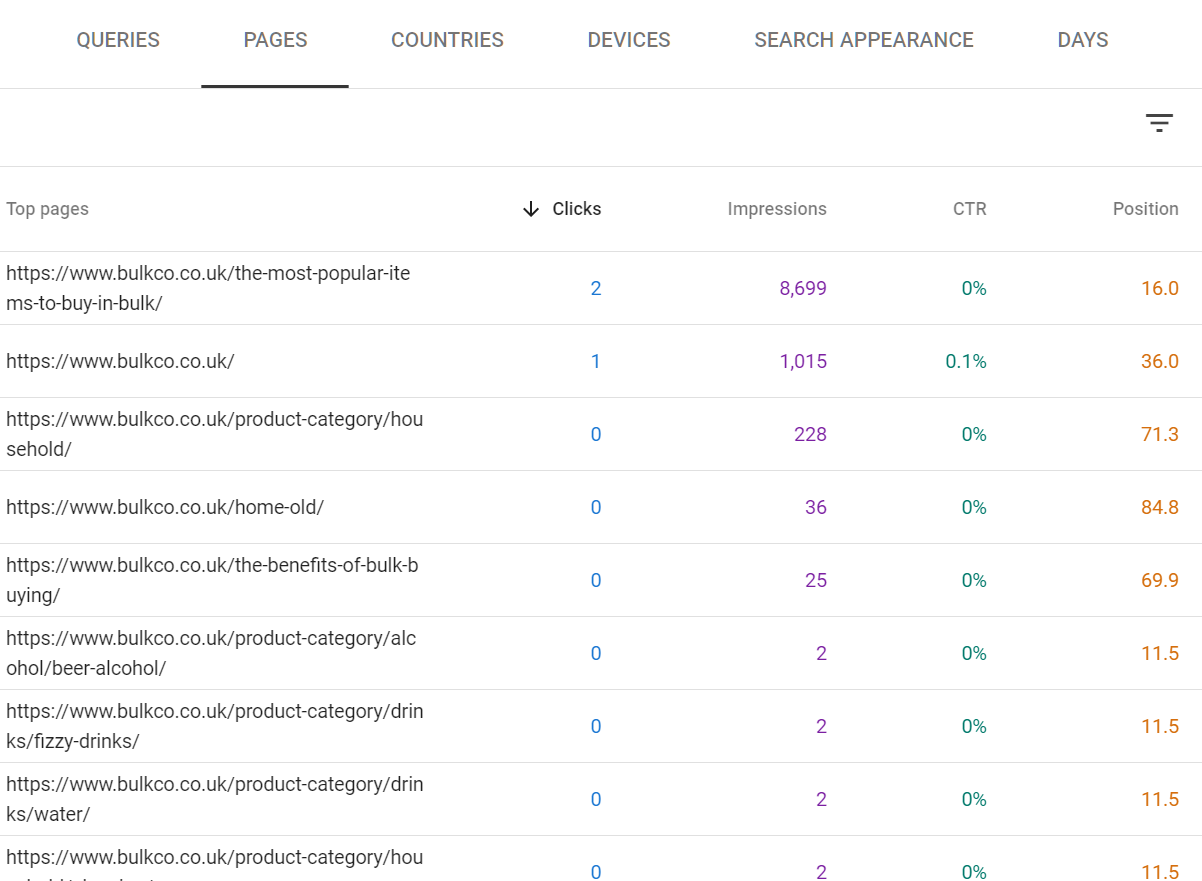
Pick the most relevant page, ideally the one with the highest clicks and/or impressions.
15. Open that page and review it against the top three results currently ranking for the query. Look for depth, structure, missing topics, and freshness.
Simple things you can do to improve a pages performance:
Perform a content audit using a content tool such as inlinks.net to perform an NLP audit to see if the content is missing any topics or depth
Add more internal links to the page - ensuring the anchor text is relevant
Build more external backlinks to the page
If you are still learning SEO, there are some great SEO webinars that will teach you technical SEO / content SEO.
Here are some content previews:
IF YOU WOULD LIKE TO BEEF UP YOUR TECHNICAL SEO SKILLS I SUGGEST THIS SEO WEBINAR

Click here to watch the preview
You can get the 12 hour SEO Training course for technical SEO here
It's a 2 part video series covering technical SEO in detail, it can help you strengthen your pages performance.
BEEFING UP YOUR WEBSITES CONTENT TO DO BETTER
Here is an SEO webinar around content - it covers everything around content in SEO from intent analysis to query counting, content auditing tools and more.
You can get the content seo webinar here
A page ranking at position 8 for a query with 5,000 monthly impressions gets roughly 50 to 80 clicks. Move it to position 2 and that becomes 1,000 to 1,500. That is the leverage striking distance analysis gives you.
Step 3: Evaluate CTR vs Position
Expected CTR benchmarks (approximate, for informational intent keywords):
Position | Expected CTR Range |
1 | 25% to 35% |
2 | 14% to 18% |
3 | 10% to 12% |
4 to 5 | 6% to 9% |
6 to 10 | 2% to 5% |
If your page is ranking at position 2 but getting a <2% CTR, that is a red flag. The title tag or meta description is not compelling enough. GSC is showing you this problem directly.
16. In the Queries view, enable both Average CTR and Average position. You do this by clicking on AVERAGE CTR and AVERAGE POSITION BOXES so they illuminate in colour
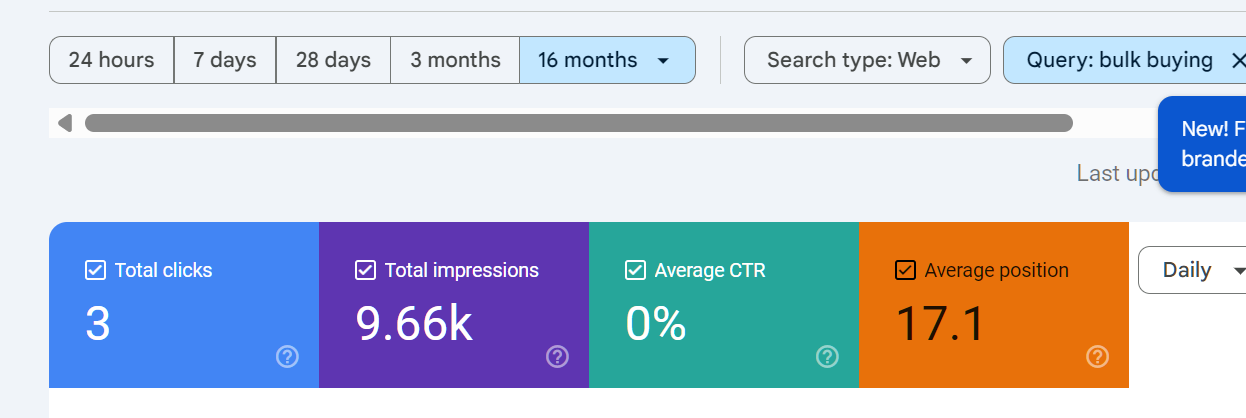
17. Look for queries where your position is strong (1 to 4) but CTR is below the expected range.
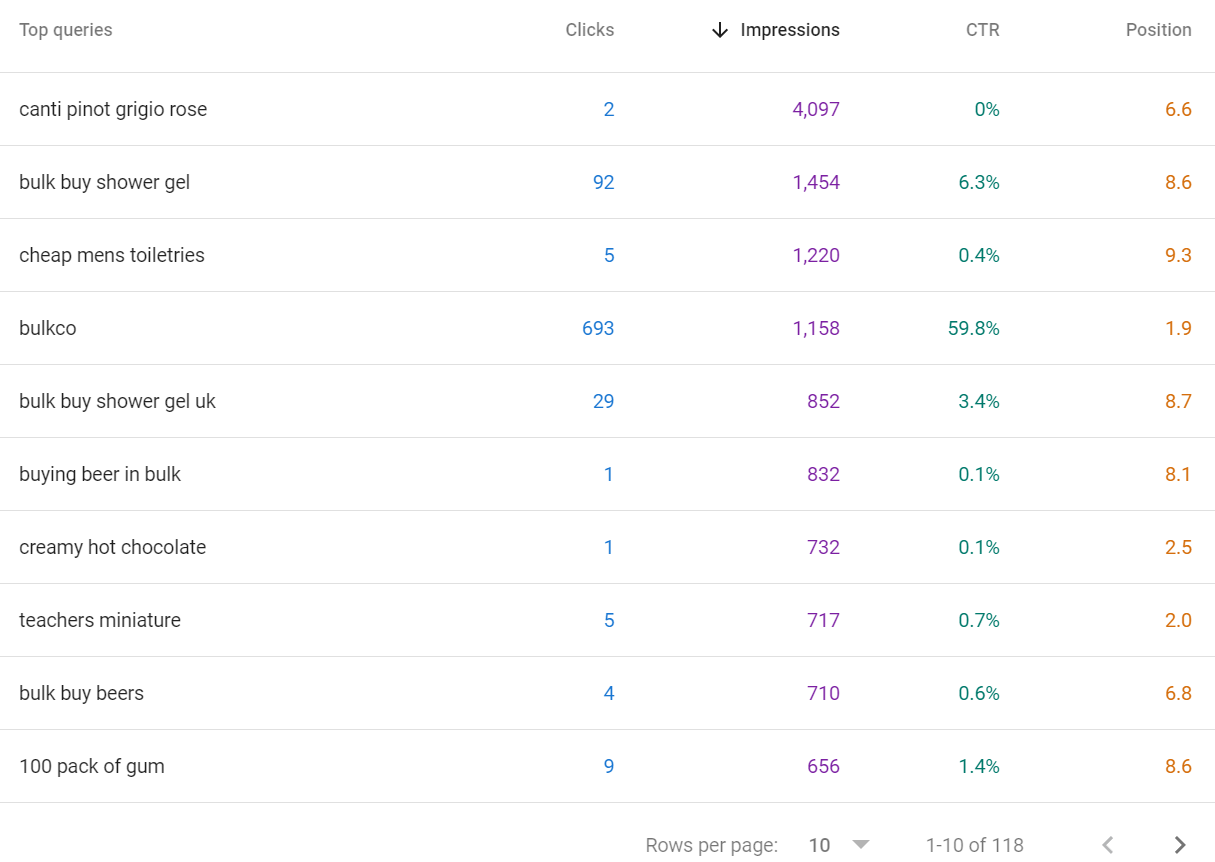
18. Click through to the query to see which page is ranking.
19. Rewrite the title tag to be more specific, benefit-led, or curiosity-driven. Rewrite the meta description to include a clear call to action.
20. Return to GSC in four to six weeks to measure whether CTR improved.
Step 4: Diagnose Traffic Drops Using the Performance Report
If you see a drop in clicks, do not panic. Work through this process:
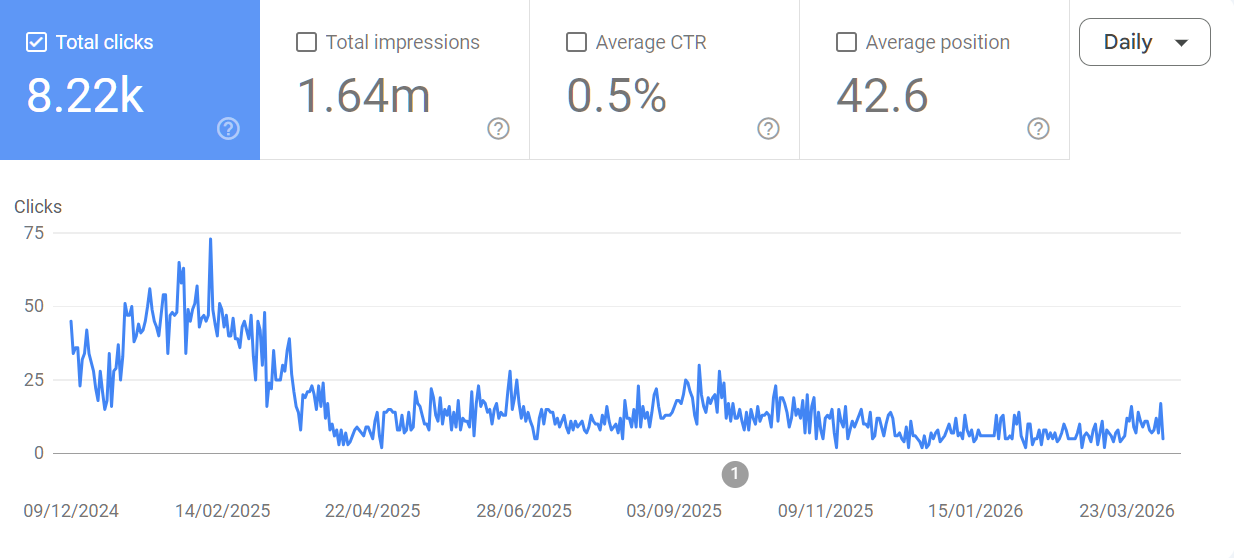
21. Set the date range to the last six months. Compare the dropping period against the equivalent period before it using the Compare function.
Click the DATE picker and then the compare tab
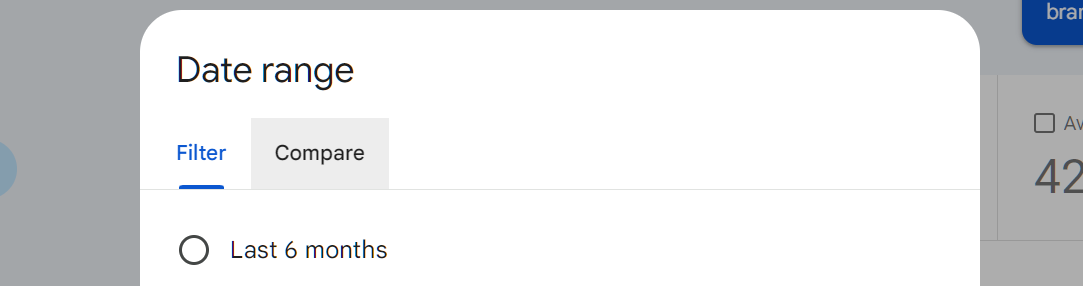
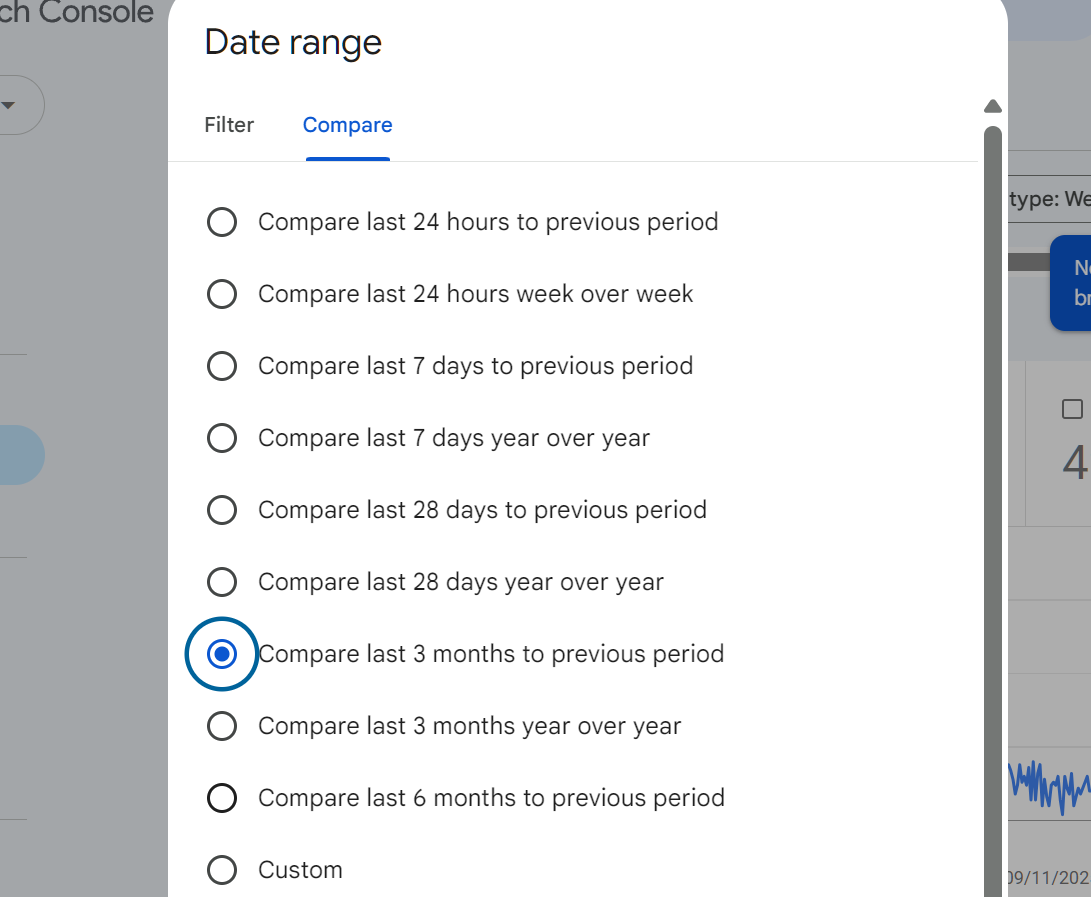
Then set your comparison time-frame:
22. Check the Queries tab first. If impressions dropped alongside clicks, the issue is likely ranking loss. If impressions stayed the same but clicks dropped, the issue is CTR (possibly an AI Overview appearing for those queries).
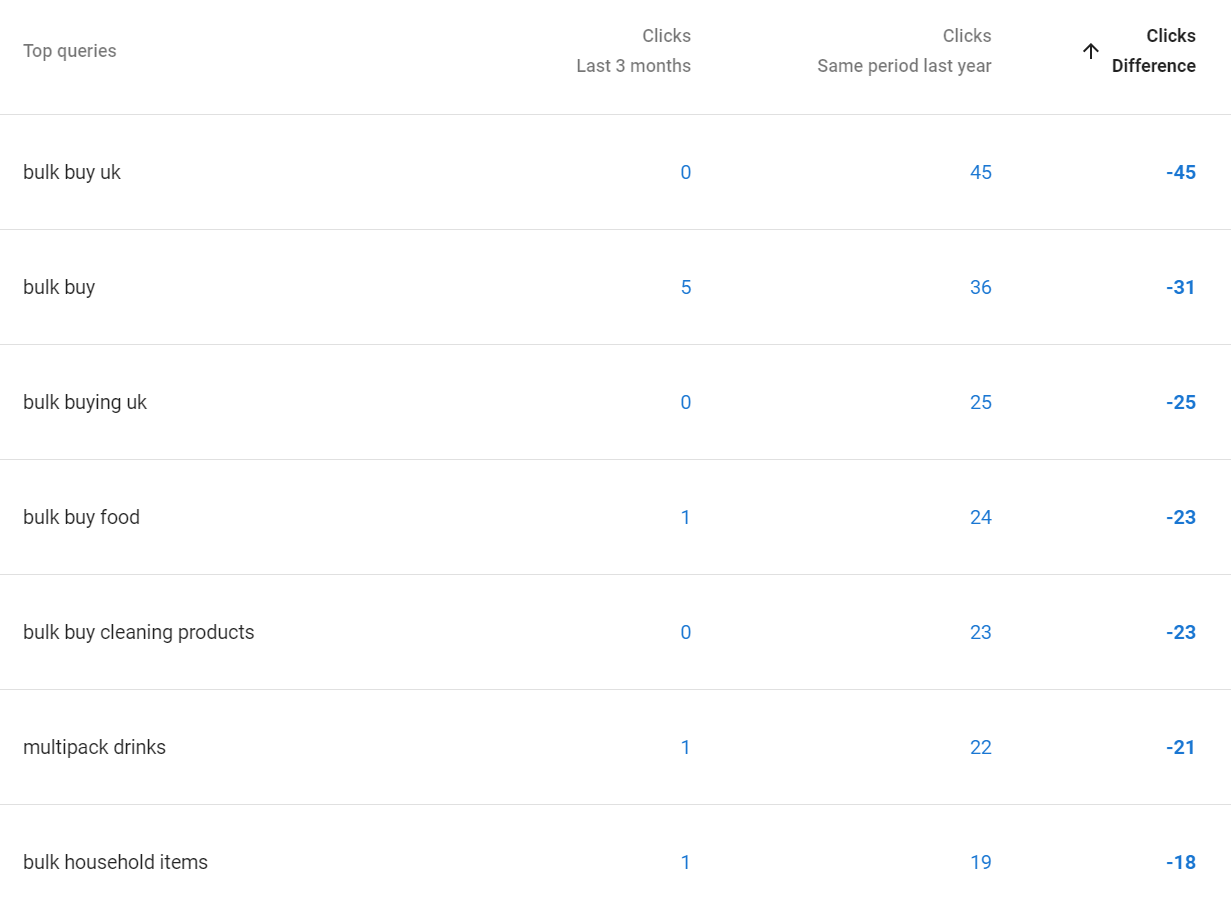
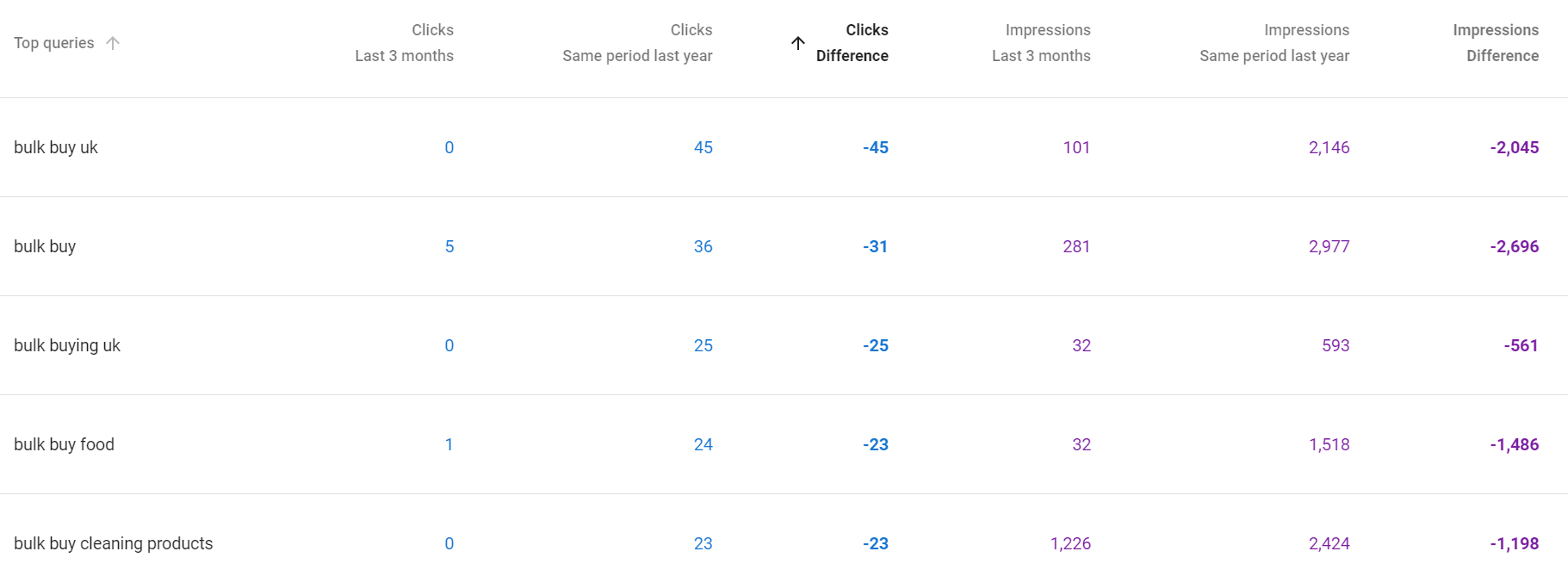
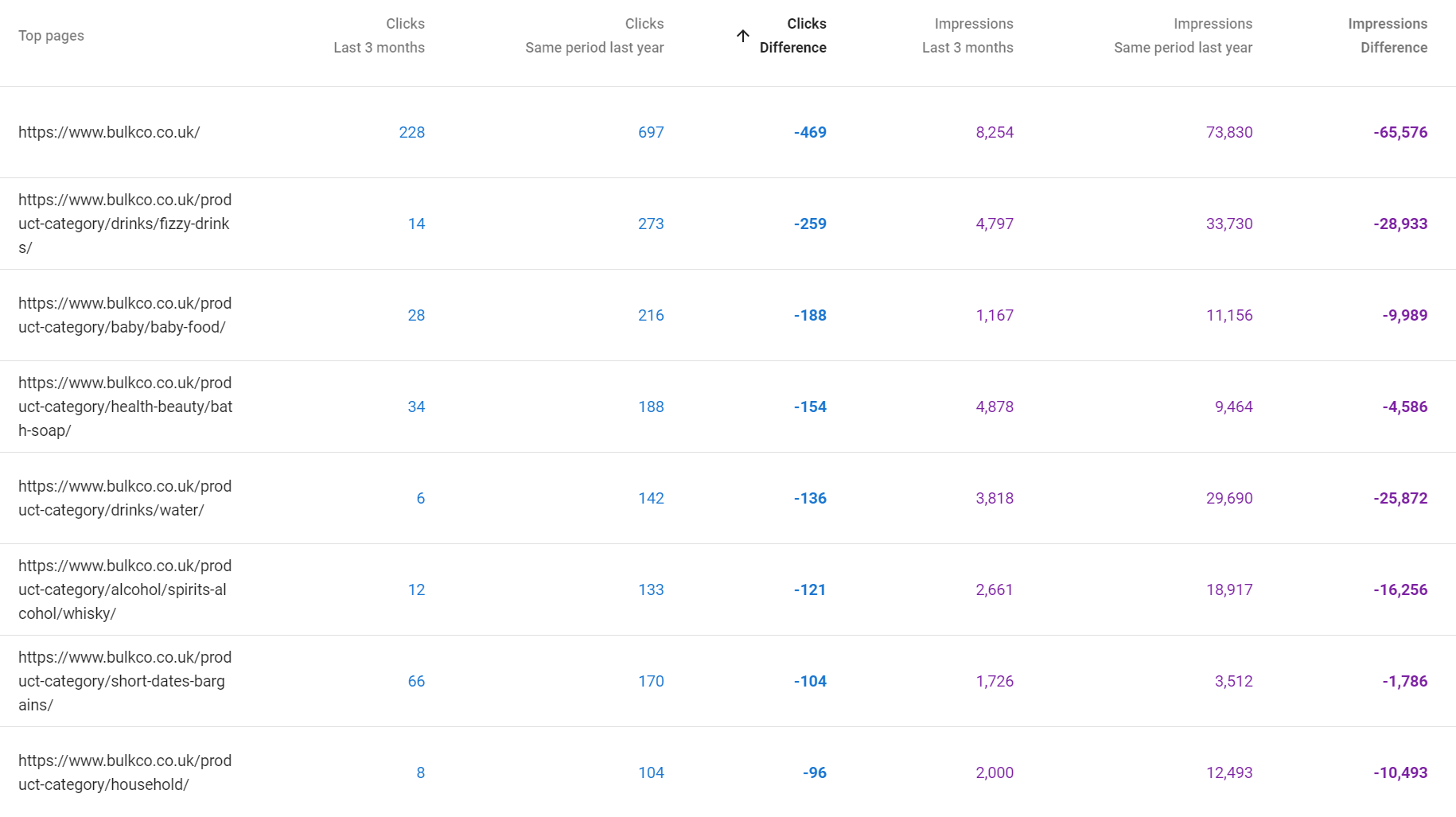
23. Check the Pages tab to isolate whether the drop is site-wide or confined to specific URLs.
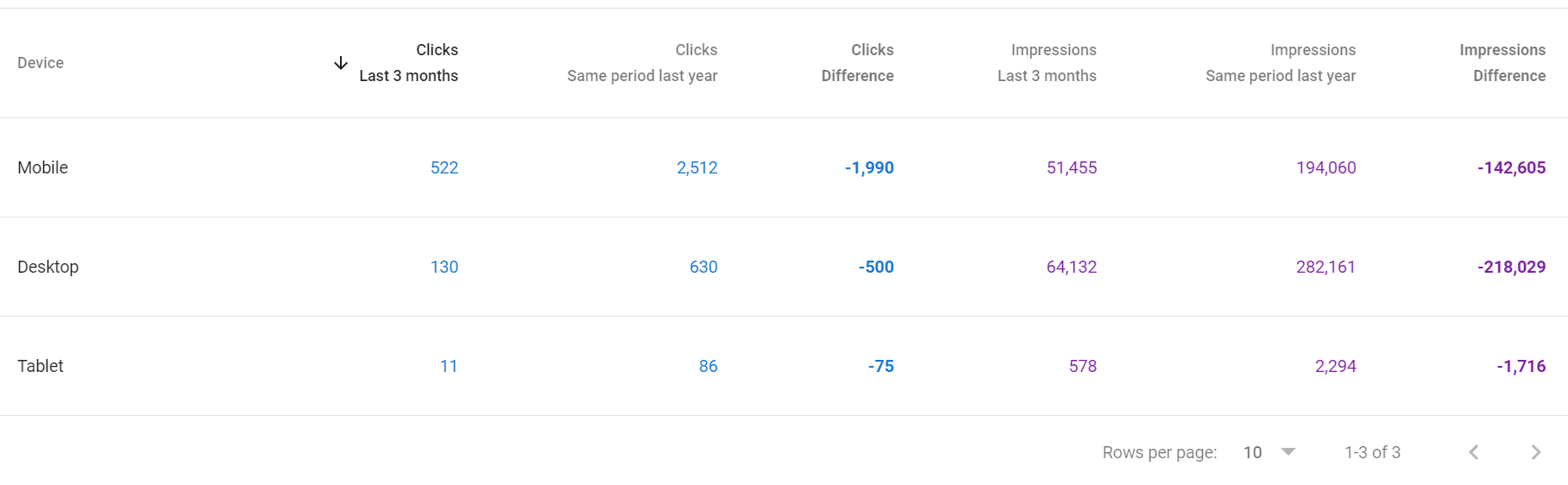
24. Check the Devices tab. A drop on Mobile only suggests a Core Web Vitals or mobile usability issue. This is generally unlikely, most sites that lose clicks because of position losses during core updates tend to lose clicks across all devices.
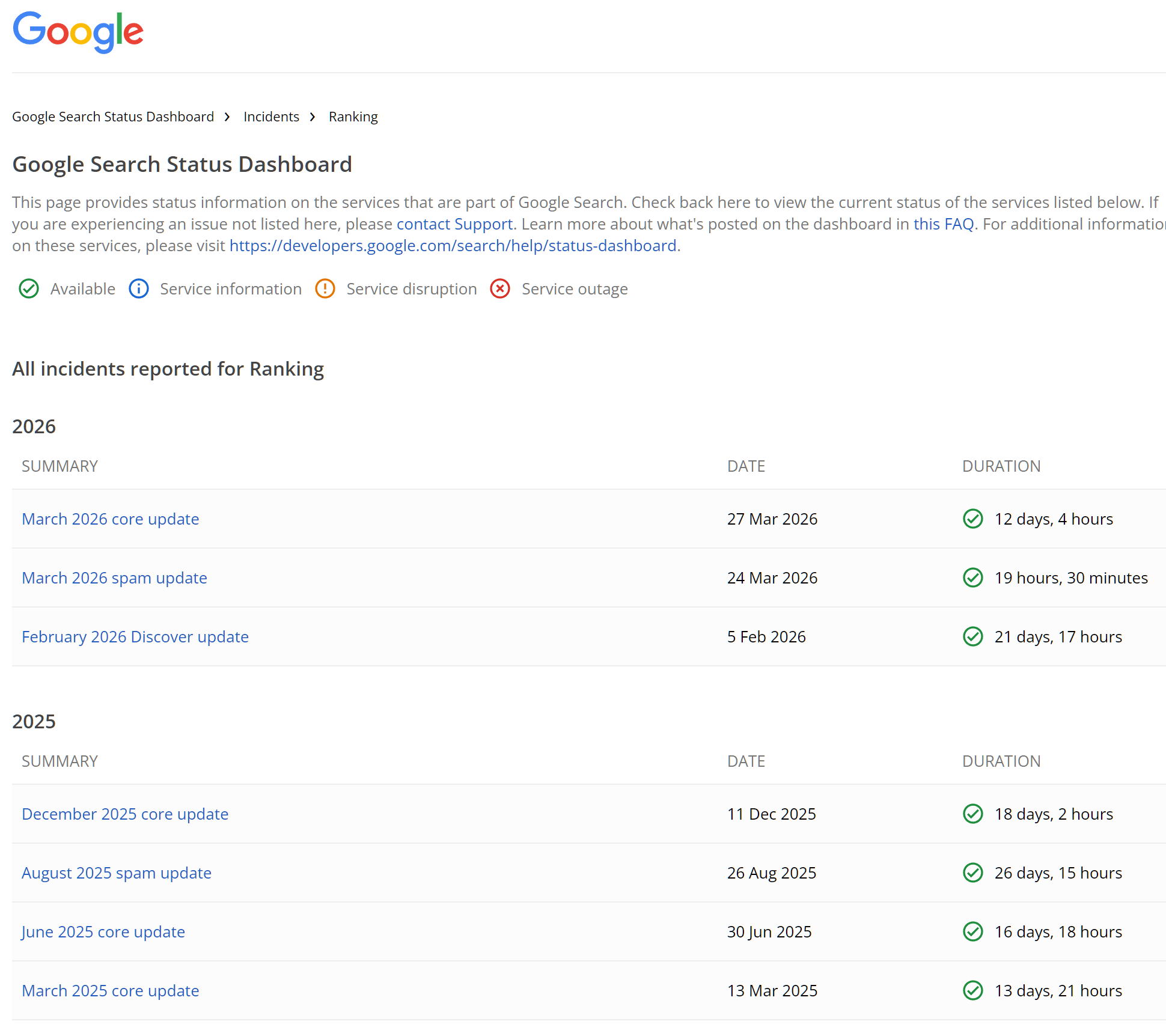
25. Cross-reference the timeline with known Google algorithm update dates. If the drop coincides with an update, the cause is likely ranking-related rather than a technical issue.
You can see google search status updates here
If impressions are holding steady but CTR has fallen sharply, you are almost certainly looking at an AI Overview absorbing clicks for those queries. This is increasingly common for informational queries, particularly how-to and definition searches.
Using the Search Type Filter
Most people only look at Web search data. Change the Search type filter to explore:
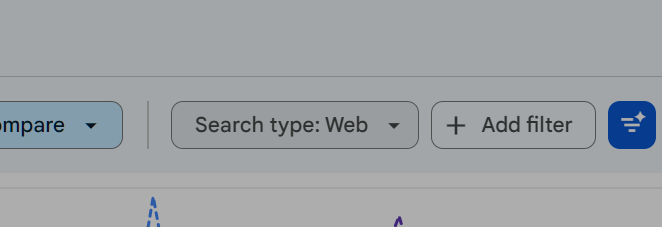
Click search type - then a pop up will appear:
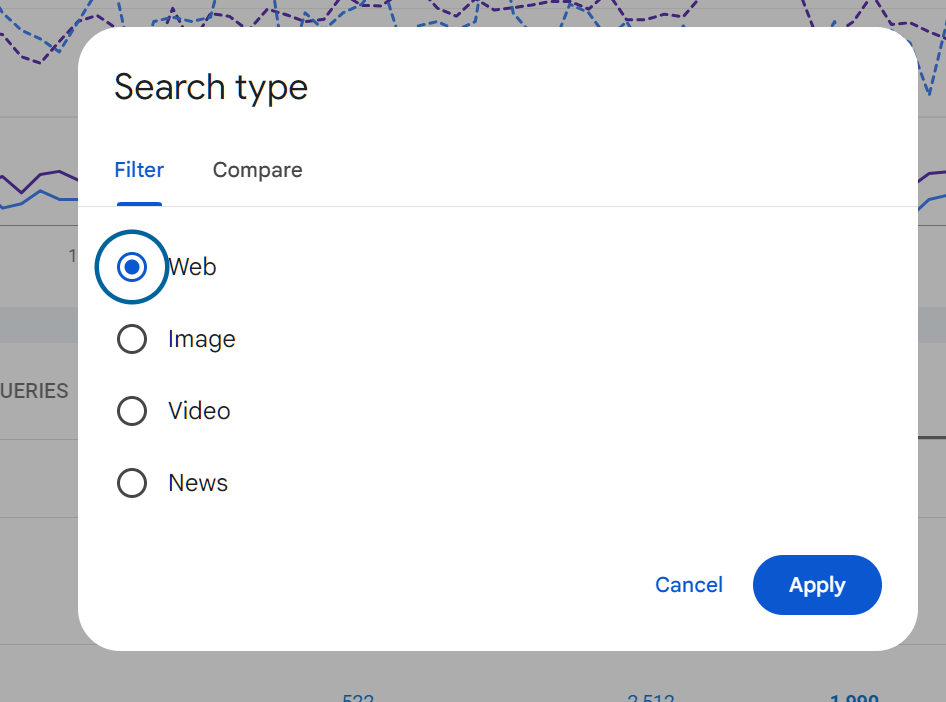
• Image: If you run an e-commerce site, images can drive significant traffic. Low image impressions may indicate missing alt text or poor image file naming.
• Video: Video results are increasingly prominent. If you produce video content, this shows whether it is being surfaced in search.
• News: Relevant if your site covers current events or has a news section. Requires Google News registration separately.
• Discover: Shows performance in Google Discover, the content feed on mobile devices. This data can be volatile but is separate from traditional search.
AI Overviews:
What GSC Now Shows and What It Means
Google rolled out AI Overviews broadly in 2024. Google does NOT show AI overviews data in search console unfortunately. The only real way to know if an AIO is triggering for a query is to search it, or, look at where your positions have remained stable but CTR/CLICKS have dropped.
Being cited in an AI Overview does not guarantee clicks. Many users read the AI-generated summary without clicking through. For high-volume informational queries, this is compressing CTR significantly across the board.
Use this data to understand where your traditional click traffic has migrated, and use it to inform content strategy: if a query is consistently captured by AI Overviews, consider whether a different content format or intent angle could recapture the click.
Part 3: Indexing and CrawlingThe Pages Report (Previously Index Coverage)
The Pages report tells you which of your URLs are indexed, which are not, and why. Understanding this report is essential for any site with more than a few dozen pages.
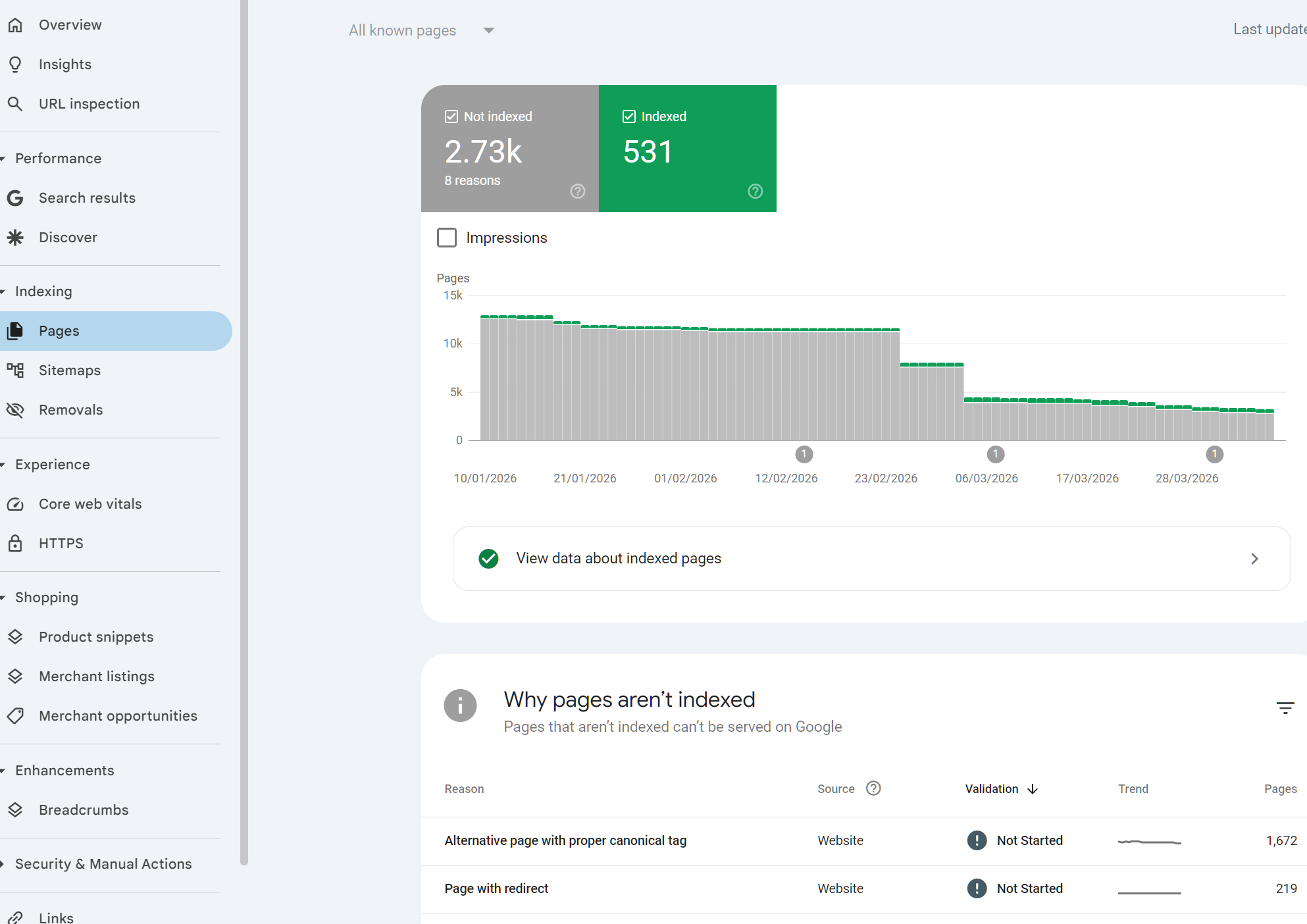
There are a mix of URL statuses, either a URL is indexed or it isn't, if it isn't there can be lots of reasons why they aren't, most commonly we see >
• Indexed: Google has indexed the page and it is eligible to appear in search.
• Not indexed: Google found the page but chose not to index it, or was explicitly told not to.
• Crawled, not indexed: Google crawled the page but decided it was not worth indexing. Often a quality signal.
• Discovered, not yet indexed: Google knows the URL exists but has not crawled it yet. Can indicate crawl budget limitations on large sites.
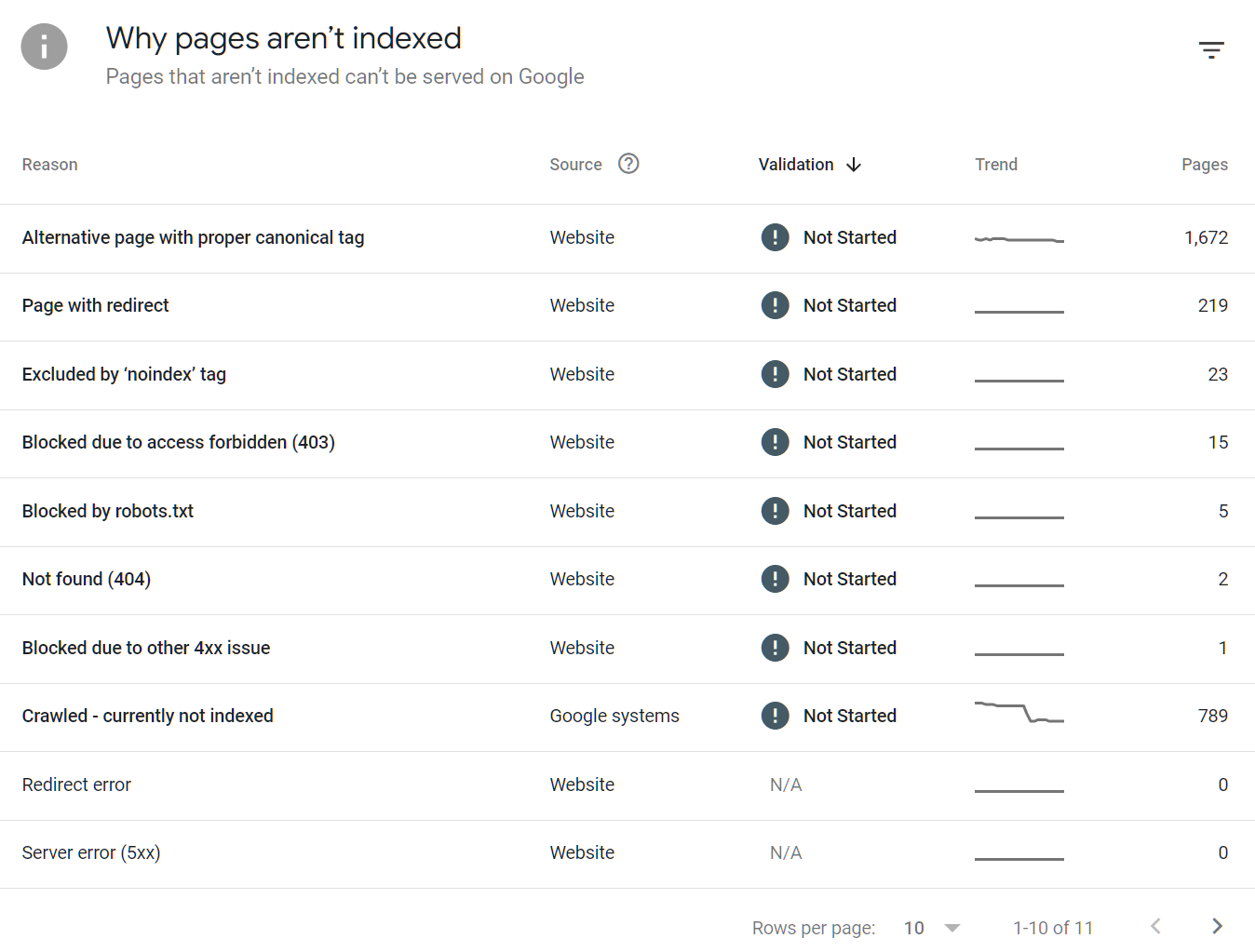
But it's not uncommon to see lots more i.e.
Step-by-Step: Auditing Your Index Status
29. Open the Pages report from the left nav under Indexing.
30. Click on Not indexed. This expands the breakdown by reason.
31. Work through each reason in priority order:
• Duplicate without user-selected canonical: You have pages Google considers duplicates. Review whether they should be canonicalised, merged, or differentiated.
• Crawled - currently not indexed: These pages exist and were crawled but Google chose not to index them. Low word count, thin content, or near-duplicate content are common causes. Review each URL.
• Blocked by robots.txt: Intentional? Verify your robots.txt is not blocking pages you want indexed.
• Page with redirect: Redirects should not be in your sitemap. Remove them.
• Not found (404): Broken URLs. Either fix them with redirects or remove them from internal links and sitemaps.
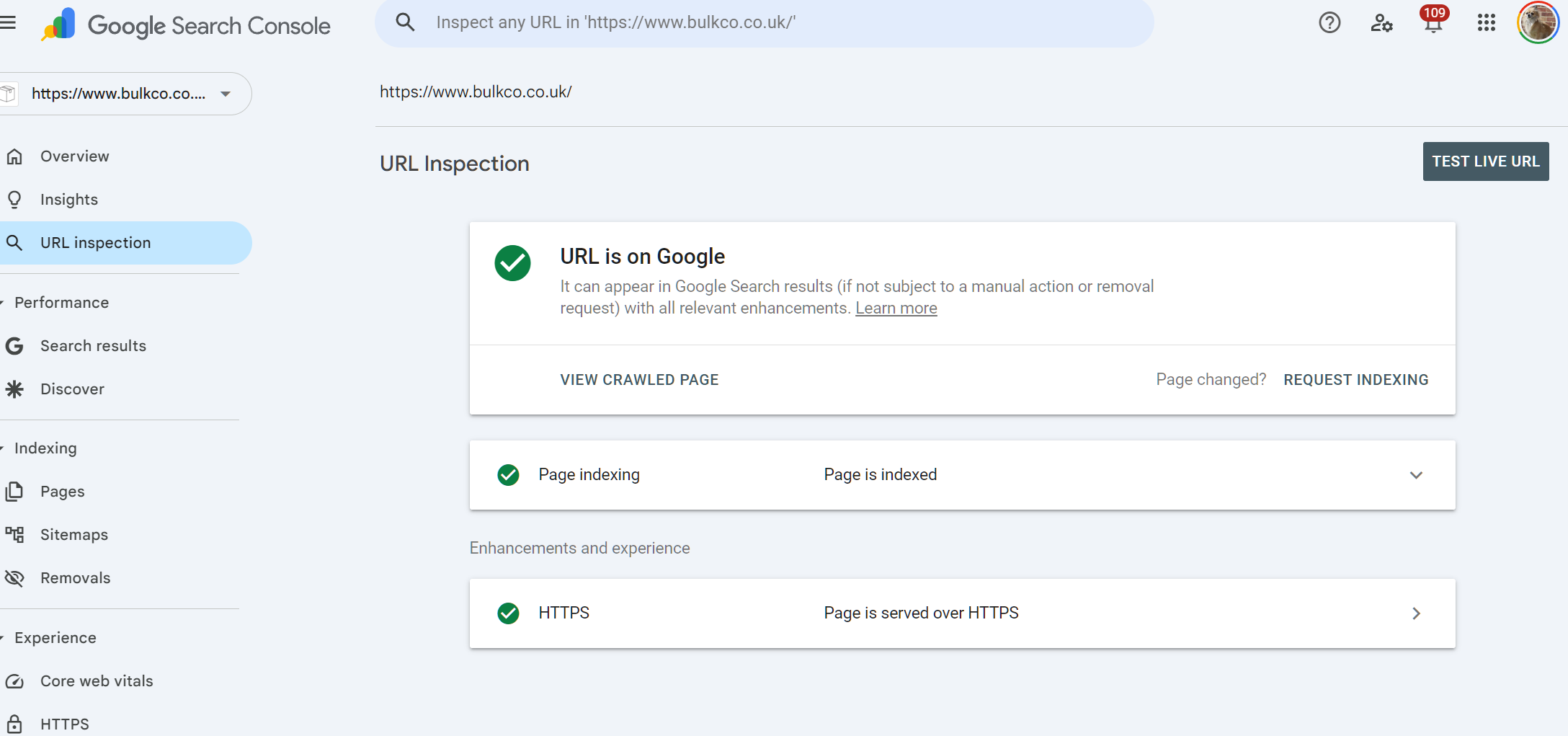
32. For any page you want indexed that currently is not, use the URL Inspection tool to understand the specific reason.
The URL Inspection Tool
This tool lets you inspect any individual URL on your domain to see exactly how Google views it.

What It Shows
• Whether the URL is indexed
• The last crawl date
• Which canonical URL Google selected (may differ from your declared canonical)
• Mobile usability status
• Whether the page was crawled as a mobile or desktop agent
• Referring page (how Google discovered the URL)
• Any page-specific coverage issues
How to Use It
33. Paste the full URL into the search bar at the top of GSC.
34. Click Test Live URL to check the current state of the page, not the cached state.
35. If the page is not indexed and should be, click Request Indexing. This adds it to the priority crawl queue. It is not a guarantee of immediate indexing but speeds up the process.
If Google has selected a different canonical URL than you declared, that is a content or signal conflict. Google is telling you it considers a different URL the primary version. This needs investigating: check for duplicate content, inconsistent internal linking, and hreflang conflicts if you run a multilingual site.
Sitemaps
A sitemap is a file that tells Google which URLs on your site you want indexed. It is not a guarantee of indexing but it helps Google discover pages more efficiently, particularly on large sites.
Best Practices
• Only include URLs you want indexed. Never include URLs with canonical tags pointing elsewhere, noindex pages, or redirected URLs.
• For sites over 50,000 URLs, use a sitemap index file that references multiple individual sitemaps.
• Keep sitemaps under 50,000 URLs and 50MB each.
• Include lastmod dates and keep them accurate. Google uses these to prioritise recrawling.
How to Submit and Monitor a Sitemap
36. In GSC, go to Sitemaps in the left nav.
37. Enter your sitemap URL and click Submit.
38. Check back after 24 to 48 hours to see how many URLs were discovered and indexed.
39. If the number indexed is significantly lower than submitted, cross-reference with the Pages report to identify what Google is declining to index.
Part 4: Core Web Vitals and Page ExperienceWhat Core Web Vitals Are
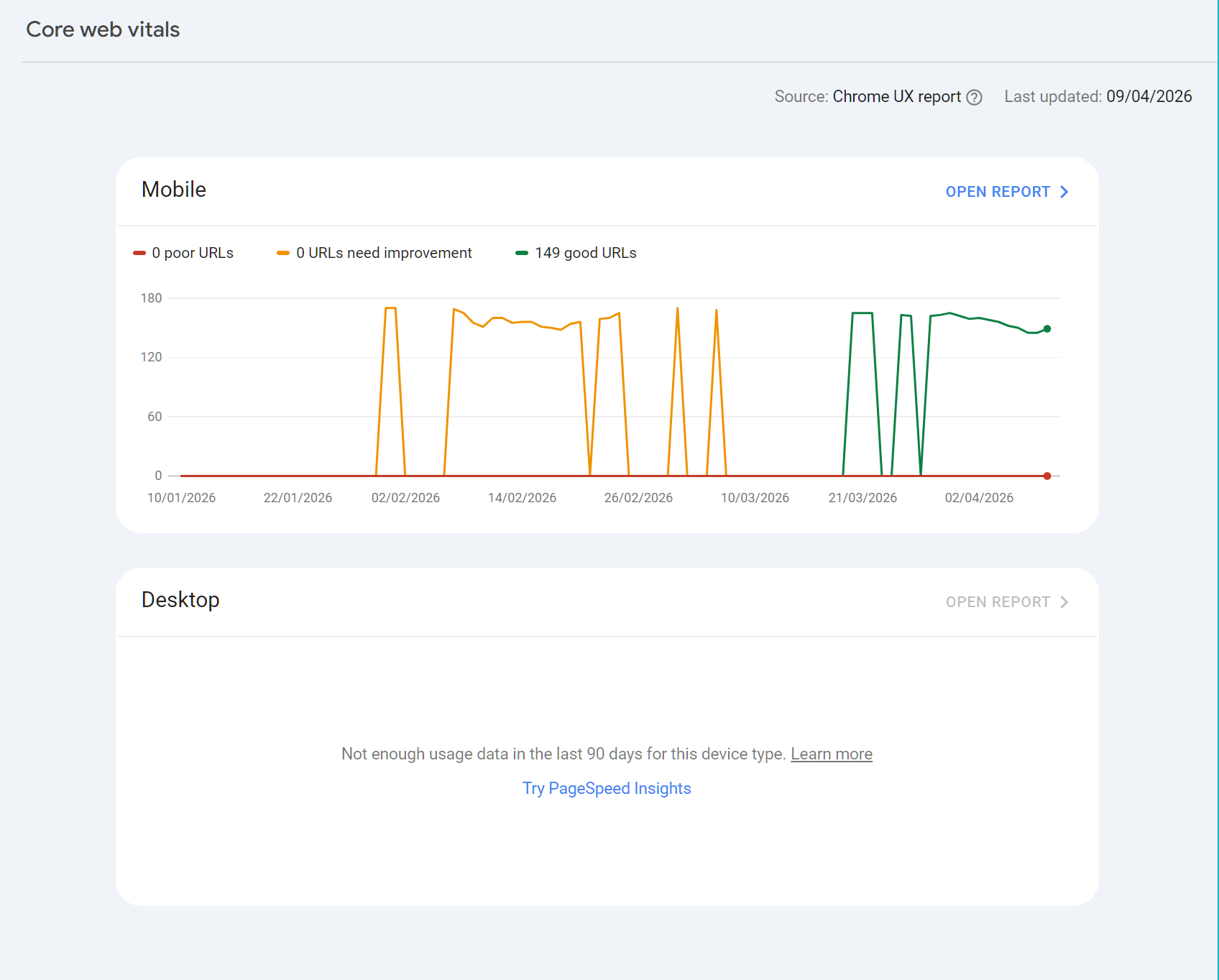
Core Web Vitals are Google's set of user experience metrics that affect ranking. They measure real-world loading speed, interactivity, and visual stability, aggregated from actual Chrome browser data over 28 days.
Metric | What It Measures |
Largest Contentful Paint (LCP) | How long it takes for the largest visible element to load. Target: under 2.5 seconds |
Interaction to Next Paint (INP) | Responsiveness to user interactions like clicks and key presses. Target: under 200ms |
Cumulative Layout Shift (CLS) | How much page elements move during loading. Target: under 0.1 |
Step-by-Step: Investigating Core Web Vitals Issues
40. Go to Core Web Vitals in the left nav under Experience.
41. Check both Mobile and Desktop reports. Mobile issues are more common and carry more weight given Google's mobile-first indexing.
42. Click on a failing or needs improvement group to see the specific URLs affected.
43. For each URL, the report shows which metric is failing and what the status is (Poor or Needs Improvement).
44. Use the PageSpeed Insights tool (pagespeed.web.dev) to test individual URLs and get specific recommendations.
45. CWV scores update slowly because they are averaged over 28 days. After making fixes, expect at least a month before GSC reflects the improvement.
Core Web Vitals data in GSC is only available when Google has sufficient field data from Chrome users. For low-traffic pages or new sites, you may see a message that there is not enough data. In this case, use PageSpeed Insights lab data as a proxy.
Mobile Usability
Google indexes the mobile version of your site. If your mobile experience has issues, they will appear here. Common issues include text too small to read, clickable elements too close together, and content wider than the screen.
Check this report if you have recently made template or design changes. Issues here can suppress rankings on mobile without showing any crawl or indexing errors.
Part 5: The Links ReportWhat the Links Report Shows
The Links report shows the external links pointing to your site, the pages on your site that receive the most internal links, and the anchor text used in external links.
Using External Links for SEO
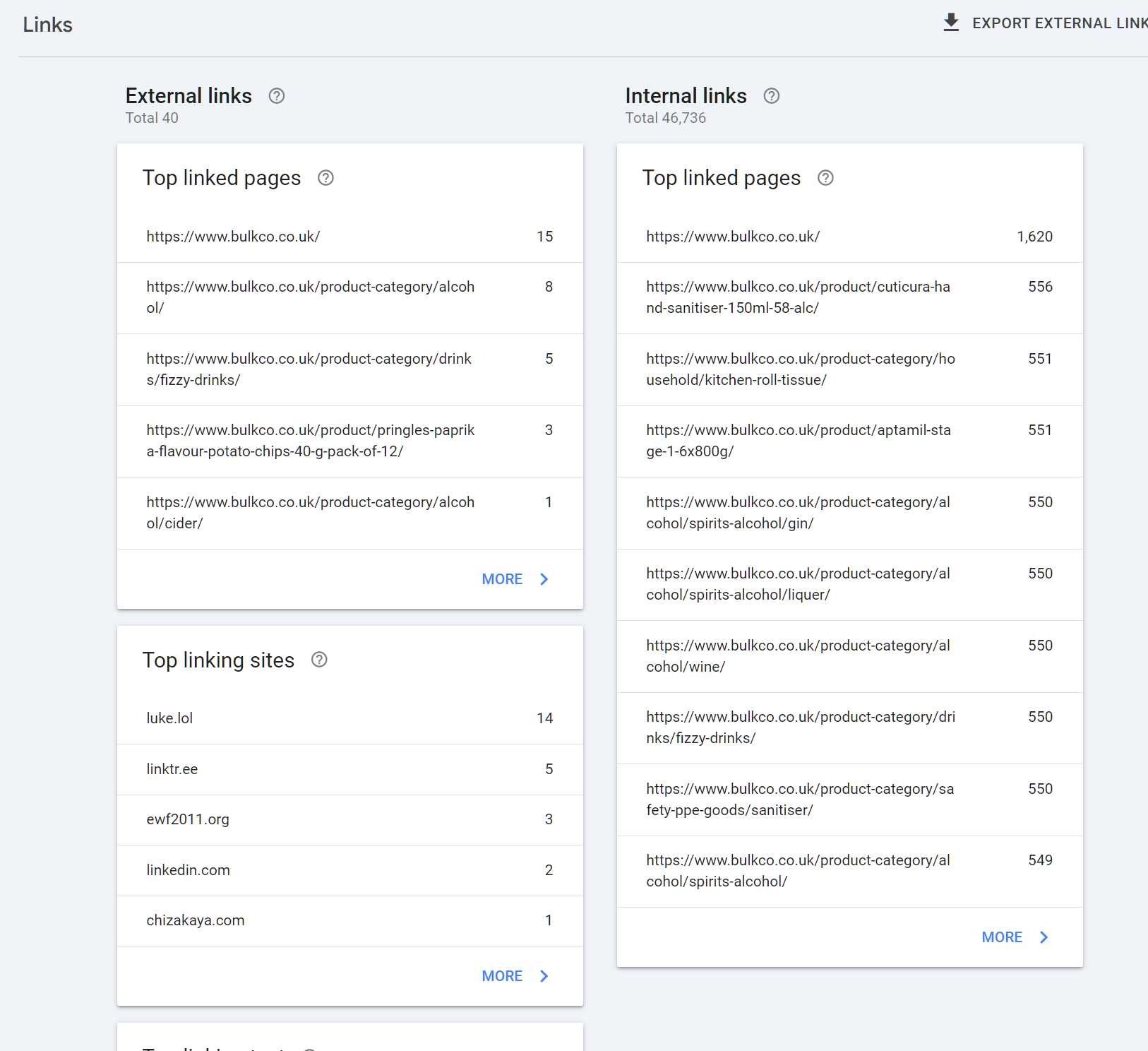
46. Go to Links in the left nav.
47. Under External links, click Top linked pages. This shows your most externally linked pages by link count.
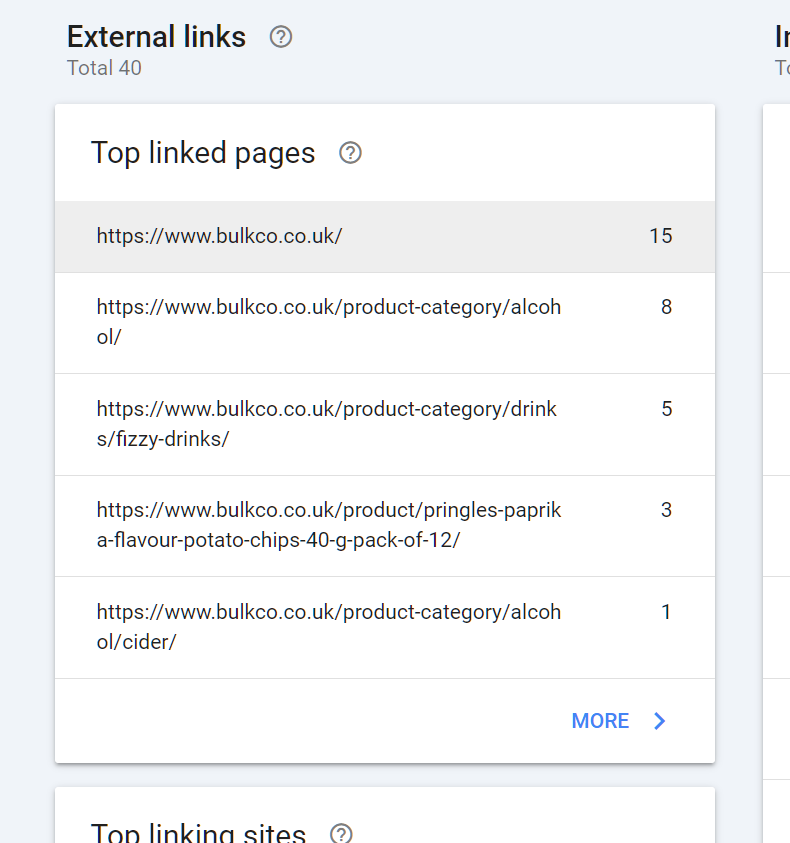
48. Note which pages have the most links. These are your authority pages. Internal linking from these pages to pages you want to rank higher passes authority effectively.
49. Click Top linking sites to see which domains are linking to you. Check if major expected sources are present.
50. Export external links using the export button in the top right. This gives you a spreadsheet of specific linking URLs, which is not visible in the interface.
GSC only shows links Google has discovered and counted. It does not show the authority weighting of those links. Use GSC for completeness checks and internal linking decisions. Use a dedicated backlink tool for competitive link analysis and quality assessment.
Using Internal Links Data
The internal links section shows which of your pages receive the most internal links from other pages on your site.
How to interpret this:
• Pages with very high internal link counts are already being prioritised by your site architecture. If they are not ranking well despite authority, the issue is likely content or relevance rather than links.
• Pages with very few internal links may be orphaned or underdiscovered. If you want these pages to rank, add relevant internal links from your high-authority pages.
• Cross-reference internal link counts against the ranking positions in the Performance report. Under-linked pages that rank well organically are candidates for more internal link investment.
Part 6: Advanced Uses Most Guides MissDiagnosing Keyword Cannibalisation with GSC
Keyword cannibalisation happens when multiple pages on your site compete for the same search query, splitting ranking signals and reducing overall visibility.
51. In the Performance report, go to the Queries tab.
52. Search for a target keyword using the Query filter.
53. Click Pages at the top of the report. You should see a single page ranking. If two or more pages appear for the same query with meaningful impressions, you likely have a cannibalism issue.
54. Compare the two pages: which has more impressions, better CTR, and higher average position?
55. Decide whether to: (a) consolidate the weaker page into the stronger one with a 301 redirect, (b) differentiate them by targeting different intent angles, or (c) canonicalise the weaker page to the stronger one if the content must exist separately.
Using GSC for Content Audits
GSC data is one of the most reliable inputs for deciding which pages to update, merge, or remove.
The Content Audit Workflow
56. Export the Pages data from the Performance report for the last 12 months.
57. Categorise each page into one of three groups:
• Performing: Gets regular clicks and impressions. Protect and improve.
• Declining: Had clicks previously but impressions or positions are falling. Candidate for content refresh.
• Dead weight: Never ranked, zero or near-zero impressions. Evaluate whether to update, consolidate, or remove.
58. For declining pages, open the URL Inspection tool and compare the last crawl date against your last content update. If Google has not recrawled recently, the content signal may be stale. Update the content and request reindexing.
59. For dead weight pages, check whether they have any external links in the Links report before removing them. If they do, redirect to a relevant live page rather than returning a 404.
Removing or consolidating underperforming pages is often more impactful than publishing new content. A leaner, higher-quality site tends to get crawled more efficiently and can see overall ranking improvements after a cleanup.
Date Range Comparisons Done Correctly
The way you compare dates in GSC significantly affects what you conclude.
Year-on-Year Comparisons
For most sites, year-on-year (YoY) is the most reliable comparison. It accounts for seasonality, so a December traffic drop does not look alarming when compared against the previous December.
60. In the date picker, select Compare.
61. Choose a custom date range for the current period (e.g., last 30 days).
62. Compare against the same period 12 months ago.
63. A YoY decline on a consistent period is a much stronger signal than a month-on-month drop.
Period-on-Period Comparisons
Use month-on-month only when you are looking for the specific effect of a change: a site redesign, a content update, or an algorithm update with a known date. In those cases, compare the 30 days before against the 30 days after.
Rich Results and Structured Data
If you have implemented schema markup on your site, GSC provides a report under Enhancements that shows whether your structured data is valid and whether Google is surfacing rich results for your pages.
To check:
64. Go to Search Appearance or Enhancements in the left nav.
65. Look for reports related to your schema types: FAQ, HowTo, Product, Review, Event, etc.
66. Any errors will prevent rich results from appearing. Fix the flagged items and request validation.
67. Under Performance, use the Search Appearance filter to check whether your rich results are generating additional impressions and clicks beyond standard blue links.
Part 7: Building a Repeatable GSC Review ProcessWeekly Check (15 Minutes)
68. Open Performance and set view to Last 7 days. Compare against previous 7 days. Are clicks and impressions broadly stable?
69. Check the Pages report for any new Not indexed or Error status pages that appeared this week.
70. Check Manual actions: confirm it shows No issues detected.
71. Check Security issues: confirm clean.
Monthly Check (45 to 60 Minutes)
72. Performance deep dive: Review top queries by impressions. Identify new queries appearing in striking distance positions. Flag any CTR underperformers against expected benchmarks.
73. Declining pages: Filter pages by comparing this month against the previous month. Any page dropping more than 20% in impressions needs investigation.
74. Core Web Vitals: Check for new pages entering the Needs Improvement or Poor categories.
75. Links: Check top linked pages. Cross-reference with recent link building activity.
76. Sitemaps: Verify submitted vs indexed ratio. Flag any significant gap.
Quarterly Check (2 to 3 Hours)
77. Full content audit using 12-month Performance export. Categorise all pages into performing, declining, and dead weight.
78. Year-on-year comparison for traffic trend analysis.
79. Index ratio health check: What percentage of submitted pages are indexed? Below 70% on a content site is a signal of crawl or quality issues.
80. Keyword cannibalism scan: Run your top 10 target queries through the Pages filter to check for pages splitting impressions.
81. Internal linking review using the Links report: Are your highest-authority pages pointing to the pages you most want to rank?
SummaryGoogle Search Console is not a dashboard you check once a week to see if anything has broken. Used properly, it is a complete intelligence system for understanding how Google perceives your site, where your biggest opportunities are, and which problems are silently suppressing your rankings.
The sites that get the most from GSC are the ones that treat it as an active tool rather than a passive monitor. They use the Performance report to find and act on striking distance keywords. They audit their index health regularly. They compare date ranges thoughtfully. They investigate CTR underperformers and fix them. And they build a systematic review cadence that turns data into action every single month.
Set it up correctly, connect it to your analytics stack, and use the workflows in this guide consistently. That is how GSC pays back its value.

Founder, SEO Stack
Daniel is the founder of SEO Stack. He has spent over 2 decades working on technical SEO and search data, and built SEO Stack after hitting the same Search Console limits on client work one time too many.
Daniel has extensive SEO experience having built SEO agencies, audit businesses & a thriving consultancy, in his spare time Daniel likes to run SEO experiments & to share findings.
Published 10 April 2026