What is Google Search Console? The Complete Guide (2026)
Google Search Console (or GSC) is a free web service provided by Google that allows website owners, SEOs, marketers, and developers to monitor how their site performs in Google Search. It…
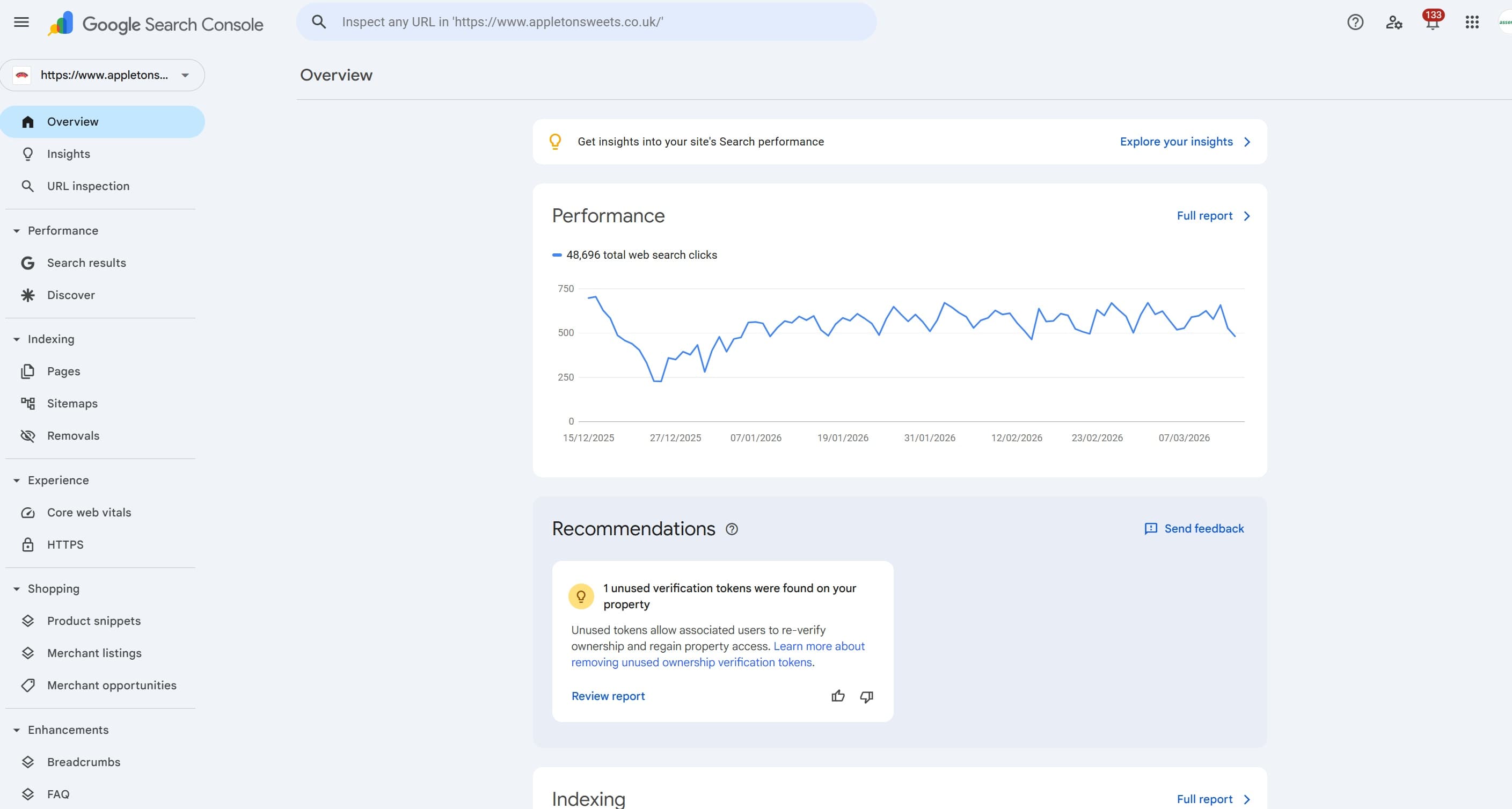
Google Search Console (or GSC) is a free web service provided by Google that allows website owners, SEOs, marketers, and developers to monitor how their site performs in Google Search. It shows you which queries bring people to your site, how your pages are indexed, whether Google can crawl your content, and whether there are any technical issues holding your rankings back.
Whilst it is great for being a source of 1st party data - a lot of SEOs wish Search Console had more features! Unlike Google Analytics, which focuses on what users do once they arrive on your site, Search Console is specifically about your relationship with Google Search itself. Think of it as the direct communication channel between your website and Google’s search systems.
It is entirely free to use and available to anyone with a Google account who owns or manages a website.
Tip: Quick answer: Google Search Console is Google’s free tool for monitoring your site’s presence in search results. It tells you what you rank for, whether your pages are indexed, and flags any technical issues Google has found.
However, because Google Search Console is free and because they process a huge amount of data, they do not make all the data available by default - you’ll see this in 1,000 row limits, 16-month timeframe limits, data sampling and more.
Google Search Console (or GSC as some abbreviate it) is a free web service provided by Google that allows website owners, SEOs, marketers, and developers to monitor how their site performs in Google Search. It shows you which queries bring people to your site, how your pages are indexed, whether Google can crawl your content, and whether there are any technical issues holding your rankings back.
Whilst it is great for being a source of 1st party data - a lot of SEOs wish search console had more features!
Unlike Google Analytics - which focuses on what users do once they arrive on your site - Search Console is specifically about your relationship with Google Search itself. Think of it as the direct communication channel between your website and Google's search systems.
It is entirely free to use and available to anyone with a Google account who owns or manages a website.
Quick answer: Google Search Console is Google's free tool for monitoring your site's presence in search results. It tells you what you rank for, whether your pages are indexed, and flags any technical issues Google has found.
However, because google search console is FREE and because they process a huge amount of data, they do not make all the data available by default (you’ll see this in 1000 row limits, 16 month timeframe limit, data sampling etc.
A Brief History: From Webmaster Central to Search Console
Google Search Console has gone through several name changes and significant evolutions since its earliest days. Understanding that history helps explain why the tool is structured the way it is today.
2001 - The First Webmaster Portal
Google first launched a basic portal for webmasters back in 2001. It was a simple resource offering guidance on how to get websites indexed - far removed from the data-rich dashboard we have today.
2005 - Google Sitemaps
In June 2005, Google launched the Google Sitemaps tool, which allowed website owners to submit XML sitemaps to help Googlebot discover and crawl their pages more efficiently. This was the true functional precursor to what would become Search Console.
2006 - Google Webmaster Tools
In August 2006, Google combined its various webmaster resources and the Sitemaps tool into a single unified platform: Google Webmaster Tools. For the next decade, this was the go-to dashboard for site owners and technical SEOs. It provided data on crawl errors, search queries, inbound links, sitemaps, and HTML improvements.
The tool was aimed squarely at webmasters - the developers and technical administrators who built and maintained websites. During this era, you needed a decent amount of technical knowledge to make use of it.
2015 - Rebranded as Google Search Console
On 20 May 2015, Google announced that Google Webmaster Tools would be rebranded as Google Search Console. The reasoning was straightforward: the user base had long outgrown the 'webmaster' label. Google acknowledged that the tool was being used by hobbyists, small business owners, SEO professionals, marketers, app developers, and bloggers - not just the narrow definition of a webmaster.
"It turns out that the traditional idea of the 'webmaster' reflects only some of you... So, to make sure that our product includes everyone who cares about Search, we've decided to rebrand Google Webmaster Tools as Google Search Console." - Google Search Central, May 2015
Importantly, the rebranding was not simply cosmetic. It signalled Google's intent to make the platform more accessible and more useful for a wider audience, including those without a technical background.
2018 - A New Interface
In January 2018, Google began rolling out a completely redesigned version of Search Console with an overhauled interface and new reports. The 16-month Performance report (showing 16 months of search data, compared to the previous 90-day limit) was one of the headline changes. Google also introduced a new Index Coverage report that gave far more granular detail about which pages were and weren't indexed, and why.
2019 - Old Reports Retired; Domain Properties Introduced
In September 2019, Google removed the old Search Console reports entirely, completing the transition to the new interface. The same year, Google introduced Domain properties - a powerful addition that allows users to monitor an entire domain across all subdomains and protocols (http, https, www, non-www) within a single property, rather than having to manage them separately.
2025 - New Visual Identity
In late 2025, Google updated the Search Console logo for the first time in a decade - swapping the old toolbox icon for a magnifying glass and bar chart combination, better reflecting the platform's evolution towards performance analysis and AI-driven search insights.
What is Google Search Console Used For?
At its core, Search Console serves three main functions: monitoring, diagnosing, and optimising your site's presence in Google Search. Here's a breakdown of the key use cases:
1. Tracking Search Performance
The Performance report is the most-used section of Search Console. It shows you:
Total clicks from Google Search
Total impressions (how many times your pages appeared in search results)
Average click-through rate (CTR)
Average position for queries
You can filter this data by query, page, country, device, and search type (web, image, video, news). This makes it one of the most powerful tools available for understanding which keywords drive traffic to your site - and, critically, which keywords rank well but attract poor CTR (a signal you can act on with title tag and meta description improvements).BUGBEARS:
Filtering is poor - you cannot layer multiple conditions on top of one another i.e. contains and not contains at the same time
Anonymised click data is lost when you apply any filter
Regex is clunky (RE2) syntax and there’s no way of saving your custom filters
Recently added annotations functionality is a tad weak
Recently added AI configurator isn’t much better
2. Monitoring Indexation
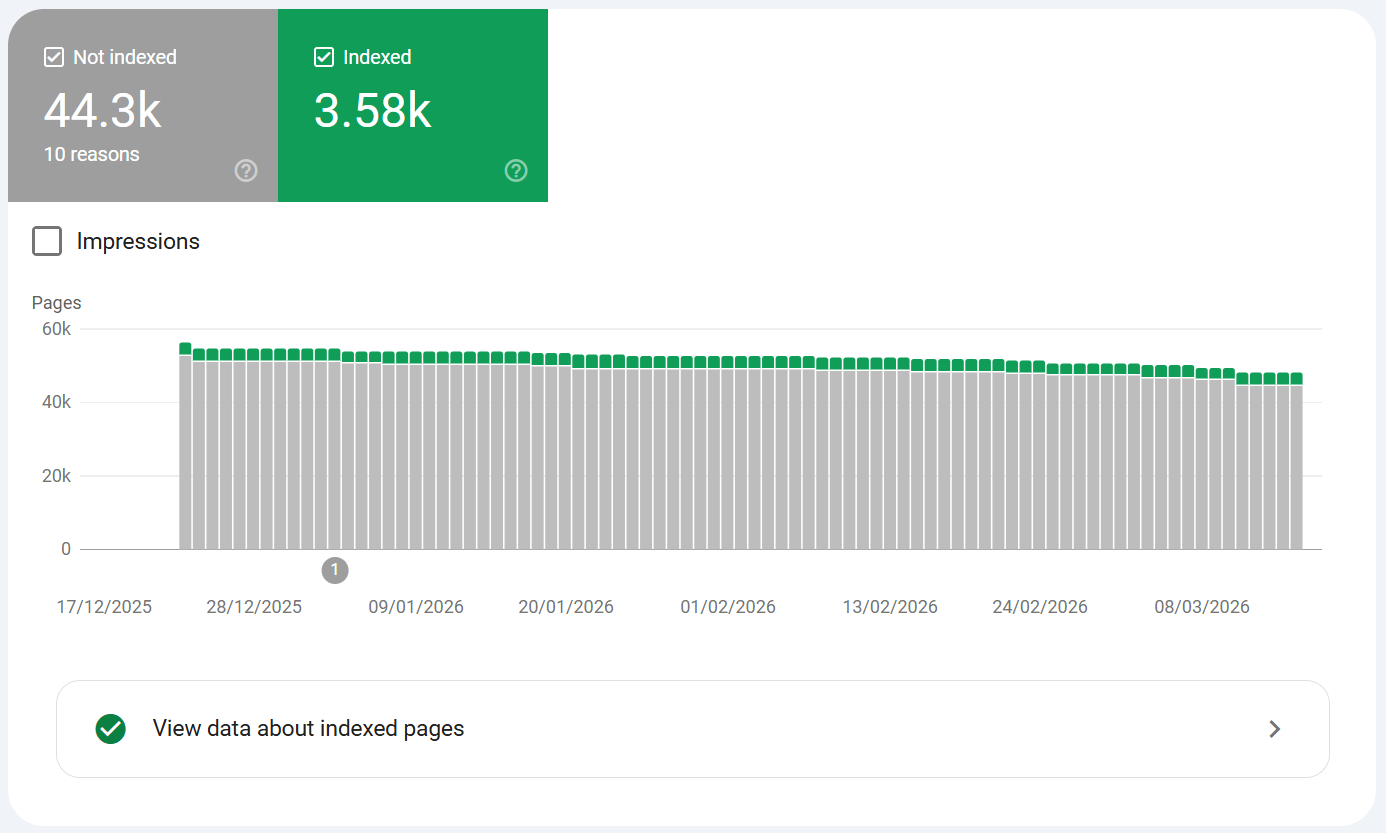
Before a page can rank, it needs to be indexed by Google. The Indexing section within Search Console (formerly the Index Coverage report) shows you:
Which pages are indexed
Which pages have been excluded and why
Crawl errors and redirect issues
Whether noindex tags are blocking pages that should be ranking
For large websites in particular, indexation health is a critical SEO issue. Search Console is the authoritative source for understanding how Google sees your site's crawlable footprint. One key thing here is that you can only see 1000 URLS for each non indexed reason. The reasons for content / URLS not being indexed are:
Highlight: Crawled – currently not indexed Google crawled the page but chose not to index it. Usually signals thin content, low quality, or that Google doesn't think the page adds enough value to include.
Discovered – currently not indexed
Google knows the page exists (via sitemap or links) but hasn't crawled it yet. Often a crawl budget issue on larger sites.
Crawl anomaly
An unspecified error occurred during crawling that prevented the page being indexed. Could be a server issue, connection timeout, or intermittent problem.
Page with redirect
The URL redirects to another URL. Not technically an error - Google is just telling you it followed the redirect and indexed the destination instead.
Redirect error
A broken or problematic redirect - e.g. a redirect loop, chain that's too long, or a redirect to an invalid URL.
URL is not on Google
The page returned a 404 or another error code when Googlebot visited. The URL doesn't resolve to valid content.
Not found (404)
The page returned a 404 HTTP status code. Google crawled the URL but no content was there.
Soft 404
The page returns a 200 OK status code but the content signals a missing/empty page (e.g. "No results found", empty category pages). Google treats it as a 404 even though the server doesn't.
Blocked by robots.txt
The page is disallowed in your robots.txt file, so Googlebot won't crawl it. If this page should be indexed, you need to remove or adjust the disallow rule.
Blocked due to access forbidden (403)
The server returned a 403, meaning Googlebot was denied access to the page.
Blocked due to other 4xx issue
A 4xx status code other than 403 or 404 was returned - e.g. 401 (unauthorised) or 410 (gone).
Blocked due to 5xx issue
The server returned a 5xx error (server-side problem) when Googlebot visited. Often intermittent hosting or infrastructure issues.
Indexed, though blocked by robots.txt
The page is currently indexed despite being blocked in robots.txt. This happens when Google knows the URL exists from other signals (e.g. links) but can't crawl it to assess its quality. Worth auditing - if it's indexed you likely want Googlebot to be able to crawl it.
Noindex tag detected
The page has a noindex directive in the meta robots tag or X-Robots-Tag HTTP header. Google is respecting your instruction not to index it.
Noindex page in sitemap
The page has a noindex directive but has also been submitted in your sitemap - a contradiction. Google will respect the noindex but flags this as something you should clean up.
Canonical points to a different page
The page has a canonical tag pointing to another URL, so Google is indexing the canonical destination instead of this one. Common and often intentional on paginated pages, duplicate product variants, etc.
Alternate page with proper canonical tag
A near-duplicate page that correctly points its canonical to the preferred version. Google is indexing the canonical - this status is expected and not an error.
Duplicate without user-selected canonical
Google found multiple versions of the same content but you haven't specified a canonical. Google has picked one to index on your behalf, but you should add explicit canonicals to take control.
Duplicate, Google chose a different canonical than user
You declared a canonical URL but Google disagrees with your choice and has selected a different page to index. Usually signals that Google sees another URL as the stronger version - worth investigating why.
Page removed due to legal complaint
A legal removal request (e.g. DMCA) has caused Google to deindex the page.
Blocked due to manual action
A manual penalty applied by Google's webspam team is preventing indexation. Visible in the Manual Actions report.
3. Submitting Sitemaps
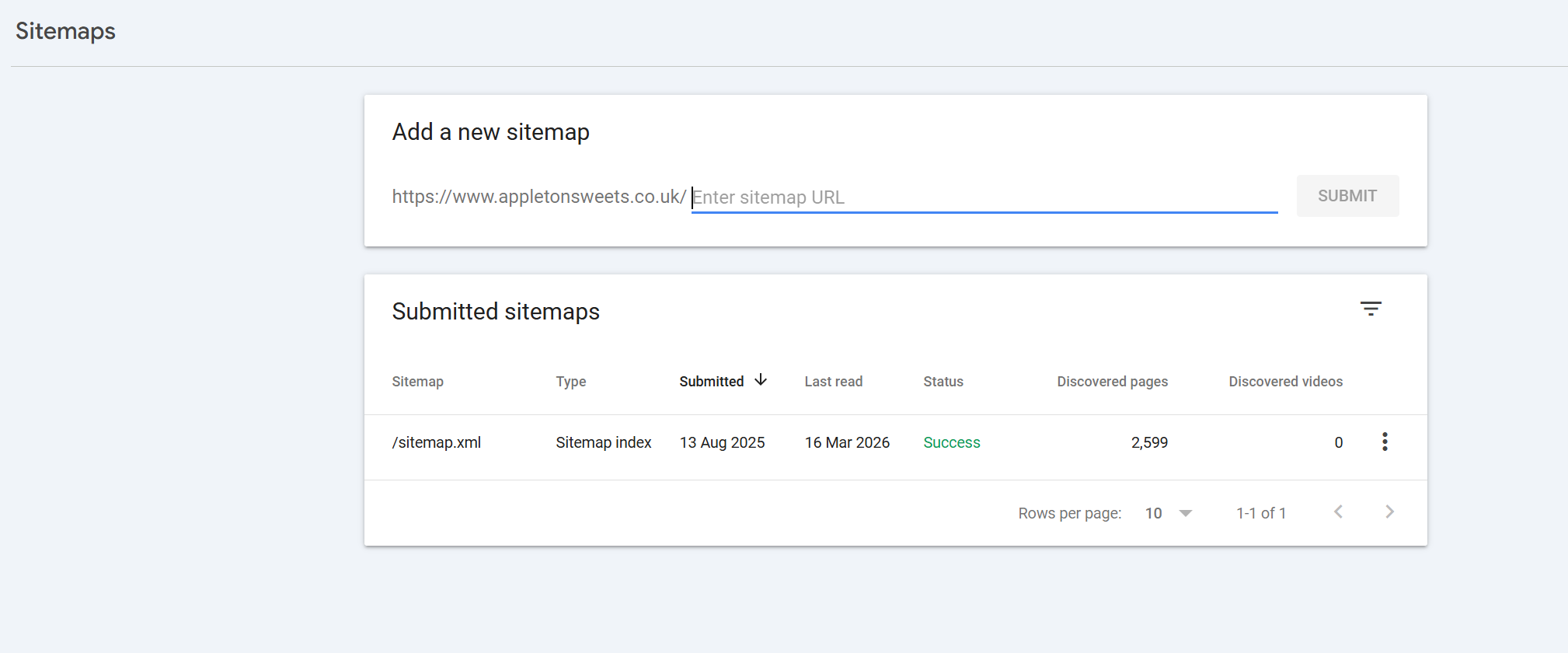
You can submit XML sitemaps directly through Search Console, helping Google discover and re-crawl your most important pages more efficiently. This is especially useful after major site migrations, content updates, or when launching new sections of a site.
4. Identifying Technical SEO Issues
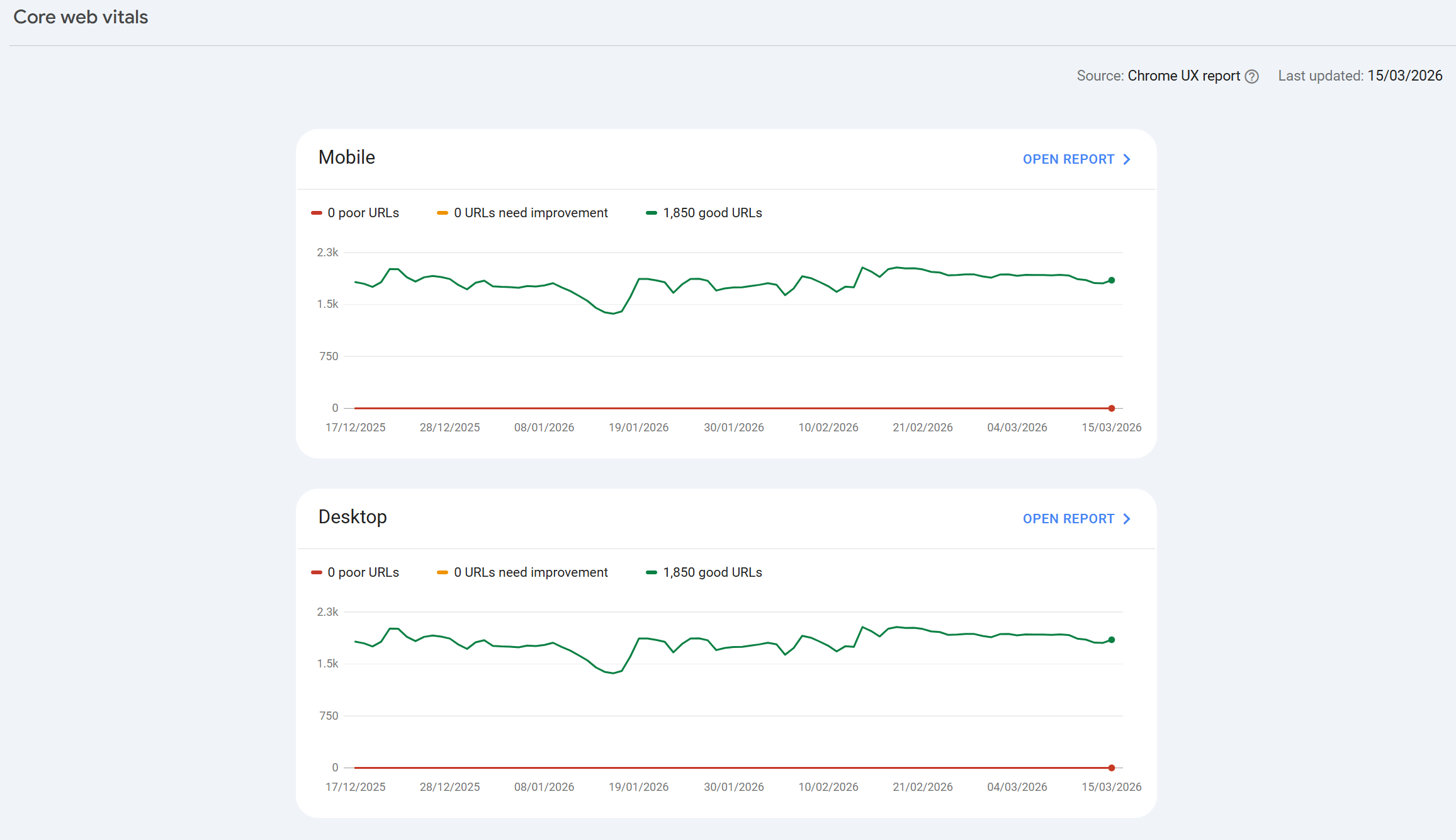
Search Console surfaces a range of technical problems that can impact rankings:
Core Web Vitals issues (page speed and user experience metrics)
Mobile usability errors
Manual actions (Google penalties applied to your site)
Security issues such as hacked content or malware
Structured data / rich result errors
5. URL Inspection
The URL Inspection tool lets you check the status of any individual URL on your site. You can see when it was last crawled, what version of the page Google cached, and whether it's eligible to appear in search. You can also request indexing for individual URLs - useful when you've updated or published important content and want Google to pick it up quickly.
6. Link Analysis
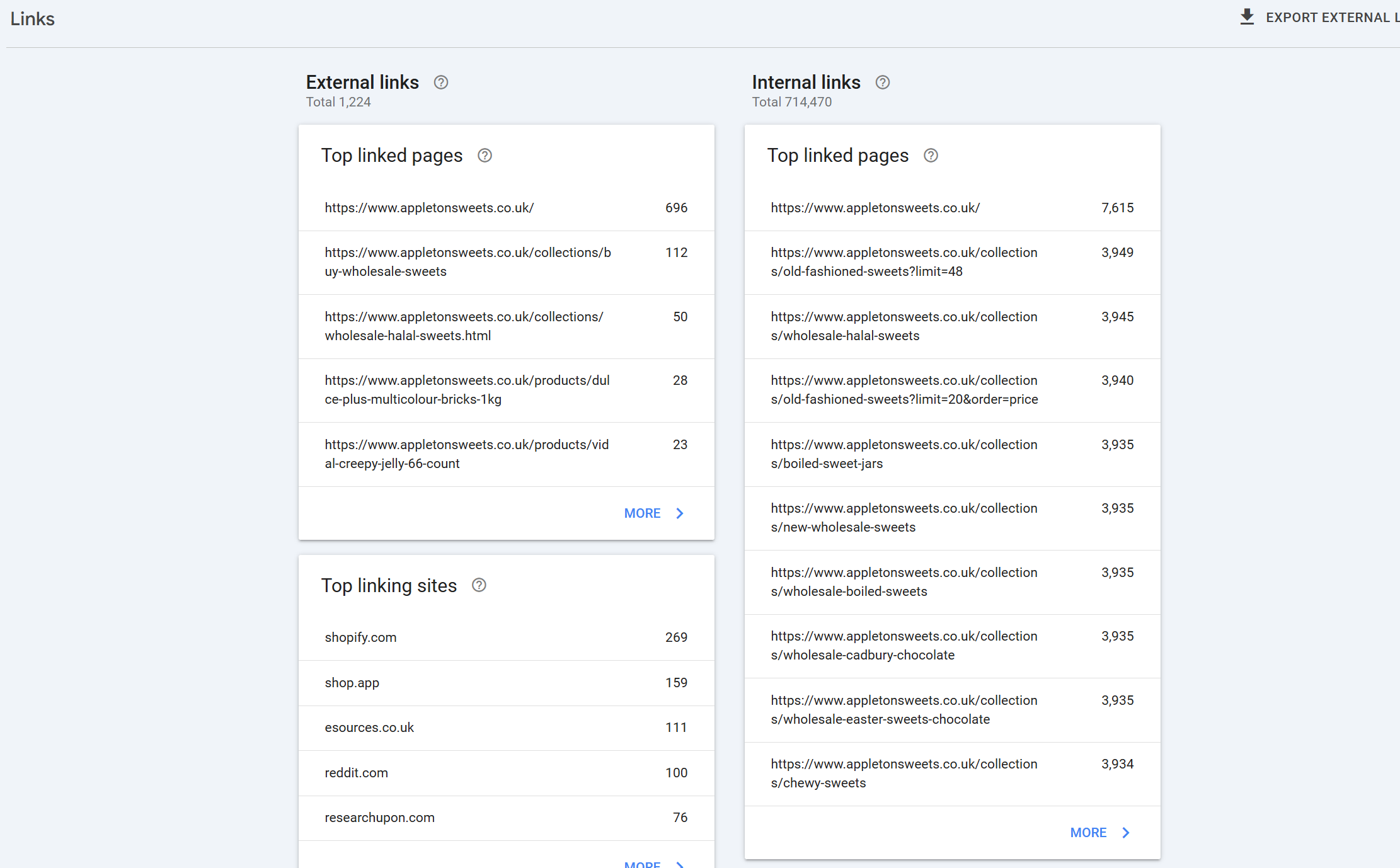
Search Console provides reports on both external links (other websites linking to yours) and internal links (how pages on your own site link to one another). While it's not as comprehensive as dedicated backlink tools like Ahrefs or Semrush, it gives you a direct Google-sourced view of your link profile.
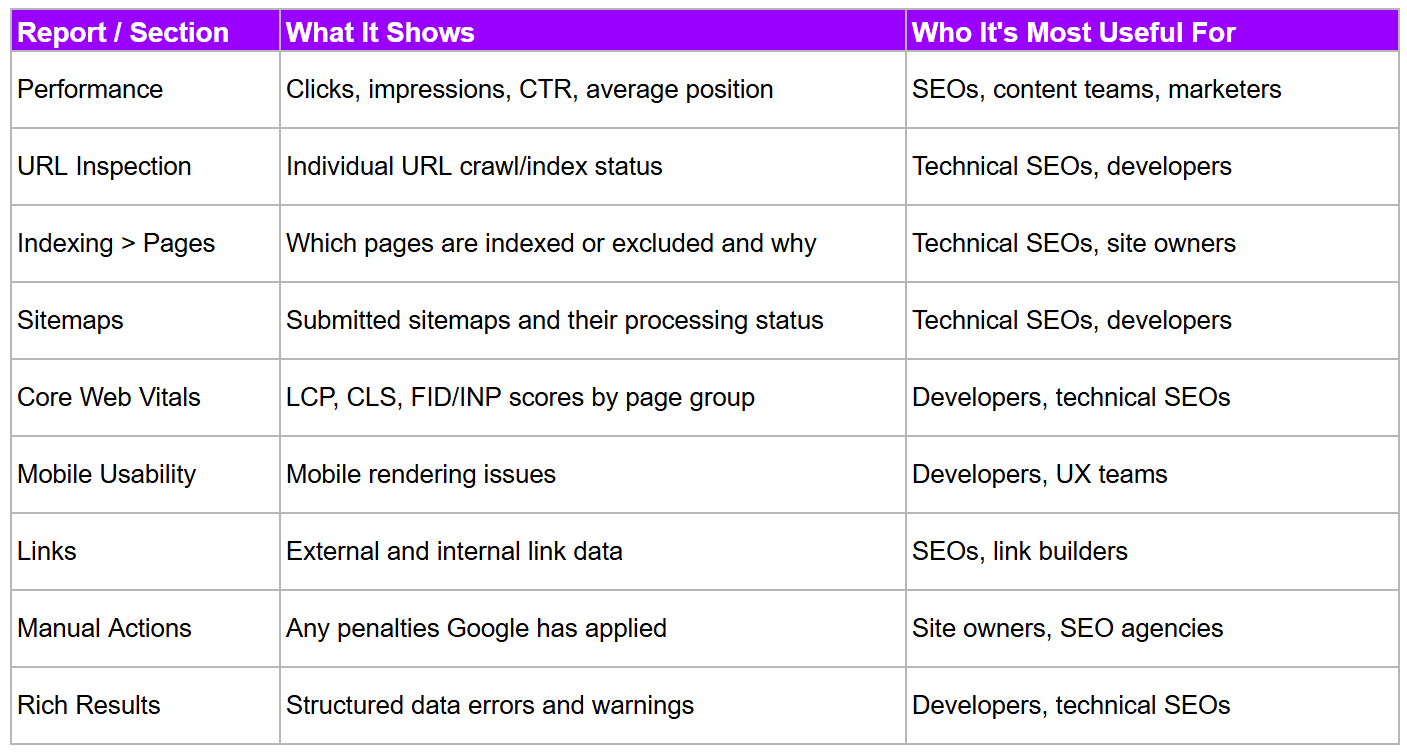
Google Search Console: Key Reports at a Glance
Report / Section
Google Search Console
Google Analytics
Primary focus
Your site's relationship with Google Search
User behaviour on your site
Traffic data
Pre-click (impressions, CTR, position)
Post-click (sessions, pages, conversions)
Where users come from
Google Search specifically
All channels (organic, paid, social, direct)
Keyword data
Full query data for organic search
Mostly limited ('not provided')
Indexation
Yes - detailed index coverage
No
Technical issues
Yes - crawl, mobile, speed
No
Cost
Free
Free (GA4)
In practical terms, you use Search Console to understand how Google sees and ranks your site, and Google Analytics (or GA4) to understand what visitors do once they arrive. The two tools complement each other. Many SEOs connect both to get a more complete view of the organic search funnel.
Tip: Pro tip: You can no longer formally 'integrate' GSC with Google Analytics as you could in Universal Analytics, but in GA4 you can access Search Console data through the Search Console Insights feature, and link properties to see GSC queries alongside GA4 engagement data.
Is Google Search Console Good? Pros and Cons
Google Search Console is an indispensable tool for anyone serious about organic search - but it does have limitations worth understanding.
Strengths
It's free, with no paid tier - the full dataset is available to everyone
The data comes directly from Google, making it the most authoritative source for understanding how your site performs in search
The Performance report provides 16 months of historical query and click data
URL Inspection gives you a real-time view of how Googlebot sees any specific page
Manual Actions and Security Issues reports are only visible through Search Console - there's no other way to be notified of these critical issues
Domain properties allow you to monitor your entire web presence in a single view
Limitations
Query data is sampled and rounded - very high-volume sites will see approximate figures, not exact counts
CTR and impression data is affected by personalisation and can vary from what third-party rank trackers show
There is no historical data before you connect a property - you can't retroactively access data from before your account was set up
Position data represents your average ranking across many different searches, users, and locations - it does not reflect your rank for a single specific search on a given day
The Crawl Stats report, while useful, doesn't give the granular crawl budget analysis available in log file analysis tools
Link data is less comprehensive than dedicated backlink tools - use it for directional insight, not as a definitive link profile
Despite these limitations, no SEO toolkit is complete without it. For most websites, Search Console will surface issues that nothing else will catch.
How to Find and Access Google Search Console
Google Search Console is accessed at search.google.com/search-console. You'll need a free Google account to log in.
Adding Your Website (Setting Up a Property)
When you first access Search Console, you'll be prompted to add a property. There are two property types:
Domain property - covers all URLs across all subdomains and protocols. This is the recommended option. You'll verify ownership via a DNS TXT record added through your domain registrar.
URL-prefix property - covers only URLs that start with the prefix you enter (e.g., https://www.yoursite.com). Multiple verification methods are available including HTML file upload, HTML tag, Google Analytics, and Google Tag Manager.
Domain properties are generally preferred because they give you a complete picture of your site without needing to manage multiple properties for different subdomain variations.
Verifying Ownership
Google needs to confirm you have access to the site before showing you its data. For Domain properties, the verification method is adding a DNS TXT record. This takes less than 5 minutes through most domain registrars (GoDaddy, Namecheap, Cloudflare, etc.). For URL-prefix properties, the HTML meta tag method is often the fastest option.
How Much Does Google Search Console Cost?
Google Search Console is completely free. There is no paid version, no premium tier, and no usage limits based on pricing. Every feature is available to every user at no cost.
Who Should Use Google Search Console?
Despite its technical origins, Search Console is useful for a much wider audience than its Webmaster Tools branding once suggested:
SEO professionals - for performance monitoring, technical auditing, and diagnosing ranking issues
Content marketers - for identifying high-impression/low-CTR opportunities and understanding which topics drive search traffic
Developers - for resolving crawl errors, Core Web Vitals failures, structured data issues, and mobile rendering problems
Small business owners - for understanding whether their site appears in Google and flagging any issues
E-commerce site managers - for monitoring indexation of product pages, identifying canonical issues, and tracking category page performance
Agency account managers - for reporting on organic search performance to clients
Getting More From Google Search Console: Practical Tips
Most people only scratch the surface of what Search Console can do. Here are some higher-value ways to use it:
Identify CTR Opportunities
Sort the Performance report by impressions (descending) and filter for pages with an average CTR below 3%. Any page ranking in positions 1–10 but underperforming on CTR is a candidate for a title tag or meta description rewrite. You are essentially getting free ranking real estate - you just need to convert more of the impressions into clicks.
Spot Cannibalisaton Issues
Filter the Performance report by a target keyword, then check how many different pages appear. If multiple URLs are appearing for the same query, you likely have a keyword cannibalization issue - multiple pages competing against each other and diluting your ranking signal.
Monitor Crawl Budget on Large Sites
For sites with tens or hundreds of thousands of pages, navigate to Settings > Crawl Stats to see how often Googlebot visits your site and which response codes it encounters. A high percentage of 404 or redirect responses can indicate wasted crawl budget - pages being crawled that don't exist or redirect endlessly.
Use the URL Inspection Tool After Publishing
After publishing or updating a page you want to rank quickly, use URL Inspection > Request Indexing. This won't guarantee immediate crawling but does flag the URL as a priority - particularly useful for time-sensitive content like news articles, event pages, or product launches.
Leverage the Links Report Strategically
The external links section shows your most-linked-to pages and your top linking domains. This is useful for understanding which content earns natural links - insights you can use to inform your link-building and content strategy. If your best-linked pages are not your highest-priority commercial pages, you have an internal linking opportunity.
Set Up Email Alerts
Search Console can send you email notifications when it detects issues - including manual actions, security problems, and significant changes in indexation. Make sure alerts are enabled in your settings. These notifications are often the first signal of a serious problem.
Frequently Asked Questions
Can a beginner use Google Search Console?
Yes. While some of the more advanced reports (crawl stats, log-file level insights, structured data debugging) require technical knowledge to act on, the core Performance and Indexing reports are straightforward. Most beginners can get meaningful insights from GSC without needing any SEO background - understanding that a page has zero impressions, for example, is immediately actionable.
Do you need Google Analytics to use Google Search Console?
No. They are completely independent tools. You do not need Google Analytics to access or use Search Console. The two tools can be connected in GA4 for richer reporting, but neither requires the other to function.
Can I use Google Search Console for any website?
You can use it for any website you own or manage, regardless of platform (WordPress, Shopify, Wix, Squarespace, custom-built sites, etc.). The only requirement is that you can verify ownership of the domain or URL prefix - which is possible with any website where you have access to either the DNS settings, the HTML, or a connected Google Analytics / Tag Manager account.
Is SEO being phased out?
No. While AI Overviews, zero-click searches, and changes to the SERP are affecting click volumes for certain query types, organic search remains one of the highest-ROI traffic channels for most businesses. Tools like Search Console are becoming more important, not less - understanding exactly which queries are driving impressions and clicks (and which are not converting to clicks due to AI Overview displacement) is now essential intelligence for any SEO strategy.
What is another name for Google Search Console?
Google Search Console was previously known as Google Webmaster Tools (from 2006 to 2015), and before that was associated with the Google Sitemaps tool (2005). Some industry veterans still refer to it informally as 'Webmaster Tools' or simply 'GSC'. Google also operated a Google Webmaster Central blog (now the Google Search Central Blog) that served as the main communication channel for webmaster-facing updates.
Summary
Google Search Console is the single most important free tool available to anyone managing a website's presence in Google Search. It has evolved significantly since its origins as a basic webmaster resource in 2001 - from a sitemap submission tool, to a diagnostics platform, to the comprehensive search performance hub it is today.
Whether you're an SEO professional diagnosing a traffic drop, a developer debugging a Core Web Vitals failure, or a business owner checking whether your homepage is even indexed, Search Console should be your first port of call.
It won't tell you everything - and understanding its limitations is as important as knowing its strengths - but no serious organic search strategy should be operating without it.

Founder, SEO Stack
Daniel is the founder of SEO Stack. He has spent over 2 decades working on technical SEO and search data, and built SEO Stack after hitting the same Search Console limits on client work one time too many.
Daniel has extensive SEO experience having built SEO agencies, audit businesses & a thriving consultancy, in his spare time Daniel likes to run SEO experiments & to share findings.
Published 17 March 2026